
Creating and Configuring Periods
Last updated on 2025-07-16
Overview
This article describes how to create and configure periods and provides two examples for the configuration of an annual report and a tax declaration for a True Up period.
This article contains the following sections:
Creating Periods
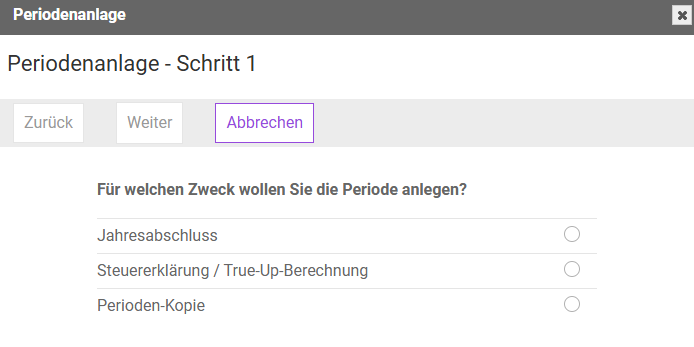
Periods can be created in normal mode or expert mode. To create a period, proceed as follows:
- Navigate to the workspace Periods.
- Click Create or Create (expert) and enter the required data in the dialog that appears.
- Click Create.
Note: The dialog fields are explained in the following table:
Dialog field
Description
ID
The ID is a number automatically assigned by Income Taxes to uniquely identify the respective period.
Name
The name of the period can be freely selected. The use of a uniform nomenclature for period names is recommended (e.g., IFRS Reporting 2024-12-31) to ensure a good overview even when dealing with a large number of periods.
The entry is limited to 255 characters.
End of period / due date
This refers to the cut-off date of the corresponding period (specified in the format YYYY-MM-DD, e.g. 2025-12-31).
If the Risk Management module is activated in the period, this attribute is called Due date.
Tax Form
Using the Tax Form attribute, the corresponding tax forms for the respective assessment time of the period can be selected. Choose from the following:
- For assessment times before 2015
- From the assessment time (VZ) 2015, the corresponding year applies (VZ 2018 => Tax Form 2018).
If an annual report is to be represented with the period, select Tax Form 2017. The tax forms for subsequent years can currently only be used for tax declaration purposes.
Prior period
The specified prior period can also be changed after creating the period. Since Income Taxes calculates the movement of deferred taxes (i.e. the P/L effect) based on this information (for example), providing the prior period is absolutely necessary for the correct presentation of the change.
At various points during tax calculation, Income Taxes also calculates carry-forward amounts (e.g. LCF) that refer to the prior period.
When using Income Taxes for the first time, select (---) as the prior period.
Period to compare
This attribute must be unlocked via customizing.
In a small number of instances, the period selected here is used as a comparison. This logic is used, for example, in Swiss tax forms for the calculation of certain proposed values. In another case, the period to compare is used during the validation of deferred taxes in the dialog Others.
Related period
The related period is specified in a new version of a period.
Typically, an annual report (for example) has no related period. A tax declaration period has the annual report of the same year as its related period.
Provide this information if a True Up is to be performed for an existing period; otherwise, select (---).
Summary Period
Summary periods are an additional function that is not available in the standard product. To acquire a license, please get in touch with your Lucanet contact or use the contact form on our website.
This makes it possible to assign a summary period to an entry or adjustment period. Through this assignment, the entry, adjustment, and summary periods are related to each other, which enables the subsequent calculation of the sum of all assigned periods in the summary period.
If the companies in the entry, adjustment, and summary periods are managed in different currencies, a currency conversion is performed for the presentation in the summary period.
If a summary period is selected here, an additional check box with the name Adjustment level will be displayed. If this check box is not activated, it is an entry period; otherwise, it is an adjustment period.
Kind of period
Regarding the type of period, a distinction is generally made between closing and planning.
Due to their differing objectives, planning periods feature a different dialog structure (reduced dialog for P/L-based calculation of current and deferred taxes). Your objective is to determine a future tax quota. Planning periods are not part of the standard module and must be activated via customizing.
In contrast, the closing periods for the calculation of deferred and current taxes are relevant in the context of annual reports and tax declarations.
Master data / Tax calculation Copy based on
An existing period can be used as a template when creating a new period.
After selecting the period to be copied, you can specify whether the transaction data of the selected period should also be copied by activating the Tax calculation with transaction data check box. If you do, you can also specify whether the milestone status values from the source period should also be transferred by clicking the check box with milestone status. If the check box is not activated, all previously achieved milestones will be reset to the status In process in the new period.
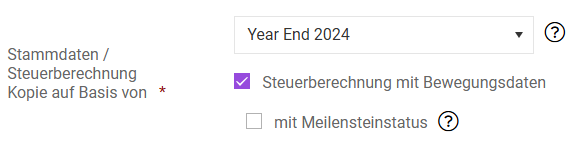 Specifying a period as template
In principle, when creating a closing period, the master data of an existing period is used. Any changes in tax rates or other master data must then be updated without fail in the newly created period.
Questionnaire Copy based on
When using the Questionnaire module, master data and transaction data from an existing period can also be specified to create a new period. The data sets that are considered transaction data or master data are defined individually for each customer during the conception of Questionnaire.
Calculation base
The values in the attributes Calculation base and Active patches provide important information regarding the existing Income Taxes configuration for the respective period. If, for example, there are changes in tax laws over time, these changes are stored in a new calculation base (Calc. base). The same applies if new functions are added within Income Taxes or if calculation procedures and automated calculations are changed. This ensures that already created periods use the applicable "prior" calculation bases (i.e. the legal status that was valid at the time) and newly created periods use the most current calculation base.
Newly created periods are therefore always (automatically) created with the most current calculation base. An exception applies to periods in which the transaction data of an existing period is copied in addition to the master data. Here, the calculation bases of the copied period are carried over – therefore, the most current calculation base is not automatically used. In this case, however, the calculation base can subsequently be changed by the user.
If, for example, a new period "Closing 2024-12-31" is created and a copy of the master data and transaction data from the preceding period "Closing 2023-12-31" is requested, the calculation base from the period "Closing 2023-12-31" will also be copied. If the latest calculation base is then to be used, the user must configure this setting manually in the period's edit mode after the period has been created.
active patches
These can be used to activate or deactivate individual calculation bases. In this case, a single calculation base is referred to as a patch.
For further information on importing and updating calculation bases and patches, see Updating Calculation Bases and Patches.
Period type,
Calculation logic,
Rounding
The period type distinguishes between the options Annual report and Tax return.
A period of type Tax return always uses the calculation logic Gross, and Rounding is also automatically activated in this case. If the submodule Tax Return is enabled, electronic transfer is also possible for these periods (see ERiC-Transfer).
The submodule Tax Return is part of the module Income Taxes and can be licensed separately. Please get in touch with your Lucanet contact person or use the contact form if you are interested.
In a period of the type Annual report, electronic posting of tax declarations is not possible. In addition, the user can set whether these periods should use net or gross calculation logic and whether the tax calculation should round according to the tax declaration logic, or if all values with decimal places should be displayed.
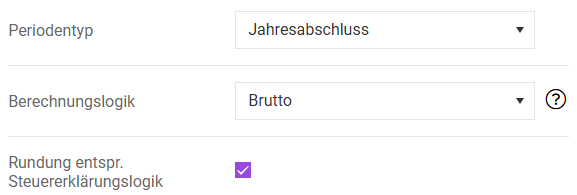
For the period type Tax return or Annual report with the calculation logic Gross, issues within the meaning of § 8b KStG are taken into account at the level of the tax payer of the group.
In the Net calculation logic, issues within the meaning of § 8b KStG are considered at the member level.
Accounting standards
Here, the options IFRS and Commercial Law are available. This choice is particularly relevant for the B/S Comparison workspace. While three balance sheet columns are displayed in IFRS periods (IFRS balance, local balance, tax balance), only the local balance and tax balance are displayed in local GAAP periods. This difference also affects the presentation of the workspace Summary.
When using the Income Taxes module for US-GAAP purposes, IFRS must be selected as the accounting standard. The same applies if a group financial statement in line with local GAAP is to be prepared in Income Taxes. Three balance sheet columns are also required here: German GAAP Consolidated (adapted to group accounting standards), Local balance, and Tax balance.
This setting can only be made when creating a new period. Subsequent changes are not possible.
Automation current taxes
If this setting is activated, the workspaces for current taxes (Corporate Income Tax 1A, Appendix A, etc.) are automatically synchronized with the Current Taxes workspace and proposed values are automatically applied. To use this setting, select Closing v3 as the type of period and set the tax form to Before 2015.
If 2015 or newer is selected for the tax form, the synchronization of Current Taxes is performed automatically without the need for any additional configuration, which is why this attribute is not displayed when creating the period.
Example Configurations for Periods
Here are two example configurations of periods:
In this example, an annual report for 2019 is configured as follows:
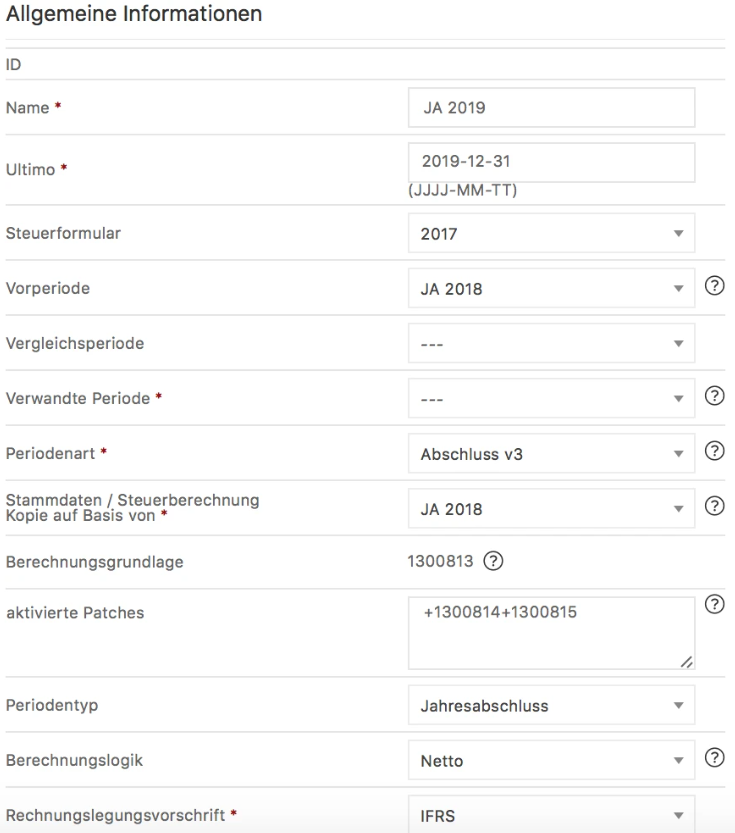
The following information was provided for the annual report:
Dialog field
Description
Tax Form
2017
Previous period
Annual Report 2018 (not a tax declaration for 2018!)
Related period
---
Kind of period
Closing v3
Master data / Tax calculation Copy based on
If master data is continuously maintained in the standard period (---), this can also be used as a template when creating the new period “Annual Report 2019”.
If Annual Report 2018 is to be used as a copy template, the master data must first be updated in the newly created period Annual Report 2019 (e.g. tax rates, holding quotas).
Period type, calculation logic
For annual report periods, usually Annual report (net).
In this example, the tax return for a True Up period is configured as follows for 2019:
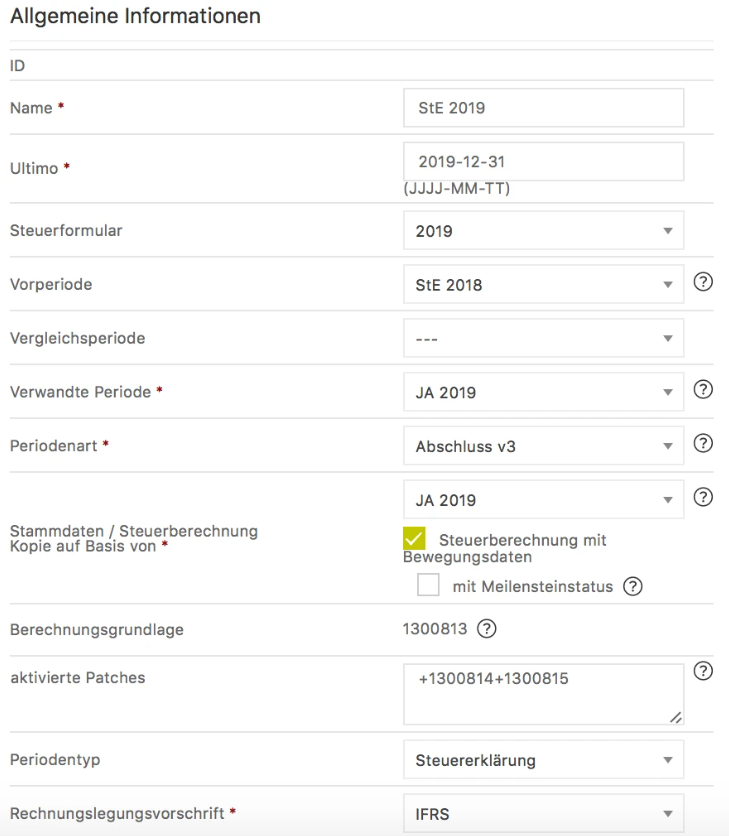
The following information has been specified for the tax return:
Dialog field
Description
Tax Form
2019
Prior period
Tax return 2019 (not an annual report for 2018!)
Related period
Annual Report 2019 (period for which a True Up is being conducted)
Kind of period
Closing v3
Master data / Tax calculation Copy based on
Annual Report 2019 incl. tax calculation with transaction data, without milestone status:
For this reason, the tax values already recorded in Annual Report 2019 only need to be updated.
Period type, calculation logic
For tax declaration periods, always Tax return (Gross and Rounding ).