
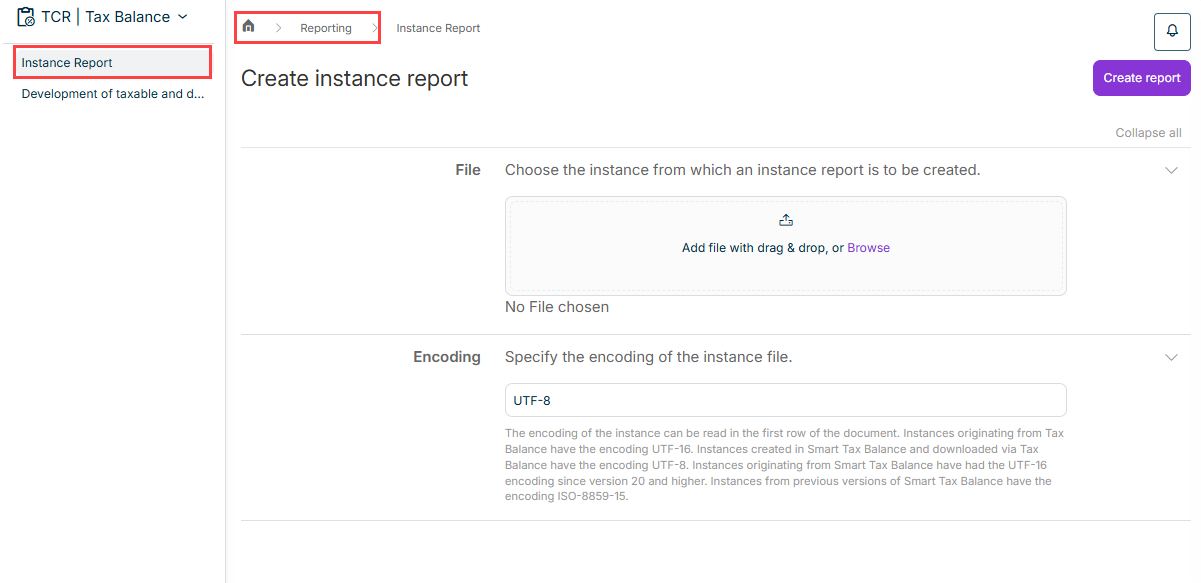
In the overview, click Instance report.
Creating Reports
Last updated on 2026-05-15
Overview
Two areas are available for creating reports:
In the Reporting functional area, you can create the following reports:
- Instance report of the tax balance sheet
You can use this report to export the XML-based version of the tax balance sheet into a human-readable and printable XLS format. You can generate the XML file, which is the basis of the instance report, in the Transmit E-Balance Sheet workspace. - Development of taxable and deductible differences
This report tracks the development of tax adjustments over several years and displays key information, such as balance sheet items, adjustment issues, asset differences, and annual changes. The report can be created for several companies.
You can generate reports of the data entered in Tax Balance for a company in the Reports workspace of the company.
The following reports are available:
- Value development for current tax balance sheet
- Balance sheet overview with tax adjustments
- Balance sheet overview with tax adjustments - for tax group
- Balance sheet overview with tax adjustments - for tax group (§ 14 KStG (German Corporate Income Tax Act) old version)
- Development of proprietary differences
- Development of proprietary differences by tax adjustment level
- Development of proprietary differences by tax adjustments
- Mapping
- Special balance sheets
- Statement of changes in capital accounts
- Statement of changes in fixed assets
- Supplementary balance sheets
- Tax adjustment overview
This article contains the following sections:
Creating Reports in the 'Reporting' Functional Area
The Reporting functional area is opened via the overview and is displayed as follows:
Creating an Instance Report
The XML file of the instance report can be generated in the Transmit E-Balance Sheet workspace.
Then proceed as follows to create an instance report in the Reporting functional area:
Upload the file of the instance from which an instance report is to be created.
Specify the encoding of the instance file.
The encoding of the instance can be read in the first row of the document. The following usually applies:
- Instances originating from Tax Balance have the encoding UTF-16.
- Instances created in Smart Tax Balance and downloaded via Tax Balance have the encoding UTF-8.
- Instances originating from Smart Tax Balance have had the UTF-16 encoding since version 20 and higher.
- Instances from previous versions of Smart Tax Balance have the encoding ISO-8859-15.
Click Create report.
The report is generated in XLSX format and can be downloaded via the job monitor by clicking the bell icon at the top right edge ( ).
).
Creating a Report on the Development of Taxable and Deductible Differences
To create a report on the development of taxable and deductible differences in the Reporting functional area:
In the overview, click Development of taxable and deductible differences.
Select the tax balance sheet group you want to create the report for.
Only the tax balance sheet groups for which you have the required permissions are available for selection.
Click Continue.
Select the companies for which you want to create the report.
Click Create report.
The report is generated in XLSX format and can be downloaded via the job monitor by clicking the bell icon at the top right edge ().
Creating Reports in the 'Reports' Workspace
The Reports workspace is displayed in the overview as soon as you open a tax balance sheet under Company:
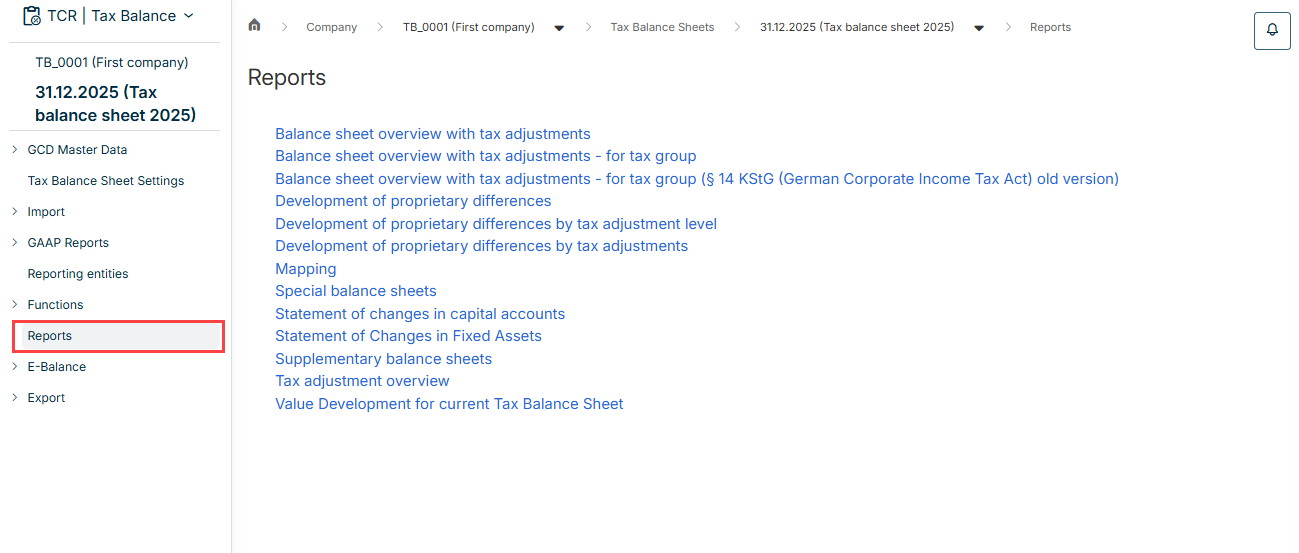
To create a report in the Reports workspace, click the desired report.
The report is generated automatically after clicking it.
Downloading Generated Files
After you have created the report, you can download the generated file.
To do this, click the bell icon to open the job monitor. The state of the task is then displayed below the task:
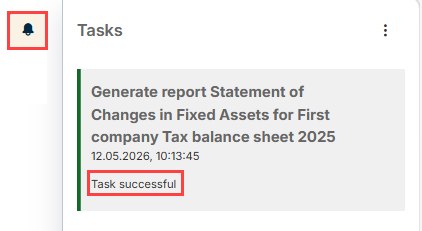
The export file is downloaded and saved to your download directory by clicking the corresponding task.