
Select the specific dimension or statistical category from the drop-down list.
Importing Data from Lucanet.Financial Warehouse
Last updated on 2026-05-07
Overview
You can import financial and statistical data from Lucanet.Financial Warehouse (FWH) directly into Data Collection forms. An Administrator configures structural mapping in the form template to define how Lucanet.Financial Warehouse dimensions and measures map to the pivot table's rows and columns. Collectors then complete element mapping — linking to Data Collection structures at group-level — and execute the import.
This article contains the following sections:
Prerequisites
Before importing data from FWH:
- The form must have status In Progress.
- You must be assigned as a Collector for the reporting entity, or you must be an Administrator.
- An Administrator must have linked a reporting entity used in FWH to the reporting entity created in Data Collection. The FWH reporting entity's local currency must match the DC reporting entity's default currency.
- The form must contain at least one pivot table that is eligible for Lucanet.Financial Warehouse import and has a fully configured structural mapping.
The Lucanet.Financial Warehouse option in the Import Data dialog is only available when all prerequisites are met. If no eligible tables exist or the reporting entity is not linked to an FWH reporting entity, the option is disabled.
The following sections describe the two configuration tasks required before Collectors can execute the import:
- linking FWH reporting entities and
- configuring structural mapping on form templates.
Linking FWH Reporting Entities
Navigate to Data Collection | Reporting entities.
In the reporting entities list, select an FWH reporting entity from the FWH reporting entity column for each reporting entity that should use the Lucanet.Financial Warehouse import.
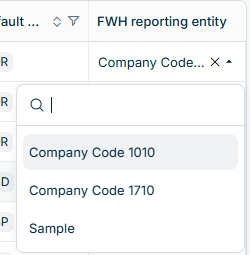 Linking an FWH reporting entity to a Data Collection reporting entity
The FWH reporting entity's local currency must match the DC reporting entity's default currency. If the currencies do not match, you cannot select the FWH reporting entity.
Reporting entities without a linked FWH reporting entity cannot be used for Lucanet.Financial Warehouse import. The Lucanet.Financial Warehouse option is not available in the Import Data dialog for their forms.
Configuring Structural Mapping
Structural mapping defines which Lucanet.Financial Warehouse master data corresponds to the rows and columns of a pivot table. This configuration is done by an Administrator in the form template.
To configure structural mapping for a pivot table, first enable structural mapping on the pivot table, then import Lucanet.Financial Warehouse master data for the form template. Once the master data is available, configure the row axis, then configure the column axis for each data column.
Enabling Lucanet.Financial Warehouse Structural Mapping
Navigate to Data Collection | Form templates and open the form template that contains the pivot table you want to configure.
Select the pivot table element. Click the cog wheel icon in the top right corner of the element to open the Element configuration panel. Under Lucanet.Financial Warehouse structural mapping, activate the Enable Lucanet.Financial Warehouse structural mapping option.
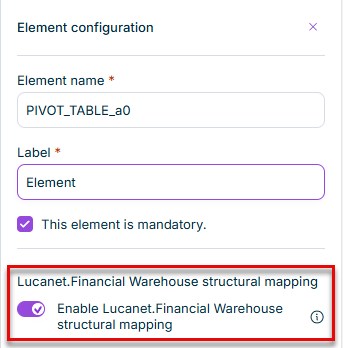 'Enable Lucanet.Financial Warehouse structural mapping' option
When activated, the Configure FWH structural mapping option becomes available in the context menu of the table's columns (after the master data has been imported).
When you disable Lucanet.Financial Warehouse structural mapping on a pivot table that has existing mappings, all mappings for that table are permanently removed.
Importing Lucanet.Financial Warehouse Master Data
Click More actions in the top right of the form template. A drop-down list is displayed:
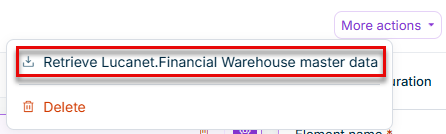 Retrieving master data from Lucanet.Financial Warehouse
Select Retrieve Lucanet.Financial Warehouse master data. After the data has been imported, a confirmation message is displayed and the structural mapping controls become available for all eligible pivot tables.
Configuring the Row Axis
In the pivot table, click the three-dot menu on the row header column (the first column, typically labeled Name) and select Configure FWH structural mapping. The Configure FWH Structural Mapping dialog is displayed.
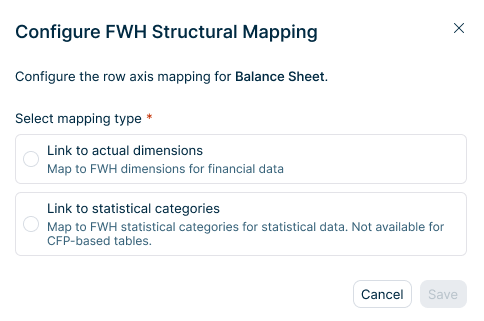 'Configure FWH Structural Mapping' dialog
Select a mapping type:
- Link to actual dimensions — Map rows to FWH dimensions for financial data (for example, GLAccount, SubLedgerAccount, Profit Center). A Select dimension drop-down list is displayed with the available FWH dimensions.
- Link to statistical categories — Map rows to FWH statistical categories for statistical data. A Select statistical categories drop-down list appears. This option is not available for form templates of type CFP pivot table.
Click Save. The row axis is now mapped, indicated by a link icon on the first column header.
The Configure FWH structural mapping option now appears for all currency columns.
Changing the mapping type (from actual dimensions to statistical categories or vice versa) removes all existing column axis configurations.
Configuring the Column Axis
Click the three-dot menu on a numeric or currency column header and select Configure FWH structural mapping. The Configure FWH Structural Mapping dialog is displayed:
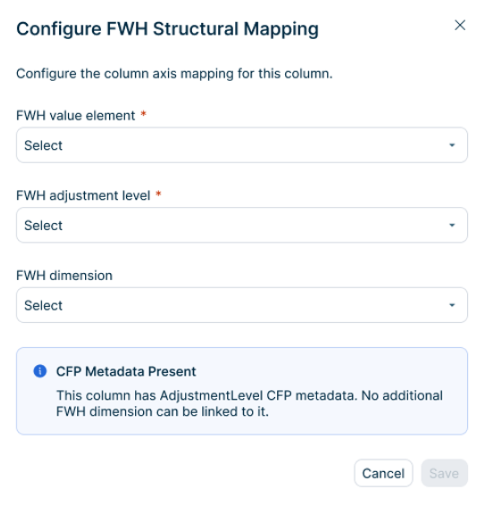 'Configure FWH Structural Mapping' dialog
Configure the following fields:
| Field | Description |
|---|---|
| FWH value element | The FWH data source for this column. Available options depend on the row axis mapping type: FinancialPostingLine.NetValue or OpeningBalance.NetValue for actual dimensions, StatisticValue.NetValue for statistical categories. |
| FWH adjustment level | The FWH adjustment level for this column. For columns based on the CFP dimension Adjustment Level, select the corresponding FWH adjustment level. For other columns, the system preselects LocalGAAP. |
| FWH dimension | An optional FWH dimension to link to this column. This field is only available for columns without CFP metadata. Columns with CFP metadata (for example, Transaction Type, Partner, Adjustment Level) use only the CFP metadata and cannot be linked to additional FWH dimensions. |
Click Save. The column header now shows a link icon to confirm the mapping.
A pivot table is fully configured for FWH import when the row axis and at least one column axis are mapped. Until then, the table is considered partially configured and is not available for import.
Executing a Lucanet.Financial Warehouse Import
To execute a Lucanet.Financial Warehouse import:
Navigate to Data Collection | Data collection.
Open the form you want to import data into.
Click More actions | Import Data in the top right. The Import Data dialog is displayed:
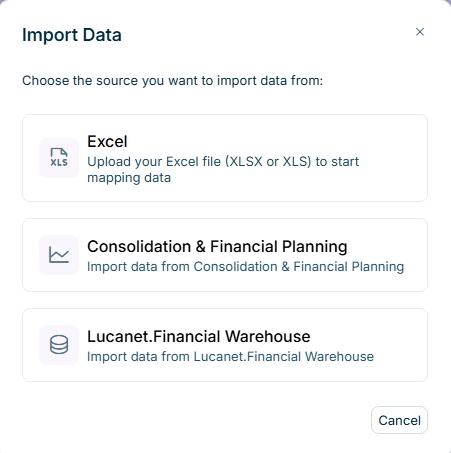 'Import Data' dialog
Select Lucanet.Financial Warehouse. The Data Collection solution connects to Lucanet.Financial Warehouse and extracts the available data.
Complete the element mapping if required.
If the form already contains collected data, a Confirm Import dialog is displayed. Click Confirm to overwrite existing values, or Cancel to abort the import.
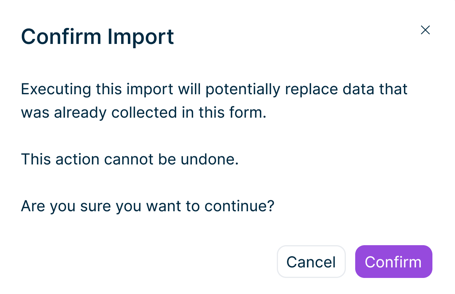 'Confirm Import' dialog
Additional notes:
- Manual editing and additional imports are disabled for all users while the import is in progress.
- After a successful import, a success notification appears and the form returns to normal editing mode with the imported values in place. Parent rows and total columns are recalculated automatically.
- Imported values cannot be automatically reverted. To correct imported data, edit the affected cells manually after the import.
Element Mapping
Mapping at Reporting Entity Level
If the form references dimensions such as Cost Center, Partner, or Transaction Type, the system first displays the Map FWH Dimension Elements dialog. These mappings are configured once per reporting entity and reused across all forms of that entity.
The dialog shows tabs for each dimension that requires mapping, with a counter indicating the mapping progress (for example, Cost center 1/3 means 1 out of 3 elements are mapped).
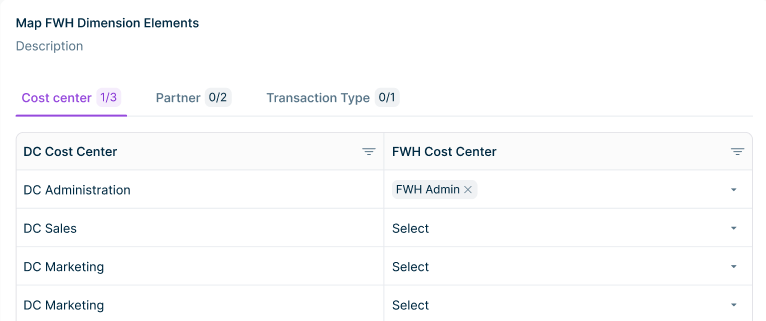 Mapping FWH dimension elements
For each dimension tab:
- The left column shows the DC structure elements (for example, DC Cost Centers).
- The right column provides a drop-down list to select the corresponding FWH element.
Once all required elements are mapped across all tabs, click Continue to proceed.
Mappings at reporting entity level are saved per reporting entity and per dimension. The next time you import data for any form of the same reporting entity, these mappings are restored automatically.
Mapping at Pivot Table Level
After mapping at reporting entity level is complete, the form is displayed with mapping controls. The top right shows Cancel and Import buttons, and an FWH dimension elements panel appears on the right showing unmapped and mapped elements.
Lowest-level rows and columns with a structurally mapped FWH dimension show a + Map link.
Mapping rows
To map FWH dimension elements to a row:
Click + Map next to the lowest-level row. The Map FWH Dimensions to Row dialog is displayed, showing the available FWH dimension elements based on the row axis configuration.
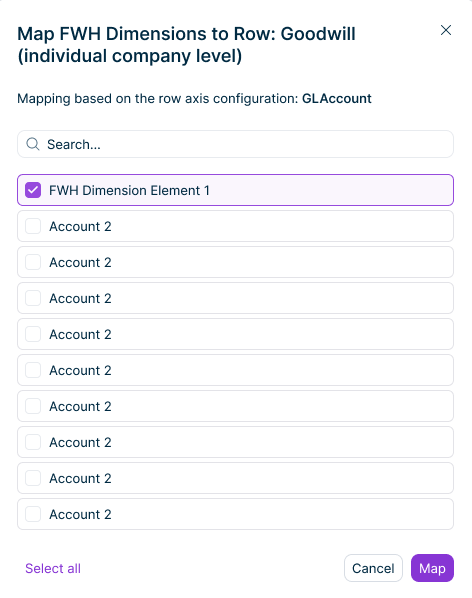 'Map FWH Dimensions to Row' dialog
Select one or more FWH dimension elements to map to this row. Multiple elements mapped to the same row are aggregated automatically during import.
Click Map.
Mapping columns
To map FWH dimension elements to a column:
Click + Map in the column header. The Map FWH Dimensions to Column dialog is displayed.
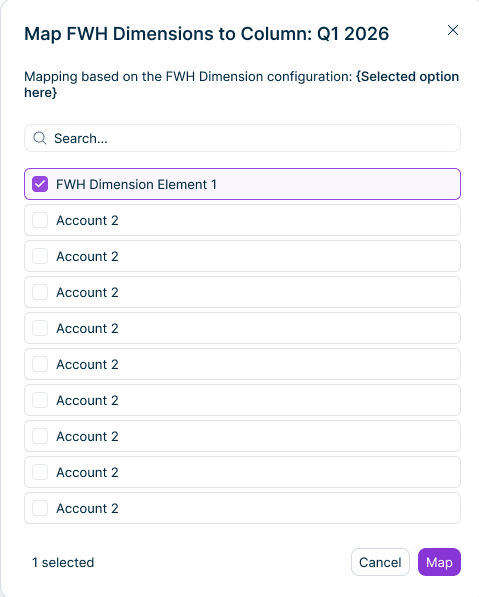 'Map FWH Dimensions to Column' dialog
Select the FWH dimension elements to map to this column.
Click Map.
Once all required mappings are complete, the Import button in the top right becomes available. Click Import to execute the import.
Mappings at pivot table level are stored per form template, per table, per reporting entity, and per dimension. Previously saved mappings are restored automatically in subsequent imports. You only need to update mappings if dimension elements have changed.
Additional Information
The system processes all fully configured pivot tables in the form in a single import operation:
- Row matching — FWH data is matched to form rows using element mappings. Only lowest-level values are imported; superordinate and total rows are recalculated. Multiple FWH elements mapped to the same DC row are aggregated automatically.
- Column matching — Each column receives data based on its configured FWH value element and adjustment level. Columns without structural mapping are skipped. Total columns are recalculated automatically.
- Data filtering — The system filters data by the form's reporting entity, period, and currency.
- Drill down support — When Cost Center, Partner, or Local Account is configured as a drill down dimension, local dimension detail is stored and available for drill down in the form.