
Configuring Tax Balance Sheet Settings
Last updated on 2026-01-31
Overview
General settings for the display and taxonomy items are configured in the Tax Balance Sheet Settings workspace.
These comprise:
- SAP sign logic
- Taxonomy items for the disclosure of specific values
- The option to activate automatic application for the determination of taxable profit and in declaratory procedures for partnerships
- Settings for capital account development as well as for tax groups or the mirror image method
You can automatically determine and populate the tax balance sheet settings.
This article contains the following sections:
Navigation
The Tax Balance Sheet Settings workspace is displayed as soon as you open a tax balance sheet under Company:
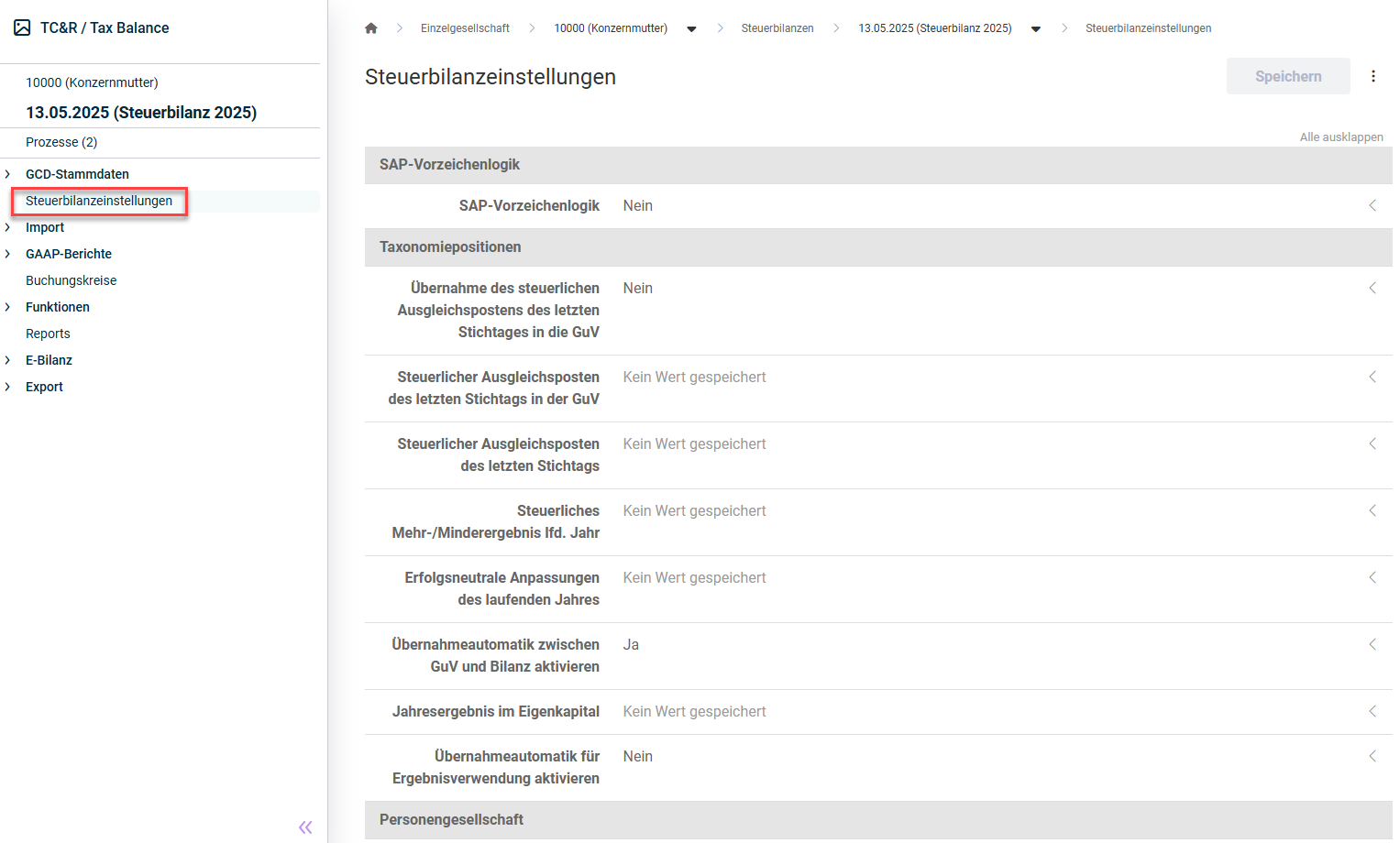 'Tax Balance Sheet Settings' workspace
Automatically Determining Tax Balance Sheet Settings
You can automatically determine and populate the tax balance sheet settings.
To do this, open the More actions menu and select one of the following options:
- Determine default values to automatically populate the settings based on the chosen taxonomy and legal form
- Apply from the previous year to automatically apply the settings from the previous year

The suggested values are automatically inserted and the values changed in this way are indicated accordingly.
Check and change the suggested values if necessary and click Save.
All options can also be edited manually.
Options
The following options are available depending on the chosen taxonomy version:
Option
Description
SAP sign logic
Select whether the SAP sign logic should be applied to all report elements.
Taxonomy items
Specify the following:
- Whether the tax adjustment item of the last reporting date is to be included in the P&L of the bank taxonomy
- Taxonomy items for:
- Recognizing the balance of the tax adjustment item at the end of the previous year in the income statement of the banking taxonomy
- The tax adjustment item of the last reporting date in equity
- The tax surplus/deficit in equity for the current year
- Adjustments recognized directly in equity in the current year
- Whether the net income for the year (or: retained earnings) should be automatically transferred from the income statement (or: appropriation of earnings) to the balance sheet
- Taxonomy item for the net profit/loss for the year in equity (or in the case of appropriation of profit/loss: net profit/accumulated loss in equity)
Notes:- If the net profit/accumulated loss rather than the net profit/loss for the year is recognized in equity in the balance sheet, the taxonomy item must be adjusted. In this case, the net profit/loss for the year must not be stored as a taxonomy item, but the taxonomy item retained earnings/accumulated deficit.
- The taxonomy item net retained profits/accumulated losses is managed separately for corporations and commercial partnerships.
- If the net profit/loss for the year from the income statement is automatically transferred to the "Appropriation of profit" section of the report (or to the income statement for insurance taxonomies) as the starting figure for determining the retained earnings/accumulated deficit.
Partnership
Specify the following:
- Whether the net profit/loss for the year should be automatically transferred from the income statement report to the determination of taxable profit report
- Whether the taxable profit/loss should be automatically transferred from the determination of taxable profit report to the determination of taxable profit in declaratory procedure report
Capital account development
Specify the equity accounts for the crediting of the following values:
- Net income/loss for the year - General partner
- Net income/loss for the year - Limited partner
- Tax surplus/deficit - General partner
- Taxable surplus/deficit - Limited partner
Tax group
Specify the taxonomy item for the adjustment of the carrying amount of the investment for tax purposes in the event of a deficit transfer prior to the tax group.
Mirror image method
Specify the taxonomy item for the tax adjustment of the carrying amount of the investment.
Further information and explanations regarding the required details can be obtained, if necessary, by clicking the corresponding input field:
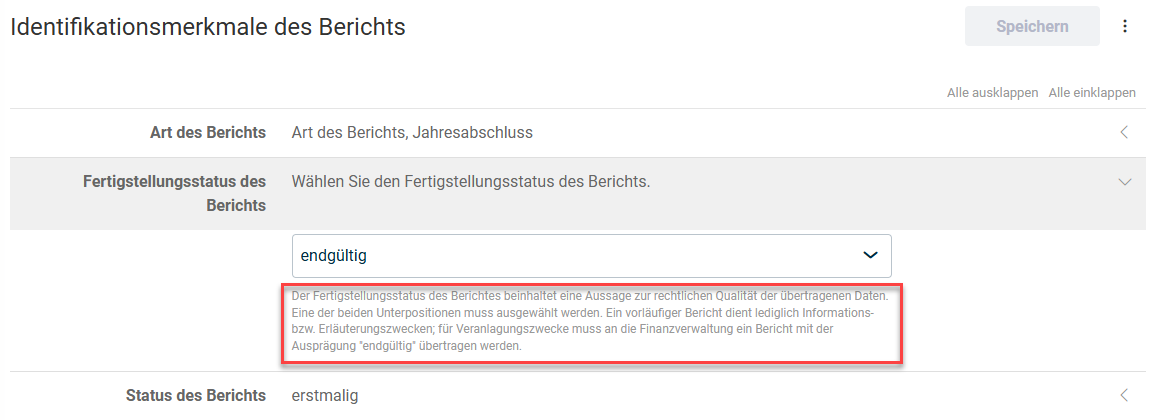 Further information