
Importing Master Data from Income Taxes
Last updated on 2026-01-31
Overview
You can use the master data import to import all GCD master data (General Common Data) relevant to Tax Balance from the Income Taxes module.
This article contains the following sections:
Navigation
The Master Data Import workspace is opened under Master Data | Master Data Import.
The workspace displays the available periods and is displayed as follows, for example:
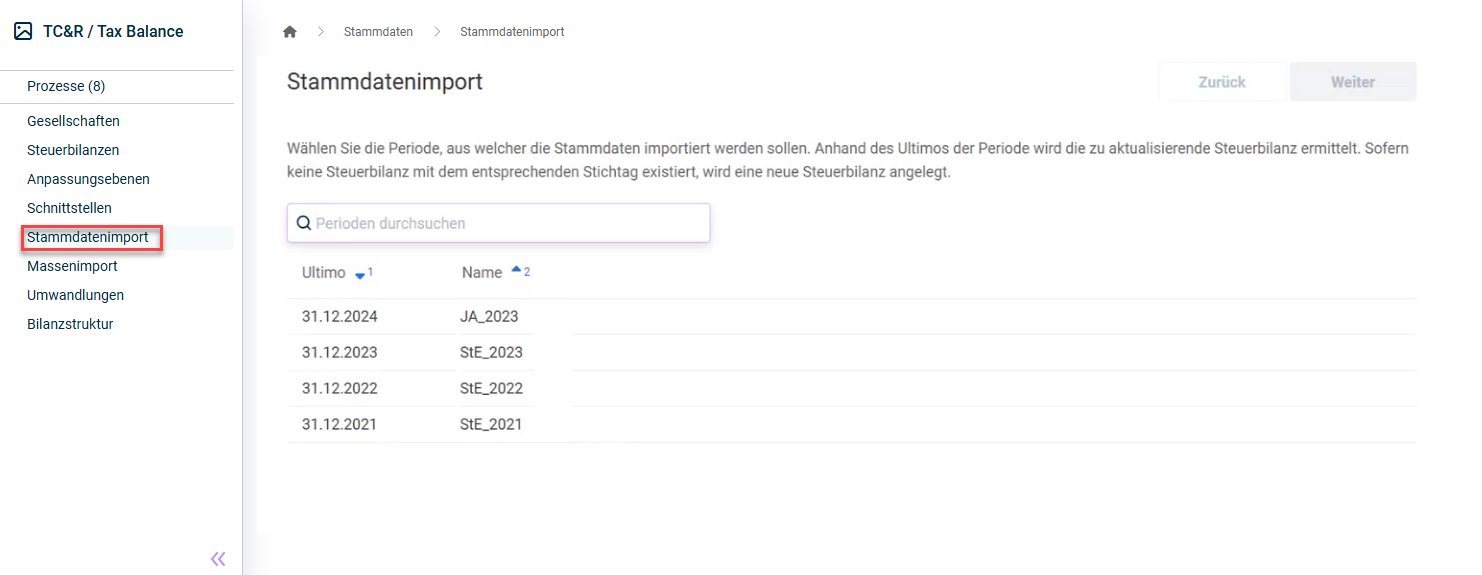
Importing Master Data
Configure the following steps to import the master data and then click Import.
Step
Description
1
Selection of the period from which the master data are to be imported from Income Taxes.
- The tax balance sheet to be updated is determined on the basis of the ultimo of the period.
- If no tax balance sheet exists with the corresponding reporting date, a new tax balance sheet is created.
2
Selection of the companies for which the master data are to be imported.
You can use the Choose German companies only or Choose all commands to limit or speed up the selection of companies.
- The company to be updated is determined on the basis of the company ID.
- If no company with the corresponding company ID exists, a new company is created.
3
Selection of the legal forms for which shareholders are to be updated or created. The following legal forms can be selected:
- Partnerships
- Corporations
4
Name of the tax balance sheets to be created
The name of the tax balance sheet is used for identification purposes and is not transferred in the e-balance sheet.
5
Selection of the taxonomy type and taxonomy version to be stored for updated and newly created tax balance sheets.
Please refer to the Notes on Taxonomies for further information.
6
Selection of the report elements to be stored for updated and newly created tax balance sheets
A selection of the most common report elements is preset. You can customize this selection.
Displaying the Status and Details of the Import
After you have executed the import, you can display the status and, in the case of a failed import, the details.
To do this, click the bell icon to open the job monitor. The status of the import task is then displayed below the task:
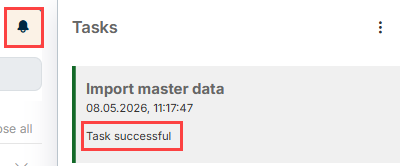
In the case of a failed execution, click the corresponding task to display the error details.