
Open the Table drop-down list and select a table.
Custom Hierarchies
Last updated on 2026-05-20
Overview
In the XBRL Tagger, the Custom hierarchies dialog allows you to adjust the order and structure of dimension elements and abstract elements. This way, you can reflect your internal report structure and meet your auditors' requirements without editing taxonomy files manually.
By default, the XBRL Tagger derives the hierarchies for abstracts and dimensions automatically from the selected taxonomy. You only need to adjust hierarchies manually if the default structure does not reflect your reporting requirements – typically at an auditor's request or to align with internal reporting logic.
The XBRL Tagger includes a saved hierarchy in the generated extension taxonomy files and in the iXBRL report. A saved dimension hierarchy affects both the Presentation Linkbase and the Definition Linkbase. A saved abstract hierarchy affects the Presentation Linkbase.
This article contains the following sections:
Opening the 'Custom Hierarchies' Dialog
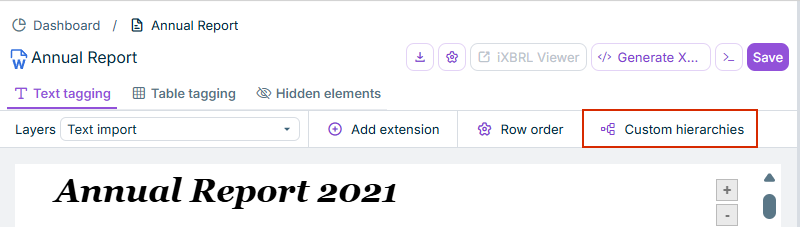
To open the Custom hierarchies dialog, click Custom hierarchies in the function bar of a document:
The Custom hierarchies dialog is displayed, for example, as follows:
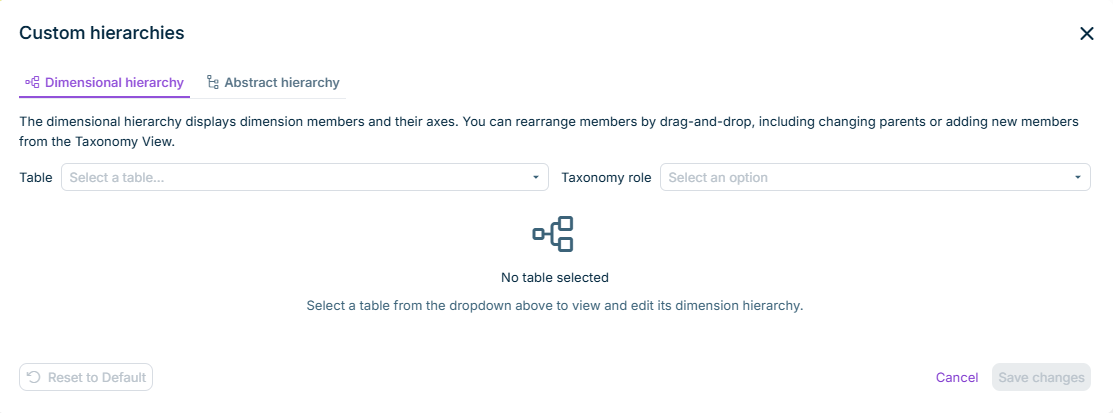
The Custom hierarchies dialog contains two tabs with different purposes:
Dimensional hierarchy: Shows the hierarchy of the dimension elements of a table and the axes they belong to. You can rearrange dimension members by drag-and-drop, change superordinate elements, or add more dimension elements from the taxonomy view.
The Dimensional hierarchy tab is only available if the reporting requirement allows taxonomy extensions.
Abstract hierarchy: Groups tagged elements of a role and thereby structures the Presentation Linkbase. Abstract elements are used only for grouping – they cannot be used to tag actual values.
The Abstract hierarchy tab is only available if the reporting requirement allows taxonomy extensions.
Prerequisites
The two tabs have different prerequisites:
- Dimensional hierarchy: At least one table and its table cells must be tagged in the document. Otherwise, the tab shows the message No tagged tables available.
- Abstract hierarchy: The Allow taxonomy extension setting must be activated for the document. Otherwise, the tab shows the message Abstract Hierarchy Not Available.
To check whether taxonomy extensions are allowed for your selected reporting requirement:
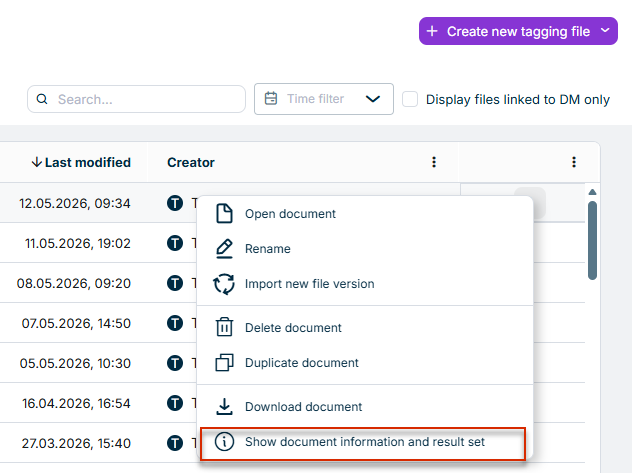
On the XBRL Tagger dashboard, open the information window of the desired document. Either click the document's row, or use the Show document information and result set command in the context menu of the three-dot icon.
Switch to the Information tab.
Check whether the Allow taxonomy extension option is activated.
Displaying the Dimensional Hierarchy
On the Dimensional hierarchy tab, you can adjust dimension elements and their axes for each table.
To display a dimension hierarchy:
Open the Taxonomy role drop-down list and select the desired taxonomy role.
Displaying the Abstract Hierarchy
On the Abstract hierarchy tab, you can group tagged elements of a role and thereby structure the Presentation Linkbase. Abstract elements cannot themselves be used to tag actual values in the report – they only serve as parent grouping elements.
To display an abstract hierarchy:
Open the Role drop-down list and select a role.
Open the Taxonomy role drop-down list and select the desired taxonomy role.
If you have made unsaved changes and select a different role, the XBRL Tagger displays the Overwrite hierarchy confirmation dialog with the question Overwrite existing hierarchy? Click Overwrite to switch roles and discard your changes, or click Cancel to stay in the current role.
Adjusting Hierarchies
In both tabs, you can rearrange elements at all levels of the hierarchy by drag-and-drop. The following actions are possible:
- Move an element before or after another element on the same level.
- Move an element so that it becomes a subordinated element of another element.
- Move an element to a higher or lower level of the hierarchy tree.
To rearrange an element:
Click the desired element in the hierarchy tree and hold down the mouse button.
Drag the element to the desired position.
Release the mouse button.
Adding an Element
You can add elements to the hierarchy that are not yet used in any tag.
To add an element:
Find the desired element in the Taxonomy area.
Drag and drop the element to the desired position in the hierarchy tree.
Deleting an Element
You can only delete an element if no facts are tagged with it, directly or indirectly. If deletion is allowed, a trash bin icon is displayed next to the element.
To delete an element:
Hover over the desired element in the hierarchy tree.
Click the trash bin icon.
The element is removed from the hierarchy. The XBRL Tagger automatically reassigns subordinate elements to the superordinate element of the deleted element, so no orphaned elements remain.
If an element cannot be deleted, no trash bin icon is displayed. In this case, first remove the tags from the affected facts.
Saving or Resetting Changes
Changes to the hierarchies are not applied automatically. The buttons at the bottom of the dialog control whether your changes take effect or not.
The following options are available:
- Click Save changes: The XBRL Tagger applies the custom hierarchy for the selected table or role. After saving, a success message confirms that the hierarchy has been updated (e.g., Dimension Hierarchy Updated or Abstract Hierarchy Updated).
Click Reset to default: The XBRL Tagger restores the default hierarchy of the base taxonomy. On the Dimensional hierarchy tab, the reset is performed immediately.
On the Abstract hierarchy tab, the XBRL Tagger displays the Overwrite hierarchy confirmation dialog if there are unsaved changes. Click Overwrite to discard your changes, or click Cancel.Click Cancel: The changes are not applied.
Effects on the iXBRL Export
A saved custom hierarchy affects the following areas:
- The generated extension taxonomy files reflect the adjusted structure.
- The iXBRL report is generated with the adjusted hierarchy.
- A saved dimension hierarchy is translated into the corresponding tree in both the Presentation Linkbase and the Definition Linkbase when the report is generated.
- A saved abstract hierarchy is translated into a representation for the Presentation Linkbase.
- The hierarchy is saved per table (on the Dimensional hierarchy tab) or per role (on the Abstract hierarchy tab). Other tables or roles are not affected.