
Using Hidden Elements
Last updated on 2026-05-20
Overview
In the XBRL Tagger, you can use the Hidden elements view to manually add and tag XBRL values that do not exist as visible elements in the source document. These values are referred to as hidden elements (hidden facts).
- According to ESEF guidelines, hidden elements are generally not recommended. In certain regulatory scenarios, however, hidden elements may be required.
- Hidden elements are part of the document validation and the iXBRL export: they are taken into account during XBRL validation and included in the iXBRL report package.
This article contains the following sections:
Hidden elements are only available if the Use hidden elements option is activated in the document settings.
Activating Hidden Elements
To activate hidden elements for an XBRL document:
In the function bar, click the  icon to open the Document settings.
In the Tagging presets area, activate the Use hidden elements option.
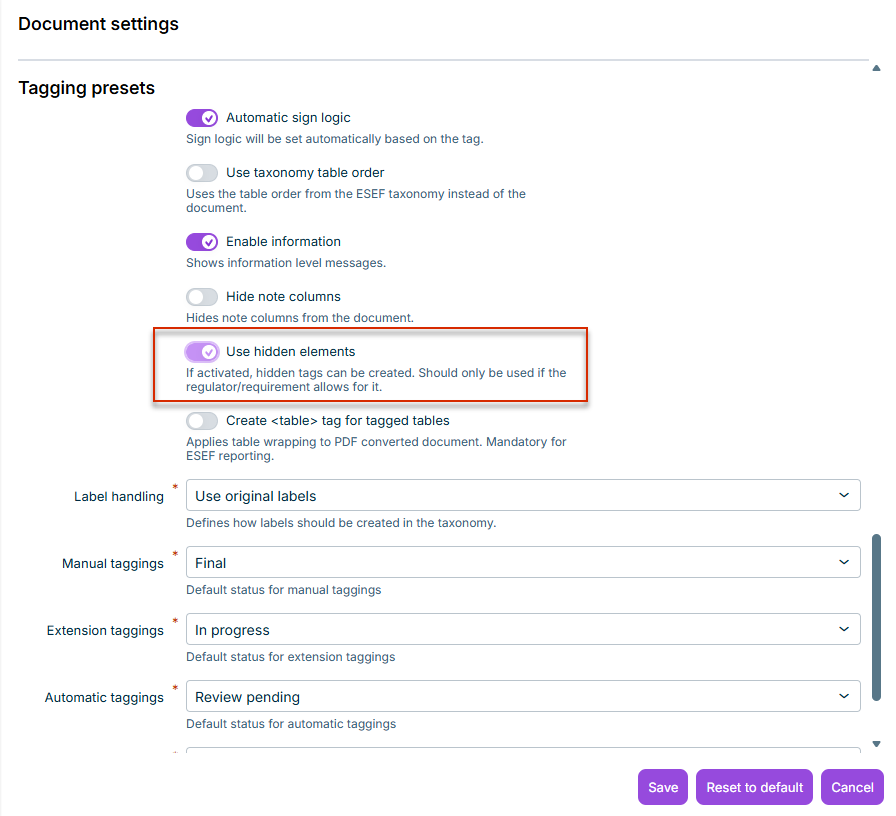
Save the settings.
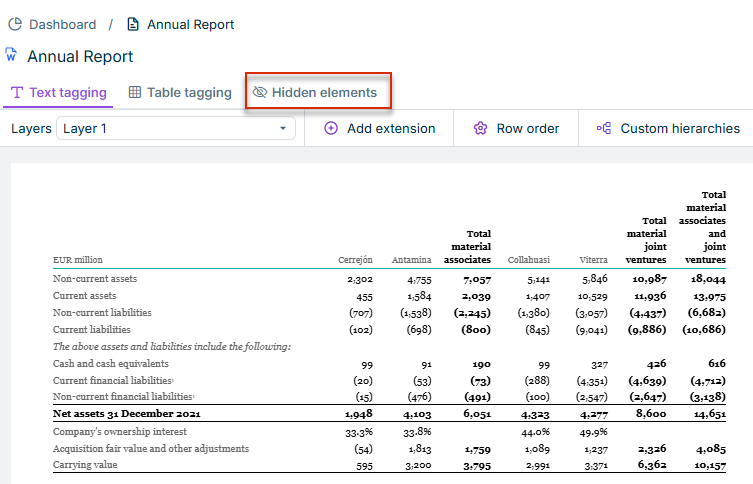
The Hidden elements tab is now also displayed in the document.
Adding Hidden Elements
To add hidden elements:
Open the Hidden elements tab:

If hidden elements have already been saved in the document, they are automatically displayed in the table when you open the Hidden elements tab.
Click Add in the table.
A new row is added to the table.
In the new row, click the Value column and enter the value.
Click Save.
Tagging Hidden Elements
To tag hidden elements:
In the Taxonomy area, search for the desired taxonomy element.
Drag and drop the taxonomy element onto the desired row in the table.
After tagging is successful, the table displays the information of the assigned taxonomy element in the Label and Technical name columns.

Click Save.
Editing Hidden Elements
To edit the value of an existing hidden element:
In the table, click the Value column of the desired hidden element.
Change the value and confirm your change by clicking Save.
Deleting a Hidden Element
To delete a hidden element:
Click the recycle bin icon. The hidden element is removed from the table.
