Creating and Configuring Adjustments
Last updated on 2026-05-20
Overview
You can enter tax deviations based on commercial-law values at adjustment levels and create the company-specific adjustment levels that may be required for this purpose in the Adjustments workspace.
In addition to company-specific adjustment levels, you can also use global adjustment levels that you have created in the master data. You can also update or import existing adjustments.
This article contains the following sections:
Creating a Company-Specific Adjustment Level
To create a company-specific adjustment level:To create a company-specific adjustment level:
In the introduction text of the Adjustments workspace, click the Adjustment levels link.
On the Adjustment levels page, click Add.
Specify the following in the displayed New level dialog:
- Name of the adjustment level.
The name of an adjustment level is displayed, for example, in the GAAP reports view under Balance sheet/P&L. Adjustment levels and their names cannot be transferred with the E-Balance. - Whether the adjustment level is a sum level
If this option is activated, the value for this adjustment level is determined from the sum of the values of the preceding adjustment levels. You cannot enter or import a value for this adjustment level. Use this option, for example, to get an overview of adjustment levels from multiple transformation processes. - Whether the adjustment level is a simulation level.
Simulation levels are not transferred to the tax authorities.
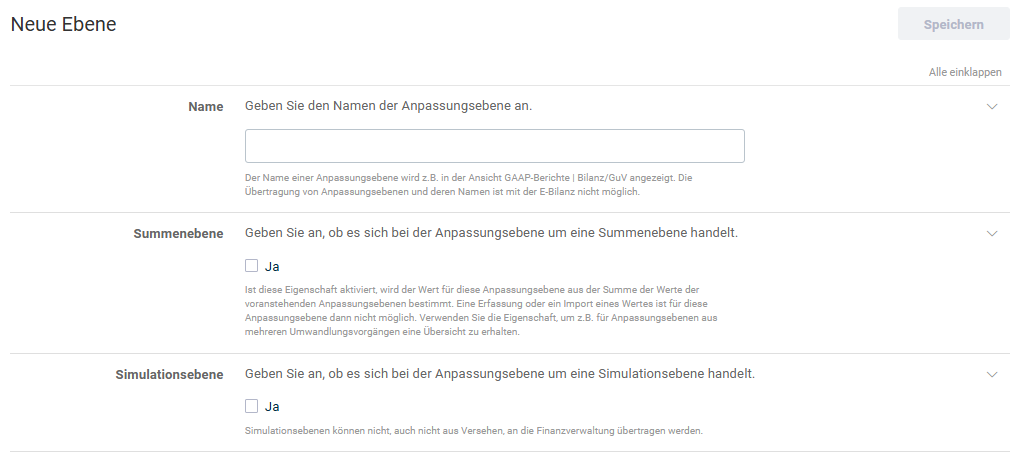 Creating a company-specific adjustment level
Creating an Adjustment
To add a new adjustment:
- In the Adjustments workspace, click Add.
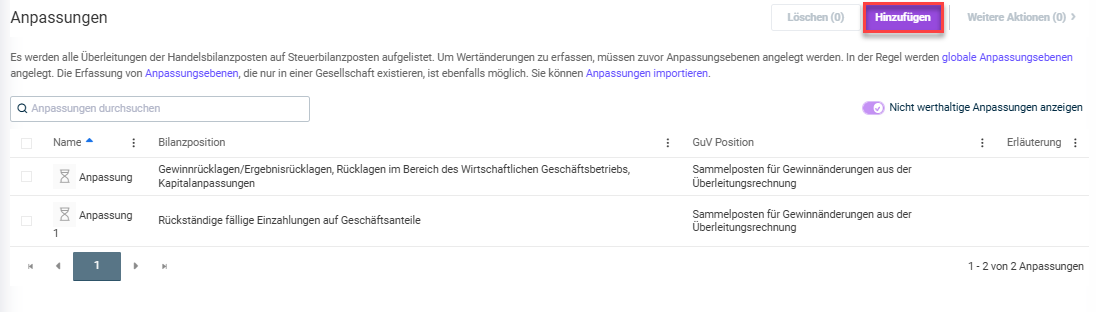
Adding an adjustment - As the type of the tax adjustment, select Standard form for manual entry of values.
Note: The option Standard form with Excel integration is no longer supported in Tax Balance. You can convert existing adjustments of this type to Standard form using the migration function described under Value development. Enter the name of the tax adjustment. The name is transmitted as the title of a footnote when the E-Balance is submitted.
- Enter the balance sheet item or the P&L item of the adjustment.
- Choose the type of reconciliation.
- Enter the explanation to the tax office to be transmitted as a footnote when transmitting the e-balance sheet.
- Click Save.
- Then configure the properties of the adjustment as described in the following section.
Configuring an Adjustment
You can configure the adjustment either directly when creating it, or later by clicking the adjustment in the overview.
The following details can be edited in workspaces specifically displayed for this purpose:
Under Value development, you can record the values for the tax deviation. Choose one of the following options:
- Enter the value in the commercial balance sheet, then enter the tax deviation in the column of the corresponding adjustment level.
- Enter the value in the commercial balance sheet and the value in the tax balance sheet.
The table then displays the resulting values, i.e., either the deviation or the value in the tax balance sheet, along with the Difference in assets, the Difference in profit, and whether the adjustment is not recognized in profit or loss.

The following options are also available via the More actions menu:
- You can update adjustments to the next year.
If you choose this option, specify the following in the displayed dialogs:
- source tax balance sheet
- which header data and elements should be updated
- whether the application should be additive or overwriting
- You can apply values from a depreciation series, provided that a depreciation series has been created for the adjustment.
If you choose this option, specify the following in the displayed dialog:
- the adjustment level to which the values of the depreciation series should be written
- whether the values in other adjustment levels should be deleted
- whether the values of previous years should be recalculated
- whether the values of the depreciation series should be rounded, and if so, how
- You can apply values from existing account value calculations.
If you choose this option, specify the following in the displayed dialog:- the adjustment level to which the values of the account value calculations should be written
- whether the values in other adjustment levels should be deleted
- For adjustments of the type Standard form with Excel integration, the Migrate to standard form option is also available. With this function, you can migrate adjustments stored in an Excel file into a Standard form adjustment. The values from the Excel file are migrated directly to Tax Balance, and the Excel file is added to the Documents workspace for documentation purposes.
Under Header data, you can edit general information for each adjustment.
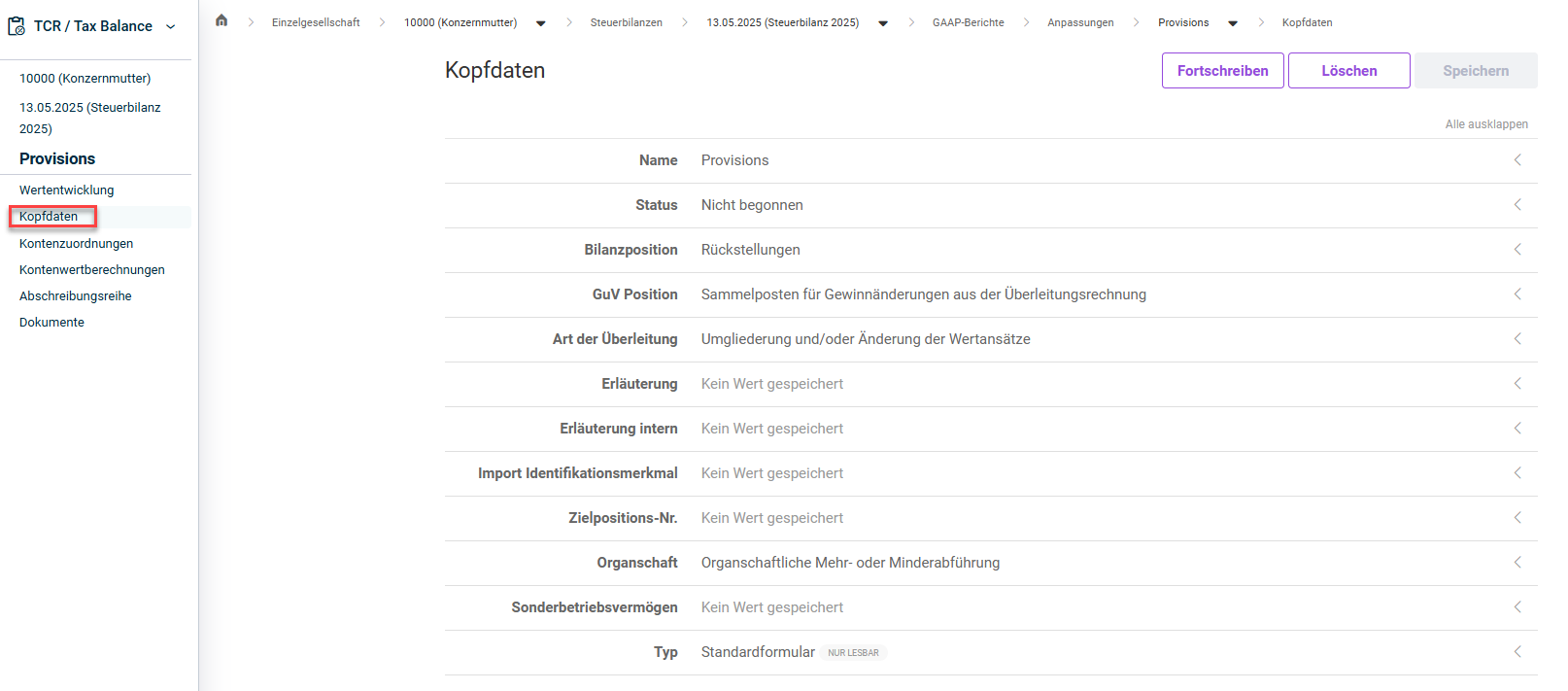
This includes:
- Name of the adjustment, which is transmitted as the title of a footnote
- Status of the adjustment. You can choose between Not Started, In Progress, Done, and Checked. The status has no effect on the workflow. It is used only for internal documentation of the processing progress and is not transmitted with the E-balance.
- Balance sheet item
- P&L item
- Type of reconciliation
- Explanation for the adjustment, which is transmitted as the text of a footnote
- Internal explanation, which is not transmitted
- Import identification feature, used to uniquely identify the adjustment during an import. It is recommended not to change this value after the initial definition, as this change must be reflected in the exports of third-party systems in order to be able to assign the adjustment. Please therefore only make changes to this field with caution.
- Target item no., used to transmit the tax values maintained in the Tax Balance module to the Income Taxes module.
- Tax group. (Applies only to tax groups and intermediate tax group parents.)
- Partnership in whose special business assets the tax adjustment is to be transferred.
Notes:- Tax deviations that reflect assets of a special business asset can be transferred to the corresponding special balance sheet of the shareholder.
- To enable the link to the corresponding special balance sheet, you must enter the master data of the corresponding shareholder in the master data of the partnership under Shareholder. In the Company field, link the shareholder to this company.
- The type of adjustment is determined at the time of creation. This value is read-only and cannot be changed.
Updating Adjustments
In the Header data section, you can also update adjustments to the next year using the Update option. Only the adjustment itself is updated, not the values.
If you choose this option, specify the following in the displayed dialogs:
- source tax balance sheet
- which header data and elements should be updated
- whether the application should be additive or overwriting
Under Account assignments, you can select the accounts of the balance sheet item chosen in Header data on which the adjustment is to be displayed in the balance sheet in Tax Balance.
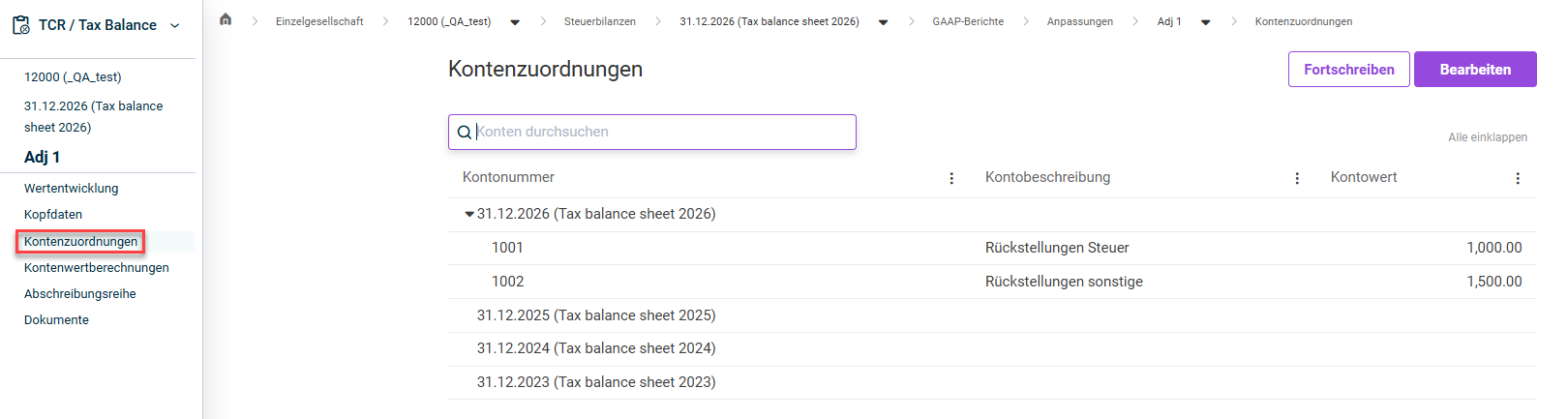
To do this, click Edit, select one or more accounts you want to assign in the displayed dialog, and click Save.
Updating Adjustments
In the Account assignments section, you can also update adjustments to the next year using the Update option. Only the adjustment itself is updated, not the values.
If you choose this option, specify the following in the displayed dialogs:
- source tax balance sheet
- which header data and elements should be updated
- whether the application should be additive or overwriting
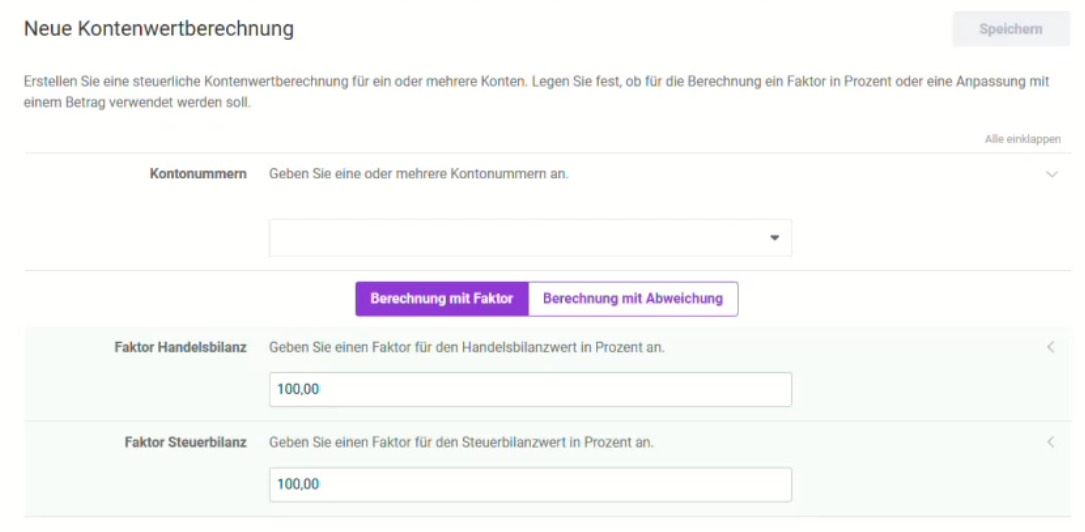
Under Account value calculation, you can specify how the values on the specified accounts should be calculated for tax purposes, if necessary. You can also define whether a factor in percent or an adjustment value as an amount should be used for the calculation.
To create an account value calculation, click Add and specify the following in the New account value calculation dialog:
- the account number or numbers for which the account value calculation should be defined
- how the calculation should be performed. Choose one of the following options:
- Select Calculation with factor, then enter the factor for calculating the local value and the tax base.
- Select Calculation with adjustment value, then enter an adjustment value for the local value and an adjustment value for the tax base.
Updating Adjustments
In the Account value calculation section, you can also update adjustments to the next year using the Update option. Only the adjustment itself is updated, not the values.
If you choose this option, specify the following in the displayed dialogs:
- source tax balance sheet
- which header data and elements should be updated
- whether the application should be additive or overwriting
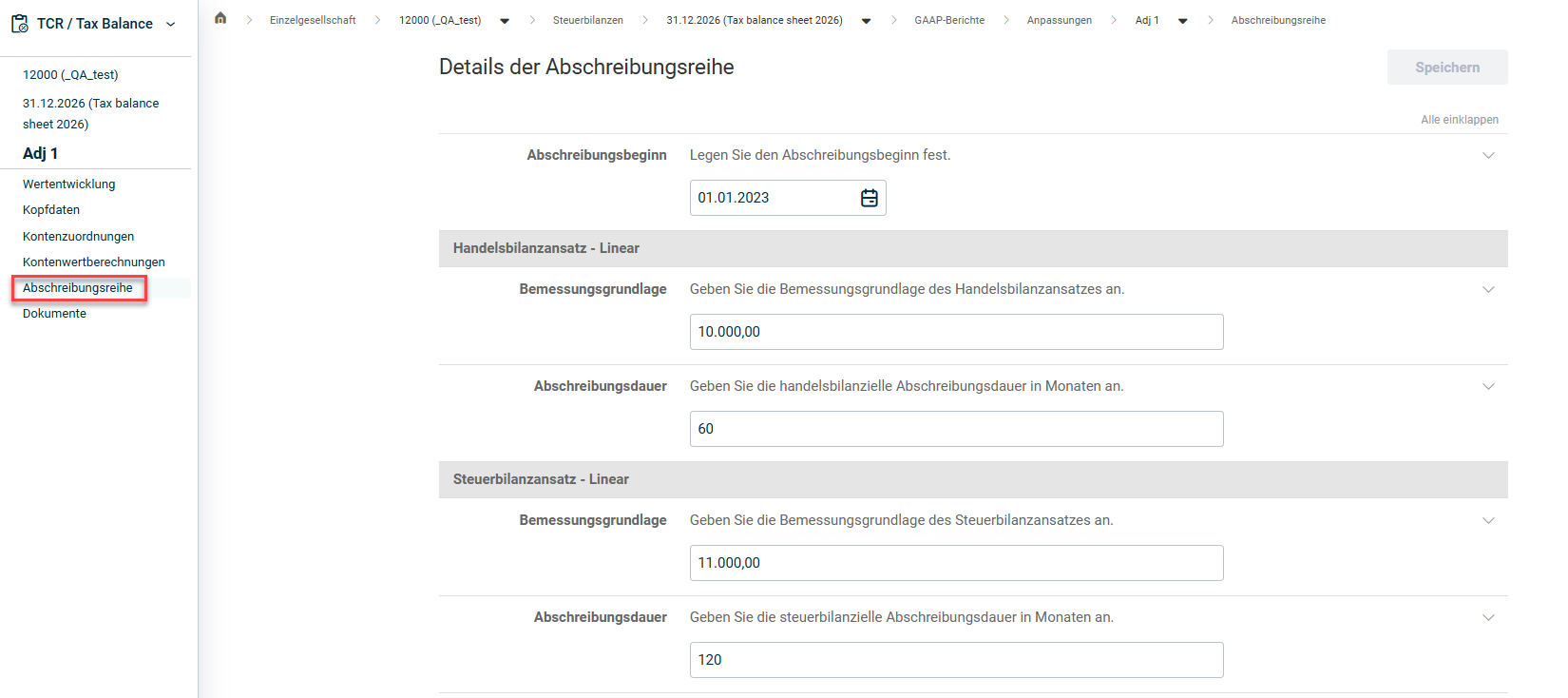
Under Depreciation series, you can define depreciation series for depreciable values in the commercial balance sheet and the tax balance sheet.
To do this, open the Depreciation series workspace and first specify whether you want to depreciate the commercial balance sheet or tax balance sheet values of the depreciation series using the straight-line or declining-balance method. This setting cannot be changed subsequently.
Then specify the following:
- Start of amortisation
- Assessment base and amortisation period for the commercial balance sheet approach
- Assessment base and amortisation period for the tax balance sheet approach
Click Create depreciation series to create the depreciation series.
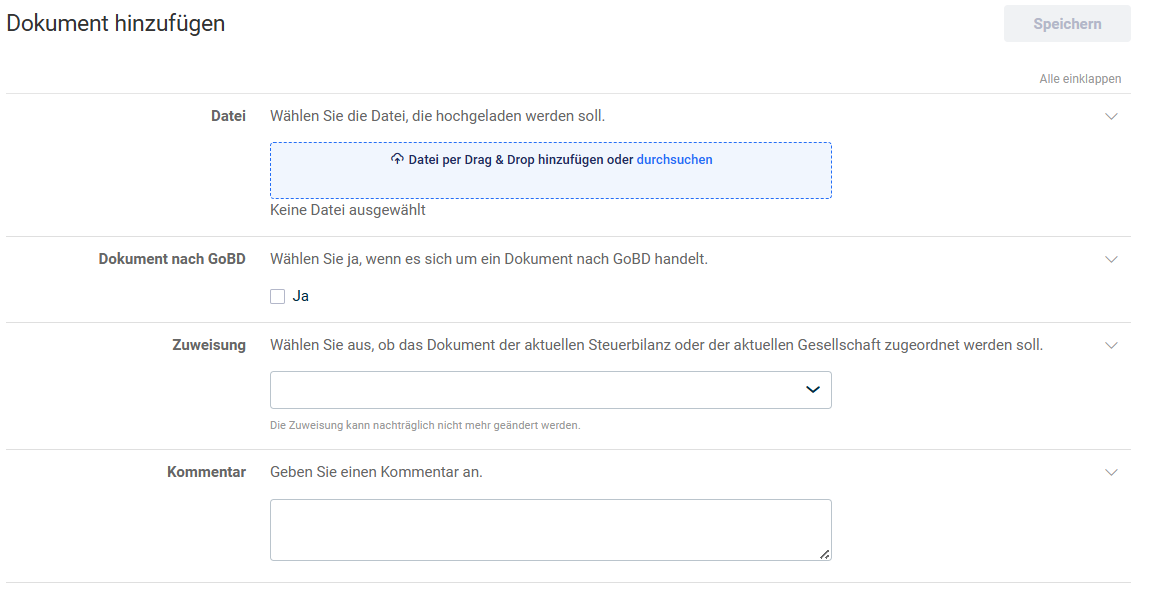
Under Documents, you can add supporting documents for each adjustment, such as receipts, proofs, or internal reports.
To do this, click Add and specify the following:
- the file you want to upload as a document
- whether it is a document according to GoBD
- whether the document should be assigned to the current tax balance sheet or the current company. This setting cannot be changed subsequently.
- a comment (optional)
Displaying Adjustments in the Balance Sheet
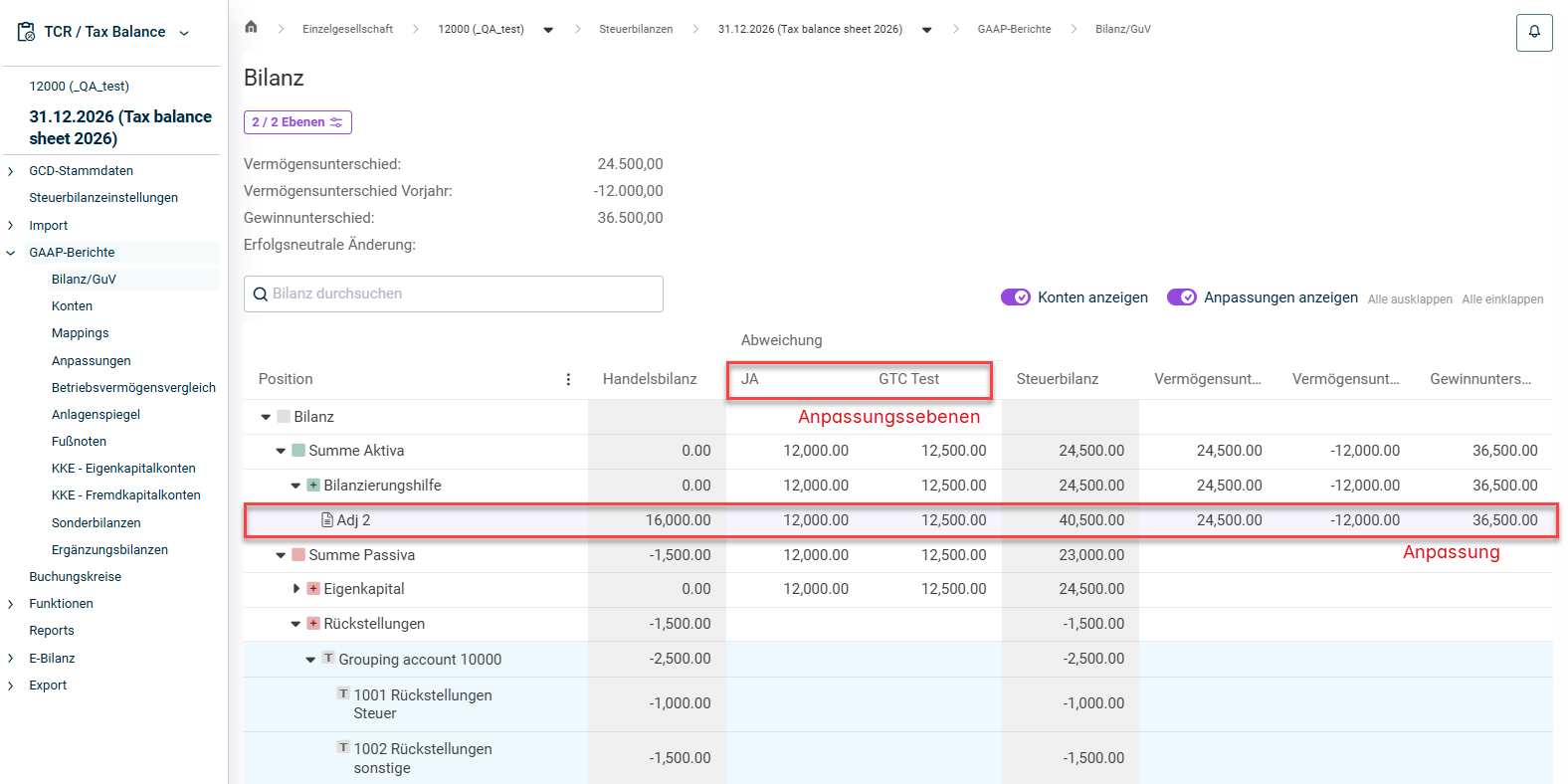
Once an adjustment has been created and configured, you can display it in the balance sheet in the GAAP reports functional area.
To do this, use the drop-down list at the top left to show the corresponding adjustment level or levels. Adjustments are displayed with a violet background: