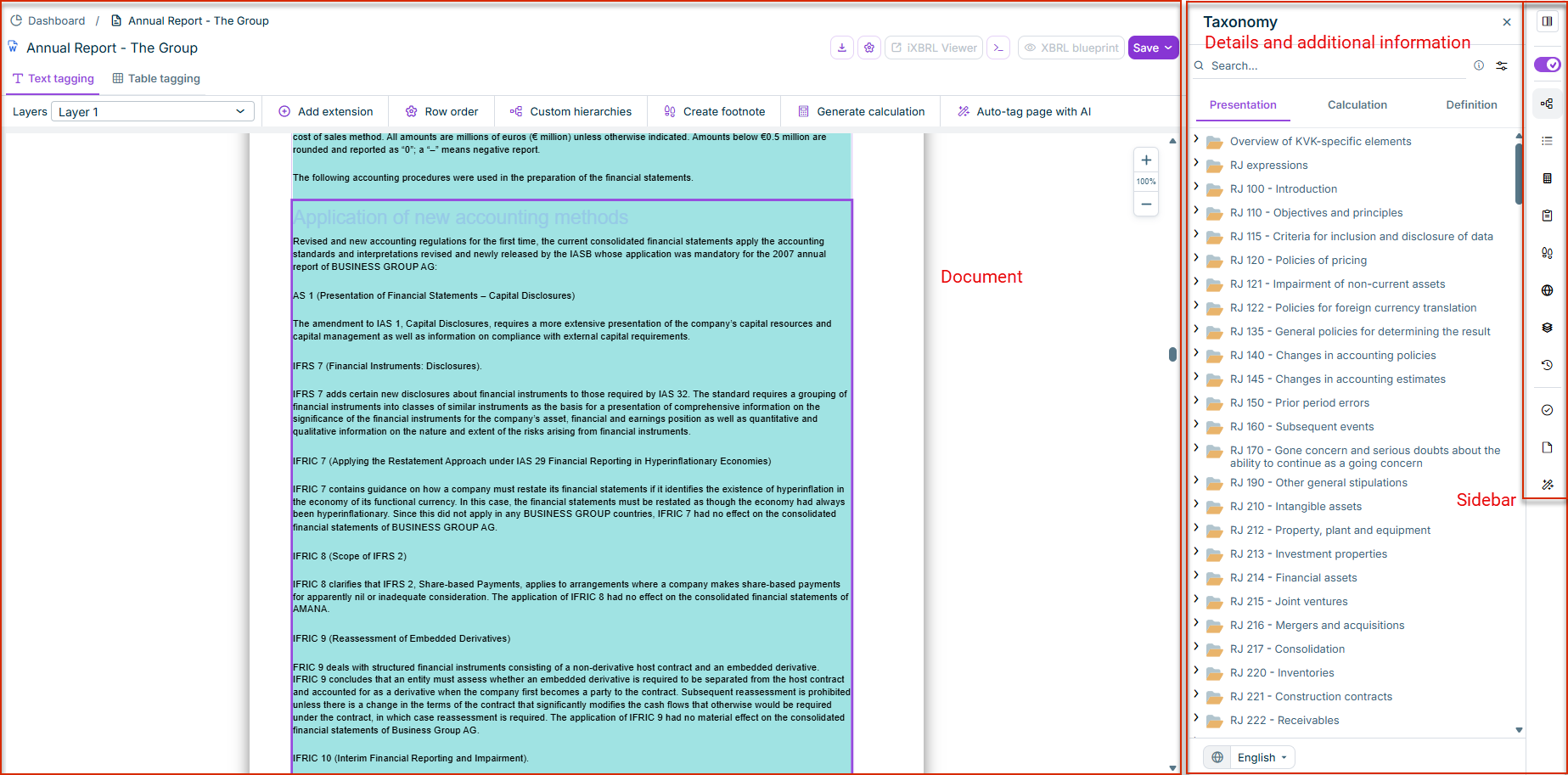
The XBRL document is divided principally into three areas:
Document view with a Word document
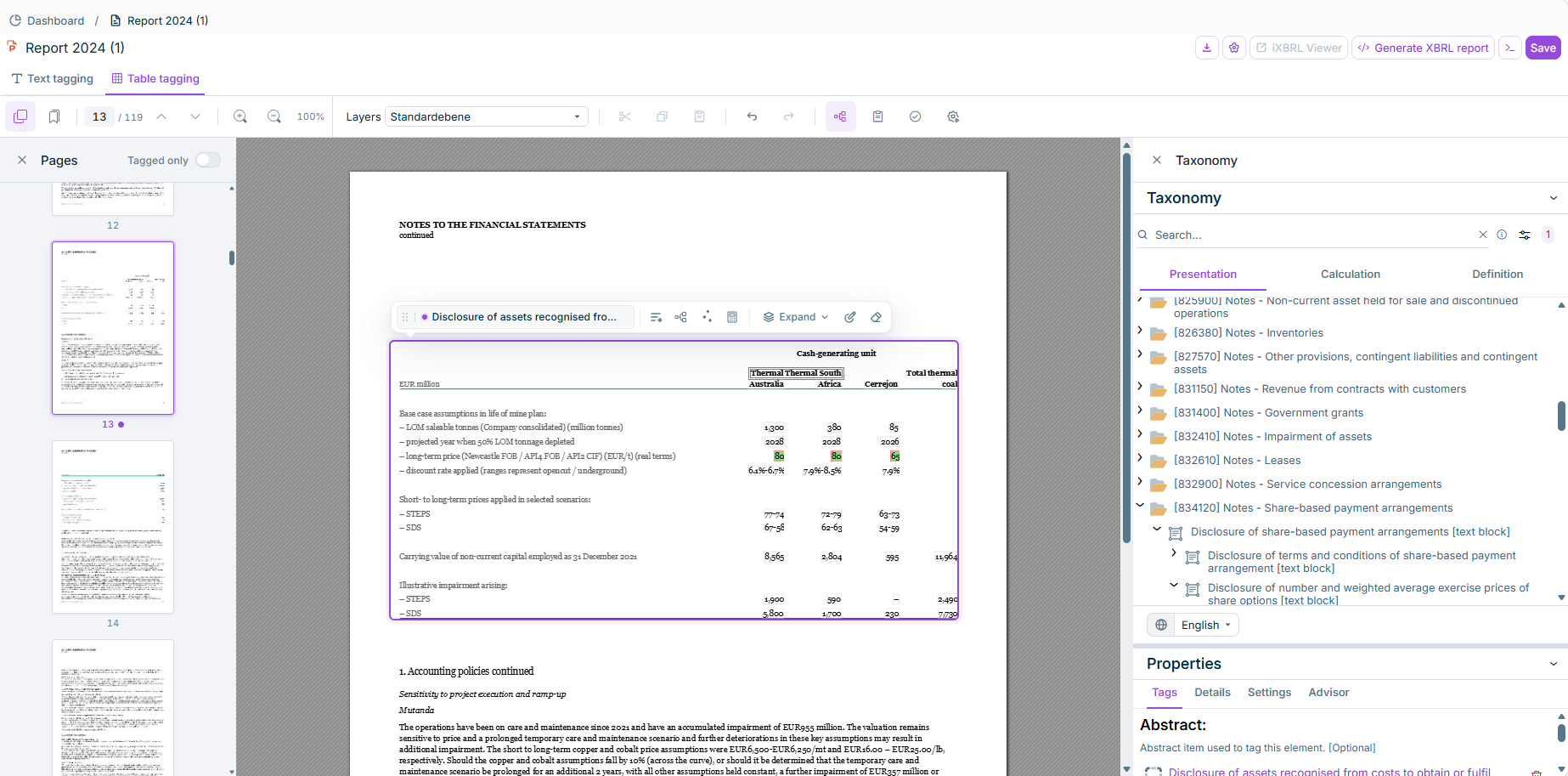
The document view of PDF documents is structured similarly and differs only slightly from the document view of a Word document.
The following elements are displayed as soon as you open a document from the Dashboard:
Document: shows the document currently open. In the document:
The status of the tags is displayed in color. Areas marked in green, for example, have already been tagged, checked, and accepted and have therefore been assigned the Final state.
Elements provided with a content control element are marked in yellow. The areas marked in yellow in a document must be tagged. As soon as you mark the area of a content control element, the area is displayed in blue. This allows you to easily identify what exactly belongs to the content control element.
Content control elements are Word elements that can be created, for example, in the Disclosure Management solution or in a Word document outside the CFO Solution Platform.
A red triangle may be displayed in the top, left corner of value cells. The red triangle indicates that there is a validation message for this value. Move the cursor onto the red triangle to display the reason for the validation message in a tool tip.
Detailed and additional information: Depending on the view selected in the toolbar on the right, additional and detailed information about the currently open document is displayed.
Mathematical relationships between elements of the annual financial statements (e.g., total assets = current assets + fixed assets) (see Using the Calculation View).
Displays filing information for the KVK. Only displayed if KVK was selected as the taxonomy.
Document outline
Enables navigation via an outline of the text and table elements tagged in the document (see Using the Document Outline).
Version history
Displays the version history of the document. Note: The version history supports up to 50 saved versions. Once this limit is reached, older versions are replaced, with the exception of versions marked as favorites, which are retained.
Validation
Checks of the document for errors, validity, and completeness (see Validations).
Loads the file with all mapping information into a desired directory. All settings, the selected taxonomy, the tags with properties and status, and all metadata are part of the file and stored in it.
Save document
Saves the current status of the document on the server.
Save as version
Saves the current status of the document as a named version. The version history of a document can be accessed via the toolbar on the right.
Generate iXBRL report package
Generates the iXBRL report including all documents and folders prescribed by the regulatory authorities in what is referred to as an iXBRL report package. Excel files, which display additional information on the document, are created in addition to the actual report. You can read the respective details in Generating an iXBRL Report Package. The finished document and all reports are displayed in the Result Document workspace and can be loaded from there.
Opens an input field, in which you can search for functions provided by the XBRL Tagger. It is an intelligent search, which provides you with the functions most suitable to the entered search term. Note: The input field can also be opened by pressing CTRL + SHIFT + P.
Word and PDF documents generally offer the same tagging functionality. However, for PDF documents some of the general functions and views described above differ:
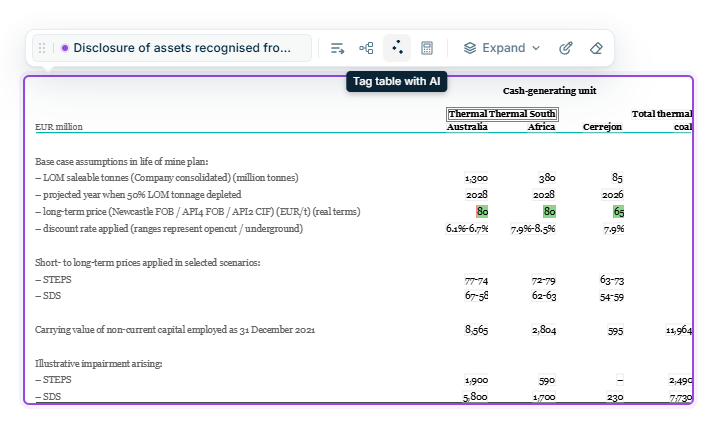
Additional function in table tagging that is not available for Word documents: automatically detects table areas on the current PDF page using AI before they can be tagged (see Automatically Detecting Tables in PDF Documents).