Overview

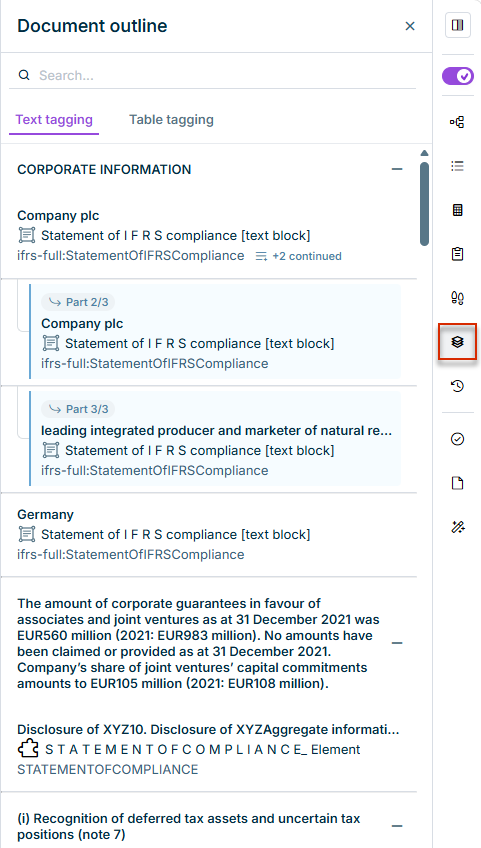
The Document Outline panel displays all elements tagged in the document in a structured overview that follows the document hierarchy. It lists all tagged text and table elements at a glance and shows the assigned taxonomy concept as well as the technical element for each one.

It also serves as a navigation aid, letting you jump directly to a tagged element without having to search through the document manually.

The Document Outline panel is only available for Word documents (DOCX). It is not available for PDF documents.

The panel is available in both Text tagging and Table tagging:

  • On the Text tagging tab, all tagged text blocks are listed, grouped by the document's headings.
  • On the Table tagging tab, all tagged table elements are listed accordingly.

Continuous text blocks that span multiple continuation sections are marked in the outline as Part 2/3, Part 3/3, and so on.

1

Open the document in the XBRL document workspace.

2

Click the Document outline icon in the sidebar (see screenshot).

The panel opens and shows all elements already tagged on the currently selected tab (Text tagging or Table tagging).

Document outline panel with grouped text blocks, a continued text block, and an extension element
Document outline panel in the XBRL Tagger

Click an entry in the outline to jump directly to the corresponding location in the document.

Use the search field at the top of the panel to search for a specific element, for example by searching for "Balance Sheet" to jump directly to the corresponding balance sheet item.

Switch between the Text tagging and Table tagging tabs to display the matching outline for text blocks or table elements.

Elements tagged with a concept from your taxonomy extension are shown in the outline just like elements from the base taxonomy — on both the Text tagging and Table tagging tabs. Extension elements are marked with their own icon and the technical name of the element, so you can find these tags directly in the outline too and use the outline to navigate to the corresponding location in the document.

For more information on creating extension elements, see Creating a Taxonomy Extension.