Overview

The text search in Lucanet XBRL Tagger finds words and passages in open Word and PDF documents, including text that has not been tagged. It also finds assigned tags by their element label or technical name. XBRL Tagger highlights the matches in the document, and you can go to each match individually, for example to review a passage or tag it manually afterward.

To find a passage in Lucanet XBRL Tagger:

1

Open the Word or PDF document from the Dashboard.

2

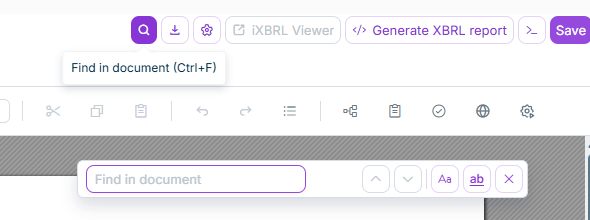
In the document toolbar, click the magnifier icon Find in document. Alternatively, press Ctrl+F; on macOS, use Cmd+F.

XBRL Tagger displays the find bar with the cursor in the search field.

Shows a section of the toolbar in XBRL Tagger with the magnifier icon, the tooltip 'Find in document (Ctrl+F)', and the open, empty find bar with the 'Find in document' field.
Opening text search using the magnifier icon
3

Enter the word or passage you want to find.

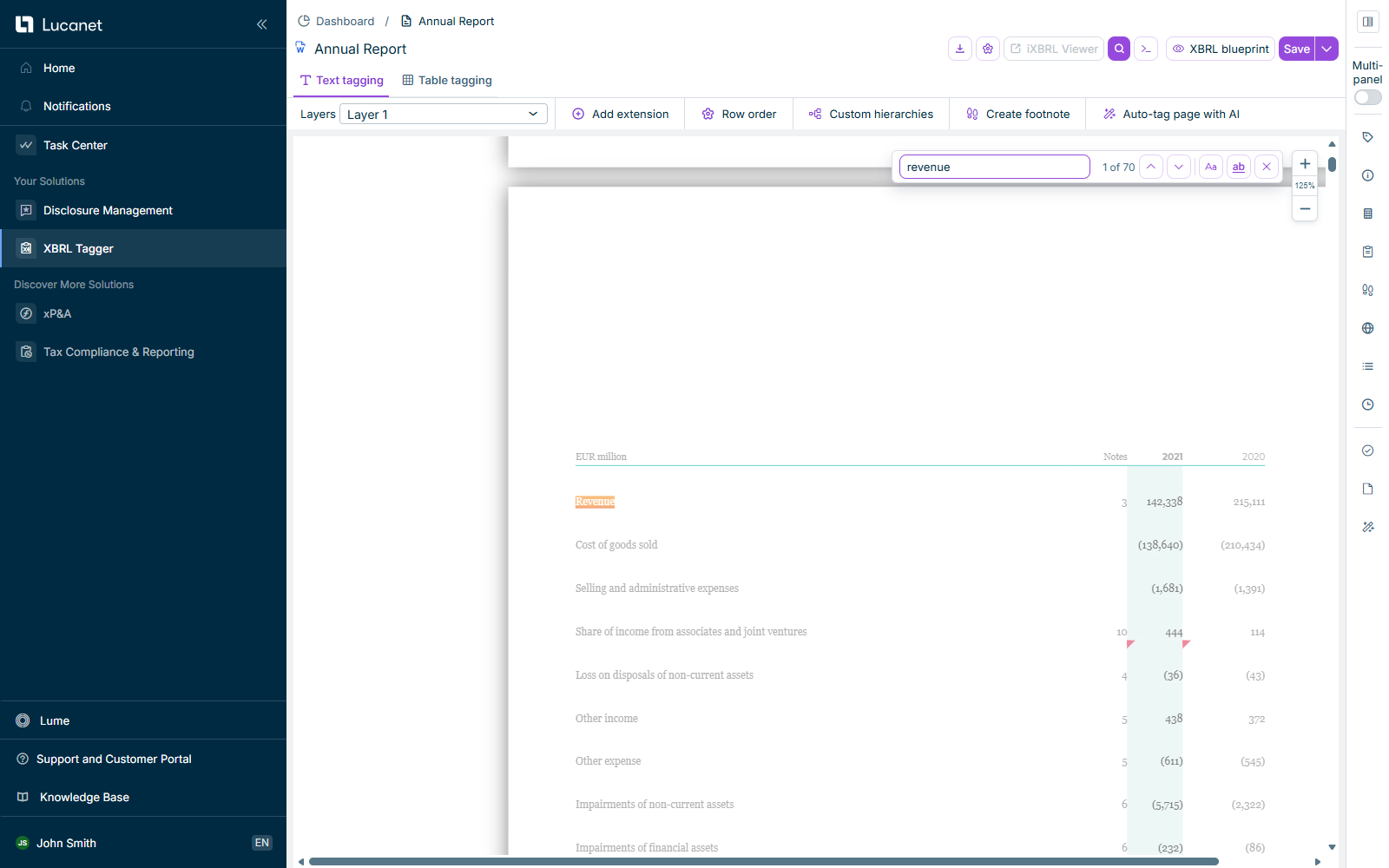
The search starts automatically. The find bar displays the position of the current match and the number of matches, for example 1 of 8.

In addition to text, the search in Lucanet XBRL Tagger finds tags assigned in the current document if the search term matches the element label or the technical name (QName) of the tag. XBRL Tagger displays such matches as Tag: followed by the name. If tags cannot be searched, text matches are still displayed.

Shows text search in the Word document 'Annual Report' in XBRL Tagger with the search term 'revenue' and the match counter '1 of 70'. The match 'Revenue' in a table is highlighted in orange.
Text search in a Word document in XBRL Tagger

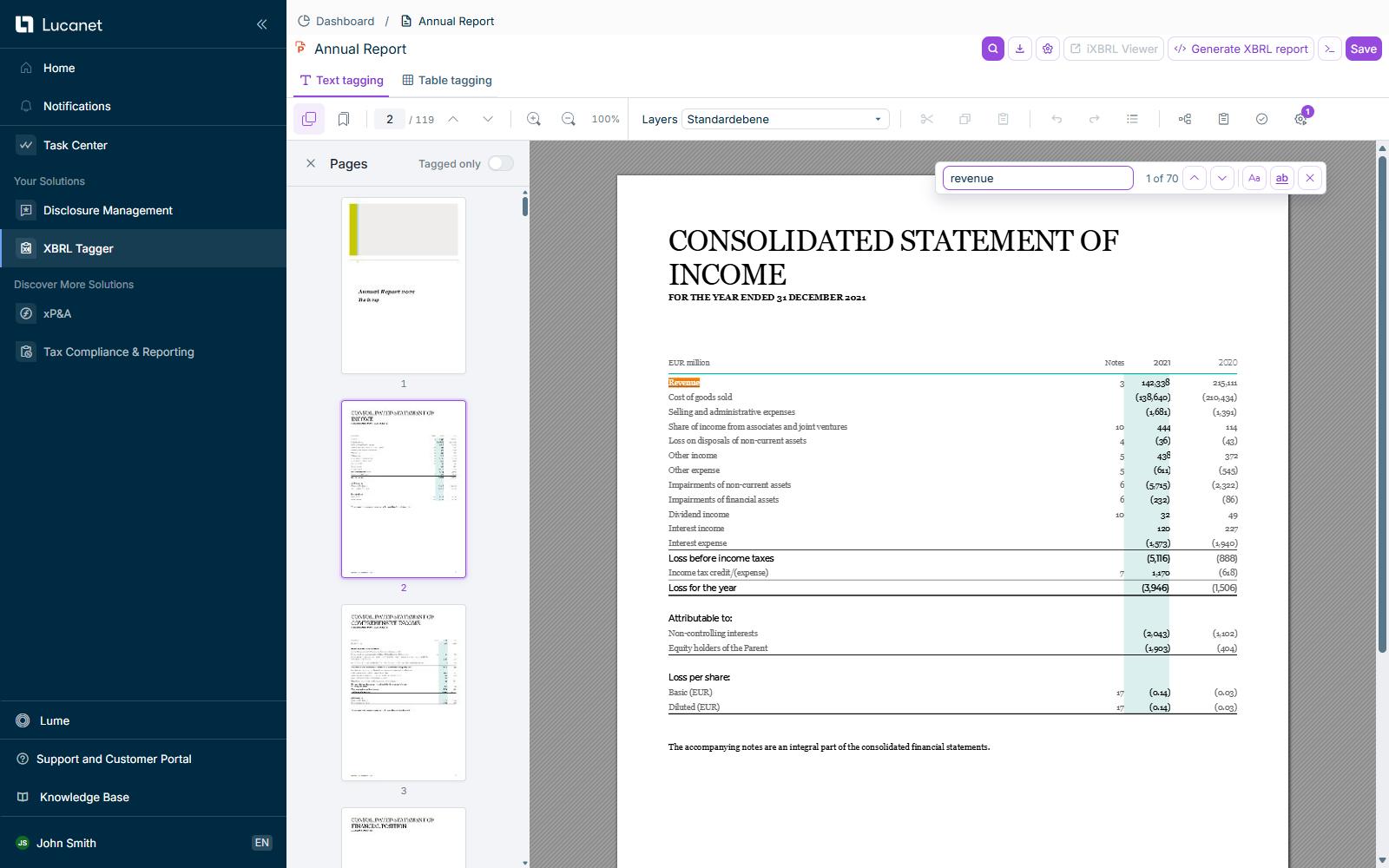
XBRL Tagger displays the selected match in the document. In a PDF document, XBRL Tagger switches to the page containing the match if necessary.

The following buttons and shortcuts control text search navigation in XBRL Tagger:

ActionButtonShortcut
Go to the next matchDown arrow: Next matchEnter in the search field or F3 while the find bar is open
Go to the previous matchUp arrow: Previous matchShift+Enter in the search field or Shift+F3 while the find bar is open

After the last match, navigation returns to the first match. Similarly, moving backward from the first match takes you to the last match.

A search highlight does not create a tag. To tag a passage you have found, select it as described in Tagging a Document Manually.

Shows text search in the PDF document 'Annual Report' in XBRL Tagger with the search term 'revenue', the match counter '1 of 70', and the second document page. The match 'Revenue' in a table is highlighted in orange.
Text search in a PDF document in XBRL Tagger

The following options in the find bar narrow the text search in XBRL Tagger. Both options are deactivated when you first open the search. When you change an option, XBRL Tagger executes the search again.

OptionEffect
Match caseFinds only text with the same capitalization as the search term.
Match whole wordFinds the search term as a whole word rather than as part of a longer word. For example, searching for asset does not find assets.

Text search in XBRL Tagger can display matches while further document pages are still loading or being searched. More matches may appear while a loading hint is displayed. Wait for loading to finish before concluding from an empty match counter that the text does not occur in the document.

The following restrictions apply to text search in XBRL Tagger:

  • Incomplete PDF results: If some pages cannot be searched, the find bar warns that results may be incomplete. A missing match does not then rule out the text occurring on one of those pages.
  • Text in images: The search does not perform text recognition in images. Text that exists only as an image is not found.
  • Hidden elements: Text search is unavailable in the Word Hidden elements view. Switch to the visible document view.
  • PDF editing: Navigation between search matches is suspended while PDF objects are being edited. Finish editing to move between matches again.

Close the find bar in XBRL Tagger using the cross icon Close, or press Esc while focus is in the find bar. XBRL Tagger clears the search term and highlights. When you open the find bar again, the search field is empty; your search options remain selected for the open document.

In addition to searching for passages, XBRL Tagger provides other search functions with a different purpose:

  • Function search: To search for available functions and commands rather than passages in the document, click the function search icon in the top bar of the XBRL document workspace or press Ctrl+Shift+P. XBRL Tagger displays an input field and suggests the functions that best match the entered search term.
  • Document Outline: The Document Outline displays text and table elements that have already been tagged and lets you navigate to them. Text search also finds passages that have not been tagged.

This content was generated using AI and reviewed by Lucanet subject matter experts before publication.