When you open the XBRL Tagger, the Dashboard is always displayed. If you want to navigate to the Dashboard from another workspace, click Dashboard in the upper left corner of the breadcrumb navigation.
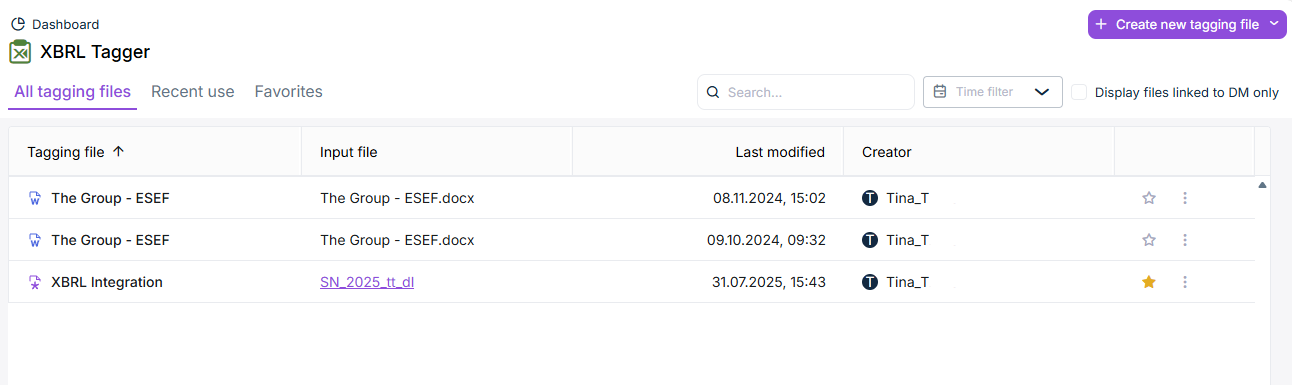
The Dashboard is displayed as follows, for example:
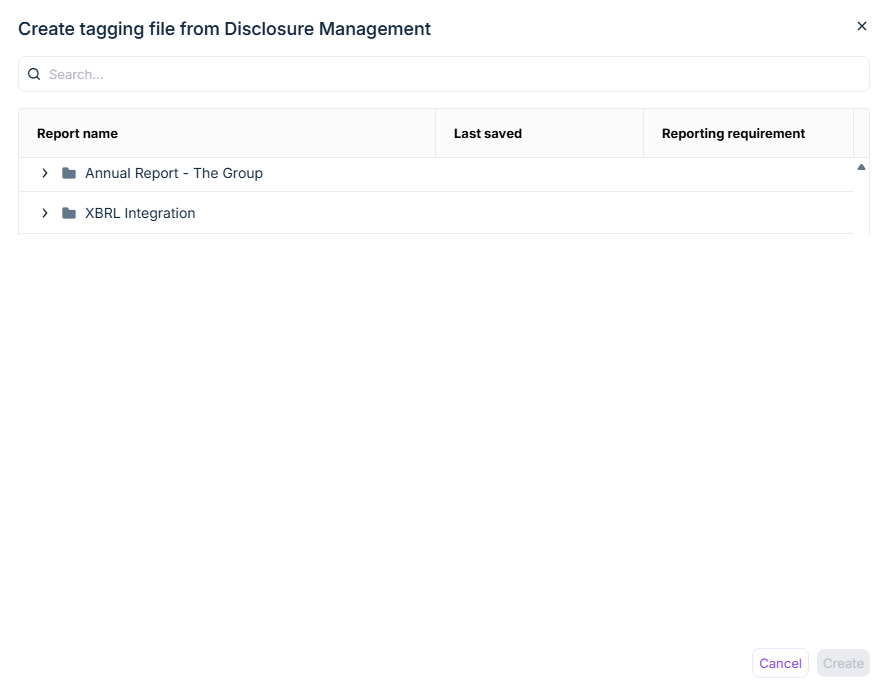
Click Create new tagging file and do one of the following:
From Lucanet Disclosure Management
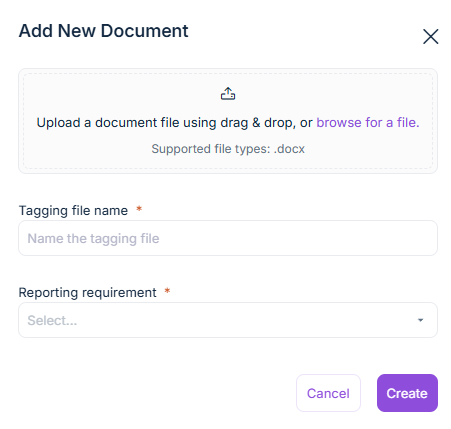
From your computer
2
Either the Create tagging file from Disclosure Management or Add New Document dialog is opened, depending on your choice (see Options When Adding Documents).
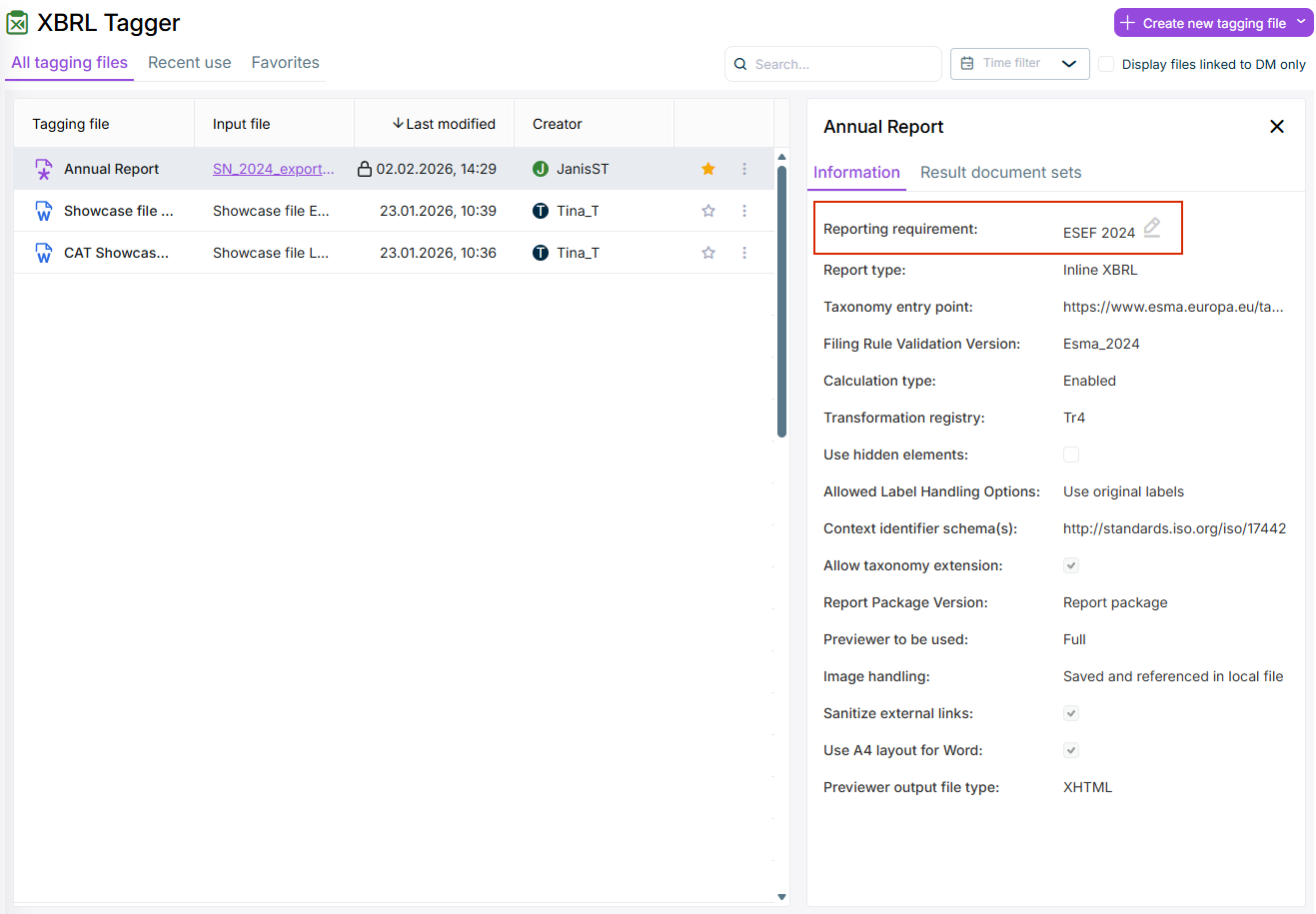
As soon as you click on a row in the dashboard, a window appears on the right-hand side. The Information tab displays the settings that were automatically created when the document was created. The configuration depends on the selected report request(see Adding a document).
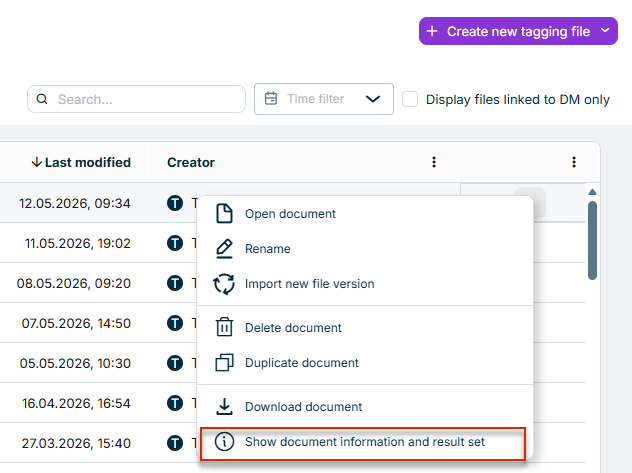
Alternatively, you can use the Show document information and result set command in the context menu of the three-dot icon to open the information window:
Open the window with document information and the result set
You can change the reporting requirement for a document by choosing the desired reporting requirement from the drop-down list and then clicking Save.
After generating an iXBRL document, the results of the generation are displayed to the right of the table on the Result documents sets tab. On this tab, you can download the result documents or the results report, among other things. For more information, see the section View Result Documents.
Alternatively, you can use the Show document information and result set command in the context menu of the three-dot icon to open the information window:
Open the window with document information and the result set
The following options are available in the Dashboard:
Option
Description
Search
Searches in the list of documents for documents that include the entered search term in the title. You can filter the search results by activating a filter from the drop-down list.
Favorites ()
Shows whether a document is marked as a favorite or not. A filled star indicates that the document is a favorite. All documents marked as favorites are displayed in the document overview on the Favorites tab.
The following options are available in the three-dot menu of documents:
Option
Description
Open
Opens the document in the XBRL document workspace, where it can be tagged.
Rename
Opens a dialog for renaming the document.
Import new file version
Imports a new version of the document. Note: Existing text block tags from the previous version are automatically applied to the new version of the document.
Delete document
Deletes the document from the list of documents. Caution: You can delete only documents you have loaded into the dashboard yourself.
Duplicate document
Creates a duplicate of the document. You can use duplicates, for example, for checking or testing purposes.
Download document
Downloads the document.
Show document information and result set
Opens a window displaying document information and the results of the generation process.
Update Tagging document from Disclosure Document
Updates the document from Disclosure Management. All tags from the current version of the document are transferred to the new version of the document. Note: The button is only available if the document has been imported from Disclosure Management into the XBRL Tagger.