When you upload a new version of an already tagged Word or PDF document via Import new file version, the XBRL Tagger automatically carries the existing tags over to the new document version (roll-forward). Before these changes are permanently applied to the document, the Tag Update Preview opens automatically. There you can review all the tags that were carried over and decide whether to apply the changes, edit them individually, or discard them.
If not a single tag could be carried over during the roll-forward of a PDF document, the Tag Update Preview does not open. Instead, the message "Document Not Rolled Forward – No tags could be carried forward onto the new PDF. The existing document is unchanged." appears. In this case, the document remains unchanged in its previous version.
Only one Tag Update Preview can be open for a document at a time. As long as a preview has not yet been completed, opening the document takes you back to the Tag Update Preview automatically, and no further new file version can be imported for this document.
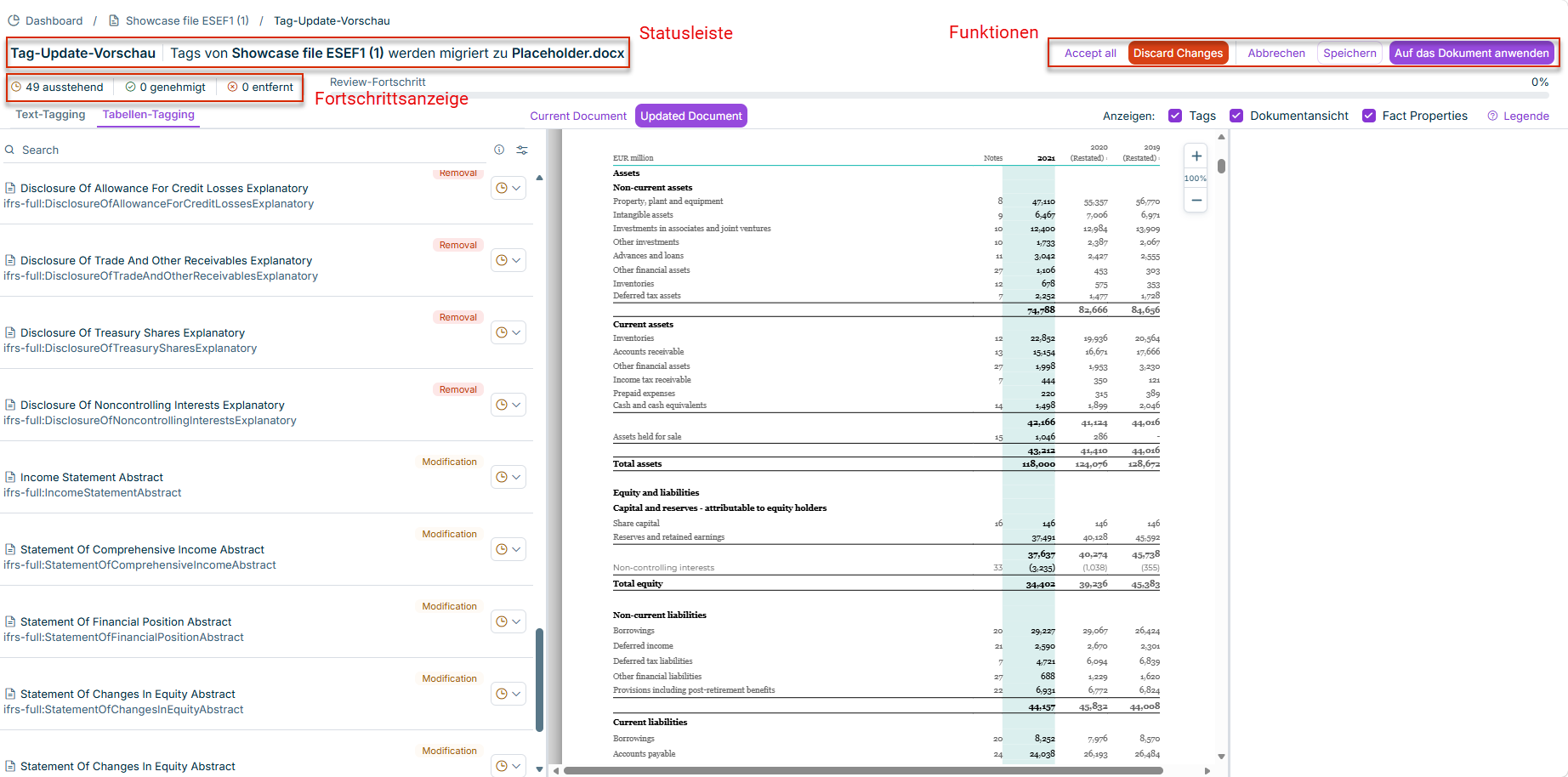
The header of the Tag Update Preview contains the following areas:
The status bar, which shows which document the tags come from and which document they are being migrated to: "Tags from [source document] will be migrated to [target document]".
The toolbar with buttons for cancelling, saving, and applying the changes.
The progress display with the number of tags still pending, already approved, and removed, plus a progress bar showing the overall review progress as a percentage.
The change list on the left shows all tags that were carried over from the previous document version during the roll-forward. Each entry in the change list shows:
The affected text passage or table element.
The assigned taxonomy concept and the technical element.
An indicator of the type of change (e.g. Modification for a content change, or Removal if an element is no longer present in the new document version).
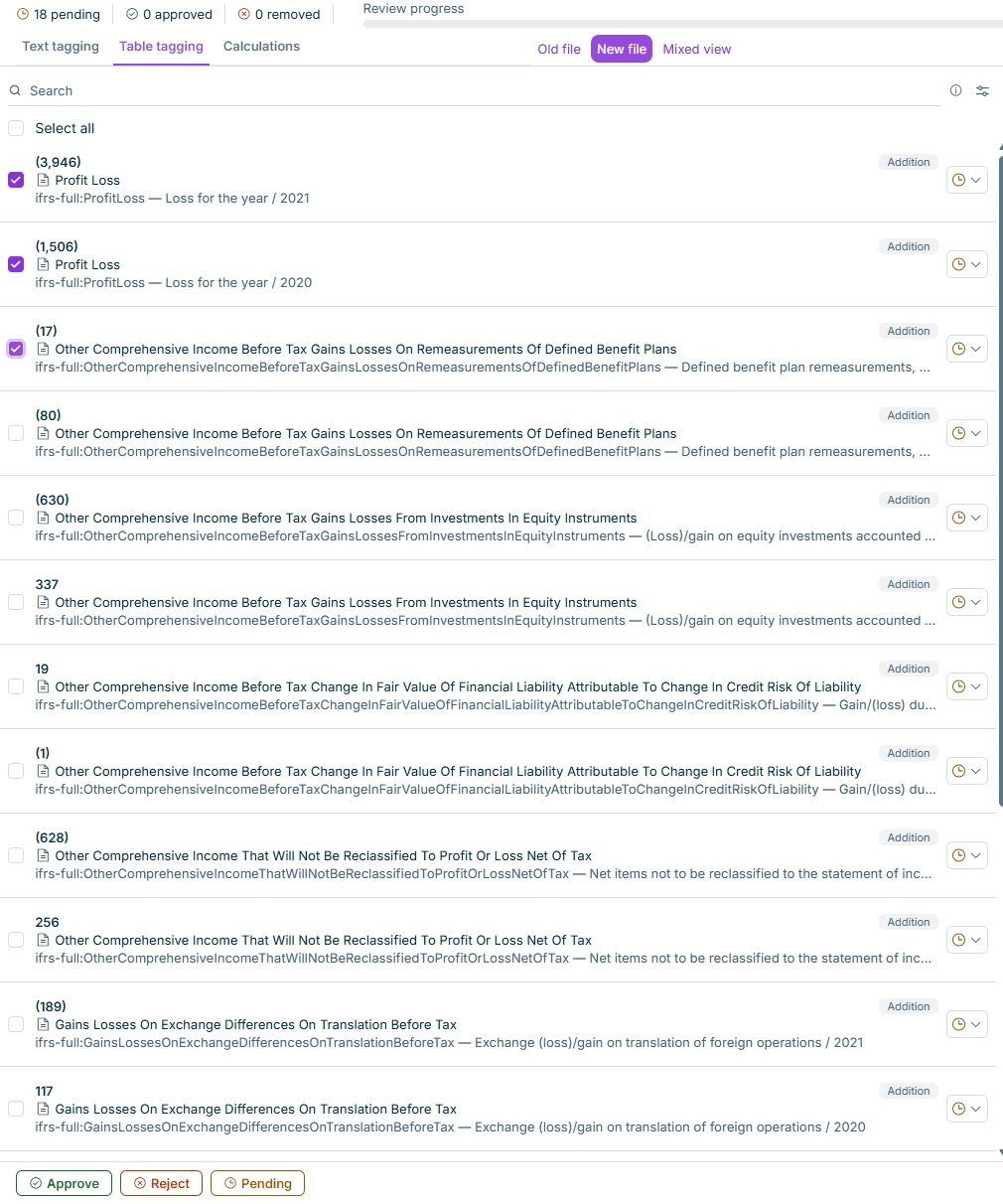
Change list in the Tag Update Preview
Use the checkboxes to the left of the entries to select one or more entries, or Select all to mark the entire list.
Use the drop-down list to the right of an entry to set whether that tag should be approved, rejected, or set to pending.
The following actions are available:
Action
Description
Approve
Sets the selected entries to approved.
Reject
Sets the selected entries to removed.
Pending
Resets the selected entries back to pending.
Use the search field above the list to search specifically for a tag name or an element ID.
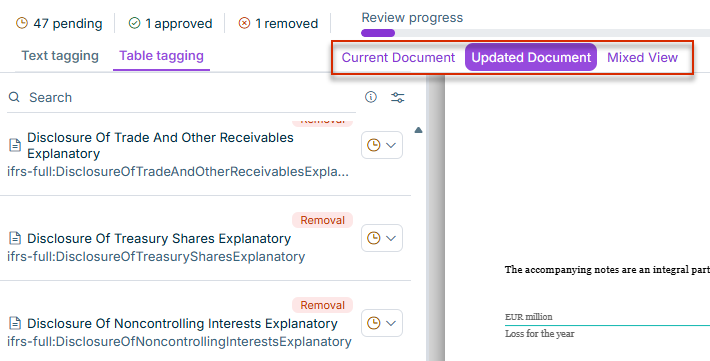
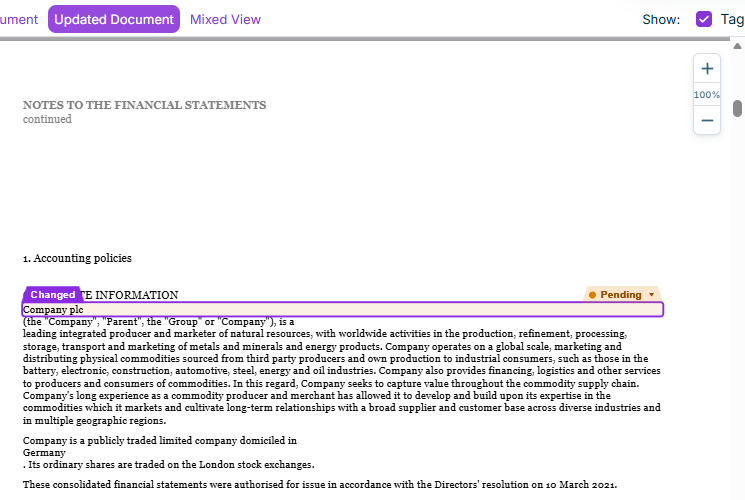
The document view in the middle shows the document as read-only, in the version you selected in the Current Document/Updated Document/Mixed View group (see Adjusting the View).
Changed text passages and tables are highlighted in colour and marked with the Changed label as well as the tag's current review status (e.g. "Pending"). Use the zoom controls in the top-right corner of the document view to zoom in or out.
Highlighted change in the document view
The document view is a reduced, read-only variant of the document viewer and is also used in the review window to review AI tagging suggestions (see Reviewing AI Tagging Suggestions).
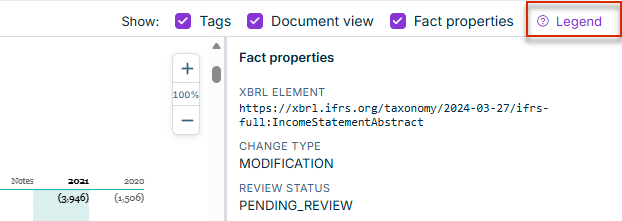
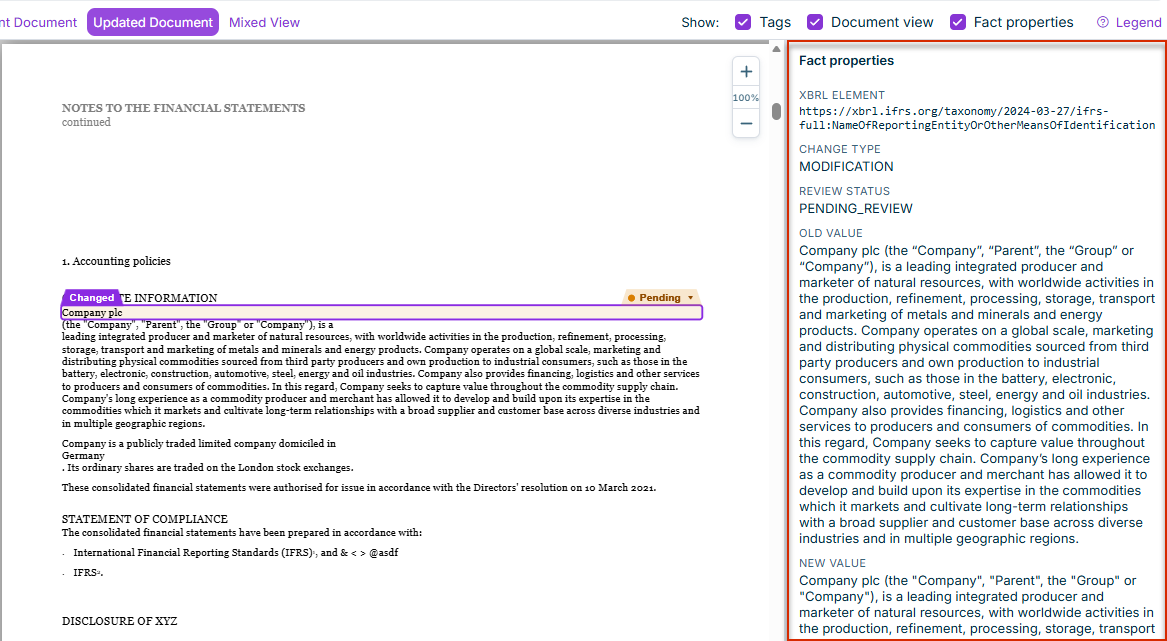
When you click an entry in the change list or the entry in the document view, the Fact properties panel opens on the right with detailed information about this tag. The following properties are displayed:
XBRL Element: the full taxonomy URL of the assigned concept
Change Type: the type of change (e.g. "Modification")
Review Status: the tag's current review status (e.g. "Pending Review")
Old Value and New Value: the previous and the new value of the element, if available
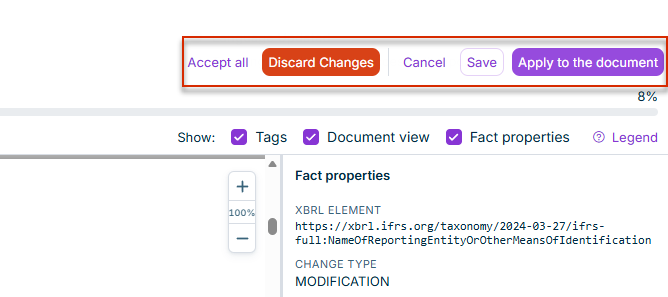
The following buttons are available in the header to edit and complete the Tag Update Preview:
Discard Changes: Deletes the entire Tag Update Preview. Since this action cannot be undone, a confirmation dialog appears beforehand, noting that the roll-forward changes will be discarded and the document remains unchanged.
Close: Takes you back to the dashboard without completing the Tag Update Preview. A separate save step isn't necessary: every approve, reject, or reset-to-pending decision in the change list is applied automatically as soon as you click it, with no confirmation message. If saving a decision fails, the message "Failed to save the review decision. Please try again." appears, and the affected decision is reset to its previous status. The Tag Update Preview remains open, and the document stays locked until you apply or discard the changes.
Apply to the document: Transfers all entries with the status "approved" to the document and completes the Tag Update Preview.
The Apply to the document button is disabled while any entries are still pending; a tooltip explains: "Review in progress. All suggestions must be approved or rejected." First set all entries to approved or removed (see Change List) to enable the button.
Buttons of the Tag Update Preview
This content was generated using AI and reviewed by Lucanet subject matter experts before publication.