Overview

The Clipboard in Lucanet XBRL Tagger lets you reuse existing mappings without assigning the taxonomy elements again each time. You can transfer mappings within a document and between Word and PDF documents. XBRL Tagger saves the clipboard automatically per user. The clipboard remains available after reloading the browser and in later sessions.

To add an existing mapping to the clipboard in Lucanet XBRL Tagger:

1

Open the source document from the Dashboard.

2

Select a tagged text element or table cell in the document. Switch to Text tagging or Table tagging if necessary.

3

Open the element's context menu and select Copy. In PDF documents, you can also use Copy in the toolbar.

The Copy command adds the copied mappings to the clipboard. Existing clipboard entries are kept.

4

Open the Clipboard panel. For Word documents, use the Clipboard entry in the right sidebar; for PDF documents, use the Clipboard icon in the document toolbar.

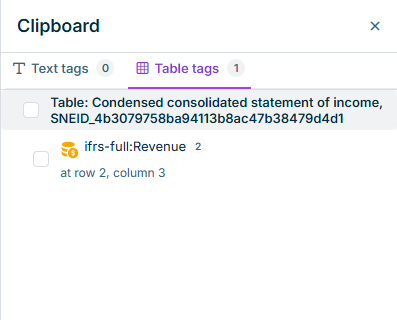
The Text tags tab displays mappings of text elements, and the Table tags tab displays mappings of table cells. The numbers on the tabs indicate the number of entries.

Shows a section of the 'Clipboard' panel in XBRL Tagger with the 'Text tags' and 'Table tags' tabs. The active 'Table tags' tab contains an 'ifrs-full:Revenue' mapping from the 'Condensed consolidated statement of income' table and the position 'at row 2, column 3'.
Copied Revenue mapping in the clipboard

To apply a clipboard mapping elsewhere in the same document or in another document in Lucanet XBRL Tagger:

1

If necessary, open the target document from the Dashboard. The copied mappings remain in the clipboard when you switch documents.

2

Select the passage or table cell in the target document that should receive the mapping. The target type must match the mapping: use a text mapping for text and a cell mapping for a table cell.

3

Open the Clipboard and the appropriate tab. Activate the check box of the entry you want to apply.

4

Select Actions, then Apply selected. To apply a specific mapping, select only that entry.

Alternatively, open the context menu of the selected passage or table cell and select Paste. In Word documents, you can also drag an applicable entry from the clipboard onto the target passage or table cell.

5

Check the assignment and the tag properties in the target document, particularly the period, unit, scale, and sign. Save the target document if you want to keep the assignment.

For more information on selecting and tagging passages and table cells, see Tagging a Document Manually.

The clipboard in XBRL Tagger can also contain mappings of text tags whose removal you rejected after a roll-forward. During a roll-forward, XBRL Tagger automatically carries the existing tags over to the new document version when you upload a new version of an already tagged document via Import new file version on the Dashboard. XBRL Tagger adds these mappings to the clipboard when you apply the Tag Update Preview. You can then reassign the mappings manually. For more information, see Using the Tag Update Preview.

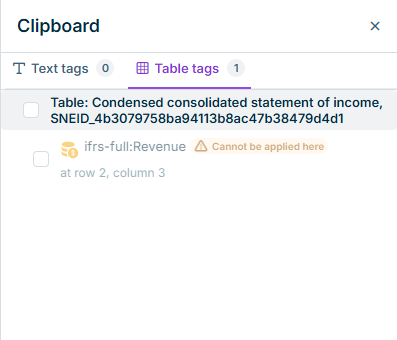
When reusing a mapping, XBRL Tagger checks whether the elements it requires are available in the open target document. XBRL Tagger grays out and marks incompatible entries. Hover over the marker to display the reason in a tooltip. You cannot apply incompatible entries or drag them onto the document.

Shows the 'Clipboard' panel in XBRL Tagger with the 'Table tags' tab and the grayed-out 'ifrs-full:Revenue' mapping. The orange 'Cannot be applied here' marker indicates that the mapping is incompatible with the open target document.
Incompatible mapping in the target document

The following requirements apply to clipboard mappings in XBRL Tagger:

Mapping componentRequirement in the target document
Taxonomy elementThe element must be available in the target document's taxonomy.
Extension elementThe corresponding taxonomy extension must exist in the target document.
Dimension or memberThe dimensions and members must be available in the target document.

A different taxonomy entry point does not prevent application if all required elements are available. The compatibility check does not replace a review of the tag properties for correctness.

The clipboard in XBRL Tagger belongs to your user account and is saved automatically. Switching documents does not clear it. When you open XBRL Tagger again, XBRL Tagger restores the saved entries and checks them for compatibility with the open document.

The following limits apply to clipboard storage in XBRL Tagger:

  • XBRL Tagger saves the newest 500 entries for later sessions and does not restore older entries beyond this limit. The clipboard can contain more entries during the current session.
  • XBRL Tagger saves changes after a short delay. After copying, wait briefly before closing the browser or reloading the page.
  • Prefer using the clipboard in one browser tab. If the same account is used in multiple tabs, the clipboard saved last overwrites the previously saved state.

The following management functions are available under Actions in the Clipboard panel:

FunctionDescription
Select allSelects the entries in the current tab or clears the selection.
Delete selectedRemoves the selected entries from the clipboard. Tags in the source document remain unchanged.
Delete allClears the entire clipboard. XBRL Tagger also saves the cleared state for later sessions.
ExportSaves the clipboard to a file, for example to keep an additional copy of the mappings.
ImportLoads mappings from a previously saved clipboard file.

This content was generated using AI and reviewed by Lucanet subject matter experts before publication.