In XBRL Tagger, layers allow you to apply different tags to the same text block more than once. Because tags within one layer must not overlap, you can add another layer for overlapping tagging ranges. This is useful when, for example, a paragraph has to be tagged with two different taxonomy elements.

Each document in XBRL Tagger has two predefined layers by default: a default layer for text and a default layer for tables.

In the editor, only the tags of the active layer are displayed. You can create and manage additional layers in the Layer Manager.

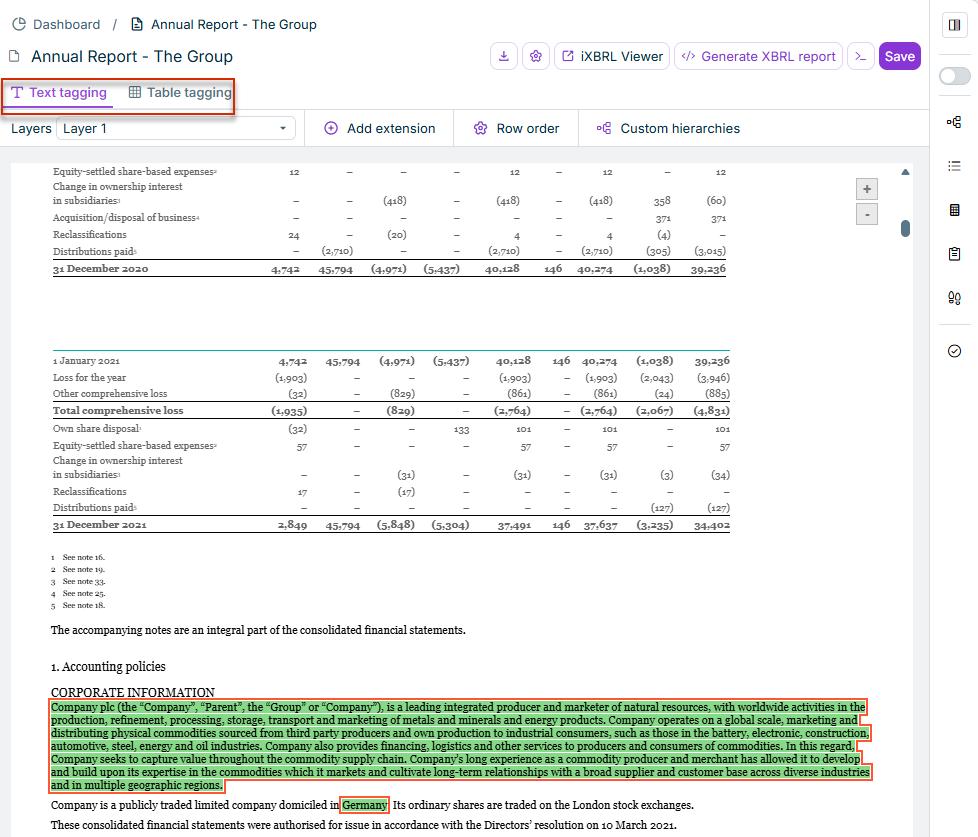
In the XBRL Document workspace, two tabs at the top of the document area allow you switch between layers for text tagging and table tagging:

  • Text tagging: Activates the layer for text tagging. Table tags are hidden and only text tags are displayed.
  • Table tagging: Activates the layer for table tagging. Text tags are hidden and only table tags are displayed.
'Text tagging' and 'Table tagging' tabs in XBRL Tagger

In the Layers drop-down list, you can add, edit, or delete layers. To add a layer:

1

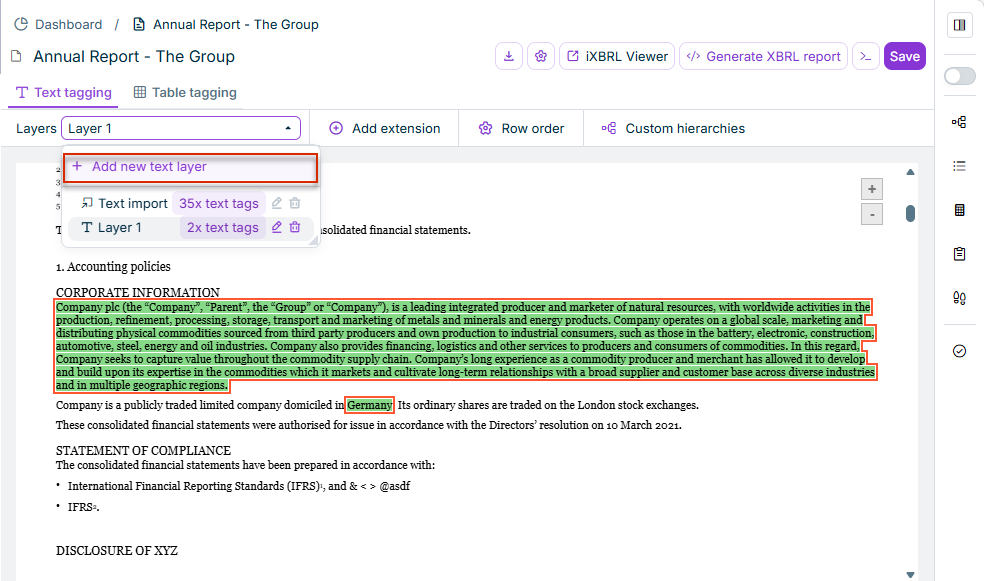
Open the drop-down list Layers and click Add new text layer.

Saving a new layer
Saving a new layer
2

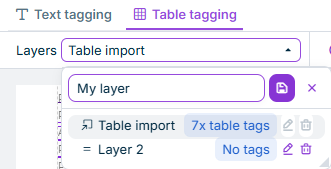
Enter a name for the new layer, then click Save layer.

Add new layer
Add new layer

To switch to a different level, follow these steps:

1

Open the Layers drop-down list.

2

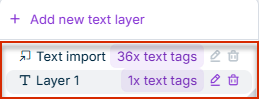
Click on the desired layer.

Switching to layer 1
3

The selected layer is displayed in the editor.

Additionally, the following options are available in the Layers dialog:

OptionDescription
Icon for deleting a layerDeletes the layer.

Note:
- If the layer already contains tags, a warning appears that all associated tags will also be deleted.
- The default layers cannot be removed.
Icon for editing a layerOpens editing mode for the selected layer. Change the name and click Save to change the layer name.

Note: The default layers Text import and Table import cannot be renamed; the edit and delete icons are disabled for these two layers.

Both tagged text sections and tagged tables can be moved to a different layer afterwards, without having to re-create the tag.

Move to another layer is only available for Word documents. For PDF documents, the context menu does not contain this command (see Context Menu Commands in the Document View).

1

Right-click the tagged text section.

2

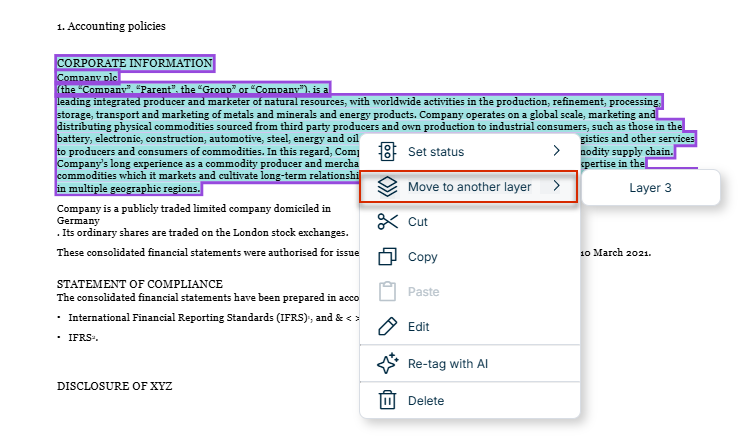
Select Move to another layer from the context menu.

A submenu shows the available target layers.

Context menu of a tagged text section with the highlighted option 'Move to another layer' and the submenu of target layers
Context menu of a tagged text section with the option 'Move to another layer'
3

Select the desired target layer. The tag is moved to the selected layer. A placeholder appears at its original position on the source layer, indicating which layer the element is now on.

1

Right-click the table tag above the tagged table.

2

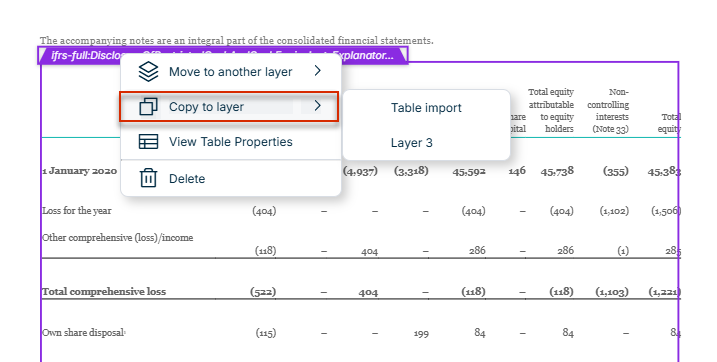
Select Move to another layer from the context menu.

Context menu of a tagged table with the options 'Move to another layer' and 'Copy to layer'
3

Select the desired target layer. The entire table structure with all tags is moved to the selected layer.

To copy a tagged table to another layer instead of moving it — leaving the source layer unchanged — use the Copy to layer option (see Tagging a Document Manually).

Right-clicking in the document view opens a context menu. Which commands are available depends on whether you click a text element or a table element, whether it is already tagged, and whether the document is a Word or a PDF document.

For PDF documents, right-clicking the table tag above a tagged table does not open a context menu. The corresponding table actions are instead available via the table toolbar that appears when the table is selected.

CommandDescriptionWord DocumentPDF Document
Set statusOpens a submenu to set the tag's review status (In progress, Pending review, Final).AvailableNot available
Continuation administrationOpens the Continuation administration dialog if the tag is part of a continuation chain (see Managing Continuation Chains).Available if the tag has continuation elementsNot available
Move to another layerOpens a submenu with the available target layers and moves the element there.AvailableNot available
CutCuts the element to the clipboard.AvailableAvailable
CopyCopies the element to the clipboard.AvailableAvailable
PastePastes the clipboard content. Only active if something was previously cut or copied.AvailableAvailable
EditOpens the tag for editing. Only appears if the element consists of several linked text anchors.AvailableAvailable
Tag with AIAppears for a selected, not-yet-tagged text area and tags it automatically with AI.AvailableNot available
Suggest tags for selectionRetrieves AI recommendations for the selected, not-yet-tagged text area without tagging it immediately.AvailableNot available
Re-tag with AIRe-tags the element with AI.AvailableNot available
DeleteRemoves the tag from the element.AvailableAvailable

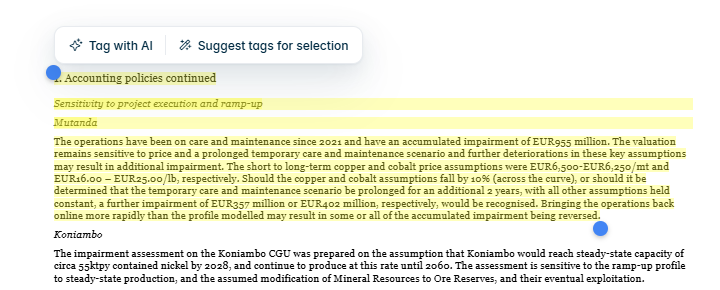
For a selected, not-yet-tagged text area, the AI-specific commands are shown in their own AI options context menu:

Context menu 'AI options' for a selected, not-yet-tagged text area with the options 'Tag with AI' and 'Suggest tags for selection'
Context menu 'AI options' for a selected, not-yet-tagged text area

For more details on AI-assisted tagging, see Tagging a Document with AI.

For tables, a distinction is made between the context menu of the table tag (right-click the tag label above the table) and the context menu of an individual cell (right-click a cell inside the table).

Table tag (entire table):

CommandDescriptionWord DocumentPDF Document
Move to another layerMoves the entire table structure with all tags to another layer.AvailableNo context menu available (see note above)
Copy to layerCopies the table structure with all tags to another layer; the source layer remains unchanged. Only available if the table is already tagged.AvailableNo context menu available
View table propertiesOpens the properties of the table.AvailableNo context menu available
DeleteRemoves all tags of the table.AvailableNo context menu available

Individual cell:

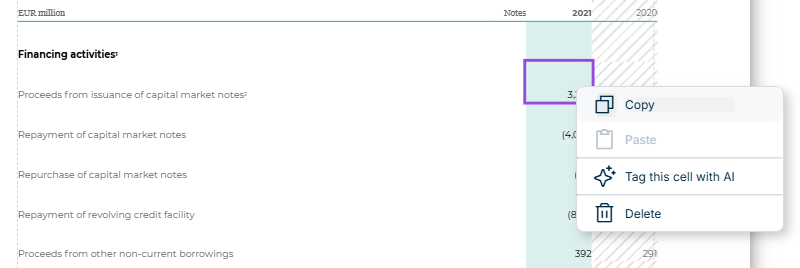
For a not-yet-tagged value cell, the context menu shows only a few commands:

CommandDescriptionWord DocumentPDF Document
CopyCopies the cell content to the clipboard.AvailableAvailable
PastePastes the clipboard content. Only active if something was previously copied.AvailableAvailable
Tag this cell with AISuggests a tag for the cell automatically using AI. Requires an AI license.AvailableNot available
DeleteRemoves the cell's content.AvailableAvailable
Context menu of a not-yet-tagged table cell with the options 'Copy', 'Paste', 'Tag this cell with AI', and 'Delete'
Context menu of a not-yet-tagged table cell

The same commands as for text elements apply to an already tagged cell (see table above: Set status, Continuation administration, Move to another layer, Cut, Copy, Paste, Edit, Re-tag with AI, Delete). In addition, the following table-specific AI command is available:

CommandDescriptionWord DocumentPDF Document
Validate this cell's tagAppears for an already tagged cell and lets AI check the existing tag.AvailableNot available

If several elements are selected at the same time, Move to another layer acts on the entire selection.