The Lucanet licenses workspace provides an overview of your licensed solutions, their license packages, the used license slots per user role, and their licensed units, where applicable. Each licensed solution is displayed as an expandable card. Users with the License Manager role can request license upgrades directly from the Lucanet CFO Solution Platform.

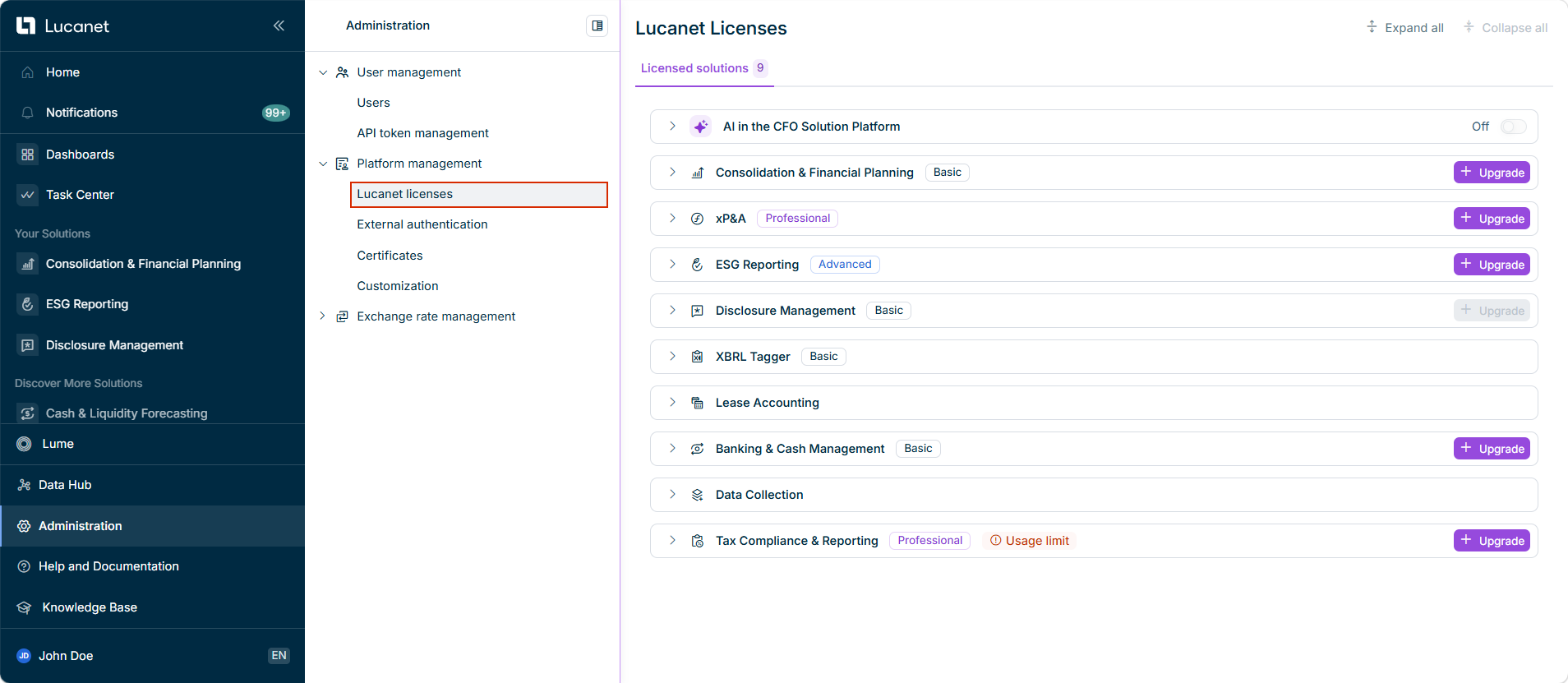
The Lucanet licenses workspace can be found under Administration | Platform management and is displayed as follows, for example:

Shows the 'Lucanet licenses' workspace with one card per licensed solution on the 'Licensed solutions' tab.
'Lucanet licenses' workspace

Your licensed solutions are listed on the Licensed solutions tab. The number next to the tab indicates how many solutions you are licensed for.

Use Expand all or Collapse all in the top right corner to open or close all cards at once, or click the arrow on an individual card to expand it.

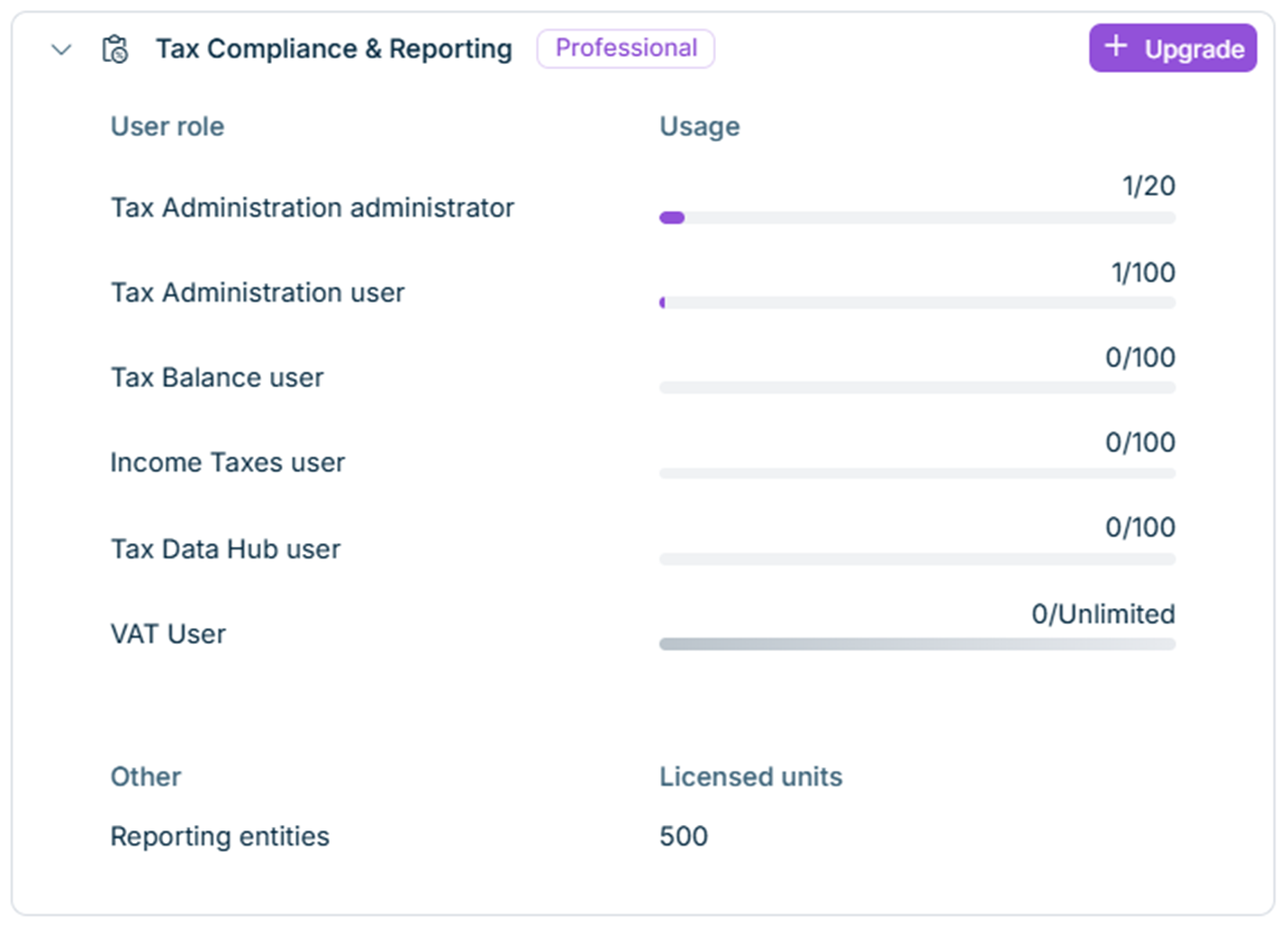
An expanded solution card is displayed as follows, for example:

Shows an expanded solution card with the 'User role / Usage' list and the 'Other / Licensed units' section.
Expanded solution card

Each card displays the following information:

ElementDescription
Solution name and iconThe licensed solution
License packageThe package you have purchased for the solution (for example, Basic, Professional, or Advanced), displayed as a badge next to the solution name. For more information on our license packages, see Find the perfect solution for your business needs.
User role/UsageThe license slots per user role, displayed as used/total with a usage bar. When a user role has unlimited license slots, the usage is displayed as used/Unlimited, and the usage bar remains unfilled.
Other/Licensed unitsAdditional licensed units for the solution, for example the licensed Reporting entities for Consolidation & Financial Planning.
UpgradeThe option for users with the License Manager role to request a license upgrade for the solution (see Requesting a License Upgrade).

Lucanet.Certified Professional users do not require license slots. They are not counted in the license overview.

When the license slots for a user role of a solution are used up or are running low, the solution card displays a Usage limit badge next to the solution name, together with a warning banner for each affected user role:

BannerDescription
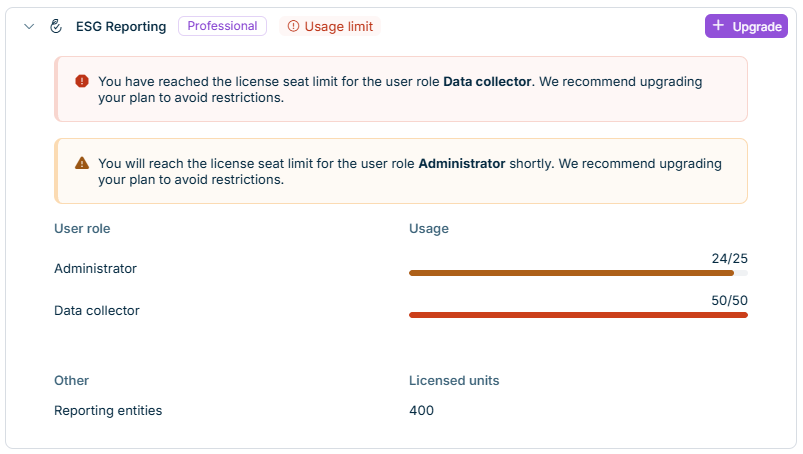
RedAll license slots for the user role are used up.
OrangeThe user role is about to use up all its license slots.

If both a red and an orange banner apply at the same time, the Usage limit badge reflects the more critical (red) state.

Usage limit warnings are displayed as follows, for example:

Shows a solution card with the Usage limit badge and two warning banners — a red one and an orange one — each naming the affected user role.
Solution card with usage limit warnings

To resolve a limit warning, a user with the License Manager role can request a license upgrade for the solution (see Requesting a License Upgrade).

You can request license upgrades directly from the Lucanet CFO Solution Platform. The request is automatically forwarded to Lucanet and triggers the relevant approval and provisioning processes.

Important: All license upgrades, extensions, and amendments initiated via the Lucanet CFO Solution Platform are legally binding. License upgrades can therefore only be requested by users with the License Manager role (see User Roles | License Manager). Make sure that the person requesting the upgrade is authorized to make contractual commitments.

To request a license upgrade:

1

Navigate to Administration | Platform management | Lucanet licenses.

2

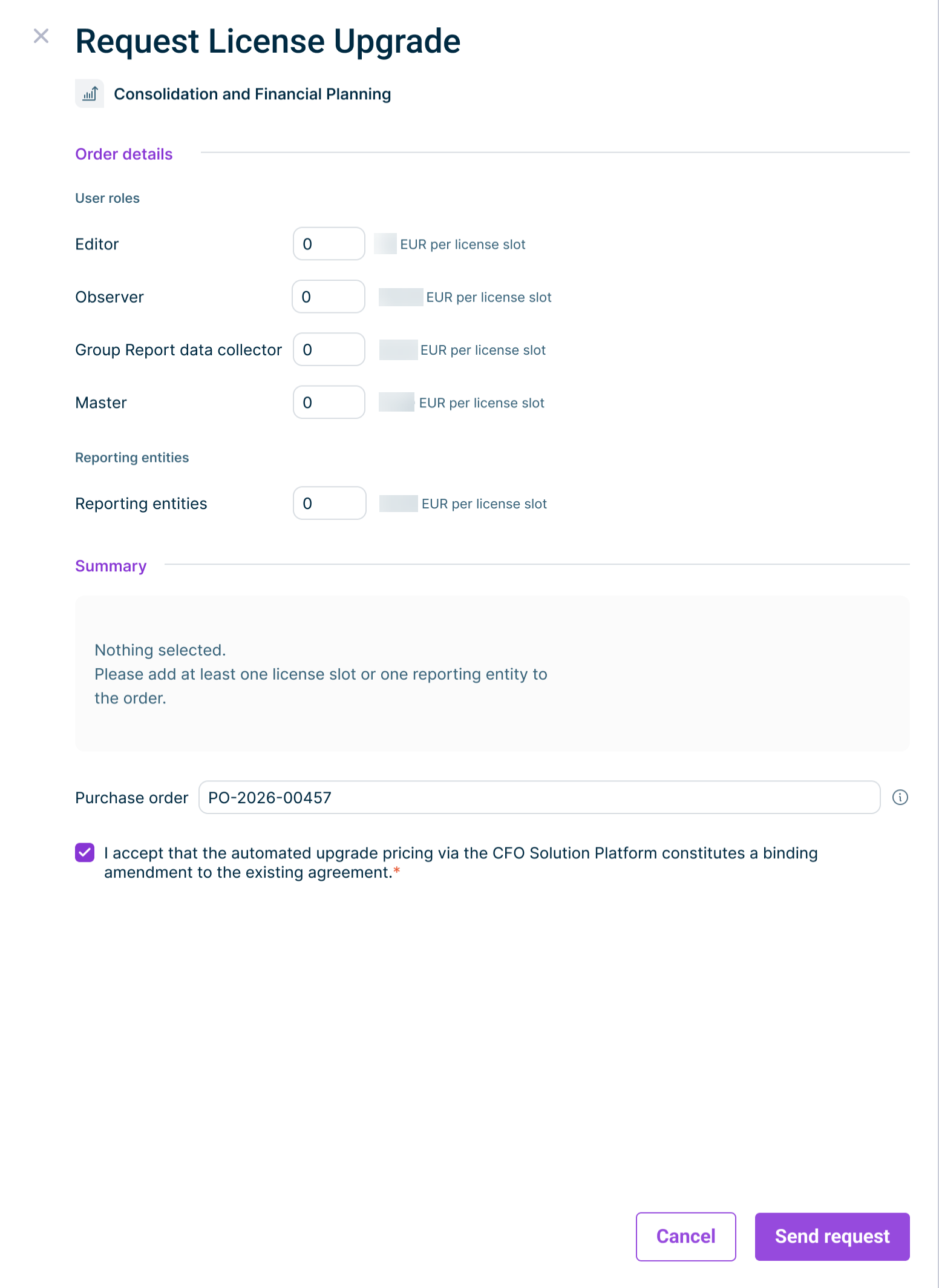
On the card of the desired solution, click Upgrade. The Request License Upgrade dialog opens and is displayed as follows, for example:

Displays the 'Request License Upgrade' dialog
'Request License Upgrade' dialog
3

In the Order details area, specify the desired components and quantities. The available components depend on the respective solution. The prices displayed are based on your current contract.

4

In the Summary area, review the automatically calculated overview of the selected components and the monthly total fee.

5

Optional: In the Purchase order field, enter a purchase order number that should appear on your invoice.

6

Activate the check box to confirm that the automated upgrade request via the Lucanet CFO Solution Platform constitutes a binding contract amendment.

7

Click Send request.

You will receive an e-mail and an in-app notification once your request has been processed. After the upgrade is activated in your environment, the additional license slots and reporting entities are displayed in the Lucanet licenses workspace.

  • In the Lucanet CFO Solution Platform, you can only add license slots. To reduce or remove license slots, please contact your Lucanet representative.
  • Only one license upgrade request per solution can be processed at a time. While an upgrade request is being processed, the Upgrade option for the respective solution is disabled. Once the request is completed, you can submit a new request.
