In the Users workspace of the Administration area, you can create, manage, and delete users for the Lucanet CFO Solution Platform.

In this workspace, you can configure the following settings:

  • Which users can access the different solutions and/or act as an administrator on the Lucanet CFO Solution Platform
  • User roles for each of the different solutions
  • Presets such as the display language and formatting displayed for the users
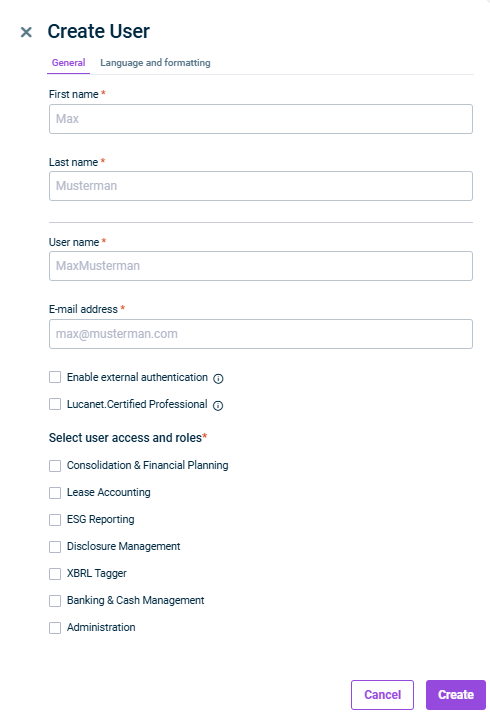
As a user with access to the Administration area, you can create new users for the Lucanet CFO Solution Platform. To do this, go to Administration | User management | Users and click Create User. The options for Creating users are displayed in the panel on the right side of the window, as follows, for example:

Displays the ‘Create User’ side panel with the ‘General’ tab open. The ‘Language and formatting’ tab is grayed out.
'Create User' side panel

You can use the General tab to configure the following options for all users:

OptionDescription
First nameThe user's first name
Last nameThe user's last name
User nameThe user's login name

Note: Usernames cannot contain spaces.
E-mail addressThe user's e-mail address
Enable authenticationDefines how the user authenticates.

For more information on the available authentication methods, see Authentication Methods.
Lucanet.Certified ProfessionalCreates a Lucanet.Certified Professional user account. In the user overview, Lucanet.Certified Professional users are indicated by the icon.

You can find more information on Lucanet.Certified Professional user accounts in the online help tool for Lucanet.Financial Client, under Complete description | Administration | Administration at database level | User management | Lucanet.Certified Professional.

Note: No licenses are required for Lucanet.Certified Professional users. This means that Lucanet.Certified Professional users can be assigned roles in a solution for which there are no more license slots available.
Select user accessDefines which solutions you want the user to be able to access, and whether you want to grant the user access to the Administration section of the Lucanet CFO Solution Platform.

The following solutions are currently available on the CFO Solution Platform:
• Consolidation & Financial Planning
• Lease Accounting
• xP&A
• ESG Reporting
• Disclosure Management
• XBRL Tagger
• Tax Compliance & Reporting
• Banking & Cash Management
• Data Collection

Which solutions are available to choose from depends on your license scope.

Note: If you use Lucanet.Financial Client, users created on the Lucanet CFO Solution Platform are automatically synchronized with Lucanet.Financial Client.
Select user rolesDefines a user role for each selected solution and, where applicable, user roles for the Administration area.

For more information on the available user roles, see User Roles in the CFO Solution Platform.

Note: User roles for whom the last license slot is available are indicated with the icon. If there are no license slots left for a user role, it will be grayed out.
Lock the user permanentlyLocks users from accessing the Lucanet CFO Solution Platform. Locked users are indicated by the icon in the user overview. By deactivating this check box, you will be able to unlock locked users.

Note: This option is only visible when editing a created user.

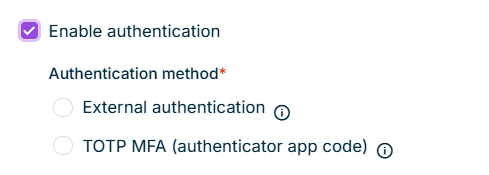
If the Enable authentication check box is activated, you must select one of two authentication methods. The methods are displayed as follows, for example:

Activated 'Enable authentication' check box with the 'External authentication' and 'TOTP MFA (authenticator app code)' methods below it.
Authentication methods in the 'General' tab

External authentication: The user logs in through the configured identity provider. This method requires an authentication protocol to be configured in the External authentication workspace. In the list of users, these users are indicated by the icon. For more information, see Configuring External Authentication.

TOTP MFA (authenticator app code): The user logs in with user name and password and must enter a six-digit code from an authenticator app at every login. The user receives an e-mail and sets up an authenticator app the next time they log in. In the list of users, these users are indicated by the icon. For more information, see Opening the Lucanet CFO Solution Platform | Multi-Factor Authentication with an Authenticator App.

If you deactivate the Enable authentication check box when editing a user with TOTP MFA, the user logs in with user name and password only and is no longer asked for a code.

If you activate the multi-factor authentication for this user again later, the user must set up an authenticator app again. The previous entry in the authenticator app no longer works.

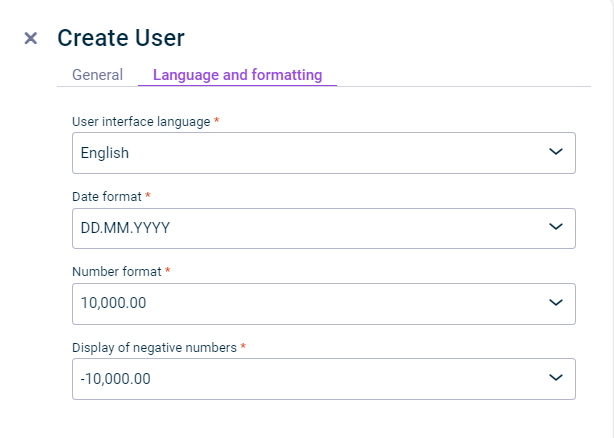
Use the Language and formatting tab to configure the language and formatting used to display the software to the user. The tab is displayed as follows:

Displays the ‘Language and formatting’ tab in the ‘Create User’ dialog.
‘Language and formatting’ Tab

Users can change their display language and formatting at any time using the options in the top bar (see Basic Configuration for the Lucanet CFO Solution Platform). If a user has changed these settings in their User Account, you can no longer change them as an administrator.

Once a user has been successfully created, they will automatically receive an invitation e-mail with the following information:

  • A link to the Lucanet CFO Solution Platform
  • A temporary password with which the user should log in for the first time if no external authentication is activated for them.
  • Links to access Lucanet.Financial Client if the customer is licensed for Lucanet Consolidation & Financial Planning and the user has access to Lucanet Consolidation & Financial Planning or Administration.

Note: New users must change their temporary password upon first login. For complete information on password requirements and lifecycle policies, see Opening the Lucanet CFO Solution Platform | Password Policy.

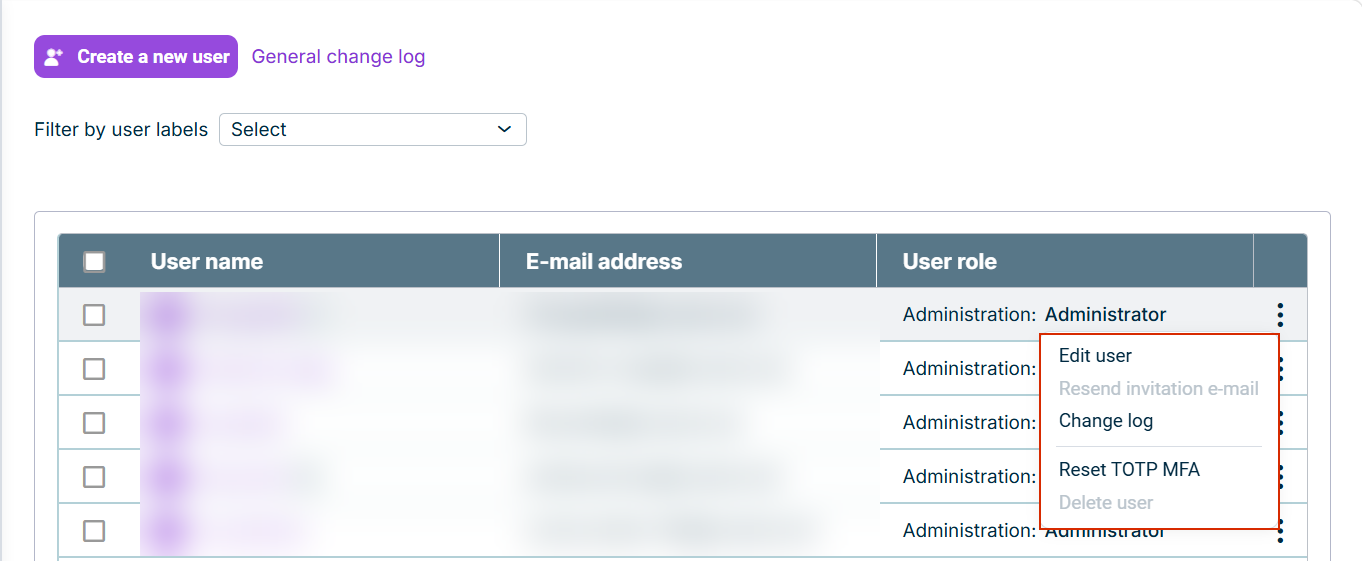
By default, the most recently updated users appear at the top of the list of users. You can use the menu of the icon to perform the following actions:

  • Edit user
  • Resend an invitation e-mail to the user. This option is available when the user has not yet logged into the Lucanet CFO Solution Platform, or when external authentication (SSO) is activated for the user, in which case it remains available even after the user's first login.
  • View a user's change log to obtain detailed information about the changes made (for more information on the change log in user administration, see Change Log)
  • Reset the TOTP MFA of a user (for more information, see Resetting TOTP MFA)
  • Delete user.
Displays the list of users. The five options ‘Edit user’, ‘Resend invitation e-mail’, 'Change log', ‘Reset TOTP MFA’, and ‘Delete user’ are outlined.
More user management options
  • The option for activating Lucanet.Certified Professional is only available when creating a user. It is not possible to change this option when editing a user at a later data.
  • Administrators can delete their administrator permissions when editing their own accounts. However, there must still be at least one user in the system who has access to the Administration functions.
  • It is possible for multiple users with Administration permissions to edit the same user account simultaneously. Whoever changes are saved first will be applied.
You can reset the multi-factor authentication for a user, for example if the user no longer has access to their authenticator app or wants to use a different device. The authenticator app is then unlinked, and the user sets up a new authenticator app the next time they log in. The user receives an e-mail with instructions.

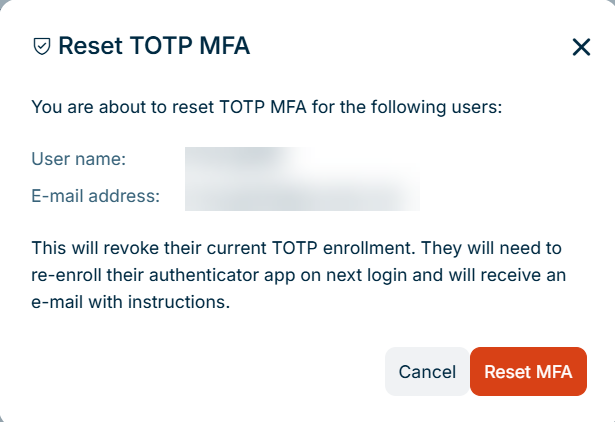
To reset the multi-factor authentication for a single user, click Reset TOTP MFA in the menu of the icon. The dialog is displayed as follows, for example:

Dialog 'Reset TOTP MFA' with the user name and the e-mail address of the affected user and with the 'Reset MFA' button.
Dialog for resetting TOTP MFA

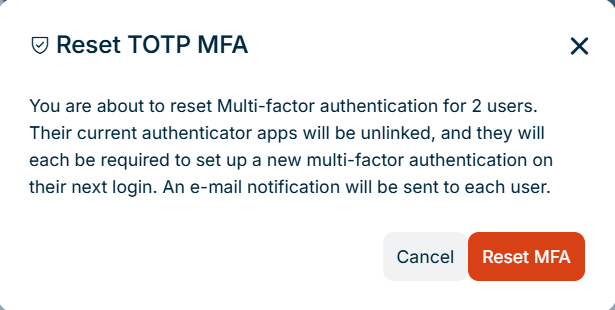
To reset the multi-factor authentication for several users at the same time, activate the check boxes in front of the users and click Reset TOTP MFA (for more information, see Managing Multiple Users at Once). The dialog then displays the number of selected users instead of their names, as follows, for example:

Dialog 'Reset TOTP MFA' for two users with the 'Reset MFA' button.
Dialog for resetting TOTP MFA for several users

Click Reset MFA to confirm.

The Reset TOTP MFA option is only available for users for whom multi-factor authentication is activated. Resetting the multi-factor authentication does not change the user's password.

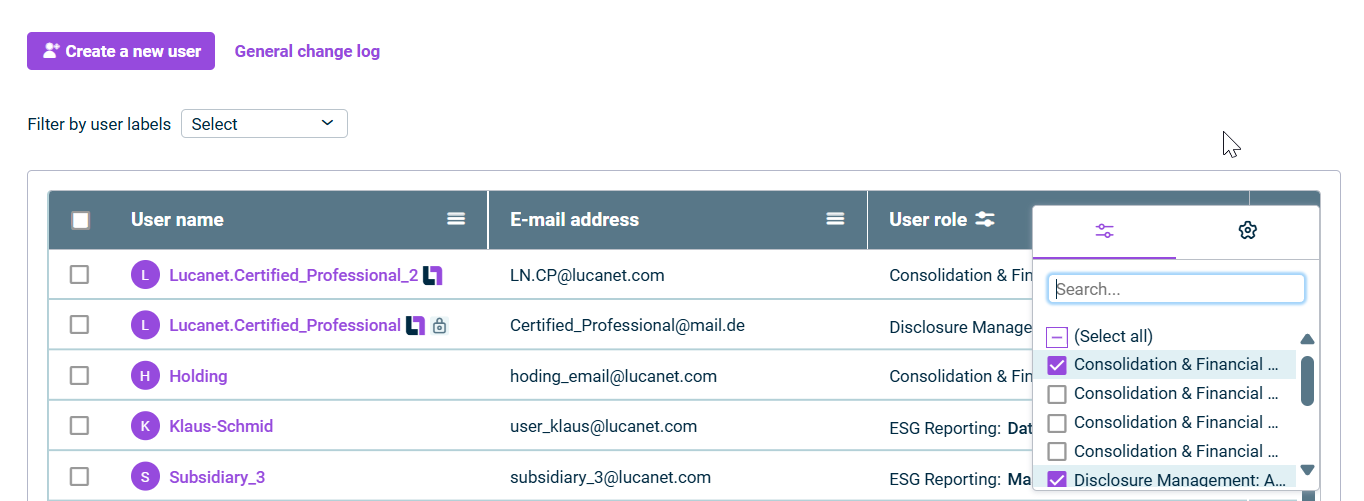
You can use the icon in the column heading in the user overview to filter the users that have been created so far by user name, e-mail address or user role. This is useful if you only want to view users with a specific role, for example. The filtered column is indicated by the icon.

Displays the user table. In the ‘User role’ column, the window used to filter users is displayed. The window is highlighted in a red boarder.
Filtering users

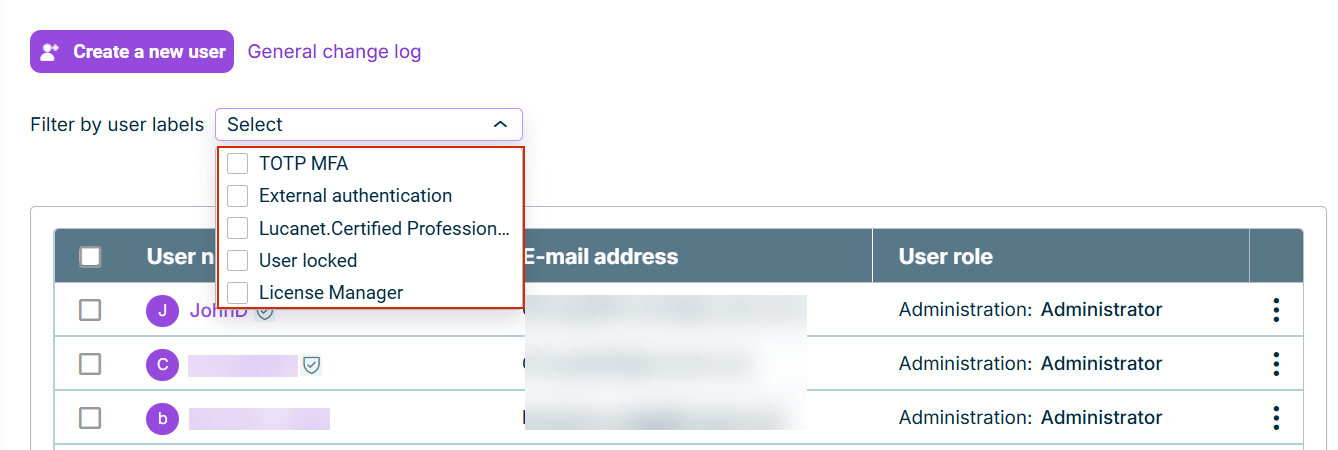
Additionally, it is possible to filter and display the following user attributes using the filter above the list of users:

LabelUsers
Users for whom TOTP MFA is activated
Users for whom external authentication is activated
Lucanet.Certified Professional users
Permanently locked users
Users with the License Manager role

The user labels are displayed as follows, for example:

The list of users with the open 'Filter by user labels' drop-down list above the list. The drop-down list contains a check box for each user label.
User labels in the 'Filter by user labels' drop-down list

To make user management more efficient, you can select multiple users in the list of users and perform various actions simultaneously. Proceed as follows:

1

Navigate to the workspace Administration | User management | Users.

2

In the list of users, activate the check boxes in front of the users you want to manage. If you want to activate multiple check boxes at the same time, you have the following options:

  • Activate the check box in the first row to activate all check boxes at the same time.
  • Activate the first check box, press the Shift key, and then activate the last checkbox.
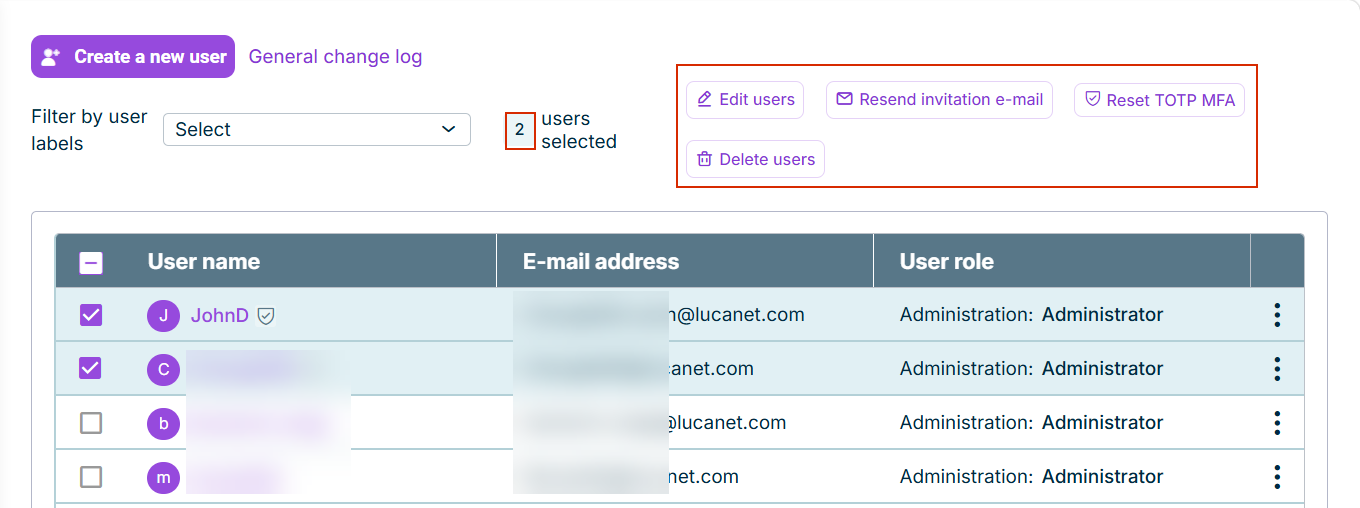
The number of selected users and the action buttons are then displayed as follows, for example:

The list of users with two users selected. Above the list, the number of selected users and the buttons 'Edit users', 'Resend invitation e-mail', 'Reset TOTP MFA', and 'Delete users' are outlined.
Manage multiple users simultaneously
3

Click the appropriate button to perform the following actions:

  • Edit users (for more information, see Bulk Edit Options)
  • Resend an invitation e-mail to the users. This option is available when the users have not yet logged into the Lucanet CFO Solution Platform, or when external authentication (SSO) is activated for the users, in which case it remains available even after their first login.
  • Reset the TOTP MFA of the users (for more information, see Resetting TOTP MFA)
  • Delete users

The following options are available for simultaneous editing of multiple users:

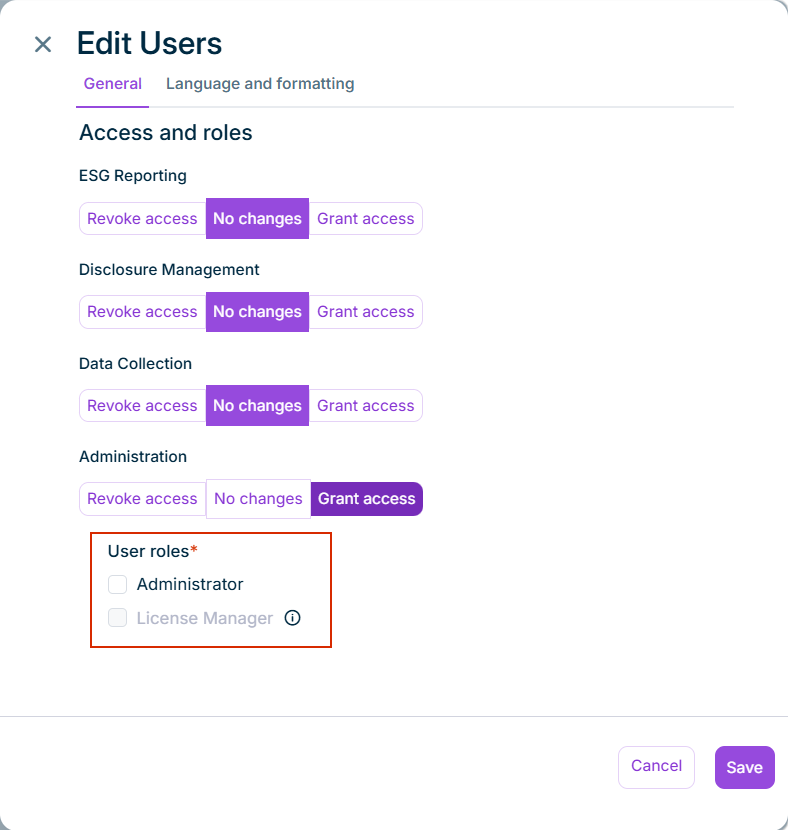
Grants or revokes access to a specific solution or to the Administration area for all selected users

When granting access, you must define a user role for the respective solution and/or for Administration.

Edit user access and user roles for multiple users
  • Enables or disables external authentication for the selected users if an authentication method is configured in the External Authentication workspace
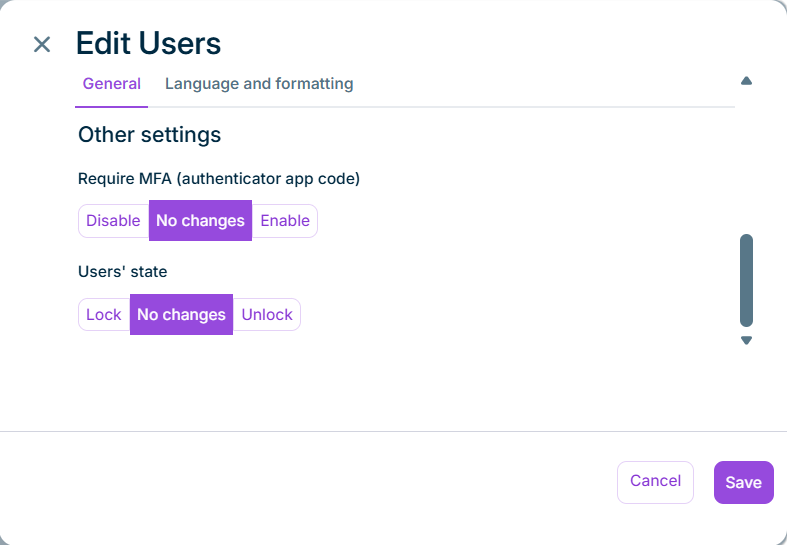
  • Enables or disables the Require MFA (authenticator app code) setting for the selected users. Regardless of the current setting of the selected users, No changes is preselected.
  • Locks or unlocks all selected users
Dialog 'Edit Users' with the 'Other settings' area. It contains the settings 'Require MFA (authenticator app code)' and ‘Users' state’, both set to 'No changes'.
Edit other settings for multiple users

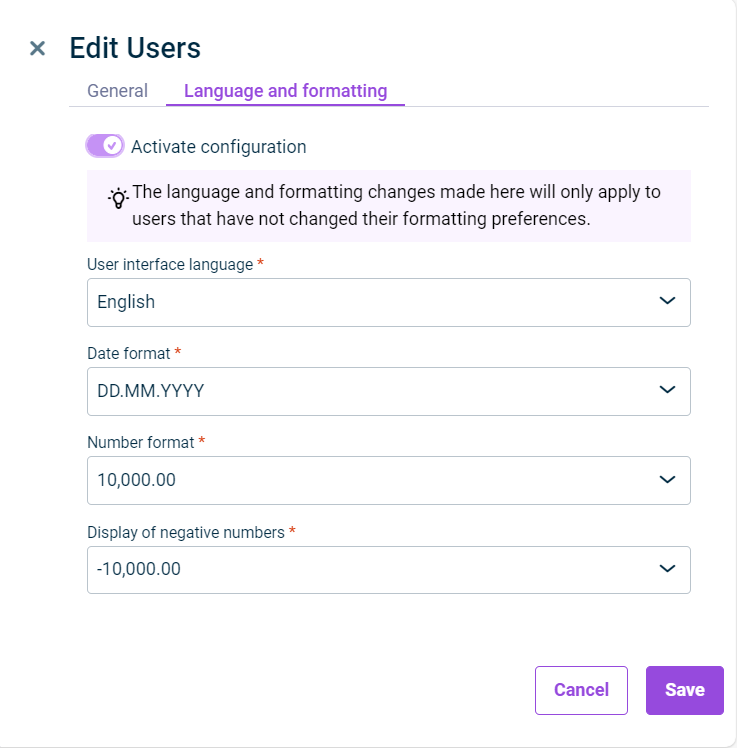
Defines the default settings for language and formatting, if these settings have not been changed by the user

Change language and formatting settings for multiple users

This content was generated using AI and reviewed by Lucanet subject matter experts before publication.