The Lucanet CFO Solution Platform is displayed in your browser. You can open it by entering the corresponding URL. There are several different ways of opening the Lucanet CFO Solution Platform.

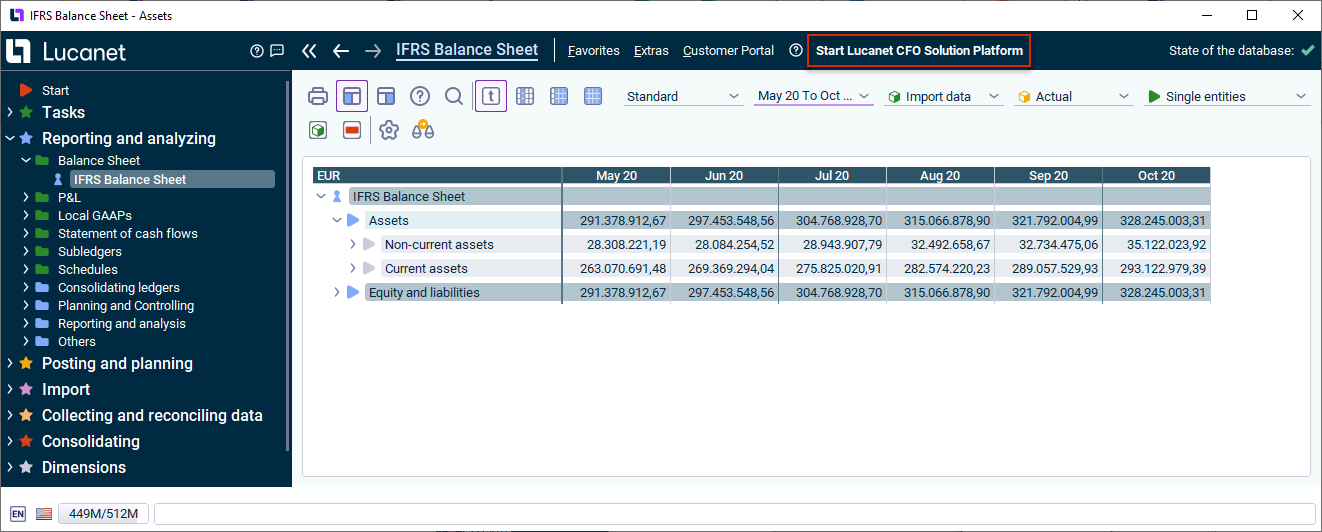
Click the menu command Start Lucanet CFO Solution Platform in the menu bar of Lucanet.Financial Client.

The LucaNet user interface with the menu 'Extras | LucaNet Cloud Platform' in LucaNet.Financial Client is displayed.
Menu command 'Start Lucanet CFO Solution Platform' in Lucanet.Financial Client

If you open the Lucanet CFO Solution Platform from Lucanet .Financial Client, you do not need to log in to the Lucanet CFO Solution Platform again.

To open the Lucanet CFO Solution Platform, you will initially receive an e-mail with a link to the Lucanet CFO Solution Platform. Click on the link and log in with your SSO or your Lucanet credentials.

To make sure the invitation e-mail and other platform e-mails (for example, password reset or expiration notices) are delivered reliably, ensure that your spam filter or e-mail gateway does not block messages from no-reply@platform.lucanet.cloud. These e-mails are sent via the Amazon e-mail service Amazon SES (amazonses.com).

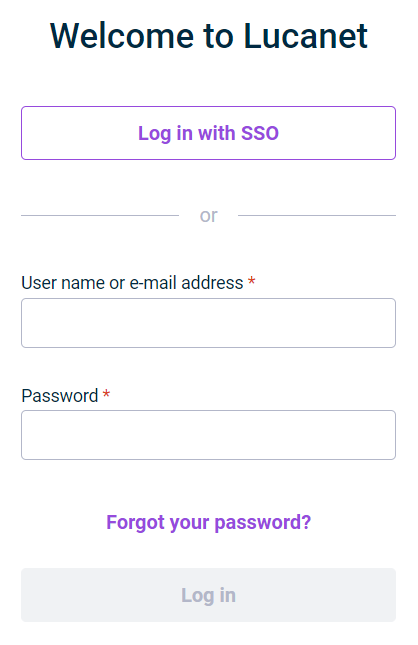
Displays the login dialog of the Lucanet CFO Solution Platform.
Login dialog of the Lucanet CFO Solution Platform

Depending on whether external authentication is activated for you or not, you have the following options for logging in to the Lucanet CFO Solution Platform:

If external authentication is activated for you:

1

Click Log in with SSO.

2

Log in with the access data of your identity provider.

If no external authentication is activated for you:

1

Enter the following in the login dialog:

  • Your User name or e-mail address
  • Your Password
2

Click Log in.

If your administrator has activated multi-factor authentication (MFA) for your user account, you need your user name, your password, and a six-digit code from an authenticator app to log in.

Multi-factor authentication applies only if you log in with a user name and password. If external authentication is activated for you, you log in through your identity provider, and multi-factor authentication is handled there.

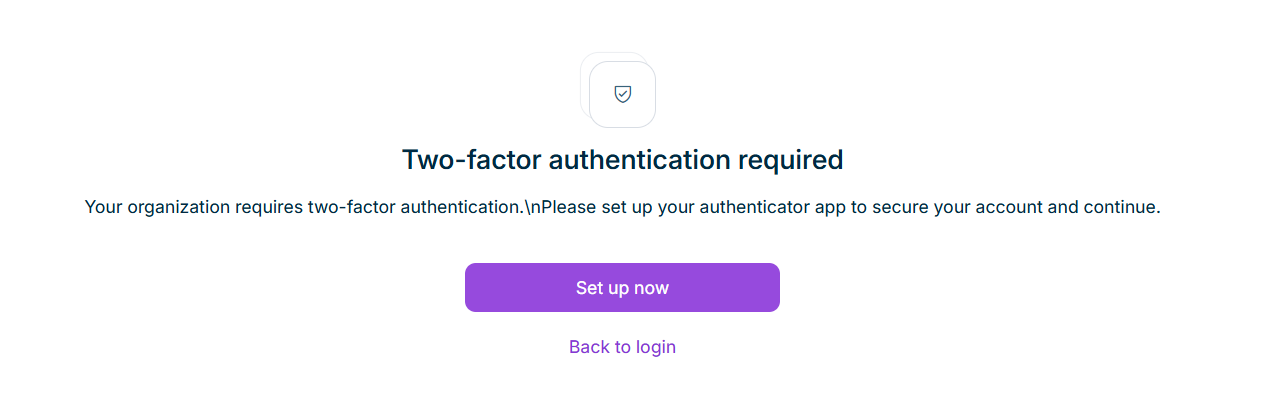
The first time you log in after your administrator has activated multi-factor authentication, you must set up an authenticator app. The page is displayed as follows, for example:

Page 'Two-factor authentication required' with the 'Set up now' button.
Message that multi-factor authentication is required

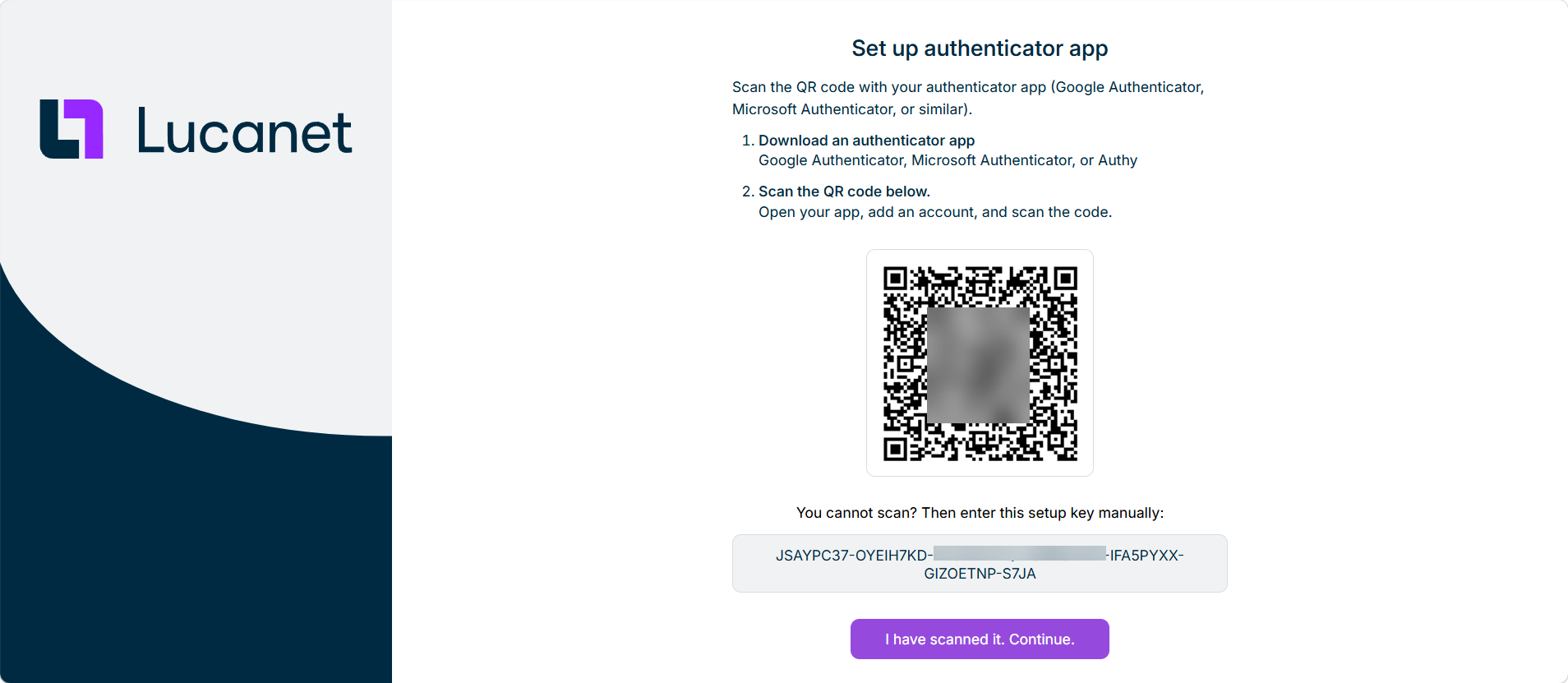
Click Set up now. The setup page is displayed as follows, for example:

Page 'Set up authenticator app' with the two setup steps, the QR code, and the setup key below the QR code.
Page for setting up the authenticator app

To set up the authenticator app:

1

Install an authenticator app on your mobile device, for example Google Authenticator, Microsoft Authenticator, or Authy.

2

Open the authenticator app, add an account, and scan the QR code.

If you cannot scan the QR code, enter the setup key below the QR code manually in the authenticator app.

3

Click I have scanned it. Continue.

4

Enter the six-digit code from your authenticator app, and then click Verify and complete setup.

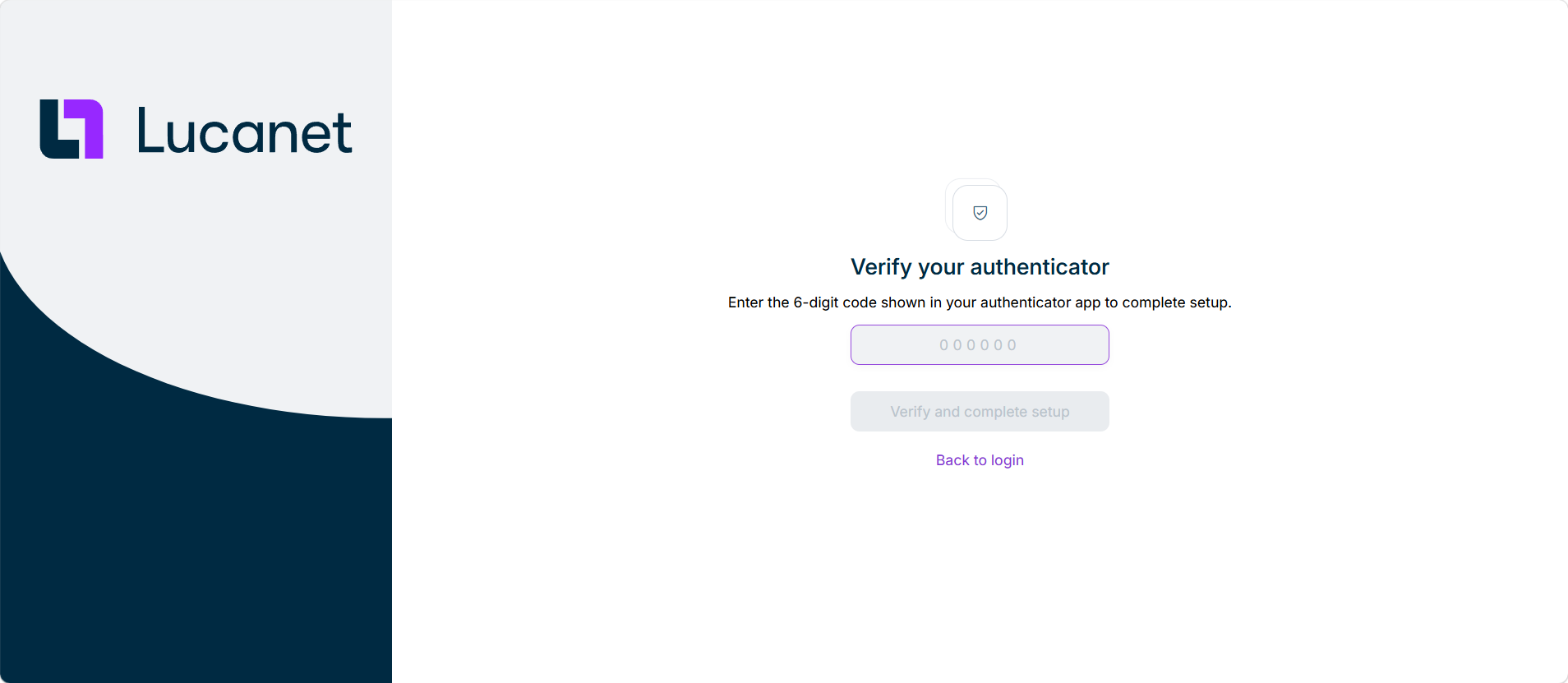
The page for entering the verification code is displayed as follows, for example:

Page 'Verify your authenticator' with the field for the verification code and the 'Verify and complete setup' button.
Page for verifying the authenticator app

Only one authenticator app can be linked to your user account.

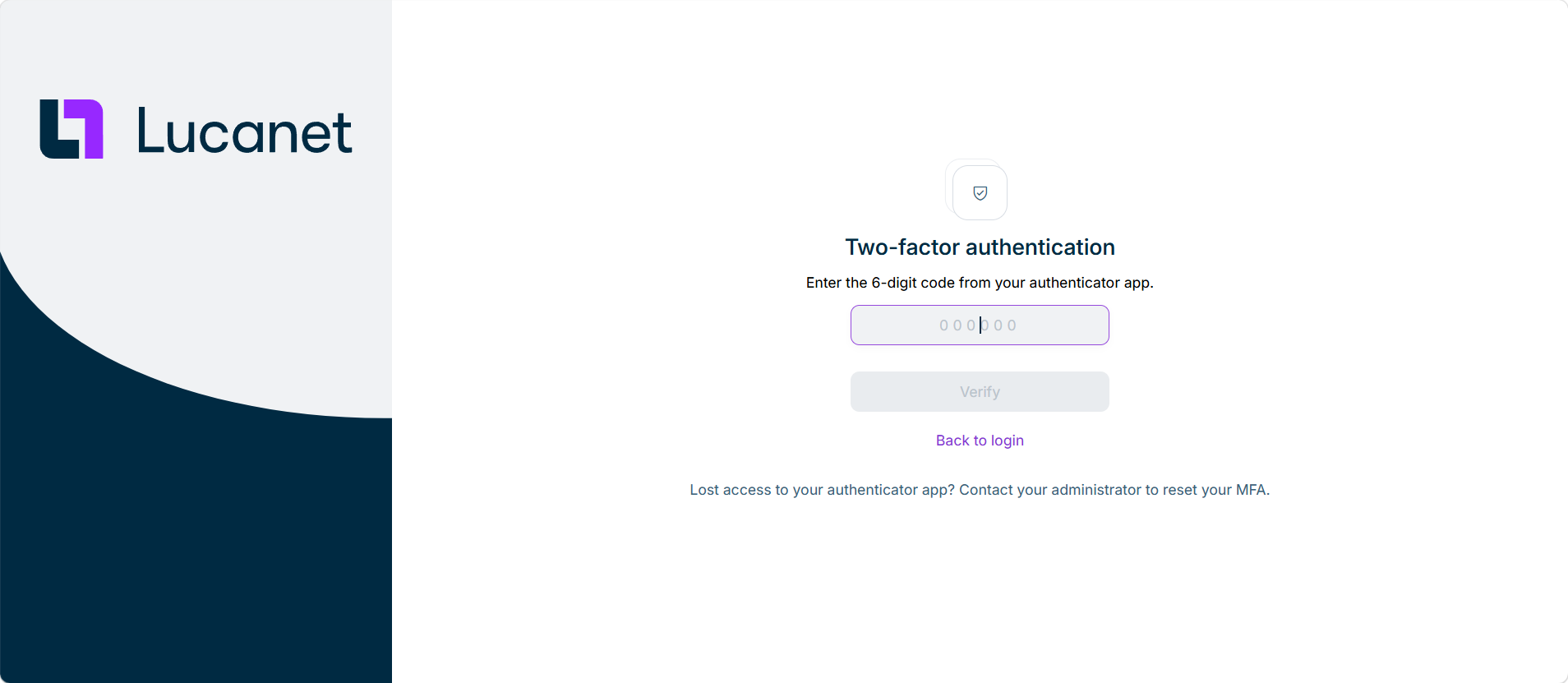
Once you have set up the authenticator app, you must enter a code every time you log in with your user name and password. The page is displayed as follows, for example:

Page 'Two-factor authentication' with the field for the authentication code and the 'Verify' button.
Page for entering the authentication code

To complete the login, enter the six-digit code from your authenticator app, and then click Verify.

The code in the authenticator app changes every 30 seconds. If the code has expired, open the authenticator app again and enter the new code.

If you no longer have access to your authenticator app, contact your administrator. Your administrator can reset the multi-factor authentication for your user account so that you can set up an authenticator app again. For more information, see Creating and Editing Users for the Lucanet CFO Solution Platform | Resetting TOTP MFA.

To ensure the security of your account, passwords must meet the following requirements:

Complexity Requirements:

  • Minimum of 14 characters in length

  • Must contain characters from at least three (3) of the following four categories:

    • English uppercase letters (A-Z)
    • English lowercase letters (a-z)
    • Numbers (0-9)
    • Special characters (e.g., ! @ # $ % ^ & *)

Password Lifecycle and Security Policies:

  • Password expiration: Passwords expire after 90 days for security reasons. You will be prompted to change your password when it expires.
  • Password history: Your new password cannot be the same as any of your previous 5 passwords.
  • Change frequency limit: You can change your password a maximum of twice per day.

Password Expiration Notifications:

To help you maintain uninterrupted access to your account, you will receive advance notifications to change your password:

  • Email notifications will be sent 30, 14, 7, and 1 day(s) before your password expires.
  • In-app notifications will appear in the platform at the same intervals.

We recommend changing your password before it expires to avoid any service interruption.

Account Security Controls:

Automated security measures protect your account from unauthorized access: after 5 consecutive incorrect login attempts, your account is automatically locked for 30 minutes.

If you have forgotten your password, you can click Forgot your password in the login dialog. Enter your user name or e-mail address to have an e-mail sent to you to reset your password.

The Forgot your password function is not available if external authentication is used.

This content was generated using AI and reviewed by Lucanet subject matter experts before publication.