The Lucanet CFO Solution Platform is the user interface for end users and Lucanet administrators in the web view. This page contains information about the structure of the user interface and the most important elements.
After you log in, the homepage of the Lucanet CFO Solution Platform is displayed next to the main menu.
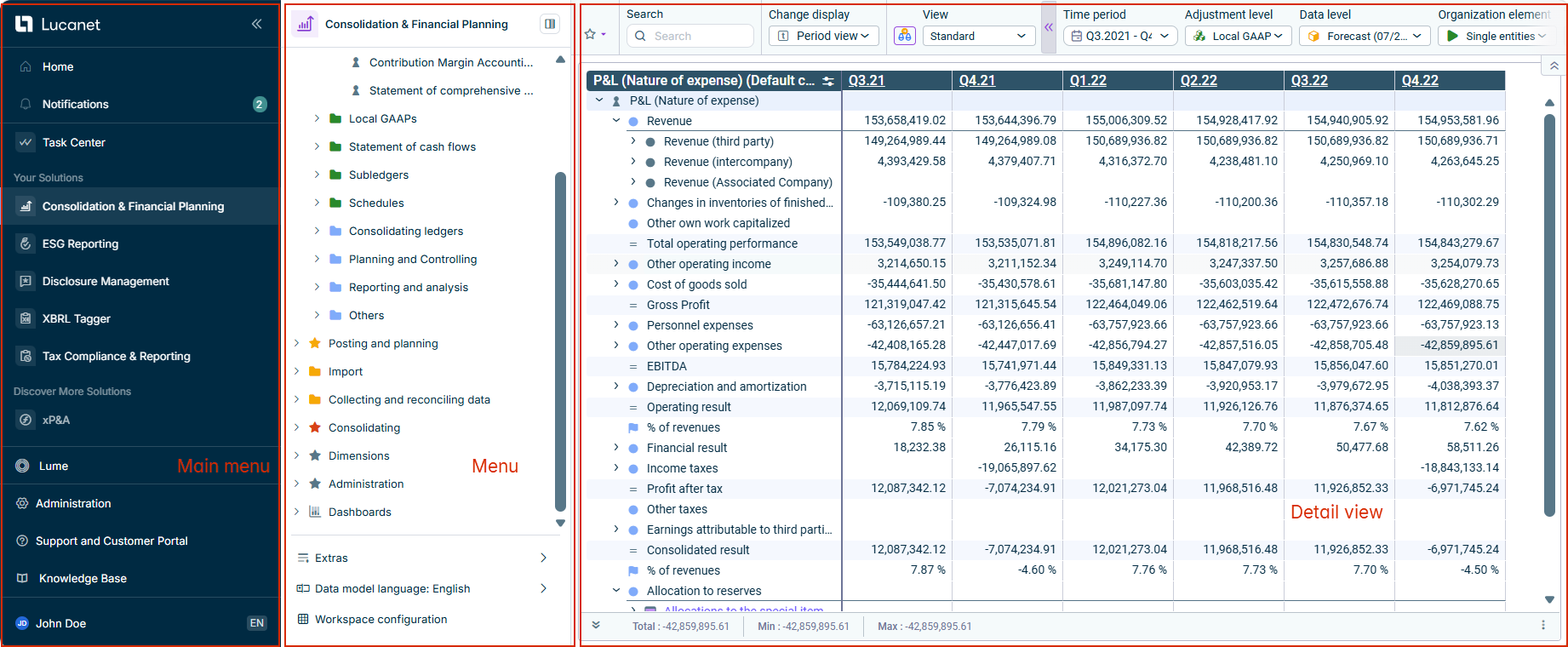
If you open any solution or the Administration section, the user interface will be displayed in three areas: main menu, menu, and detail view. For example, the Consolidation & Financial Planning solution is displayed as follows:
User interface of the Lucanet CFO Solution Platform
Centralized interface for managing notifications from platform features and your licensed solutions. Unread notifications are indicated by a number behind the menu item.
Provides a unified interface for managing tasks across the Lucanet CFO Solution Platform. You can easily create, organize, and monitor tasks in one place here.
Your Solutions
Contains the overview of all the solutions available to you within the scope of your license.
Discover More Solutions
Contains all unlicensed solutions of the Lucanet CFO Solution Platform. Clicking on a solution opens the corresponding demo page. For more information, see Discover More Solutions.
(If available) The conversational layer of the Lucanet CFO Solution Platform: ask questions in plain language and Lume provides instant answers or routes your request to the right workflow agents behind the scenes. It is the starting point for orchestrating everything the Intelligence Core of Lucanet provides.
(If available) The central data-integration function of the Lucanet CFO Solution Platform: create connections to external source systems, define which data to import, and run and track the imports.
Serves as the central hub for user management and platform administration. Is displayed only for users with access to the Administration module.
Support and Customer Portal
Provides access to Support, the Customer Portal, and About Lucanet. For more information, see Support and Customer Portal.
Knowledge Base
Opens the Knowledge Base with the documentation and guides for the Lucanet CFO Solution Platform and its solutions.
User Account
Displays your avatar, name, and selected UI language at the bottom of the main menu, and opens the account menu. For more information, see User Account.
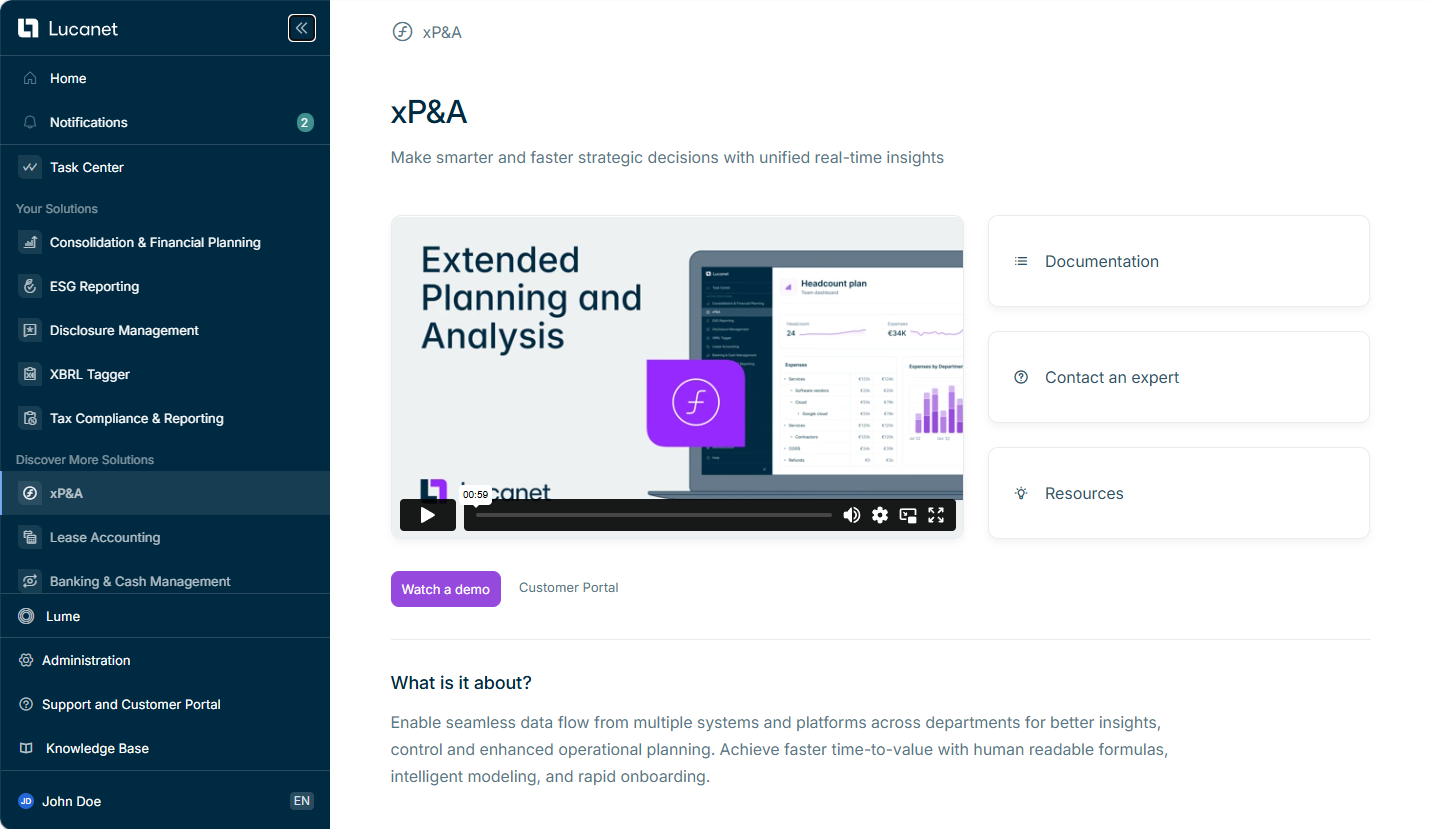
Contains all unlicensed solutions of the Lucanet CFO Solution Platform. Clicking on a solution opens the corresponding demo page with options to watch an interactive demo, access documentation, contact experts, or view resources:
Sample demo page for xP&A displayed from the 'Discover more solutions' section
When you click Watch a demo, a consent dialog is displayed requesting your permission to redirect to the external Consensus platform (operated by Consensus, Inc, South Jordan, UT, USA). The dialog provides information about data processing in accordance with Art. 6 para. 1 lit. a GDPR and includes a link to the Consensus Privacy Policy↗.
To proceed to the demo, activate the consent check box and click Continue. To decline, click Decline or close the dialog. Your consent is stored and you will not see the dialog again unless you revoke your consent via Account menu | My Profile | Manage Consent.
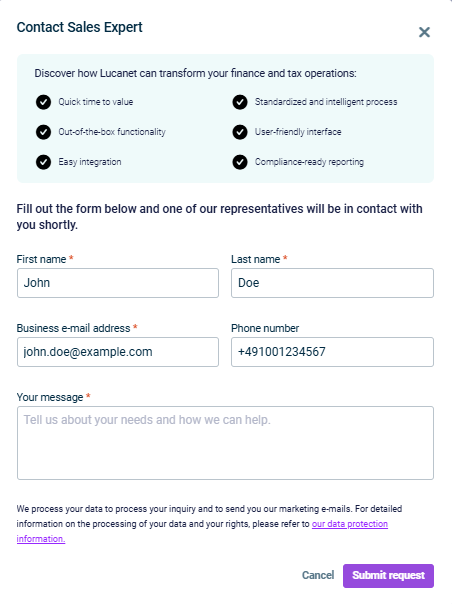
On each demo page, you can click the Contact an expert button to request assistance or more information about unlicensed solutions. A contact form is displayed as follows, for example:
'Contact a Sales Expert' form
Your contact information is automatically filled from your profile. After submitting your request, one of our sales representatives will contact you shortly to discuss your requirements.
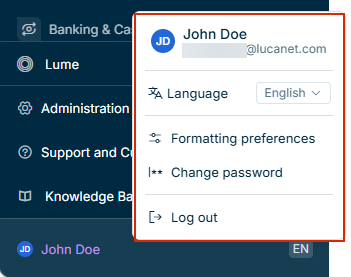
Displays your avatar, name, and selected UI language at the bottom of the main menu. Click anywhere in this area to open the Account menu, as displayed in the following example:
User account area and the account menu
The following options are available in the account menu:
Option
Description
User info (avatar, name, e-mail address)
Displays your avatar, first name, last name, and e-mail address. Click this area to open your profile, where you can view your user name and e-mail address and manage your consents for external services. For more information, see Viewing Your User Profile and Managing Consents for External Services.
The Menu provides an overview of the selected licensed solution or the Administration section. What is displayed in the menu depends on which solution or section has been chosen. For example, the menu can display:
Licensed and unlicensed modules within the selected solution
Functional areas and workspaces of the selected solution
The following options are available to change the display of the main menu or the menu:
Element
Description
Main menu
• Click the or icon to expand or collapse the main menu. • Drag and drop the dividing line between the main menu and the menu to hide or show the element names in the main menu.
Menu
• Click the or icon to show or hide the menu. • Drag and drop the dividing line between the menu and the detail view to resize the width of the menu.
This content was generated using AI and reviewed by Lucanet subject matter experts before publication.