On this page, you will find an overview of basic settings and key system information in the Lucanet CFO Solution Platform. You can change the language of the user interface, configure date and number formats, change your password, view your user profile, manage consents you have granted for external services, see the current Lucanet version, and, as an administrator, download SBOM files in JSON format.

You can change the user interface language in the User account area in the main menu.

To change the language of the user interface in the CFO Solution Platform:

1

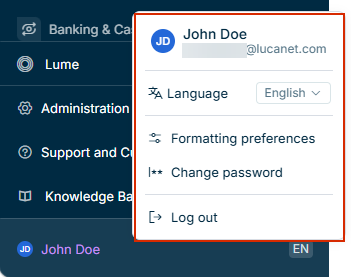
Click the user account area at the bottom of the main menu, which displays your avatar, name, and language indicator. The account menu is displayed as follows, for example:

Shows the open account menu above the user account area at the bottom of the main menu of the CFO Solution Platform with the user name 'John Doe', the e-mail address, the 'Language' drop-down list set to 'English', and the options 'Formatting preferences', 'Change password', and 'Log out'. Highlighted in red is the account menu.
User account area and the account menu
2

Select your desired language from the Language drop-down list.

To configure the format of numbers and dates in the Lucanet CFO Solution Platform:

1

Click the user account area at the bottom of the main menu, which displays your avatar, name, and language indicator. The account menu is displayed as follows, for example:

Shows the open account menu above the user account area at the bottom of the main menu of the CFO Solution Platform with the user name 'John Doe', the e-mail address, the 'Language' drop-down list set to 'English', and the options 'Formatting preferences', 'Change password', and 'Log out'. Highlighted in red is the account menu.
User account area and the account menu
2

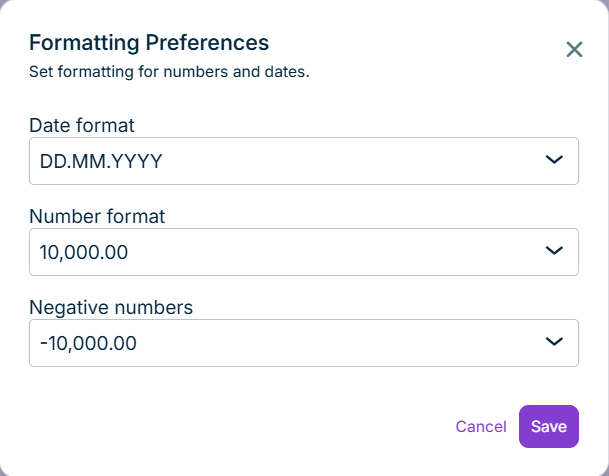
Click Formatting preferences. The Formatting Preferences dialog is displayed as follows:

Shows the 'Formatting Preferences' dialog in the CFO Solution Platform with the 'Date format' field set to 'DD.MM.YYYY', the 'Number format' field set to '10,000.00', the 'Negative numbers' field set to '-10,000.00', and the 'Cancel' and 'Save' buttons.
'Formatting Preferences' dialog
3

Configure your preferred date and number format.

4

Click Save.

You can change your password at any time through your profile settings.

To change your password in the CFO Solution Platform:

1

Click the user account area at the bottom of the main menu, which displays your avatar, name, and language indicator. The account menu is displayed as follows, for example:

Shows the open account menu above the user account area at the bottom of the main menu of the CFO Solution Platform with the user name 'John Doe', the e-mail address, the 'Language' drop-down list set to 'English', and the options 'Formatting preferences', 'Change password', and 'Log out'. Highlighted in red is the account menu.
User account area and the account menu
2

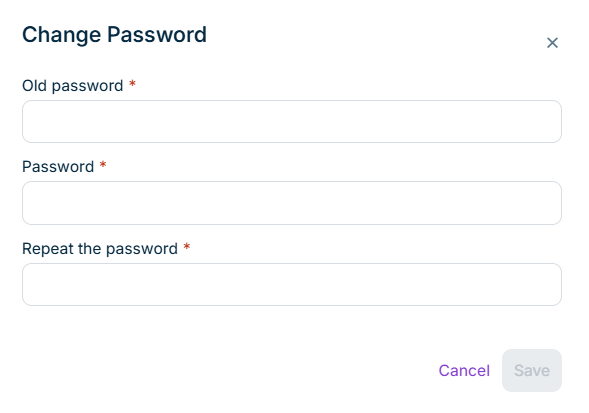
Click Change password. The Change Password dialog is displayed as follows:

Shows the 'Change Password' dialog in the CFO Solution Platform with the required fields 'Old password', 'Password', and 'Repeat the password' and the 'Cancel' and 'Save' buttons.
'Change Password' dialog
3

Change your password.

4

Click Save.

Important Notes:

  • You can only change your password twice per day for security reasons.
  • Your new password cannot be the same as any of your previous 5 passwords.

For detailed password requirements, see our Password Policy.

Passwords expire after 90 days for security reasons. To help you prepare, you will receive notifications 30, 14, 7, and 1 day(s) before your password expires.

The password expiration reminder e-mails include a direct link to the login page of the Lucanet CFO Solution Platform. Click the link in the e-mail to open the login page and change your password.

When your password expires and you attempt to log in:

  • You will be automatically redirected to the password reset page.
  • A verification code will be automatically sent to your registered e-mail address.
Please enter the verification code and set your new password following the on-screen instructions.

Tip

We recommend changing your password before it expires to avoid any interruption to your access. You can change your password at any time using the steps in Changing Your Password Voluntarily.

In the Lucanet CFO Solution Platform, you can access your user profile for purposes such as checking your saved e-mail address.

To access your user profile in the CFO Solution Platform:

1

Click the user account area at the bottom of the main menu, which displays your avatar, name, and language indicator. The account menu is displayed as follows, for example:

Shows the open account menu above the user account area at the bottom of the main menu of the CFO Solution Platform with the user name 'John Doe', the e-mail address, the 'Language' drop-down list set to 'English', and the options 'Formatting preferences', 'Change password', and 'Log out'. Highlighted in red is the account menu.
User account area and the account menu
2

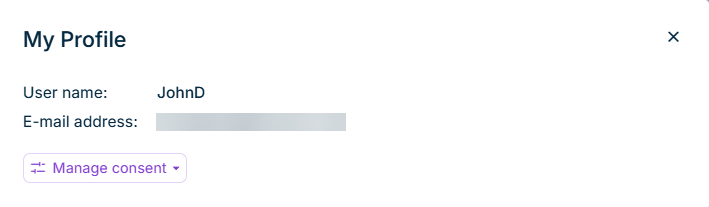
In the account menu, click the user info area at the top. The My Profile dialog is displayed as follows, for example:

Shows the 'My Profile' dialog in the CFO Solution Platform with the 'User name' and 'E-mail address' fields and the 'Manage consent' option.
'My profile' dialog

You can view and manage consents you have granted for external websites and applications. An example of such a service is the Consensus platform for our solution demos.

To access consent management in the CFO Solution Platform:

1

Click the user account area at the bottom of the main menu, which displays your avatar, name, and language indicator. The account menu is displayed as follows, for example:

Shows the open account menu above the user account area at the bottom of the main menu of the CFO Solution Platform with the user name 'John Doe', the e-mail address, the 'Language' drop-down list set to 'English', and the options 'Formatting preferences', 'Change password', and 'Log out'. Highlighted in red is the account menu.
User account area and the account menu
2

In the account menu, click the user info area at the top. The My Profile dialog is displayed.

3

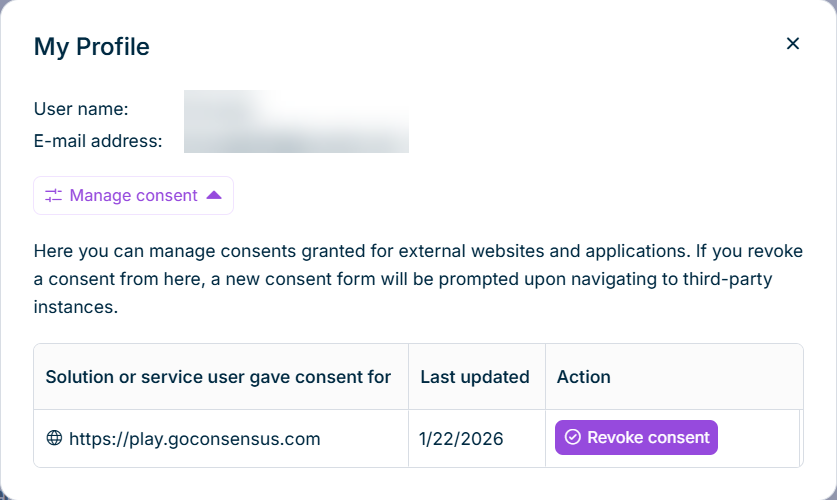
Click Manage consent. The Manage consent section is displayed as follows, for example:

Shows the 'My Profile' dialog in the CFO Solution Platform with the 'Manage consent' section expanded and a consent list with the columns 'Solution or service user gave consent for', 'Last updated', and 'Action', containing an entry for 'https://play.goconsensus.com' with the 'Revoke consent' button.
Managing consent in the 'My Profile' dialog

The consent list in the My Profile dialog displays the following information for each granted consent:

  • Solution or service user gave consent for: The external website or application name
  • Last updated: Date when consent was granted or revoked
  • Action: Button to revoke the consent. After revoking consent, the consent dialog will be displayed again when you access the service.

If an external service updates its privacy policy, your consent may be automatically revoked and you will need to provide consent again.

To access your current Lucanet versions in the CFO Solution Platform:

1

Click Support and Customer Portal or the Help icon icon in the main menu.

2

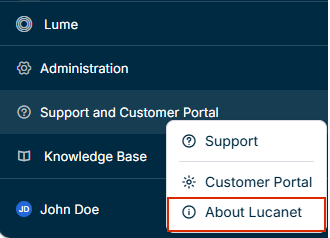
Choose About Lucanet from the context menu.

Shows the context menu of 'Support and Customer Portal' in the main menu of the CFO Solution Platform with the options 'Support', 'Customer Portal', and 'About Lucanet'. Highlighted in red is the 'About Lucanet' option.
'About Lucanet' option in the main menu

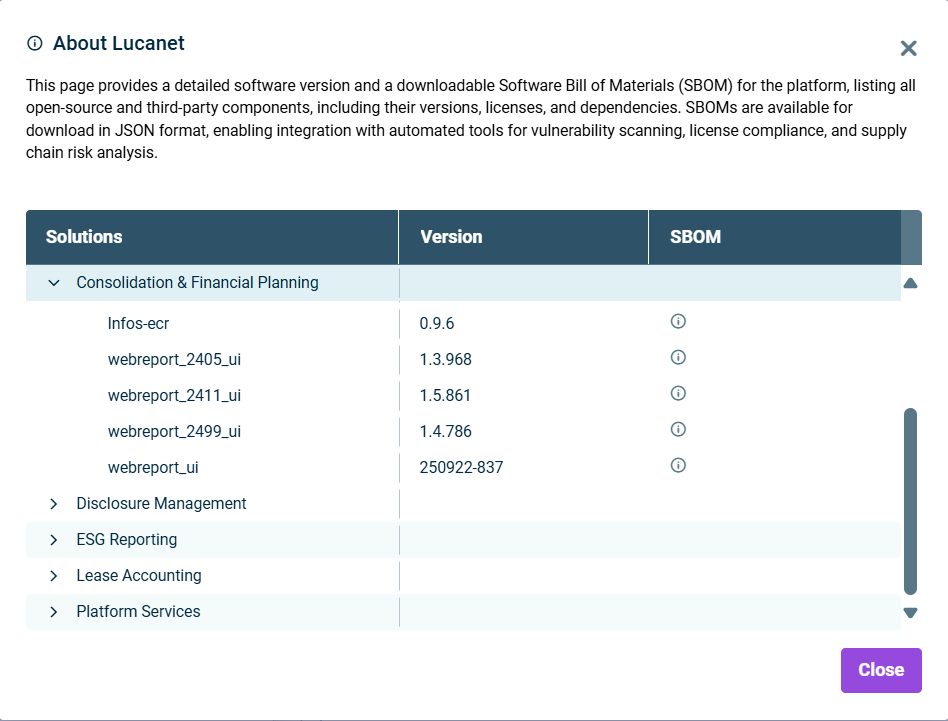
The About Lucanet dialog will be displayed as follows, for example:

Shows the 'About Lucanet' dialog in the CFO Solution Platform with the columns 'Solutions', 'Version', and 'SBOM', the expanded 'Consolidation & Financial Planning' entry with its subcomponents and versions, and the collapsed entries 'Disclosure Management', 'ESG Reporting', 'Lease Accounting', and 'Platform Services'.
'About Lucanet' dialog

You can expand each solution and Platform Services to view the version of the subcomponents. The information is read-only and can be copied for reference.

The SBOM column is only available for administrators. See Accessing and Downloading SBOMs in the CFO Solution Platform for more information.

The Lucanet CFO Solution Platform provides comprehensive Software Bill of Materials (SBOM) documentation to enhance security, transparency and compliance. This information is exclusively available to administrators via the About Lucanet option in the main menu.

To access SBOM information in the CFO Solution Platform:

1

Click Support and Customer Portal or the Help icon icon in the main menu.

2

Choose About Lucanet from the context menu.

Shows the context menu of 'Support and Customer Portal' in the main menu of the CFO Solution Platform with the options 'Support', 'Customer Portal', and 'About Lucanet'. Highlighted in red is the 'About Lucanet' option.
'About Lucanet' option in the main menu

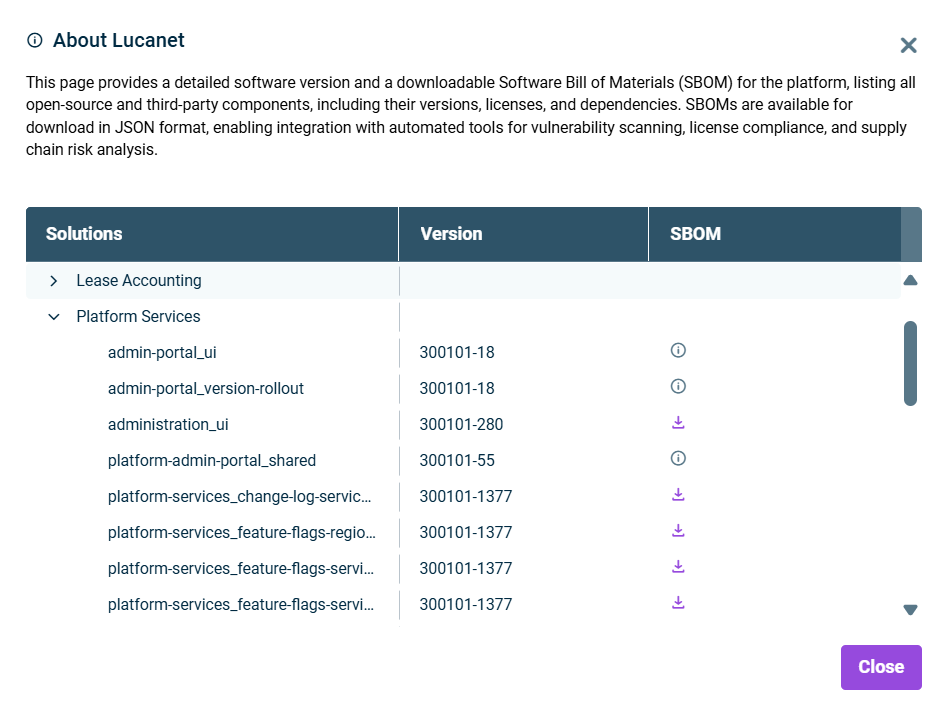
The About Lucanet dialog will be displayed as follows, for example:

Shows the 'About Lucanet' dialog in the CFO Solution Platform with the expanded 'Platform Services' entry, listing subcomponents with their versions and either a download icon or an info icon in the 'SBOM' column.
'About Lucanet' dialog with downloadable SBOMs

For releases where an SBOM is available for download, you will see an Download icon icon in the SBOM column. Releases without downloadable SBOMs display an Info icon icon instead.

Click the Download icon icon next to the desired component to download the SBOM file in JSON format.

This content was generated using AI and reviewed by Lucanet subject matter experts before publication.