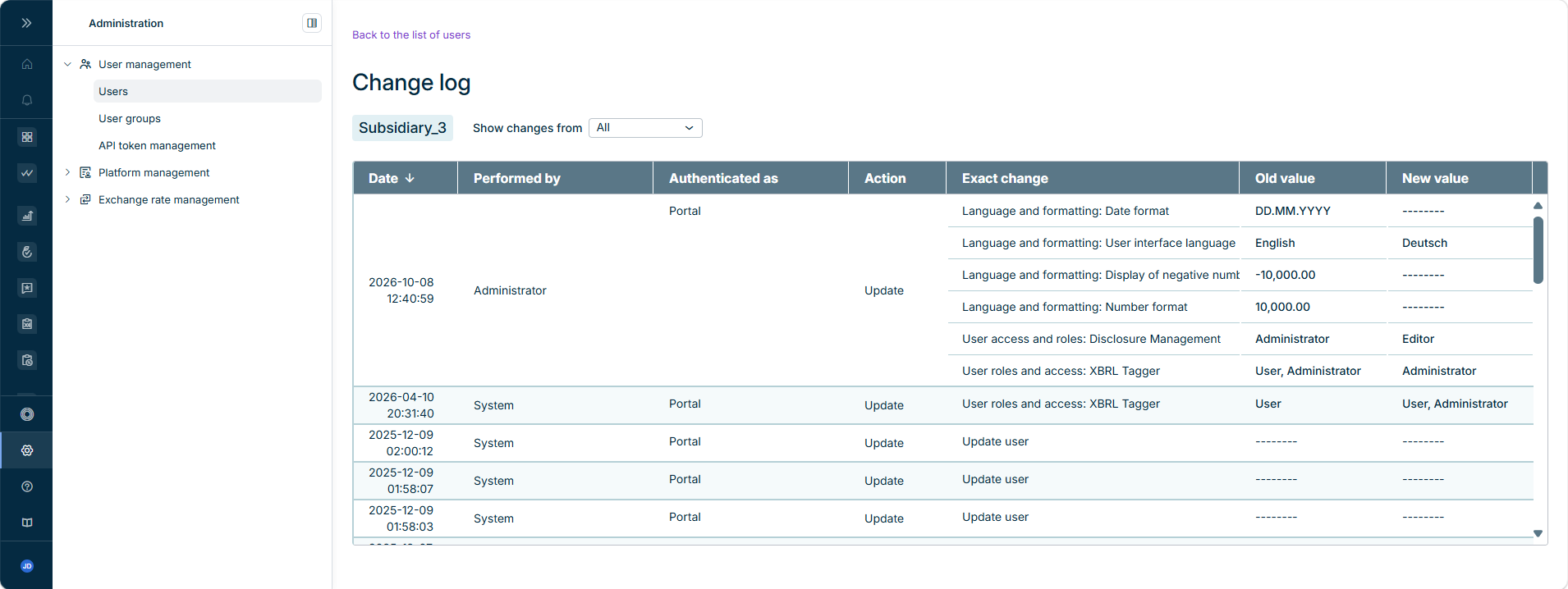
As an administrator, you can use the change log to efficiently monitor and manage all changes to users. You can display a user's change log or an overview of all user changes.

In the change log table, you can find detailed information about the changes that have been made. This includes the date of the change, who performed the change, how the change was authenticated, the action, the user impacted (in the general change log only), the exact change, and the old and new values of the changed settings.

User groups have their own change log, which you open from the User groups list. For more information, see Managing User Groups.

The Authenticated as column indicates how a change was authenticated: Portal for changes made by a user who is signed in to the CFO Solution Platform, or the type of API access used for programmatic changes. For changes made through the Platform API, the Performed by column displays the name of the API token that was used instead of a user name. For more information on API tokens, see Managing API Tokens.

To open the change log for all users or for a single user:

1

Navigate to Administration | User management | Users to open the list of users.

2

Do one of the following:

  • Click General change log above the list of users to open the change log for all users. The general change log is displayed as follows, for example:
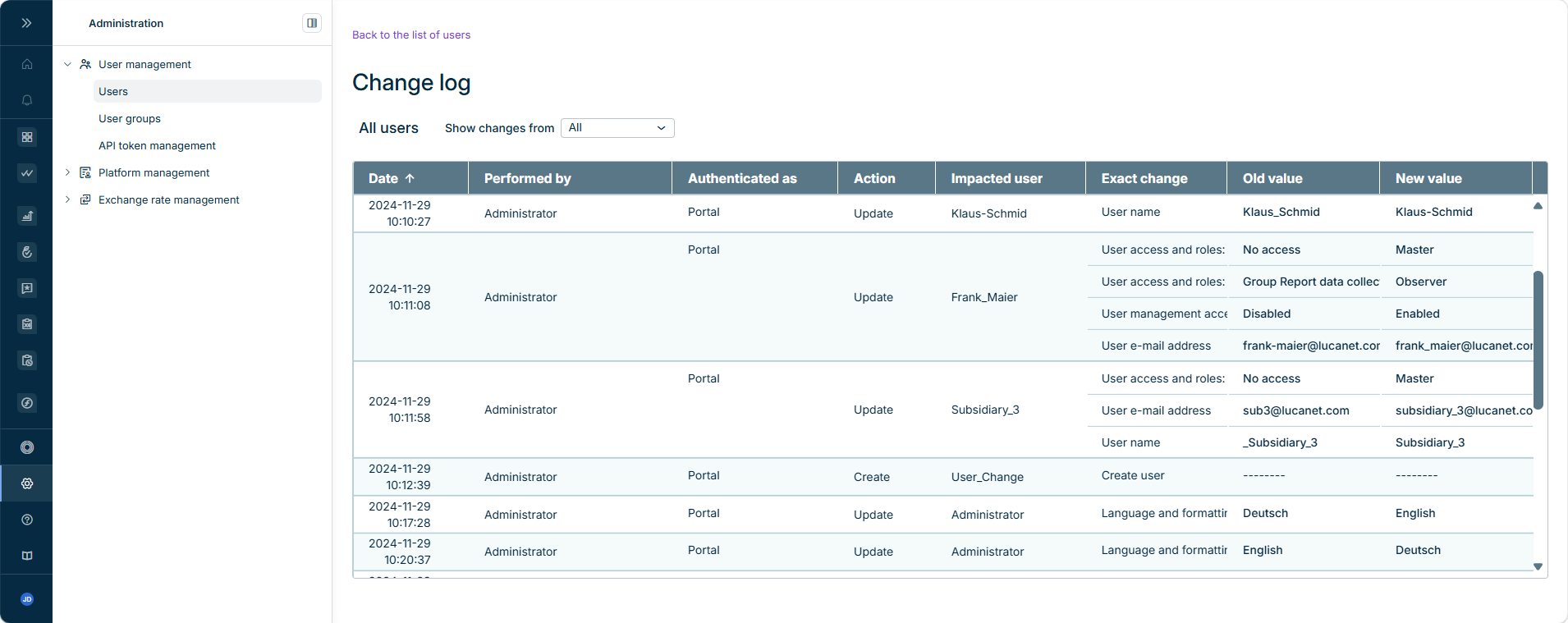
Change log for all users
  • Click the icon in a row in the list of users to open the change log for that user. The change log for a single user is displayed as follows, for example:
Change log for a single user

You have the following options for configuring the display of the change log:

Using the drop-down list next to Show changes from, you can specify the time period for displaying changes.

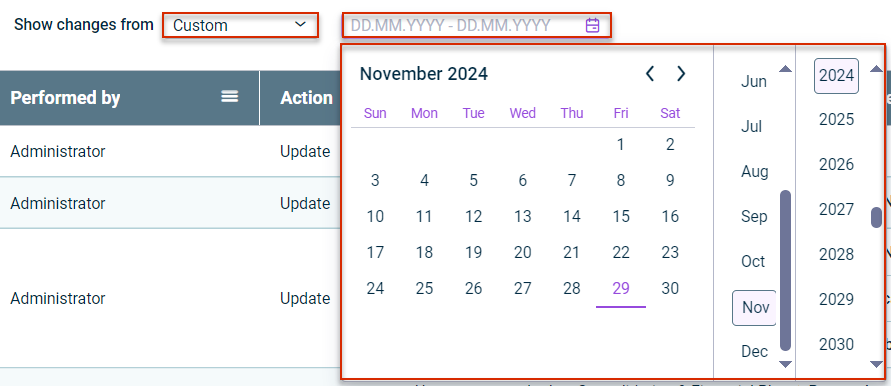
If you choose Custom from the drop-down list, a calendar will appear in which you can specify the time period you want to view. The setting is displayed as follows, for example:

Specify a time period for the change log

By clicking the icon in the header of the Date column, you can sort the change of date in ascending or descending order.

You can use the icon in the relevant column header to filter the data to display specific changes:

  • in the Performed by, Authenticated as, Action, Impacted user, and Exact change columns in the general change log
  • in the Performed by, Authenticated as, Action, and Exact change columns of a single user's change log

Last updated on Aug 16, 2023