A tagged text block in Lucanet XBRL Tagger can span multiple sections of a document.
When a single XBRL tag covers text that is distributed across different pages or chapters, the individual text sections are linked in a continuation chain. Each section in the chain is referred to as a continuation item.
The Continuation administration allows you to view, reorder, and manage all continuation items belonging to a selected tag in one place.
You have the following options for opening the Continuation administration dialog:
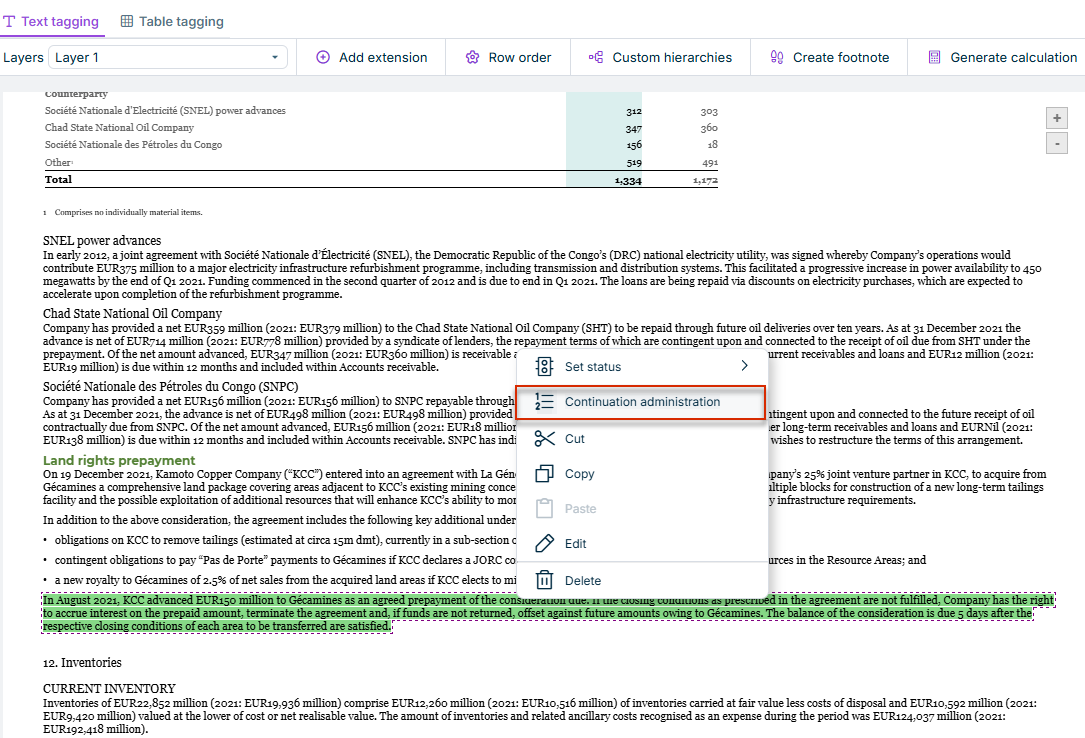
Via the context menu: Right-click a tagged text block in the Tagging area and select Continuation administration from the context menu:
Opening Continuation administration from the document
The menu item is disabled (grayed out) if the selected tag has no continuation chain, i.e., if it is a stand-alone tag without continuations.
Via the command bar: Click the search icon in the top bar of the XBRL document workspace or press CTRL + SHIFT + P to open the command bar. Search for Continuation administration and select the command.
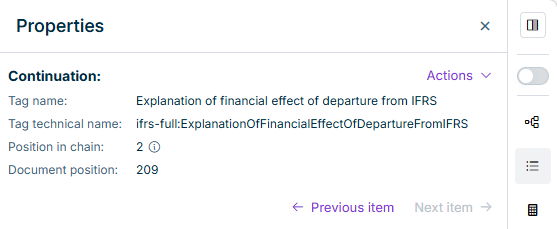
Properties area: When you select a tagged text block in the Tagging area that is part of a continuation chain, the Continuation section is displayed in the Properties area:
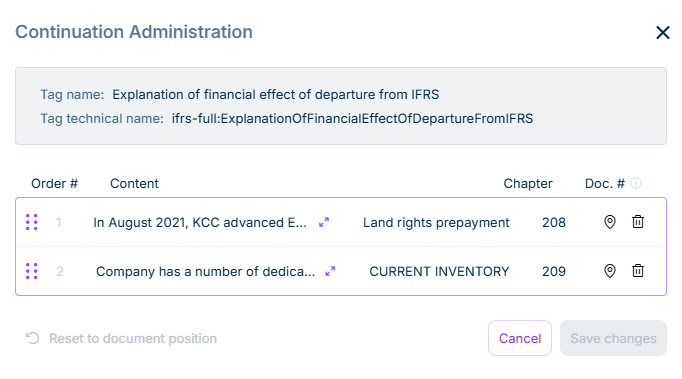
The following functions are available in the Continuation administration dialog:
Column
Description
Change order
Move rows by drag-and-drop to change the order.
Show content
Click the double arrow to display the full text.
Navigate to item in document
The document scrolls to the item and selects it in the Tagging area.
Delete item
Removes the item from the continuation chain. Note: The Delete button is disabled when only one item remains in the chain. The last remaining item contains the primary XBRL tag and cannot be deleted.
Reset to document position
The position of the item in the source document (document position). Use this column to compare the custom order with the original document structure.
When you select a tagged text block in the Tagging area that is part of a continuation chain, the Continuation section is displayed in the Properties area. This section gives you a quick overview of the item's position in the chain, without having to open the full administration dialog.
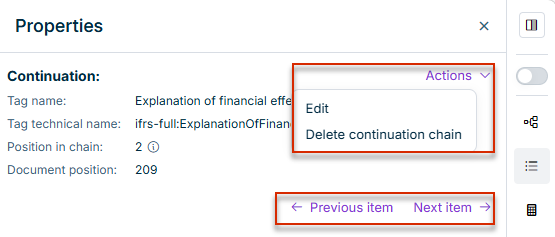
Actions for a continuation item in the 'Properties' area
The following information is displayed for a continuation item in the Properties area:
Property
Description
Tag name
The human-readable name of the XBRL tag.
Tag technical name
The technical XBRL identifier of the tag.
Member
The dimension member assigned to the item, if any.
Position in chain
The current position of the item within the continuation chain.
Document position
The position of the item in the source document.
The following navigation and actions are also available in the Properties area:
Actions menu:
Edit: Opens the Continuation administration dialog for the entire chain.
Delete continuation chain: Removes all continuation links in the chain after your confirm. Click Yes, delete to confirm the operation.
Next item / Previous item: Navigates to the next or previous item of the chain in the document.
This content was generated using AI and reviewed by Lucanet subject matter experts before publication.