Overview

The Tagger Agent is an AI-powered agent that automates IFRS taxonomy tagging of financial reports, reducing the process from days to hours. It identifies text blocks and tables, suggests matching XBRL elements, and prepares calculation relationships — so you can review and approve tags instead of creating them manually from scratch.

The Tagger Agent supports both Word documents (DOCX) and PDF documents (PDF) with the same feature set for both document types.

The Tagger Agent processes two types of content:

  • Text blocks – headings, paragraphs, and disclosure notes
  • Tables and calculations – financial tables, including multi-page tables and calculation relationships between rows

All AI-assisted tagging functions require a valid AI licence.

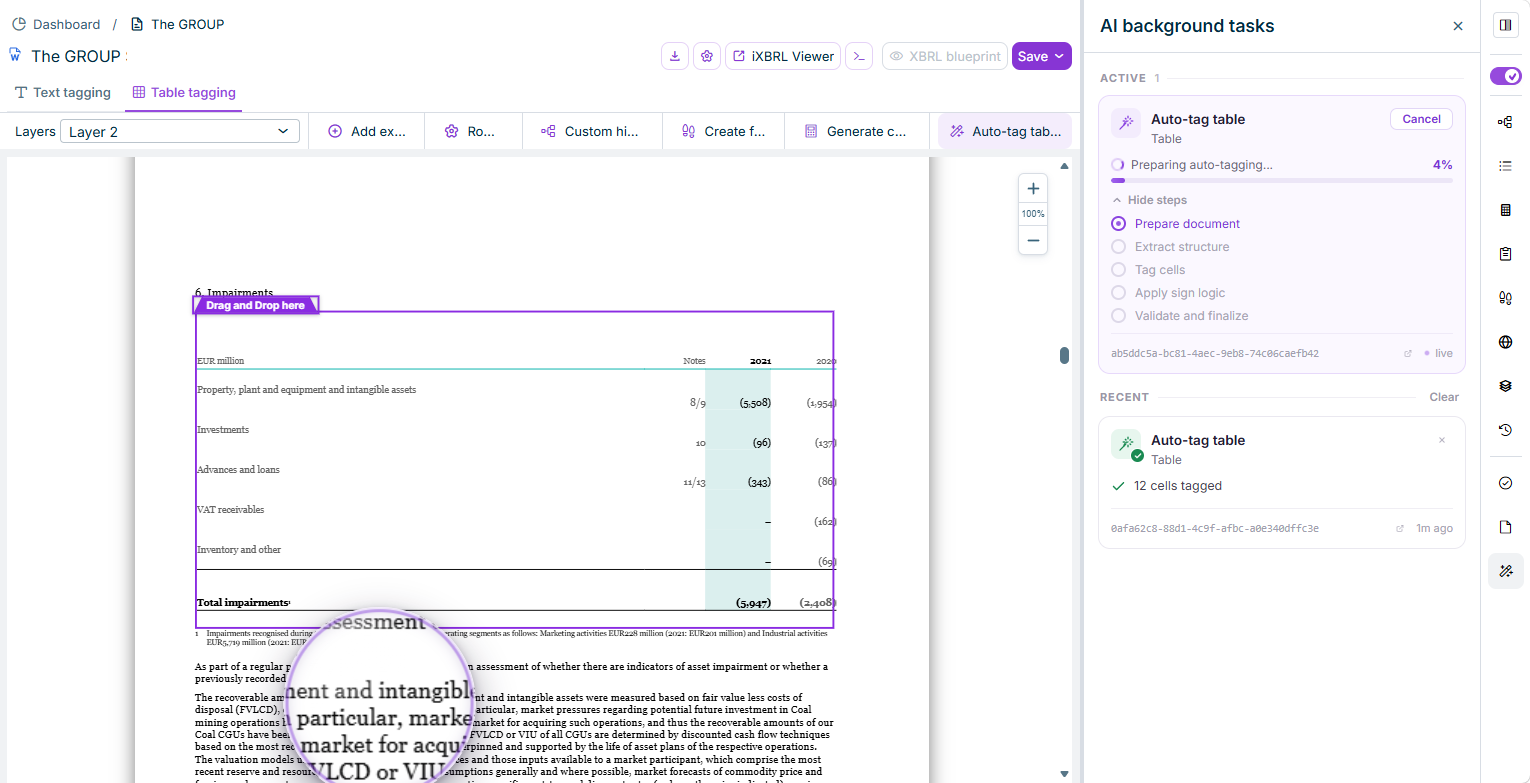
The AI background tasks panel shows the progress of all AI actions the Tagger Agent runs in the background — including Detect document profile (runs automatically when a document is opened), Detect tables (triggered via Auto select for PDF documents), and Auto-tag table (triggered via Auto-tag table with AI/Tag table with AI).

The 'AI background tasks' panel with a running 'Auto-tag table' task and two completed tasks
The 'AI background tasks' panel with a running task and two completed tasks

The panel is divided into two sections:

  • Active: Shows all currently running tasks with a step-by-step progress display (e.g. Prepare document, Extract structure, Tag cells, Apply sign logic, Validate and finalize) and a progress bar in percent. Click Cancel to stop a running task at any time.
  • Recent: Shows the most recently completed or cancelled tasks with their result (e.g. "12 cells tagged" or "Cancelled by user"), a task ID and timestamp, and a link to jump directly to the affected place in the document (Open in viewer) or to the report settings (Open document settings). Click Clear to remove the entire history; click the × next to an individual task to dismiss only that one.

The Tagger Agent analyses the text content of the document and identifies text sections — for example, accounting policy disclosures, notes, and explanatory paragraphs — that can be tagged as XBRL text blocks.

For each identified text region, the agent performs the following steps:

  • It detects the boundaries of the text block within the page.
  • It suggests a matching XBRL taxonomy element (type Text or Text Block).
  • It positions the tag at the exact coordinates of the content.
To start AI-assisted text block tagging:

1

Open the document in the XBRL Document workspace.

2

Switch to the Text tagging tab at the top of the document area.

3

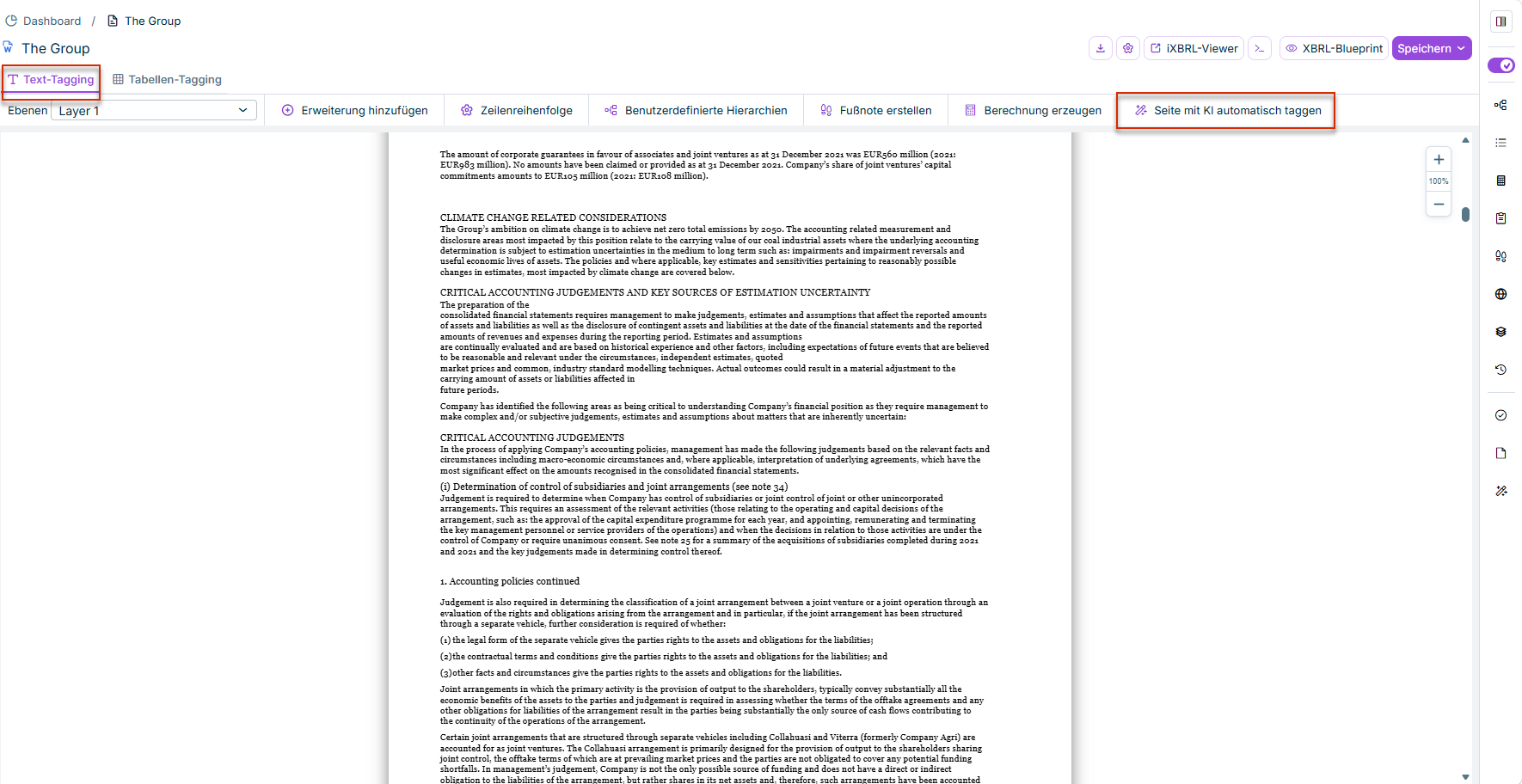
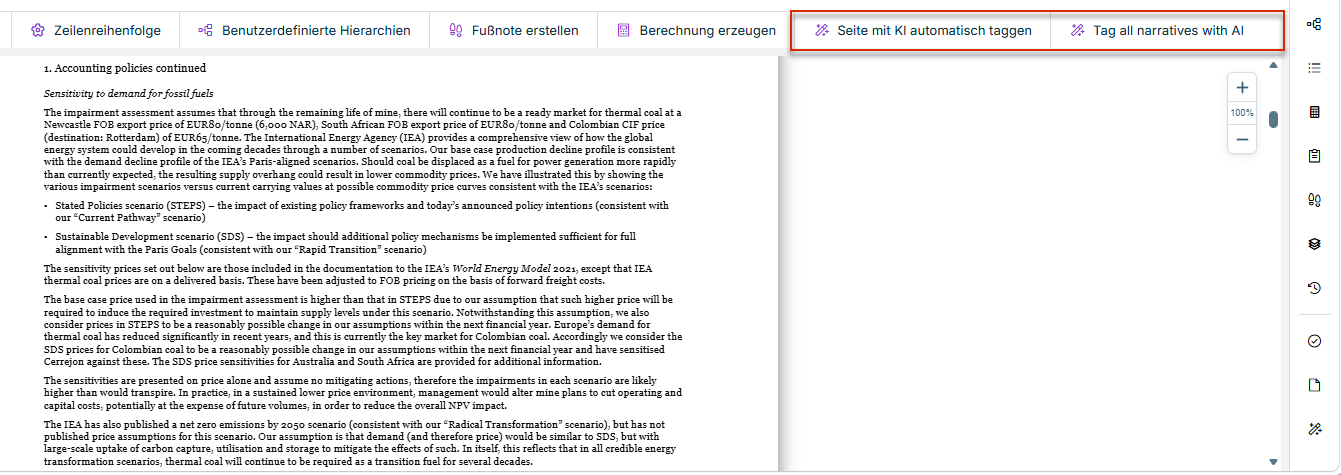
Click Auto-tag page with AI in the function bar.

Function bar with the 'Auto-tag page with AI' button highlighted
The "Auto-tag page with AI" button in the function bar

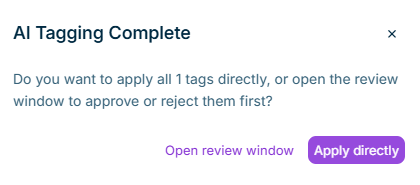
The agent proposes tags for the detected text blocks on the current page.

4

Review each proposal in the Properties panel and accept, modify, or reject it.

For a quick AI-assisted tag suggestion for a single text area, the available AI commands depend on the tagging status of that text area:

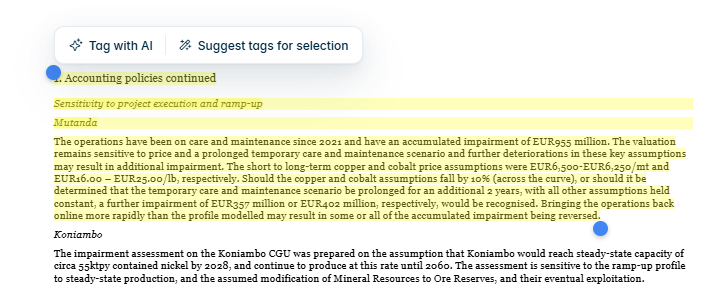
Not-yet-tagged text area: Select the desired text area. A AI options menu with the following commands is displayed:

OptionDescription
Tag with AIAutomatically tags the selected text area with AI.
Suggest tags for selectionRetrieves AI recommendations for the selected text area without tagging it immediately.
The 'AI options' menu for a selected, not-yet-tagged text area with the options 'Tag with AI' and 'Suggest tags for selection'
The 'AI options' menu for a selected, not-yet-tagged text area

Already tagged text area: The Re-tag with AI command is instead available in the tag's regular context menu, alongside the other commands for that element (see Context Menu Commands in the Document View).

Proceed as follows:

1

On the Text tagging tab, navigate to the desired text area in the document.

2

Select the text area you want to tag.

3

Choose the desired option: for a not-yet-tagged text area, Tag with AI or Suggest tags for selection; for an already tagged text area, Re-tag with AI from the regular context menu.

The Tagger Agent also processes financial tables in Word and PDF documents. It detects table areas, extracts their content, and creates XBRL tagging proposals for numerical values and calculation relationships.

Table tagging by the agent includes:

  • Table detection – identifies table areas on each page, including multi-page tables
  • Value tagging – proposes XBRL element assignments for numerical cells in the table
  • Calculation tagging – proposes calculation relationships between rows (summands and totals)
  • Flagging incomplete tables – tables that cannot be reliably extracted are flagged for manual review

For PDF documents, table areas must first be detected using Auto select before they can be tagged (see Automatically Detecting Tables in PDF Documents below). For Word documents, the table structure is available directly from the document format.

To start AI-assisted table tagging:

1

Open the document in the XBRL Document workspace.

2

Switch to the Table tagging tab at the top of the document area.

3

Select a cell inside the table you want to tag.

4

Click Auto-tag table with AI in the function bar.

Function bar with the 'Auto-tag table with AI' button highlighted
The "Auto-tag table with AI" button in the function bar

The agent proposes XBRL element assignments for the numerical cells in the table. If the table is already partially tagged, only the untagged cells are completed.

5

Review each proposal and accept, modify, or reject it.

6

For tables flagged as incomplete, manually correct the table structure before accepting the agent's proposals.

7

To generate calculation linkbase relationships (summands and totals) for the table, click Generate calculation in the function bar.

The agent derives calculation linkbase relationships from the table structure and proposes summands and totals.

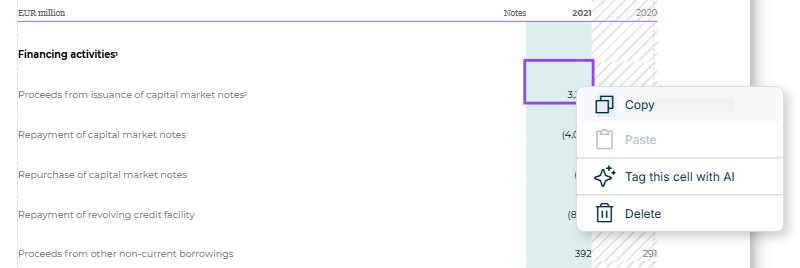
Instead of tagging the entire table, you can also have a single, not-yet-tagged cell tagged directly with AI:

1

Right-click the not-yet-tagged cell.

2

Select Tag this cell with AI from the context menu.

Context menu of a not-yet-tagged table cell with the options 'Copy', 'Paste', 'Tag this cell with AI', and 'Delete'
Context menu of a not-yet-tagged table cell

The AI automatically suggests a matching XBRL element for the cell.

For a complete overview of all context menu commands for table cells and text elements — including the differences between Word and PDF documents — see Working with Layers.

Unlike Word documents, where the table structure comes directly from the document format, the Tagger Agent detects tables in PDF documents using AI. A table must be detected before it can be tagged.

1

Switch to the Table tagging tab.

2

Click Auto select at the top right of the function bar.

The agent analyses the current page and detects the table areas it contains. Progress is shown in the AI background tasks panel under the Detect tables task.

3

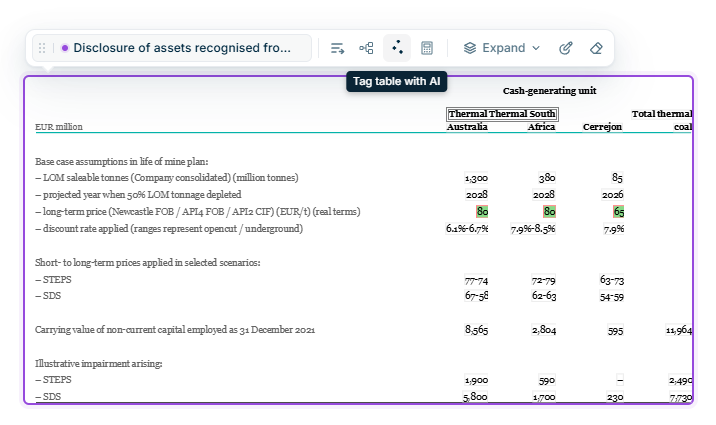
Once a table has been detected, a Table actions toolbar appears above it.

It offers the same actions available for Word documents via the function bar: Row order, Custom hierarchies, Tag table with AI, Generate calculation, Expand, Edit, and Delete table.

4

Click Tag table with AI in the toolbar to tag the detected table with AI.

Tooltip 'Tag table with AI' on the toolbar above a table in a PDF document
Tagging a table in a PDF document with AI

As long as no table has been detected, no context menu for tables is available in PDF documents. The Table actions toolbar only appears after detection via Auto select (see also Context Menu Commands in the Document View).

Unlike Word documents, PDF documents allow several detected tables to be tagged with AI at the same time. While a table is being tagged, the document view is locked for that operation.

Generate calculation for PDF documents: Like Row order and Custom hierarchies, Generate calculation also requires the table to already contain at least one tagged cell. Unlike those two functions, however, this is not checked upfront: the action always starts as the Calculate table AI background task, but fails for a not-yet-tagged table with the message "Table has no tagged cells. Tag at least one cell before running AI calculations." in the AI background tasks panel.

For any tag — whether created manually or by the Tagger Agent — you can retrieve an AI-generated explanation for the current tag proposal.

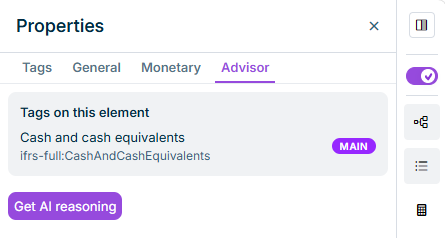
The Advisor tab is available in the Properties panel for all tag types. To retrieve the explanation:

1

Select the tag in the document for which you want to retrieve an explanation.

2

Open the Advisor tab in the Properties panel.

Advisor tab in the Properties panel
3

Click Get AI explanation.

The AI generates an explanation for the current tag proposal and displays it on the tab.

If you change tag properties after the explanation has been displayed, a notice appears indicating that the explanation is based on settings that have since been changed.

The General tab of the tag properties shows the Tagged by AI field, which indicates whether a tag was created by the Tagger Agent or manually. The Last modified by field shows the user who initiated the AI tagging.