After AI tagging on a Word document, you decide how to proceed with the suggested tags: apply them directly right away, or first approve or reject them individually in the review window before they are applied to the document.
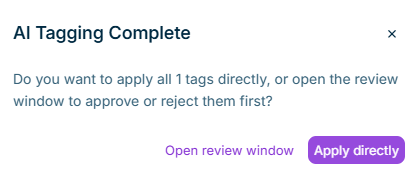
Once AI tagging finishes — triggered via Auto-tag page with AI (text tagging) or Auto-tag table with AI (table tagging) — a dialog opens letting you choose between applying the proposals directly and reviewing them in the review window.
Dialog shown after AI tagging completes
The dialog appears identically for text tagging and table tagging. For more on AI-assisted tagging itself, see Tagging a Document with AI.
AI tagging in XBRL Tagger, which generates the tagging suggestions, is only available if the AI features are activated in the Lucanet CFO Solution Platform. Only a user with the License Manager role can activate the AI features. For more information, see Activating and Deactivating the AI Features.
This choice is only available for Word documents. For PDF documents, AI tagging suggestions continue to be applied directly; no dialog and no review window appear.
The review window you reach via Open review window is the same screen shown after a roll-forward — documented in full under Using the Tag Update Preview. The core interaction (change list, document view, Fact Properties panel, legend) is identical; this section covers only the controls relevant to AI tagging suggestions.
Because the same review window is shared by roll-forward and AI tagging, some text still uses roll-forward-specific wording — for example, the header still reads Tag update preview, and the discard confirmation dialog refers to roll-forward changes, even when you opened the window from AI tagging. The workflow itself (approve, reject, apply, discard) works identically regardless of entry point.
The tag list shows all tags suggested by AI tagging. Use the checkboxes to select one or more entries, or Select all to mark the entire list. The following actions are available for the selection:
Action
Description
Approve
Sets the selected tags to approved.
Reject
Sets the selected tags to removed; they are not applied to the document.
Pending
Resets the selected tags back to pending.
Use the Search field to find a tag by name or element ID.
When you select a tag in the list or in the document view, the Fact Properties panel shows its details, including the assigned element and the current review status.
The following actions are available in the header of the review window:
Discard changes: Discards all suggested tags from the run without applying them.
Close: Leaves the review window without completing the review. Your decisions so far are kept, and you can continue the review later.
Apply to the document: Applies all tags marked approved to the document. The button is disabled while any tags are still pending; a tooltip explains: "Review in progress. All suggestions must be approved or rejected."
Your decisions (approved, rejected, pending) are saved automatically as soon as you make them — no separate save step is needed, and no confirmation message appears. You can leave the review window at any time via Close and continue the review later without losing decisions you've already made. Tags are only applied to the document once you click Apply to the document. If saving a decision fails, an error message appears, and the affected decision is reset to its previous status.
This content was generated using AI and reviewed by Lucanet subject matter experts before publication.