XBRL calculation linkbases define mathematical relationships between financial statement elements (e.g. total assets = current assets + non-current assets). These relationships must be correct for the report to pass regulatory validation (e.g. ESEF).

XBRL Tagger provides a dedicated side panel, the calculation view, to:

  • Display and edit calculations
  • Display details
  • Add and remove summands
  • Identify summands that are also used in other tables and navigate directly to them

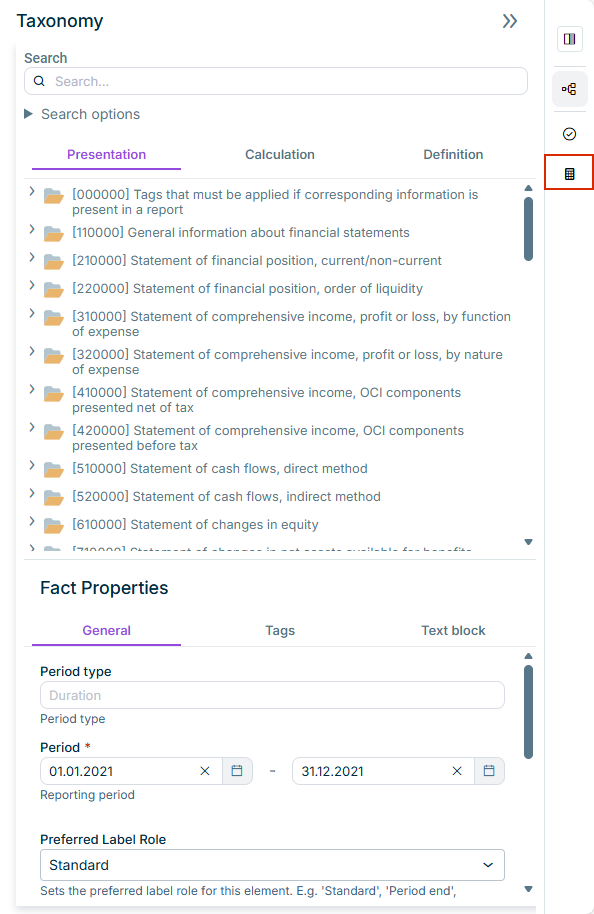
Open the calculation view by clicking the Calculation icon icon in the sidebar:

Opening the calculation view

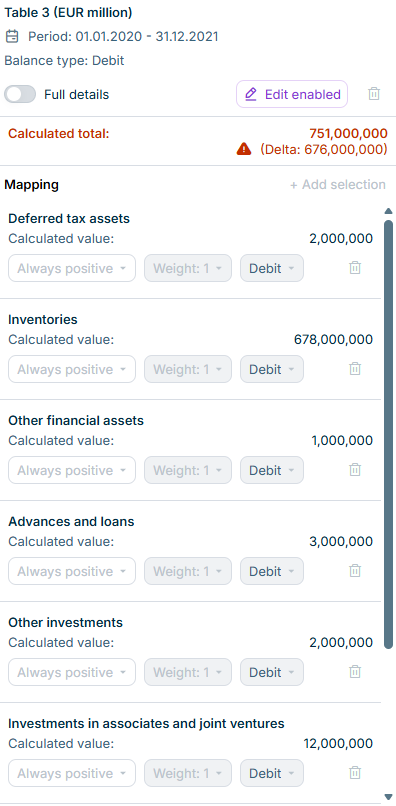
The calculation view is displayed as follows:

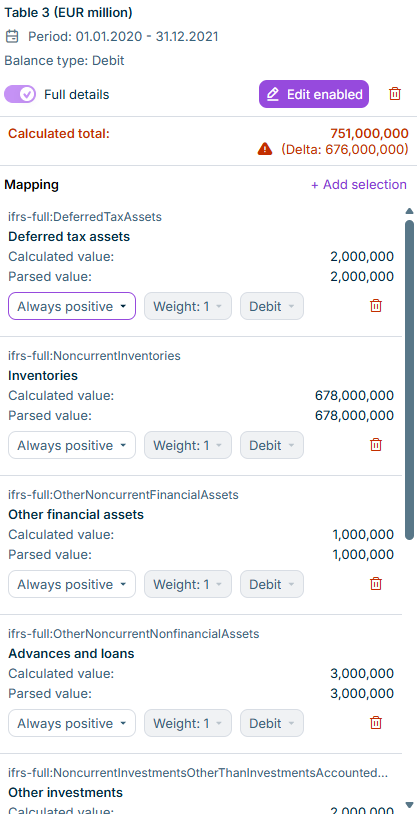
Shows the 'Calculation' view in XBRL Tagger for 'Table 3 (EUR million)' with the period '01.01.2020 - 31.12.2021', the entry 'Balance type: Debit', the 'Full details' switch, the 'Edit enabled' button, the 'Calculated total' 751,000,000 with a delta, and the summands in the 'Mapping' section, e.g. 'Deferred tax assets' and 'Inventories', each with a 'Calculated value' and the drop-down lists 'Always positive', 'Weight: 1' and 'Debit'.
Calculation view in XBRL Tagger

Below the period, the calculation view displays the balance type of the calculation, e.g. Debit. This information comes from the taxonomy and is for information only. It helps you understand how the calculation is structured.

The calculation view only contains values after you have selected a cell with a calculated value in a table in the current document.

If the calculation view does not display any values, select a calculated value first.

To edit calculations:

1

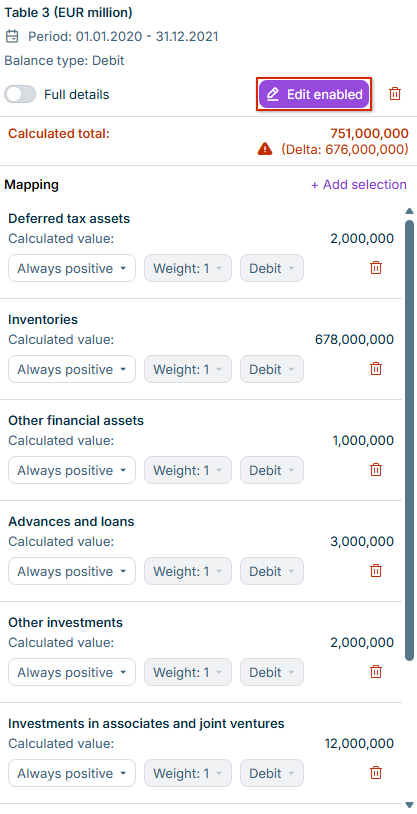
Click Edit enabled. In edit mode, the button is highlighted in color, and the drop-down lists and delete icons are active.

Shows the calculation view in XBRL Tagger in edit mode. The 'Edit enabled' button is highlighted in color, the 'Always positive' drop-down lists and the delete icons of the summands are active, and the 'Weight: 1' and 'Debit' drop-down lists are disabled. Highlighted in red is the 'Edit enabled' button.
Calculation view in edit mode
2

If necessary, use the drop-down list under Calculated value to change the sign (e.g. whether a summand is added to or subtracted from the total). The following options are available in the drop-down list:

OptionDescription
NoneValue has no sign
As ReportedSign remains as reported
ReverseValue has the opposite sign
Always positiveValue always has a positive sign
Always negativeValue always has a negative sign
3

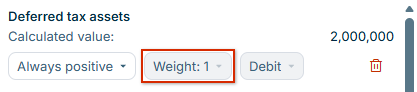
If necessary, change the Weight. Weight can be set to 1 or -1 and is an additional option to change the sign.

Shows the summand 'Deferred tax assets' in the calculation view of XBRL Tagger with the 'Calculated value' 2,000,000 and the drop-down lists 'Always positive', 'Weight: 1' and 'Debit'. Highlighted in red is the 'Weight: 1' drop-down list.
'Weight' in the calculation view

The weight depends on the balance types of the summand and the total element. If both balance types are known, the weight is 1 if the balance types are the same and -1 if they differ. If at least one of the two elements has the balance type Unknown, you can set the weight manually to 1 or -1.

In the calculation view, you can activate the Full details switch to display additional technical information for each summand.

Full details help you check that values were parsed correctly and the correct taxonomy elements were applied, for example when taxonomy labels are ambiguous. The following additional information is displayed:

  • The Parsed value read from the source document, without applying weight or sign logic.
  • The technical name (the XBRL taxonomy element identifier), e.g. ifrs-full:DeferredTaxAssets.
Shows the calculation view in XBRL Tagger with the 'Full details' switch activated. The technical name appears above each summand, e.g. 'ifrs-full:DeferredTaxAssets' above 'Deferred tax assets', and the 'Parsed value' is displayed below the 'Calculated value'.
Calculation view with details

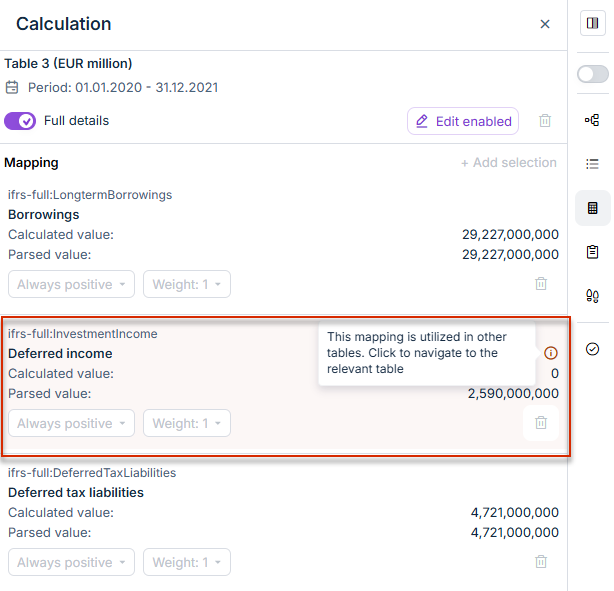
In the Calculation linkbase, XBRL Tagger shows which summands are used in other tables of the same report: summands that are used in more than one table are highlighted with a light red background and a red information icon.

Display of a summand that is used in several tables

Click the information icon to navigate directly to the corresponding table and cell. This lets you check cross-table tag relationships at a glance and spot tagging inconsistencies quickly.

You can add more values from tables to a calculation. Proceed as follows:

1

Select the value or values in the table that the calculation belongs to.

2

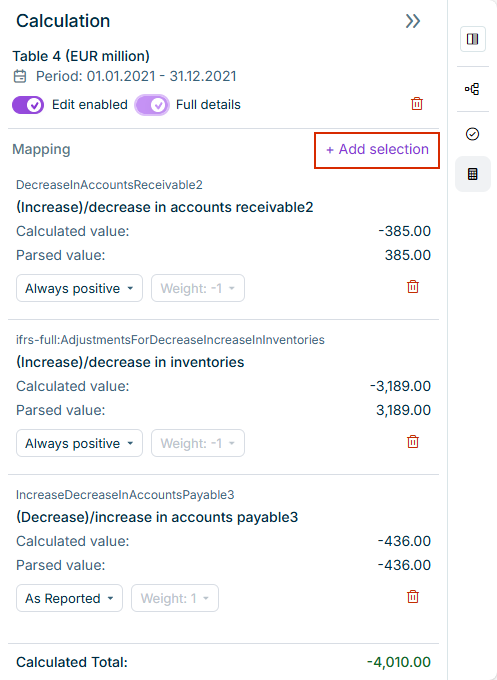
In the calculation view, click Add selection.

Adding a selection
Adding a selection
3

The values selected in the table are added to the calculation.

You can remove individual values from a calculation or delete the entire calculation. To do this, click the Delete icon icon.

This content was generated using AI and reviewed by Lucanet subject matter experts before publication.