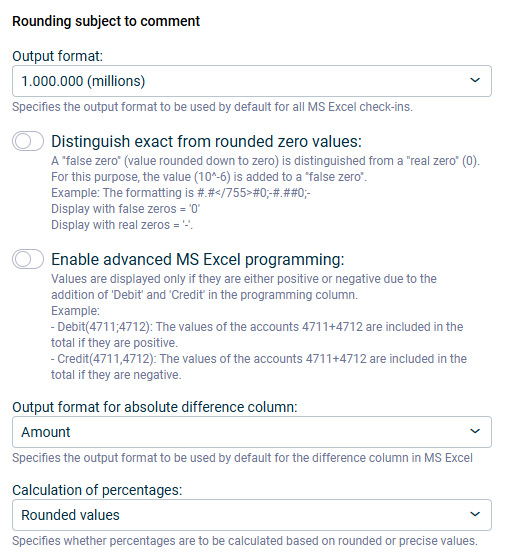
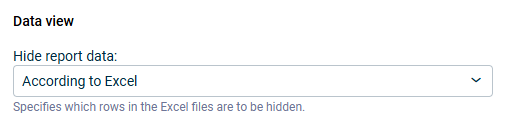
In the Configure document workspace in Disclosure Management, individual specifications can be configured for each document. These include:
Localization
Separator
Prefix and suffix
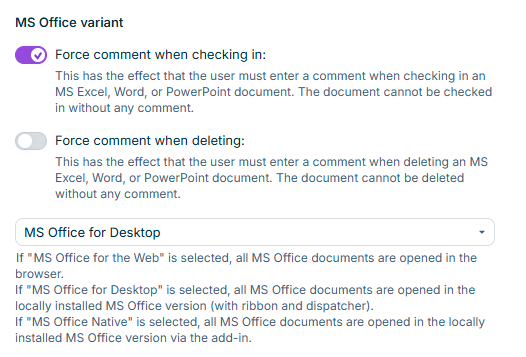
MS Office settings
Word template used
Behavior when updating tables
Document languages
Typography rules (Spacing)
Style guide specifications
Rules monitored by the Layout Check
The settings valid for all documents can be overwritten in the Advanced Settings of an Excel file.
In addition, document-wide specifications can be configured, for example the display of user names or specifications for import purposes. More information on this can be found in Disclosure Management Settings.
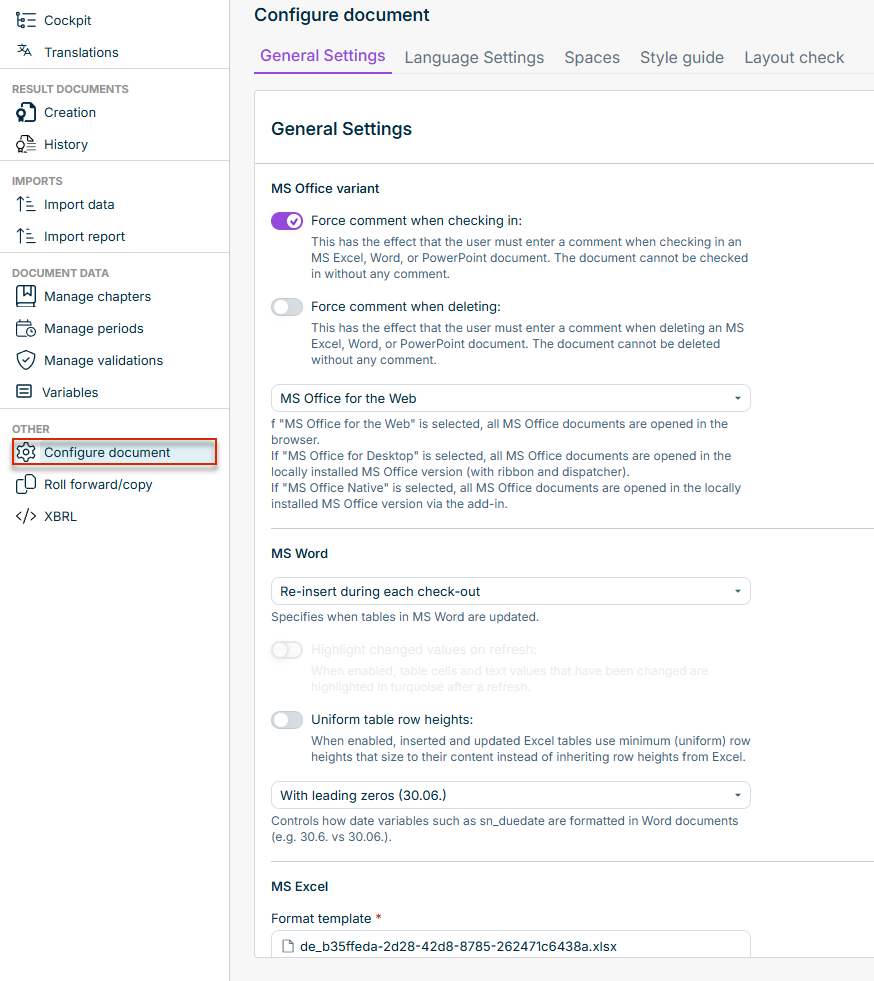
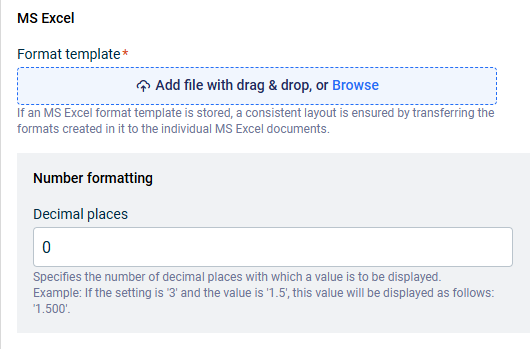
You can set the following options on the General Settings tab in the Configure document workspace in Disclosure Management. Each option is explained in more detail in the user interface.
Settings for passing chapter role assignments down to sub-chapters:
Document settings for chapter roles
The Inherit chapter roles to sub-chapters option controls whether a chapter role that is assigned on a parent chapter also applies to the sub-chapters below it. The setting applies to the whole document and behaves as follows:
When the option is enabled, a user who holds a chapter role on a parent chapter automatically holds the same role on every sub-chapter below it, across all levels. Sub-chapters that are created later inherit the role as well, without any further assignment.
Inherited and explicitly assigned rights accumulate. A user who holds the Chapter Editor role through inheritance and the Chapter Reader role explicitly on a sub-chapter holds both roles on that sub-chapter. If the same role is assigned on both the parent chapter and the sub-chapter, it counts as a single assignment.
When the option is disabled, only the roles that are explicitly assigned to a chapter apply. Assignments that already exist on sub-chapters are kept and remain active.
Enabling or disabling the option does not change any existing role assignments. It only changes how the assignments are evaluated when a user opens a chapter.
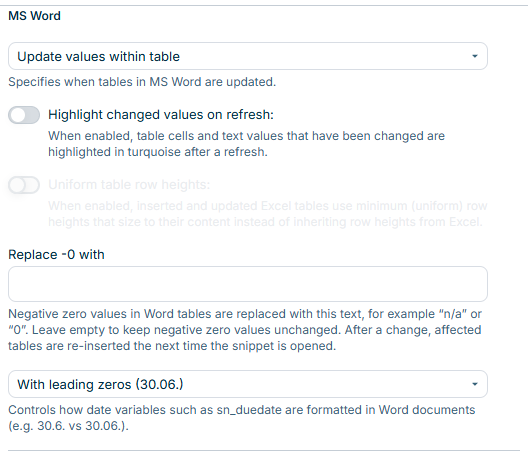
The Highlight changed values on refresh option is only available when the Update values within table insert mode is selected. With the other insert modes, the option is greyed out. If you disable the option, existing table highlights are removed on the next refresh.
Replacing negative zero values in Word tables
Rounding can turn a small negative value into -0, which is usually not the representation you want in a published report. Use the Replace -0 with setting to define the text that Disclosure Management writes instead. The setting applies to the whole document and behaves as follows:
It is applied to all tables, regardless of whether a layout template is assigned to them.
It takes effect both when an individual Word file is opened and when a result document is generated. You do not have to open or edit the individual Word files beforehand.
It recognizes the different minus characters (for example, hyphen-minus and en dash) as well as values with decimal places, such as -0.0 or -0.00, taking the decimal separator in use into account.
Cells that contain 0, a negative value other than zero, or text that merely contains -0 remain unchanged.
The layout and formatting of the table cell are preserved.
If you change the replacement text, the affected tables are re-inserted the next time the Word file is opened. Word files that have already been stored do not have to be edited manually.
Manage the typography rules that are applied automatically when a Word file is checked out (for example, non-breaking spaces between a number and a unit).