In Lucanet Disclosure Management, the Layout Check automatically monitors the text and formatting consistency of a Word chapter. As soon as a chapter is checked out or updated in Word, the Layout Check checks the content for deviations from the stored text and formatting rules – without requiring any additional work step. The Layout Check also runs automatically when a result document is created.

Violations found are shown on the Layout violations tab of the Messages window in Word (see Reviewing Layout Check Violations).

On the Layout check tab in the Configure document workspace, you define which rules are monitored.

The Layout check tab and all related functions require an Advanced license or higher. Without a sufficient license, the tab is displayed but disabled.

To open the Layout check tab, proceed as follows:

1

Open a document and click Configure document.

2

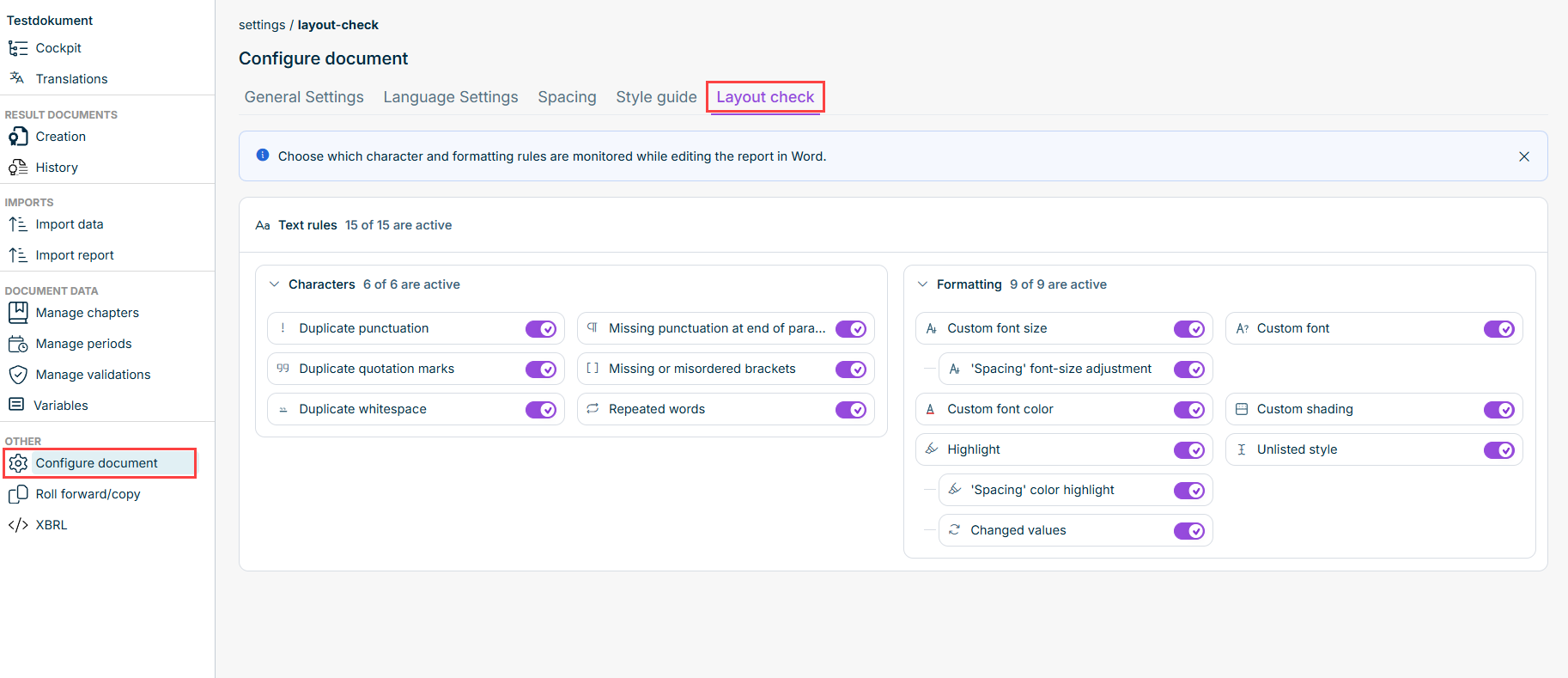
Open the Layout check tab. It is displayed as follows, for example:

The 'Layout check' tab in the 'Configure document' workspace

The Layout Check rules are divided into two groups in the Text rules area: Characters and Formatting.

Each rule has its own toggle switch that lets you enable or disable the rule individually.

Some rules depend on each other:

  • 'Spacing' font-size adjustment can only be enabled if Custom font size is active.
  • 'Spacing' color highlight can only be enabled if Highlight is active. Disabling the parent rule also disables the dependent rule.

The header of Text rules, as well as of each of the two groups, shows the number of active rules, for example 15 of 15 active.

The Layout Check settings apply document-wide, regardless of the document language – unlike the Typography Rules, which are managed per document language.

The following rules are available:

Characters

RuleDescription
Duplicate punctuationFlags identical punctuation marks that appear immediately next to each other.
Missing punctuation at end of paragraphFlags paragraphs that do not end with a period, question mark, or exclamation mark.
Duplicate quotation marksFlags duplicated quotation marks.
Missing or misordered bracketsFlags missing brackets or mismatched bracket pairs (for example, round, square, or curly brackets).
Duplicate whitespaceFlags spaces that appear immediately next to each other.
Repeated wordsFlags words that are immediately repeated.

Formatting

RuleDescription
Custom font sizeFlags characters with a manually set font size (not inherited from the style).
'Spacing' font-size adjustmentChecks whether font size adjustments were made through the configuration on the 'Spacing' tab, and flags them as separate layout violations.
Custom fontFlags characters with a manually set font.
Custom font colorFlags characters with a manually set font color.
Custom shadingFlags manually set shading.
HighlightFlags manually set highlighting.
'Spacing' color highlightChecks whether highlight color adjustments were made through the configuration on the 'Spacing' tab, and flags them as separate layout violations.
Changed valuesFlags text passages with highlighted, changed values.
Unlisted styleFlags styles that are not stored in the Style Guide.

Graphics are not monitored by the Layout Check. Table content is currently covered by the Changed values and Unlisted style rules.

When the Layout Check is activated for a document for the first time, all existing violations of the active rules appear at once the next time a Word chapter is checked out. How many there are depends on the respective chapter.

You can mark intentional deviations as Approved directly on the Layout violations tab with a single click (see Reviewing Layout Check Violations) – this is a one-time but necessary effort. After that, these spots are no longer flagged as an active violation.