When you check out or update a Word chapter in Lucanet Disclosure Management, or when you create a result document, the Layout Check automatically checks the content for text and formatting deviations. Violations found (layout violations) are shown to you directly in Word in the events report, so you can review them without interrupting your workflow.

This feature is only available in Office Native and Office for the Web.

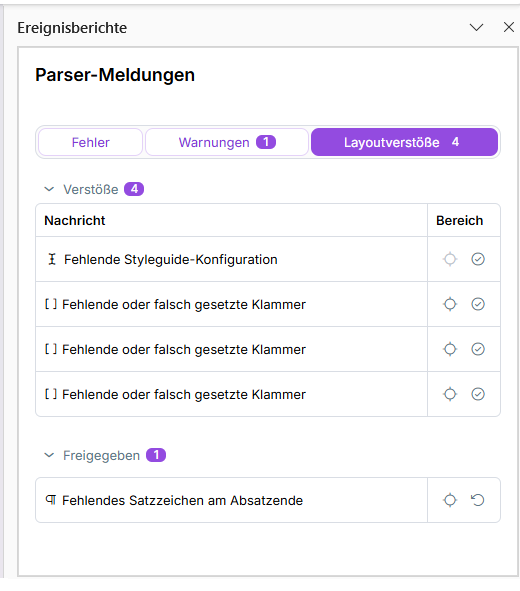
Open the Messages window using the Event Reports button in the Word ribbon (see Ribbons for Disclosure Management). The Layout violations tab is divided into three areas:

  • Layout violations: Shows the active layout violations in the order they occur in the document.
  • Approved: Contains the violations you have approved (see Approving Violations).
  • Information: Contains notices about changed values and about styles from the System styles group. These entries are navigable but do not count as layout violations and cannot be approved.
The 'Layout violations' tab in the event reports, with the 'Layout violations', 'Approved', and 'Information' areas
The 'Layout violations' tab in the event reports
  • If no violations were found, the tab shows the notice: No layout violations were found.
  • Hovering the mouse over an entry (tooltip) shows a description of the rule and a suggested resolution.
  • Clicking an entry's navigation icon jumps directly to the corresponding spot in the Word document.

If a reported violation is intentional (for example, a deliberately different formatting), you can approve it. This requires permission to edit the document settings. Proceed as follows:

1

On the Layout violations tab, click the Approve checkmark icon at the relevant entry.

2

The entry is removed from the active list and shown in the Approved area. The approval applies only to that specific occurrence in the current chapter. The underlying rule remains active and continues to flag other occurrences. If you change the content at that spot, the approval no longer applies. If the deviation still exists, the spot is flagged as a violation again the next time the Layout Check runs.

To revoke an approval, proceed as follows:

1

On the Layout violations tab, expand the Approved area.

2

Click the Revoke arrow icon at the relevant entry.

The entry is removed from the Approved area. If the deviation still exists, the spot is flagged as an active violation again the next time the document is checked out or updated.

The Layout Check runs automatically:

Which rules are monitored is defined on the Layout Check tab in the Configure document workspace.