The layouts defined in a Layout Robot of Disclosure Management can be applied in an Excel table. The applied layouts will be adopted automatically when the table is inserted in a Word document.

How you apply a layout of the Layout Robot to an Excel table in Disclosure Management depends on the MS Office variant you use.

In Office for the Web and Office Native, you apply layouts using the Add Area Highlights task pane. To apply a layout:

1

Select the table cells for which you want to apply a layout.

2

In the Excel ribbon, click Add Area Highlights.

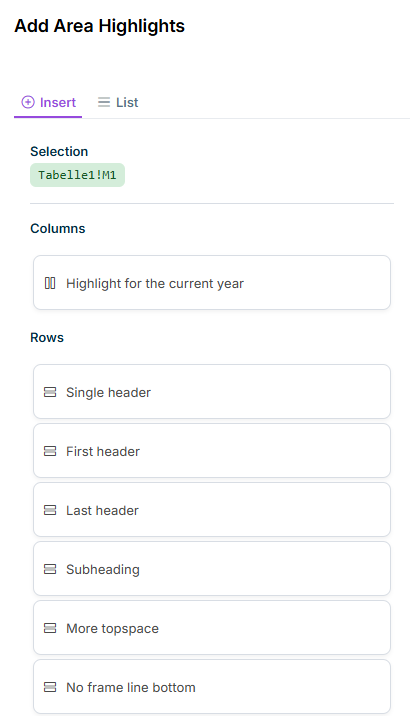
The Add Area Highlights task pane opens on the right and the Insert tab is displayed. The selected cell range is shown in the Selection area.

3

On the Insert tab, select the desired layout from the Columns or Rows sections.

Shows the 'Insert' tab of the 'Add Area Highlights' task pane in Disclosure Management with the selection 'Tabelle1!M1', the layout 'Highlight for the current year' under 'Columns' and layouts such as 'Single header', 'First header' and 'Subheading' under 'Rows'.
'Insert' tab in the 'Add Area Highlights' task pane
4

If necessary, repeat the process for other cells in the table.

5

Click Check In in the Excel ribbon.

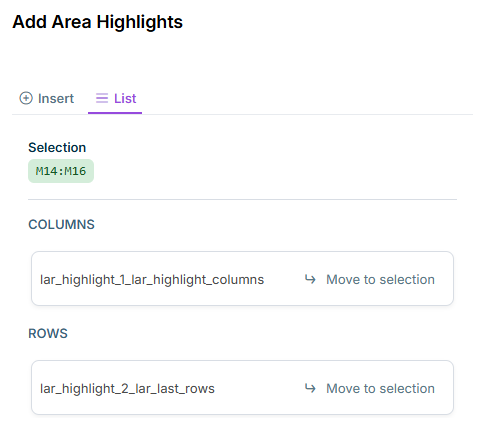
The List tab lists the area highlights that have already been applied. Using Move to selection next to an entry, you can move the layout to the cell range currently selected in the Excel worksheet.

Shows the 'List' tab of the 'Add Area Highlights' task pane in Disclosure Management with the selection 'M14:M16' and the applied area highlights 'lar_highlight_1_lar_highlight_columns' under 'COLUMNS' and 'lar_highlight_2_lar_last_rows' under 'ROWS', each with 'Move to selection'.
'List' tab with applied area highlights

To apply a layout defined in a Layout Robot to an Excel table in Office for Desktop:

1

Select the table cells for which you want to apply a layout.

2

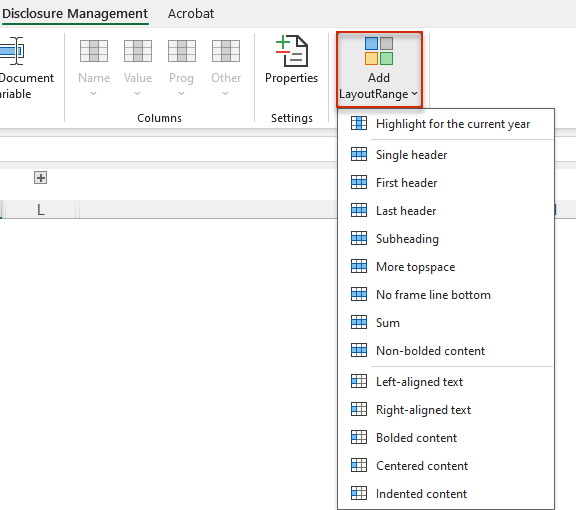
Click Add layout range in the Excel ribbon. The menu containing the layouts available in the selected Layout Robot will be displayed:

Shows part of the Excel ribbon for Disclosure Management in Office for Desktop with the opened menu of the 'Add LayoutRange' button and layouts such as 'Highlight for the current year', 'Single header', 'Sum' and 'Indented content'. Highlighted in red is the 'Add LayoutRange' button.
'Add layout range' button in the Excel ribbon
3

Select the desired layout from the menu.

4

If necessary, repeat the process for other cells in the table.

5

Click Check In in the Excel ribbon.

  • If the outarea defined in the Excel file has already been applied in a Word document, the layout changes will only become visible when the Excel file is checked in.
  • If you checked out both documents at the same time, you can make the changed layout visible by clicking the Update button in the Word Ribbon.

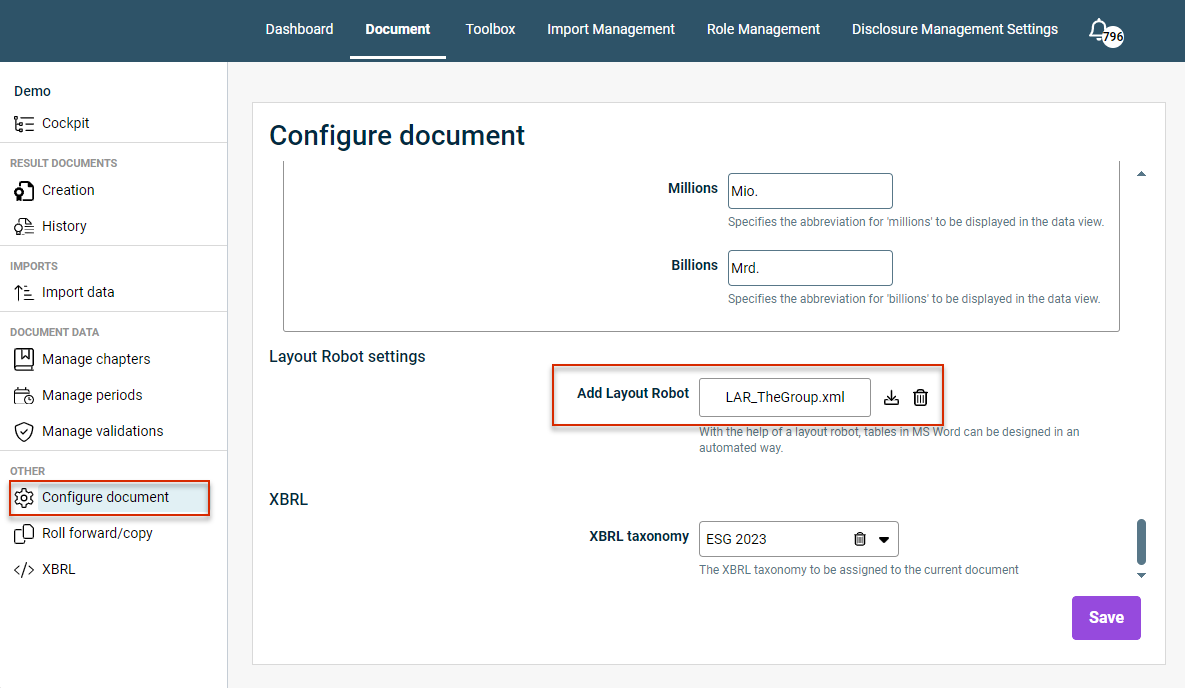
A separate layout robot can be stored for each document in Lucanet Disclosure Management.

To assign a layout robot to a document, you must open the Configure document workspace and add a layout robot in the Layout Robot settings area (see also Configuring a Document).

This is also where you can use the icon Download icon to save an already assigned layout robot locally, e.g. to use it in another document.

Shows the 'Configure document' workspace in Disclosure Management with the areas 'Layout Robot settings' and 'XBRL' and the 'Save' button. Highlighted in red are 'Configure document' in the overview and the field 'Add Layout Robot' with the file 'LAR_TheGroup.xml' and the download and delete icons.
Assign, save, or delete layout robots

This content was generated using AI and reviewed by Lucanet subject matter experts before publication.