In Lucanet Disclosure Management, you create PowerPoint files as the presentation files for a chapter and edit them with MS Office Native. You can create a new file from a template or upload an existing .pptx file.

Each chapter can have one PowerPoint file per document language. The MS PowerPoint column in the Cockpit displays whether a file exists for the selected document language.

The following prerequisites apply to creating and editing PowerPoint files in Lucanet Disclosure Management:

  • The document uses MS Office Native.
  • The chapter to which you want to assign the file exists.
  • You have the required permissions for the PowerPoint file. Creating and editing a file requires editing permissions; opening an existing file requires at least reading permissions. For more information, see Assigning Roles for Documents.
  • MS PowerPoint is installed on your computer, and the Lucanet Disclosure Management add-in is configured. For more information, see Installing and Updating the MS Office Components.

In Lucanet Disclosure Management, select the MS Office variant per document under Configure document | General Settings. For more information, see MS Office Variants.

Select the required document language in the Cockpit before creating or opening a PowerPoint file. The file is assigned to this language.

In Lucanet Disclosure Management, you create a new PowerPoint file for a chapter that does not yet have a PowerPoint file in the selected document language. If a PowerPoint template is stored for that language, it is used. Otherwise, the default template is used.

To provide your own template, open Configure document | Language Settings for the respective document language. For more information, see Managing File Templates.

To create a new PowerPoint file in Lucanet Disclosure Management:

1

Open the required document and select Cockpit.

2

In the document language drop-down list, select the language for which you want to create the file.

3

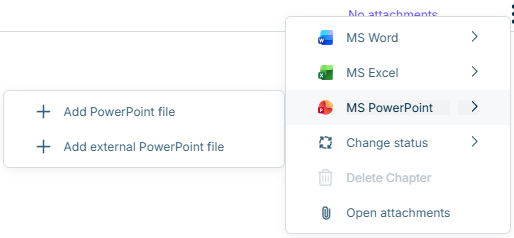
Open the three-dot menu at the end of the required chapter row and select MS PowerPoint | Add PowerPoint file.

Shows the 'MS PowerPoint' context menu in the cockpit of Lucanet Disclosure Management for a chapter without a PowerPoint file. The submenu offers 'Add PowerPoint file' and 'Add external PowerPoint file'.
Adding a PowerPoint file to a chapter
4

The new PowerPoint file opens for editing in the locally installed MS PowerPoint application.

In Lucanet Disclosure Management, you can use an existing .pptx presentation as a chapter's PowerPoint file. The chapter must not already have a PowerPoint file in the selected document language.

To add an external PowerPoint file in Lucanet Disclosure Management:

1

Open the required document and select Cockpit.

2

In the document language drop-down list, select the language to which you want to assign the file.

3

Open the three-dot menu at the end of the required chapter row and select MS PowerPoint | Add external PowerPoint file.

4

Select the required .pptx file in the file selection dialog and confirm your selection.

5

After the upload, the file opens for editing in the locally installed MS PowerPoint application.

In Lucanet Disclosure Management, you open an assigned PowerPoint file from the Cockpit. The selected document language determines which file opens.

To open an existing PowerPoint file in Lucanet Disclosure Management:

1

Open the required document, select Cockpit, and select the required document language.

2

Open the PowerPoint file in one of the following ways:

  • Click the PowerPoint icon in the MS PowerPoint column of the required chapter row.
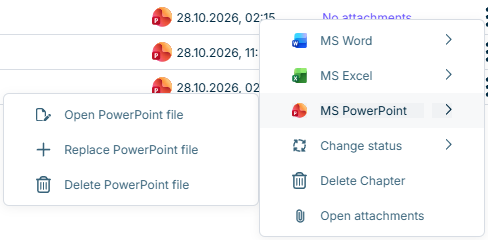
  • Open the three-dot menu at the end of the chapter row and select MS PowerPoint | Open PowerPoint file.
Shows the 'MS PowerPoint' context menu in the cockpit of Lucanet Disclosure Management for a chapter with a PowerPoint file. The submenu contains 'Open PowerPoint file', 'Replace PowerPoint file', and 'Delete PowerPoint file'.
Opening an existing PowerPoint file in the cockpit
3

The PowerPoint file opens in the locally installed MS PowerPoint application. With editing permissions, you can edit the presentation; with reading permissions only, it opens read-only.

You can also open an existing PowerPoint file from the detail view of a chapter. In the PowerPoint area, open the three-dot menu and select Open and edit. The available actions depend on your permissions.

In Lucanet Disclosure Management, you edit PowerPoint files in the locally installed MS PowerPoint application with MS Office Native. The following table displays support for each MS Office variant:

MS Office variantEditing the PowerPoint file
MS Office for the WebPowerPoint integration is not available.
MS Office NativeThe presentation opens in the locally installed MS PowerPoint application.
MS Office for DesktopPowerPoint integration is not available.

To replace an existing file when editing locally, use the MS PowerPoint | Replace PowerPoint file command in the context menu of the chapter in the Cockpit. For prerequisites and instructions, see Replacing Word and PowerPoint Files.

Edit the content in MS PowerPoint and check in the changes using Disclosure Management | Check in. The shared procedure is described under Checking In MS Office Files. If the add-in requests you to sign in again, follow the sign-in procedure for MS Office Native. Check the display of the assigned file in the Cockpit.

Saving in MS PowerPoint and checking in to Lucanet Disclosure Management are different operations. After a successful check-in, the MS PowerPoint column in the Cockpit displays the updated timestamp.

For the functions of the PowerPoint ribbon in Lucanet Disclosure Management, see Ribbons for MS Office Native.

In Lucanet Disclosure Management, you insert Excel tables and charts into your presentation using the PowerPoint ribbon. The inserted content remains linked to its Excel source and can be updated. This function is available with MS Office Native.

For tables, an Outarea must be defined in the Excel source file. Make sure that the required Excel source content is checked in or published in Lucanet Disclosure Management.

To insert a table or chart into a PowerPoint file in Lucanet Disclosure Management with MS Office Native:

1

Open the required PowerPoint file from the Cockpit for editing.

2

In MS PowerPoint, select the slide on which you want to insert the table or chart.

3

On the Disclosure Management tab, in the DM-Content group, click Insert table/chart.

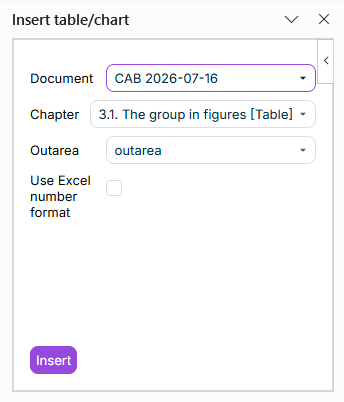
The Insert table/chart task pane opens on the right:

Shows the 'Insert table/chart' task pane of Lucanet Disclosure Management in MS PowerPoint with the drop-down lists 'Document' with 'CAB 2026-07-16', 'Chapter' with '3.1. The group in figures [Table]', and 'Outarea' with 'outarea', the cleared 'Use Excel number format' check box, and the 'Insert' button.
'Insert table/chart' task pane in MS PowerPoint
4

In the Document, Chapter, and Outarea drop-down lists, select the required Excel source and the content to insert.

5

For a table, select the Use Excel number format check box if you want to apply the number formats from the Excel source.

6

Click Insert. The table or chart is inserted on the selected slide.

The following options are available in the Insert table/chart task pane of Lucanet Disclosure Management in MS PowerPoint:

OptionDescription
DocumentDocument in Lucanet Disclosure Management that contains the required Excel source.
ChapterChapter of the selected document to which the Excel source file is assigned.
OutareaTable or chart from the Excel source to insert on the slide.
Use Excel number formatApplies the number format stored in the Excel file to the inserted table.
InsertInserts the selected content on the selected slide.

After inserting the content, check its position, size, and readability on the slide. Then check in the edited PowerPoint file to Lucanet Disclosure Management using Disclosure Management | Check in.

In Lucanet Disclosure Management, you update inserted Excel tables and charts when opening a file for editing, when creating a result document, or manually using Update. For the shared prerequisites and procedures for Word and PowerPoint files, see Updating Linked Excel Content.

Use Event reports to review processing messages. The navigation button for a message takes you to the affected object on the slide. For more information, see Checking Event Reports.

The following additional considerations apply when updating PowerPoint files in Lucanet Disclosure Management:

  • Grouped objects: An inserted table or chart that you have grouped with other objects in MS PowerPoint cannot be updated this way. Ungroup the objects, then check the update and the Event reports. This differs from an object group inserted from MS Excel as a single chart.
  • Changed slide count: If you have added or deleted slides during editing and the manual update is rejected for this reason, check in the file and reopen it for editing. Then run Update. Do not change the slides during an update.

This content was generated using AI and reviewed by Lucanet subject matter experts before publication.