

In Disclosure Management, Excel and Word files are saved using the Check In function. When a file is checked in, a new version of the file is created automatically. All versions of a file can be recovered at any time.

To check in a file:

1

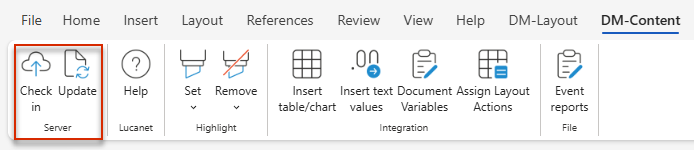
Click Check In in the Word or Excel ribbon:

'Check In' button in the Word ribbon
2

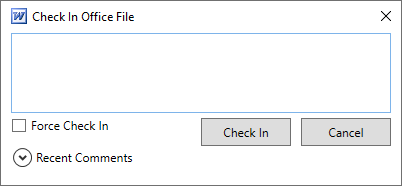
The Check In dialog will be displayed:

Dialog for checking in an Office file
3

You have the following options for entering a comment:

  • Enter a comment in the input field.
  • If helpful, click Recent Comments to reuse one of the 20 most recently used comments.
4

By default, an Excel or Word file that contains errors cannot be checked in. If you want to check in a defective file despite this, activate the Force Check In check box.

5

Click Check In.

Disclosure Management will then create a new version of the file. In the Cockpit, the time of the change will be displayed in the Word column.

You can open a previous version of the current file at any time.

To recover a version:

1

Click Recover Version in the ribbon.

'Recover Version' button in the Word ribbon
2

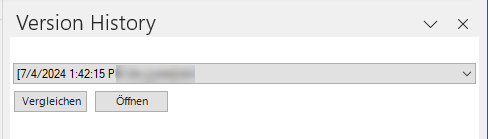
The Version History window will be displayed:

'Version History' Word window
3

Select the desired version in the drop-down list.

4

If necessary, click Compare to compare the selected version of the document with the current version.

5

Click Open.

6

Check in the file again to update the values changed since saving the restored version (for example by re-importing the data) if necessary.

Versions can also be opened from the History in the Detail View of a Chapter.