The detail view of a chapter in Disclosure Management shows the most important information on the chapter and the MS Office files defined for it, and provides context-specific functions. The most important information and options in the detail view of a chapter are:

  • Rename or delete Chapter
  • Change the Status of a chapter
  • Open, edit or delete MS Office files
  • Show History for MS Office files
  • Show Previous versions of MS Office files
  • Add Section break to Word files
  • Show the Mode of Excel files
  • Open Data view for Excel files

To open the detail view of a chapter in Disclosure Management:

1

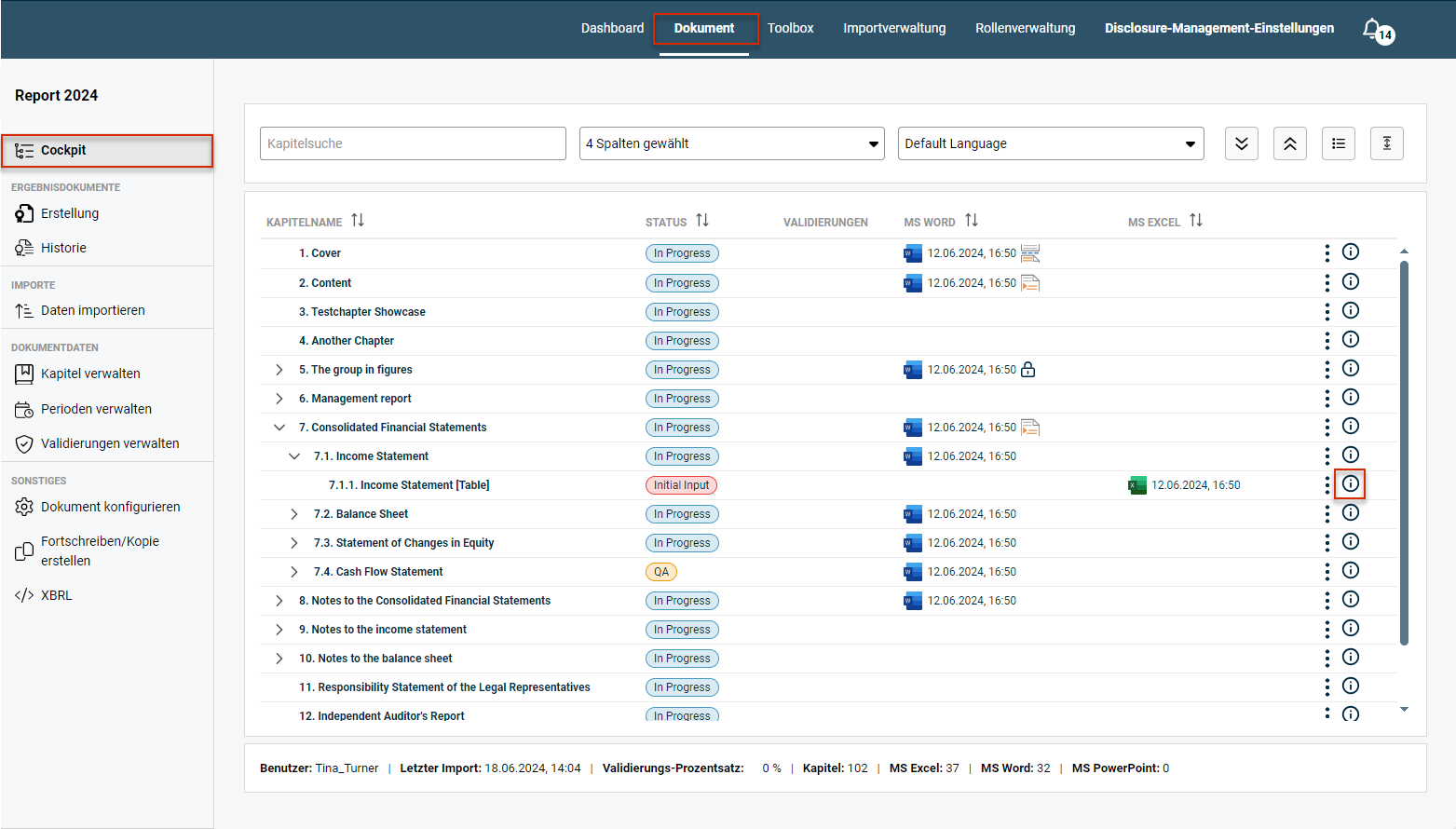
Go to the overview and click Cockpit. Alternatively, go to the function bar and click Document.

Shows the 'Cockpit' of the document 'Report 2024' in Disclosure Management with the chapter list. Highlighted in red are the menu item 'Dokument' in the function bar, 'Cockpit' in the overview, and the info icon of a chapter.
Opening the detail view of a chapter
2

Click the Info icon icon to open the detail view of a chapter. The detail view of a chapter is displayed as follows, for example:

Shows the detail view of the chapter 'Other operating income [Table]' in Disclosure Management with the 'Status' 'In Progress', the area 'Word' with the button 'Anlegen', the area 'Excel' with 'Zuletzt gespeichert', 'Letzte Datenänderung', 'Einfügen der Werte' and the button 'Rundungsansicht', and the list 'Historie'.
Detail view of a chapter

The following options and information are available in the detail view of a chapter in Disclosure Management:

Shows the upper part of the detail view of the chapter 'Cash Flow Statement [Table]' in Disclosure Management. Highlighted in red are the chapter name, the 'Status' drop-down list with 'In Progress', and the icons for editing and deleting the chapter.
Options in the detail view of a chapter

The following options for chapters are available in the detail view of a chapter in Disclosure Management:

OptionDescription
Rename chapterClick the Edit icon to rename the chapter.
Delete chapterClick the Recycle bin icon to delete the chapter.
StatusIn the Status drop-down list, you can change the status of the document. The status change will not be shown in the history until the detail view of the chapter is re-opened.

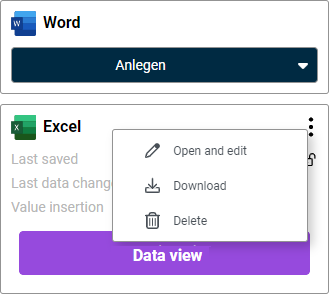
In the detail view of a chapter in Disclosure Management, the menu under the three dot icon Three dots icon contains the following functions for all MS Office files:

  • Open and edit
  • Download
  • Delete
Shows the areas 'Word' and 'Excel' in the detail view of a chapter in Disclosure Management with the open three dots menu of the Excel file and the commands 'Open and edit', 'Download' and 'Delete'.
Options for Word files in the detailed view of a chapter

The following information is displayed for all MS Office files in the detail view of a chapter in Disclosure Management:

Last saved

Date on which the MS Office file was last saved. This option also shows whether or not the file is locked. If the Locked icon icon is displayed, the file is locked.

Locked files can be unlocked in the Cockpit.

Last data change

Date of the last data change. A data change is displayed if a new data import that resulted in changes to the data has been carried out.

Description

In the detail view of a chapter in Disclosure Management, the History list shows the changes that have been made in the selected chapter. The following changes are displayed:

  • Check-ins for MS Office files
  • Changes to the chapter’s status
  • Data changes in the MS Office files
  • Deletions of MS Office files
  • Creating, deleting, and updating a Word reference
  • Ignoring an available update of a Word reference
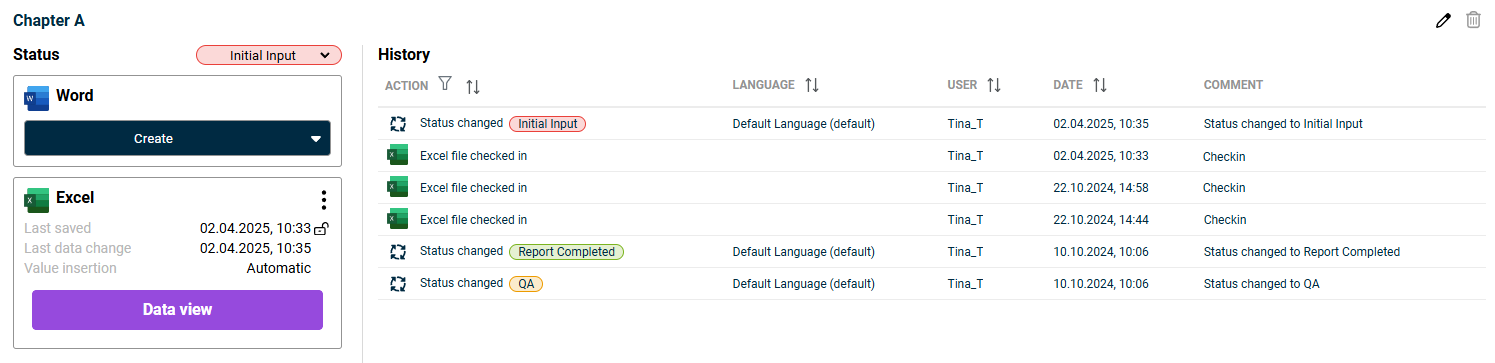
Shows the detail view of the chapter 'Chapter A' in Disclosure Management with the 'History' list and the columns 'Action', 'Language', 'User', 'Date' and 'Comment', with entries such as 'Status changed' and 'Excel file checked in'.
History of Office files in the chapter detail view

To filter the changes shown in the history, click the Filter icon button.

Open previous version

You can open any of the versions shown in the history at any time. To do this, click the Word or Excel icon for the selected file in the History.

Then check in the file again to update the values changed since saving the restored version (for example by re-importing the data) if necessary.

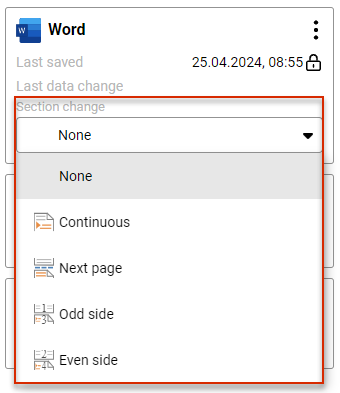
In Disclosure Management, you can use Section breaks to define different areas for different layouts or formats within the Word file for a chapter.

Shows the area 'Word' in the detail view of a chapter in Disclosure Management. Highlighted in red is the open drop-down list 'Section change' with the options 'None', 'Continuous', 'Next page', 'Odd side' and 'Even side'.
Add Section change to a Word file

The following section breaks are available in the Section break drop-down list for Word documents in Disclosure Management:

Section breakDescription
ContinuousYou can use the Continuous section break if you want to use multiple different formats on one page, for example (e.g. different number of columns).
Next pageThe section break Next page can be used, for example, to reconfigure headers and footers on the following page.
Odd sideThe new section will start on an odd-numbered page. You can use the Odd side section break if you want new chapters to automatically start on an odd-numbered page, for example.
Even sideThe new section will start on an even-numbered page. You can use the Even side section break if you want new chapters to automatically start on an even-numbered page, for example.

The selected section break will be indicated by an icon in the Cockpit for the document in question.

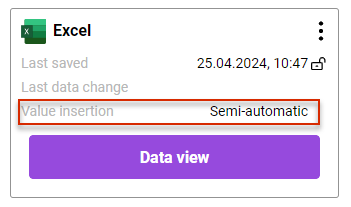
Shows the area 'Excel' in the detail view of a chapter in Disclosure Management with 'Last saved', 'Last data change' and the 'Data view' button. Highlighted in red is 'Value insertion' with the value 'Semi-automatic'.
Options for Excel files in the detailed view of a chapter

The following table describes the options for Excel files in the detail view of a chapter in Disclosure Management:

OptionDescription
Value insertionDisplays the mode used to add values to the Excel file.

The Mode of an Excel File indicates what procedures will be used to import and update report values.
Data viewOpens the Data View. You can use the data view to correct rounding or Validation Errors.

This content was generated using AI and reviewed by Lucanet subject matter experts before publication.