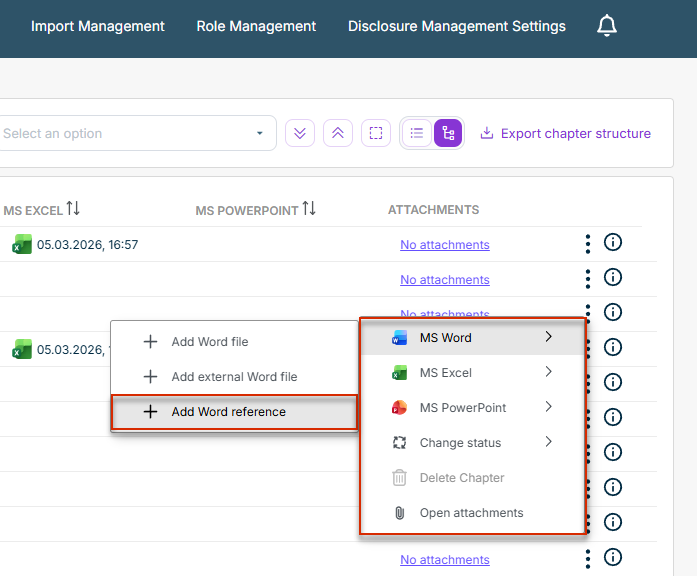
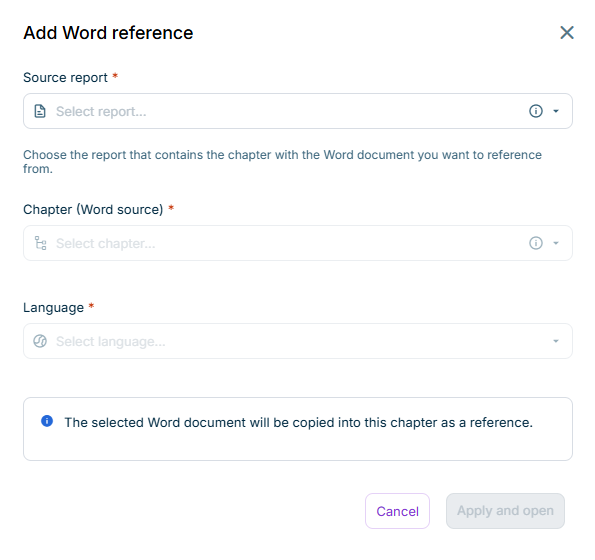
You do not have editor permission for the chapter. There are no referenceable documents available. The chapter already contains a reference. The chapter already contains a chapter.
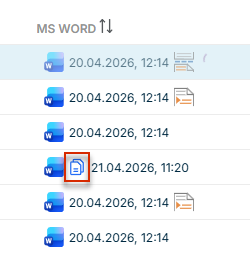
MS Word opens automatically with the source content in the selected language. After opening, a check-in is automatically performed in the background. The reference is created in the target chapter, and the source content is inserted as a chapter at the selected position. In the Cockpit
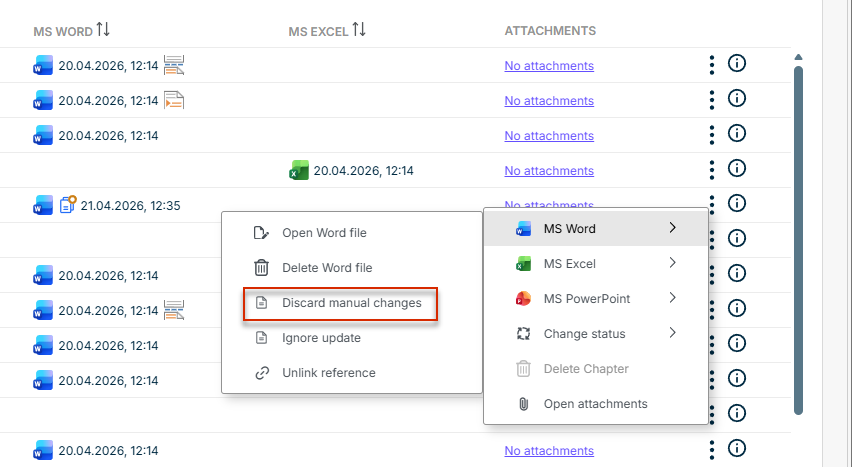
Accept changes you want to apply. Reject changes you do not want to apply.
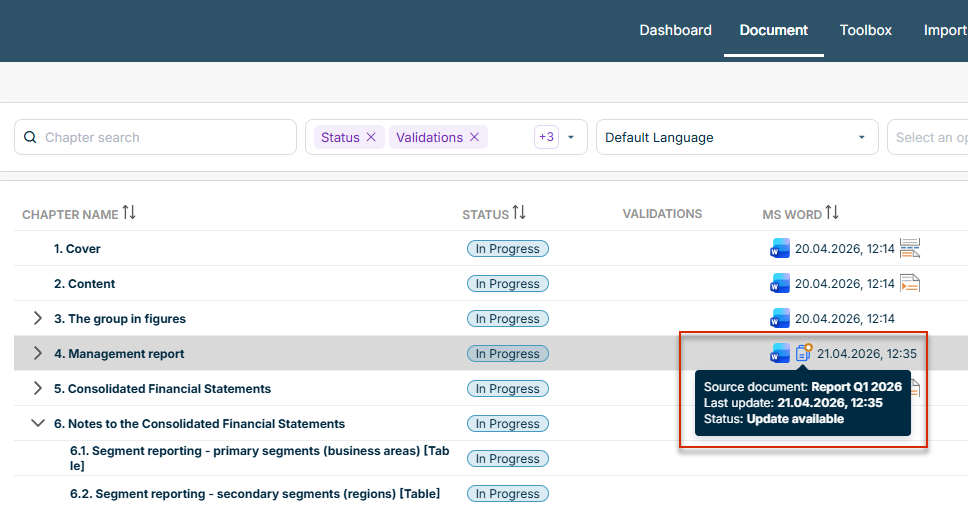
The highlighting of the reference icon in the Cockpit is removed. The reference metadata is updated with the new check-in timestamp of the source chapter. A new entry is created in the chapter's history.
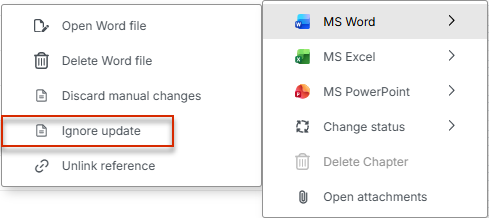
The update highlighting is removed from the reference icon in the Cockpit. A new entry is added to the chapter's history that records the ignored update, including the source document, the chapter, the timestamp, and the author. The reference icon is shown next to the entry. The reference's status and check-in timestamp remain unchanged.
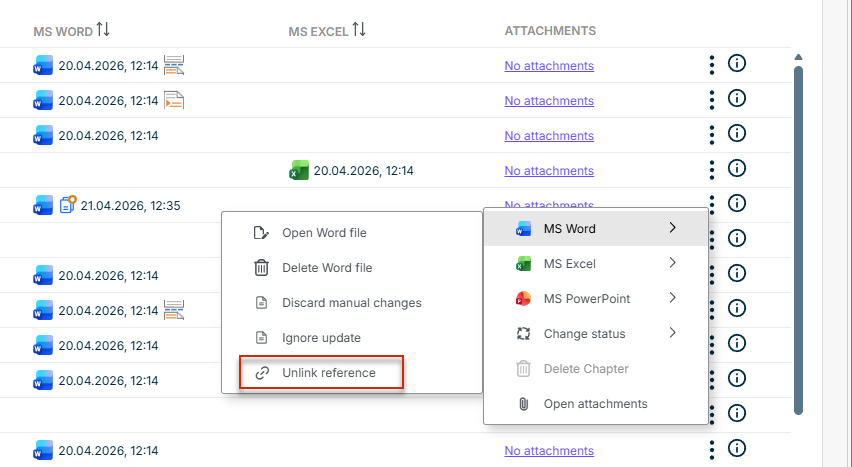
Both the document containing the Word references and the referenced source document have already been rolled forward or copied individually (see Rolling Forward or Copying a Document The source and target documents must match structurally, because Lucanet Lume matches Word references based on their structure, not their content. This is therefore only possible between a document and a 1:1 copy or roll-forward of that document, not between documents with different content. The feature is currently available for Word references only.
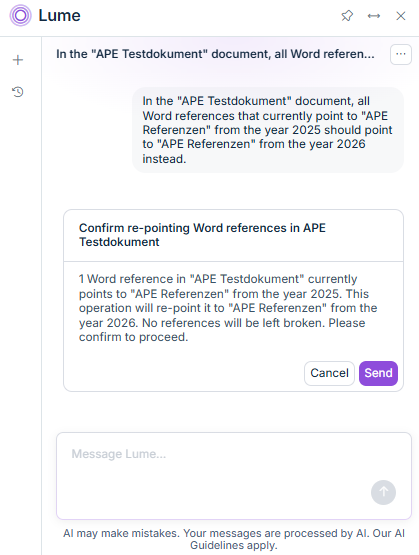
The exact name of the target document (as stored in the Dashboard) The exact name of the old source document The exact name of the new source document
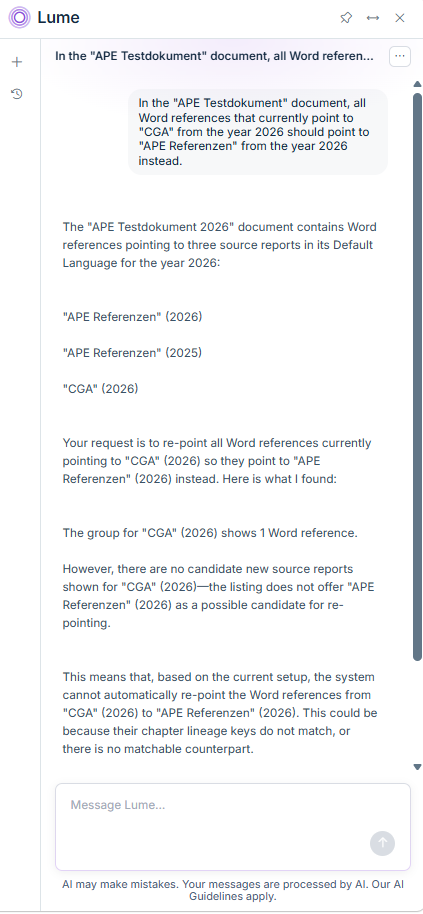
You can ask Lume for the affected target chapter and further details about the missing counterpart. You can adjust the chapter structure in the new source document so that a matching chapter exists, and then trigger the re-pointing of the reference again.
This content was generated using AI and reviewed by Lucanet subject matter experts before publication.
Last updated on May 1, 2026