Word documents play a key role in Disclosure Management when it comes to creating a business report. The final result document is built using them. Word documents can be used to make the corporate design and texts available for the desired result document. In Word documents, the Excel tables maintained in Disclosure Management are also published.

A Word file can be stored for each chapter of a Disclosure Management document.

Word files contain the Word ribbon, which provides specific functions for editing files.

Word files can be created in the Cockpit of Disclosure Management or in the detail view of a chapter. Alternatively, existing files located in the local file directory can be assigned to a chapter to create a new Word file.

To create a Word file for a chapter in Disclosure Management:

1

Click Cockpit in the overview or click Document in the function bar:

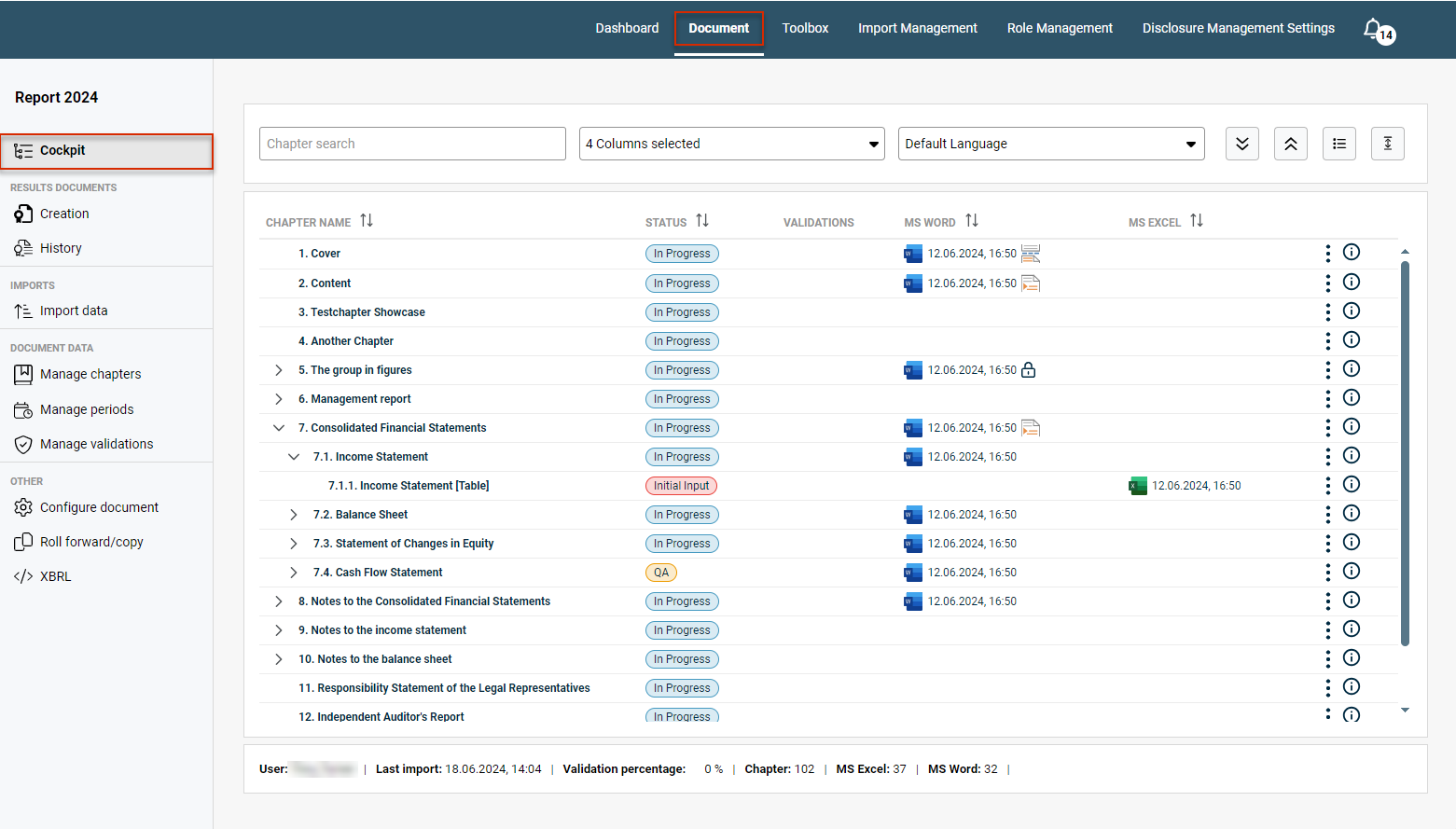
Shows the Cockpit of the document 'Report 2024' in Disclosure Management with the chapter list and the columns 'CHAPTER NAME', 'STATUS', 'VALIDATIONS', 'MS WORD' and 'MS EXCEL'. Highlighted in red are 'Document' in the function bar and 'Cockpit' in the overview.
Open a document in Disclosure Management
2

Click the three dots iconThree dots icon at the end of the desired chapter row.

3

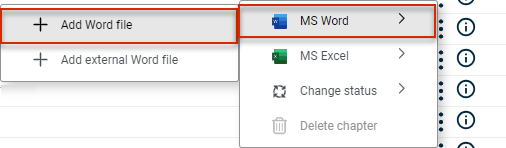
Choose MS Word | Add Word file or MS Word | Add external Word file from the context menu.

Shows the context menu of a chapter in the Cockpit of Disclosure Management with the entries 'MS Word', 'MS Excel', 'Change status' and 'Delete chapter' and the submenu of 'MS Word' with 'Add Word file' and 'Add external Word file'. Highlighted in red are 'MS Word' and 'Add Word file'.
Create a Word file in the Cockpit
4

MS Word will open with a new file. As soon as you Check In the file, it will be displayed in the MS Word column of the Cockpit.

Word files assigned to a chapter can be opened from the Cockpit of Disclosure Management for editing purposes.

To open a Word file for a chapter in Disclosure Management:

1

Click Cockpit in the overview or click Document in the function bar.

Shows the Cockpit of the document 'Report 2024' in Disclosure Management with the chapter list and the columns 'CHAPTER NAME', 'STATUS', 'VALIDATIONS', 'MS WORD' and 'MS EXCEL'. Highlighted in red are 'Document' in the function bar and 'Cockpit' in the overview.
Opening a document in Disclosure Management
2

You have two options for opening a Word file in the Cockpit:

  • Click the desired Word file in the MS Word column.
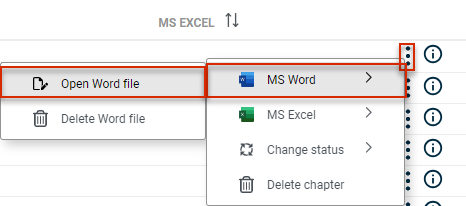
  • Click the three dots iconThree dots icon at the end of the desired chapter row and choose MS Word | Open Word file from the context menu.
    \

Shows the context menu of a chapter in the Cockpit of Disclosure Management and the submenu of 'MS Word' with 'Open Word file' and 'Delete Word file'. Highlighted in red are the three dots icon, 'MS Word' and 'Open Word file'.
Opening a Word file from the Cockpit

The file will open in MS Word and can be edited using the Word ribbon.

Word files can also be opened from the Detail View of a Chapter.

Word files in Disclosure Management can be edited using the Word ribbon. The Word ribbon provides specific functions tailored to Disclosure Management:

Shows the 'Disclosure Management' tab of the Word ribbon in MS Office for Desktop with the areas 'Server', 'File', 'Link', 'XBRL' and 'Copilot'.
Word ribbon for Disclosure Management
  • Among other functions, the Word ribbon contains a function for inserting any desired Excel tables in a Word document.
  • In addition to Excel tables, Text Values, Document Variables, XBRL Tags, and more can be inserted in a Word document easily and conveniently using the Word ribbon.

The Ribbons for Disclosure Management chapter provides an overview of all the functions available in the Word ribbon.

A specific Word template can be stored for each document in Lucanet Disclosure Management.

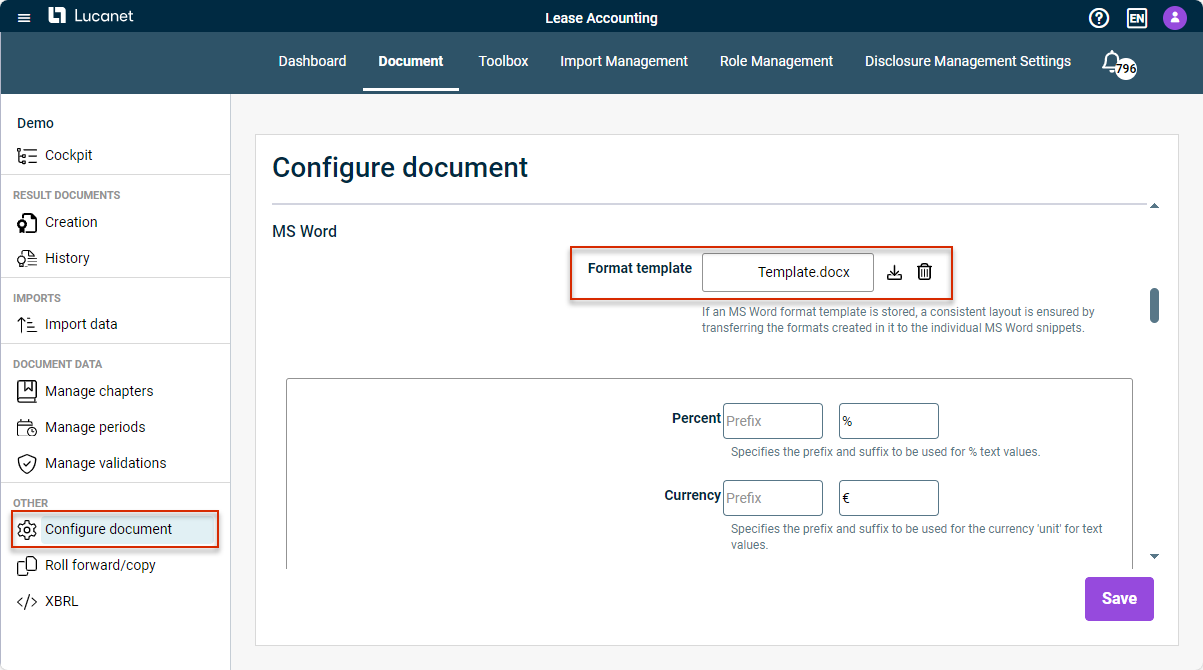
To assign a Word template to a document, you must open the Configure document workspace and add a Word template in the MS Word section (see also Configuring a Document).

This is also where you can use the Download icon icon to save an already assigned Word template locally (e.g. to use it in another document).

Shows the 'MS Word' area of the 'Configure document' workspace in Disclosure Management with the fields 'Percent' and 'Currency' and the 'Save' button. Highlighted in red are 'Configure document' in the overview and the 'Format template' 'Template.docx' with the download and delete icons.
Assign, save, or delete format template for MS Word

This content was generated using AI and reviewed by Lucanet subject matter experts before publication.