
For frequently used texts or formulations in Disclosure Management documents, document variables can be used, which can be retrieved and inserted in every Excel or Word file via the Word or Excel ribbon.
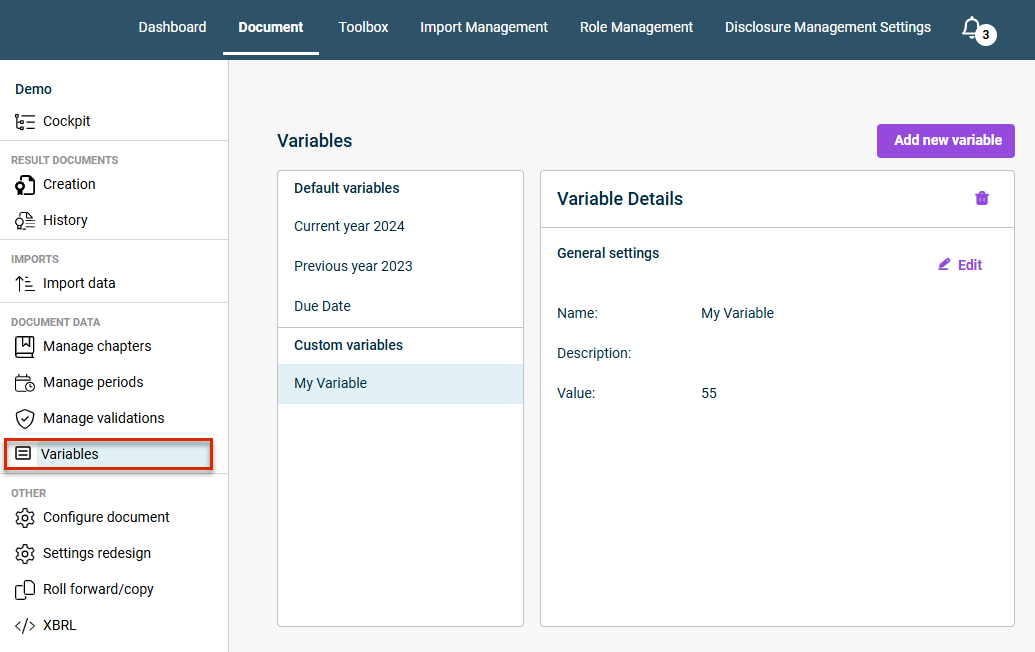
In Disclosure Management, predefined document variables are available for the year, previous year, and reporting date. Additional custom variables can be created in the Variables workspace.
How you insert a document variable depends on the Office variant you use. In Office for the Web and Office Native, the user guidance and interface are identical.
In Office for the Web and Office Native, proceed as follows to insert a document variable:
1
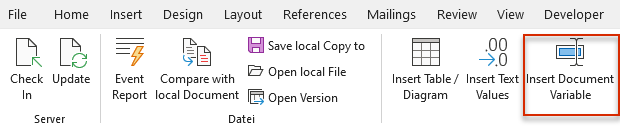
Click the Document Variables button.
'Document Variables' button in the ribbon
2
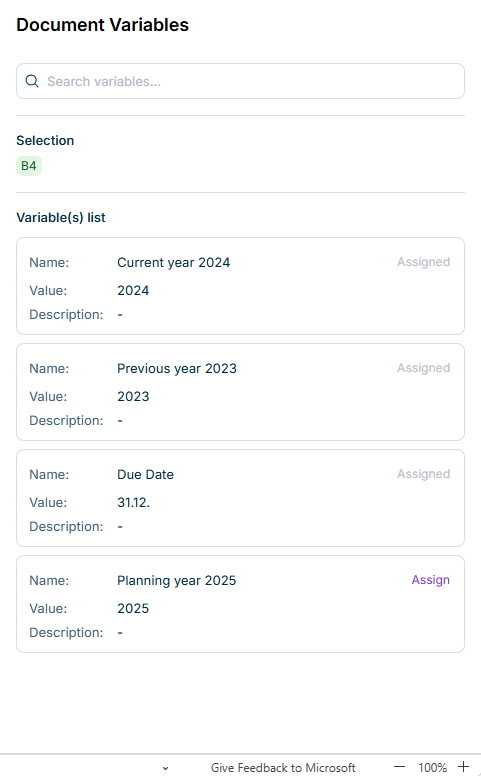
The Document Variables task pane opens on the right. The List of variable(s) section lists all available document variables with their Name, Value, and Description. Initially, it contains document variables for the current year, previous year, and reporting date.
'Document Variables' task pane
3
In the Excel worksheet, select the cell where you want to insert the document variable.
The selected cell is shown in the Selection area.
4
For the desired document variable, click Assign.
The document variable is inserted into the selected cell and its status changes to Assigned. A document variable can be assigned to only one cell at a time.
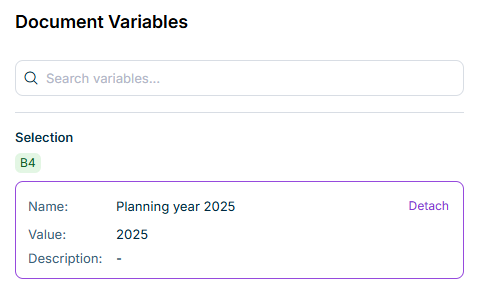
To remove a document variable's assignment, select the cell containing the document variable and click Detach in the Selection area. The document variable is removed from the cell and can then be assigned to another cell.
Removing a document variable's assignment
In Office for the Web and Office Native, you can highlight inserted document variables in a Word document: on the DM-Content tab, click Set and select the Dokumentvariablen entry. Use Remove | Dokumentvariablen to remove the highlight again (see Ribbons for MS Office for the Web).
In Office for Desktop, insert a document variable into Excel or Word documents as follows:
1
Select a cell in an Excel file or place the cursor at the desired position in a Word file.
2
Click Insert Document Variable in the Excel or Word ribbon.
Inserting a document variable via the Word ribbon
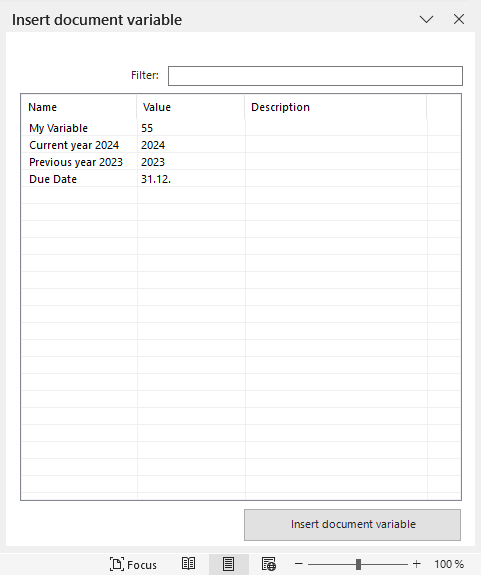
The Insert Document Variable dialog will be displayed. The dialog lists all the document variables that have already been created, along with their Name, Value, and Description. Initially, this will contain document variables for the current year, previous year, and reporting date:
'Insert Document Variable' in MS Word
3
Select the desired document variable.
4
Click Insert document variable.
When you insert document variables in MS Excel, corresponding names are created automatically for the relevant cells (see Names and Name Extensions in MS Excel).