disclosure-management Documentation / Disclosure Management / Working with MS Office Files / Ribbons for Disclosure Management / Ribbons for MS Office for the Web In the MS Office for the Web
The Word ribbon
The DM-Content The DM-Layout The Excel ribbon
The Server Lucanet
Option Description Check In The current file is saved in the database. Comments can be stored during the check-in process and are displayed in the document's history. Update Changes made are shown as a preview without having to check in the file. The file view is refreshed according to the current settings.
Option Description Help Opens the help for Disclosure Management.
'DM-Content' tab of the Word ribbon in MS Office for the Web Option Description Set Highlights the selected type of element with color. The drop-down offers the available highlight types (see below). Remove Removes highlights that have been set. The drop-down offers the highlight types to be removed (see below).
Use the Set
Option Description Disclosure-Management tables Highlights the tables managed by Disclosure Management. Non-Disclosure-Management tables Highlights the tables that are not managed by Disclosure Management. Document Variables Highlights the document variables contained in the document. Text Values Highlights the body text numbers in the document.
Use the Remove
Option Description Disclosure-Management tables Removes the highlight of the tables managed by Disclosure Management. Non-Disclosure-Management tables Removes the highlight of the tables not managed by Disclosure Management. Document Variables Removes the highlight of the document variables. Text Values Removes the highlight of the body text numbers. Remove Coupler Highlights Removes the highlights of the couplings. Remove Data-Change Highlights Removes the highlights of data changes.
Option Description Insert table/chart Opens a dialog where a table or chart can be selected from an Excel file to carry it over to the Word document. For more information, see Inserting Tables in a Word Document Insert text values Inserts a body text number from the document's data at the cursor position. Document Variables Inserts a document variable into the Word document. For more information, see the Using Document Variables Assign Layout Actions Assigns layout actions from the Layout Robot to the selected area so that a defined layout is applied in the result document.
Option Description Event reports Opens the internal error logging system that flags invalid references, etc. The Layout Check Layout Check
Option Description Copilot Opens the Copilot Writer Enhancer
For more information on using the Copilot in Disclosure Management, see Using Copilot for Disclosure Management
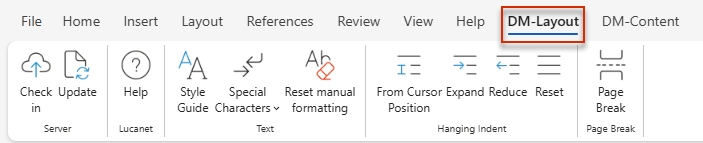
'DM-Layout' tab of the Word ribbon in MS Office for the Web Option Description Style Guide Opens the Style Guide pane, which displays the formats and content groups configured in the Style Guide Manager Special Characters Opens a drop-down menu for inserting typographic special characters (see below). Reset manual formatting Resets manual formatting at the paragraph and character level so that the original styles are restored.
Use the Special Characters
Option Description Em Dash Inserts an em dash (—). Non-Breaking Hyphen Inserts a non-breaking hyphen that is not broken at the end of a line. Soft Hyphen Inserts a soft hyphen (an optional hyphenation point). Non-Breaking Space Inserts a non-breaking space that is not broken across lines. Soft Line Break Inserts a soft line break without starting a new paragraph.
Option Description From Cursor Position Creates a hanging indent from the current cursor position. Expand Increases the hanging indent. Reduce Decreases the hanging indent. Reset Resets the hanging indent.
Option Description Page Break Inserts a page break at the cursor position.
The Excel ribbon helps you program an MS Excel file for Disclosure Management. It provides the following functions:
Excel ribbon of Disclosure Management in MS Office for the Web Option Description Publish Publishes the current Excel file and saves it in the database. Update Changes made are shown as a preview without having to publish the file. The file view is refreshed according to the current settings.
Option Description Event reports Opens the internal error logging system that flags invalid references, etc. Mark Area Marks an outarea in the Excel file. For more information, see Defining Outareas Document Variables Inserts a document variable into the Excel file. For more information, see the Using Document Variables Programming Assistant Opens the programming assistant, which helps you program value and programming columns. For more information, see Programming References
Option Description Area and column assistant Opens the Area and column assistant Using the Area and Column Assistant
Option Description Add Area Highlights Highlights the defined outareas in the Excel file with color.
Option Description Properties Opens a dialog where the general properties of the Excel file can be configured.
Option Description Help Opens the help for Disclosure Management.
This content was generated using AI and reviewed by Lucanet subject matter experts before publication.