The Area and column assistant uses AI to automatically detect outareas in MS Excel files, as well as their name, value, and programming columns, as an alternative to configuring them manually via the Mark Area task pane.

The Area and column assistant is available in Office for the Web and Office Native.

To use the Area and column assistant, you need at least the Advanced license.

Use the Area and column assistant button on the Excel ribbon to open the Area and column assistant task pane with the Outarea and Values tabs:

  • On the Outarea tab, the assistant detects table areas in the Excel spreadsheet.
  • On the Values tab, the assistant detects name, value, and programming columns within a selected outarea.

You start the Area and column assistant directly from the Excel ribbon:

Section of the Excel ribbon with the 'Area and column assistant' button in the 'Copilot' area.
'Area and column assistant' button on the Excel ribbon

On the Outarea tab, you can have outareas in the active worksheet detected automatically.

1

Click Area and column assistant on the Excel ribbon.

The Area and column assistant task pane is displayed with the Outarea tab open.

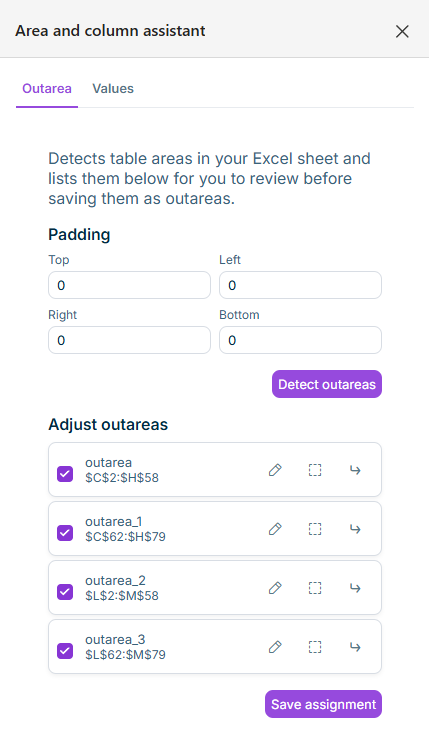
Shows the 'Area and column assistant' task pane with the 'Outarea' tab, the 'Padding' section, and the 'Detect outareas' button.
'Outarea' tab in the 'Area and column assistant' task pane
2

Optionally, in the Padding section, define a margin for detection (Top, Left, Right, Bottom fields; default value 0 for each).

3

Click Detect outareas.

The detected outareas are displayed in the Adjust outareas section.

4

Activate the checkboxes of the outareas that you want to keep. If necessary, adjust the cell range of a detected outarea (see Adjusting Detected Outareas).

5

Save the assignment.

The following buttons are available for each detected outarea in the Adjust outareas section:

ButtonDescription
Edit outareaOpens a dialog for renaming the outarea (prefix, name, language code). Saving also sets the outarea to the cell range currently selected in the worksheet.
Highlight the area in the worksheetHighlights the outarea's cell range in the Excel worksheet without changing it.
Move to selectionAfter a confirmation prompt, moves the outarea to the cell range currently selected in the worksheet.

On the Values tab, you can have the name, value, and programming columns for an outarea detected automatically.

1

In the Area and column assistant task pane, switch to the Values tab.

2

In the Outarea drop-down list, select the desired outarea.

3

Optionally, select the current period and the previous period.

4

Select the desired AI engine and start column detection.

The detected columns are displayed in the results list.

5

Save the assignment.

Saving is only possible once the results list contains at least one name, one value, and one programming column. If one of the three column types is missing, the assignment is not saved.

For more information on the column types, see Creating and Editing Columns and Defining Outareas.

This content was generated using AI and reviewed by Lucanet subject matter experts before publication.