All Word documents can be optimized with AI assistance using Copilot for Disclosure Management – in Office for the Web, Office Native, and Office for Desktop. You can adjust your texts quickly and easily or generate completely new drafts.

  • The Writer function helps you efficiently and accurately create taxonomy-compliant reports by generating text for any disclosure label that meets IFRS or ESRS requirements.

  • With the Enhancer function, you can optimize your texts using the following features:

    • Change the tone of the text (positive, neutral, negative)
    • Shorten a text
    • Make a text more detailed
    • Create a bulleted list
    • Create a headline
  • Using the Insert ESG text values function (Office for Desktop only), you can create a report at group level from the disclosures of the subsidiaries. The function significantly simplifies and automates the process of preparing group disclosures.

The Excel ribbon provides the Area and column assistant in the same Copilot area, which lets you detect outareas and their name, value, and programming columns in MS Excel automatically using AI. For more information, see Using the Area and Column Assistant.

To use Copilot, you need at least the Advanced license.

For a comparison of the functions in the individual variants, see Comparison: MS Office for the Web, MS Office Native, and MS Office for Desktop.

In Office for the Web and Office Native, you start Copilot using the Copilot button on the DM-Content tab of the Word ribbon (Copilot area). This opens the Copilot task pane.

Shows the 'DM-Content' tab of the Word ribbon with the 'Copilot' button in the 'Copilot' area.
'Copilot' button on the Word ribbon

The task pane automatically switches between the Writer and Enhancer modes, depending on whether text is selected in the document:

  • If no text is selected, the Writer mode is active.
  • If text is selected, the task pane automatically switches to the Enhancer mode.

There is no manual toggle between the two modes. An info icon ⓘ next to the Copilot heading shows a tooltip explaining the two modes when you hover over it.

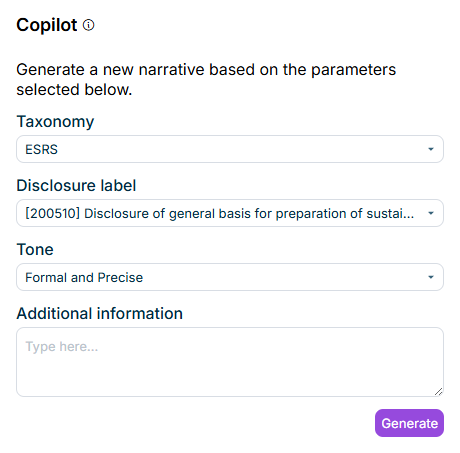
If no text is selected in the document, Copilot opens in Writer mode with the description Generate a new narrative based on the parameters selected below.

To generate a new text:

1

Click Copilot on the DM-Content tab of the Word ribbon.

The Copilot task pane is displayed in Writer mode:

Shows the 'Copilot' task pane in Writer mode with the Taxonomy, Disclosure label, Tone, and Additional information fields in Office for the Web.
Copilot in Writer mode in Office for the Web
2

In the Taxonomy drop-down list, choose the desired taxonomy.

3

In the Disclosure label drop-down list, choose the desired disclosure label.

4

Optionally, in the Tone drop-down list, choose the desired tone.

5

Optionally, enter company-specific information in the Additional information text field that is relevant to the selected disclosure label.

6

Click Generate.

The generated text is displayed under the heading Report in the task pane.

7

Click Apply to insert the text into the document, Discard to delete it, or Copy to copy it to the clipboard. If necessary, change the selection and click Generate again if the result is not satisfactory.

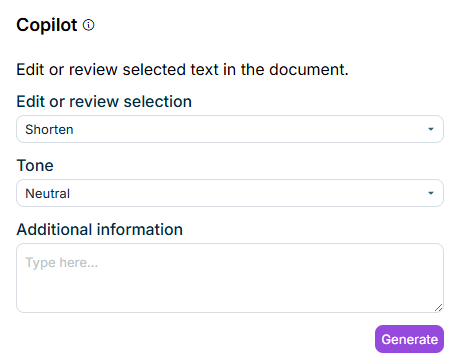
If you select text in the document, Copilot automatically switches to Enhancer mode with the description Edit or review selected text in the document.

To adjust selected text:

1

Select the text that you want to improve.

The Copilot task pane automatically switches to Enhancer mode:

Shows the 'Copilot' task pane in Enhancer mode with the Edit or review selection, Tone, and Additional information fields in Office for the Web.
Copilot in Enhancer mode in Office for the Web
2

In the Edit or review selection drop-down list, choose the desired option (see section Options for Text Enhancement).

3

Optionally, in the Tone drop-down list, choose the desired tone.

4

Optionally, enter additional information in the Additional information text field.

5

Click Generate.

The edited text is displayed under the heading Report in the task pane.

6

Click Apply to replace the text in the document, Discard to delete the result, or Copy to copy it to the clipboard. If necessary, change the selection and click Generate again if the result is not satisfactory.

You can start Copilot for Word documents in Disclosure Management directly from the Word ribbon:

Section of the Word ribbon. The 'Writer' and 'Enhancer' buttons are outlined in red.
Start Copilot for Disclosure Management from the Word ribbon

With the Writer function, you can create and insert new text for Word documents. To do this, select a label for which the AI should generate text. Additionally, you can provide company-specific information in a text field.

The function then automatically generates taxonomy-compliant text sections for the specified label and incorporates any additional company-specific information provided into the generated text. The two taxonomies, IFRS and ESRS are taken into account.

To create a text for a label:

1

Click Writer on the Word ribbon.

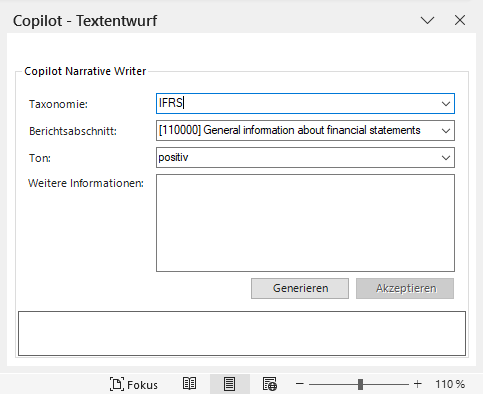
The Copilot - Writer window will appear in the Word document:

Draft text using Copilot for Word documents in Disclosure Management
2

Choose either IFRS or ESRS under Taxonomy.

3

Choose a disclosure label from the Disclosure Label drop-down list.

4

Optionally, enter company-specific information in the Additional information text field that is relevant to the selected disclosure label.

5

Click Generate.

6

Click Accept to insert the result into the document. If necessary, change the settings and click Generate again if the result is not satisfactory.

With the Enhancer function, you can tailor an existing text in a Word document according to your needs.

To adjust text:

1

Select the text that you want to improve.

2

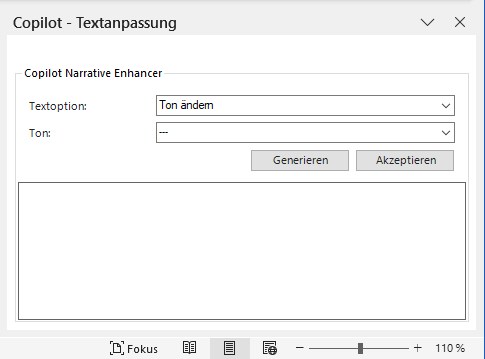
Click Enhancer on the Word ribbon. The Copilot - Enhancer window will appear in the Word document:

Adjust text using Copilot for Word documents in Disclosure Management
3

Configure the Copilot as required (see section Options for Text Enhancement).

4

Click Generate.

5

Click Accept to insert the result into the document. If necessary, change the settings and click Generate again if the result is not satisfactory.

With the help of the function Insert ESG text values, reports at group level can be created based on the disclosures of the subsidiaries using the Copilot. The function significantly simplifies and automates the creation process for group disclosures.

  • The function is capable of automatically generating the final ESRS-compliant sustainability report at group level based on the disclosures from the subsidiaries.
  • As a user, you can choose a question from the ESG questionnaire and view the different answers of the subsidiaries.
  • You can add additional information.
  • You can discard the result at any time and create the report again.
  • If the result matches your requirements, you can add it to your document by clicking it.
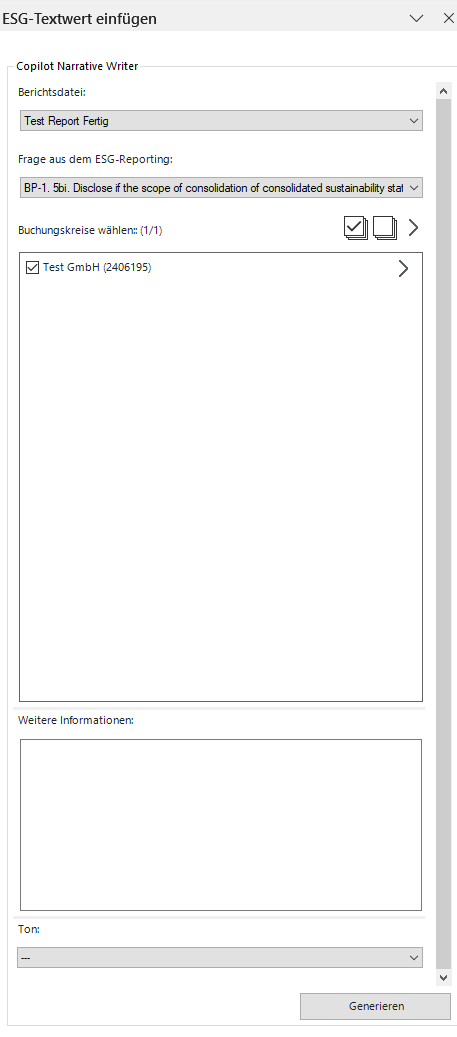
To use the Insert ESG text value function:

1

Click ESG text value on the Word ribbon.

The Insert ESG text value window will appear in the Word document:

Draft text using Copilot for Word documents in Disclosure Management
2

In the Report file drop-down list, choose the report from which the ESG data are to be read from.

3

In the drop-down list Question from ESG Reporting, choose the desired question.

4

In the list Choose a reporting entity, activate the checkboxes of the reporting entities whose data is to be included in the overall report.

5

Optionally, enter additional information in the Additional information text field that is to be added to the report.

6

In the Tone drop-down list, choose the desired tone for the report.

7

Click Generate.

8

Click Accept if you want to insert the result into the document. If necessary, change the settings and click Generate again if the result is not satisfactory.

The following AI options are available for enhancing texts in a Word document in Disclosure Management:

OptionDescription
Change toneChanges the tone of the selected text.
RephraseRephrases the selected text.
ElaborateFormulates the selected text in more detail and adds context information if necessary.
ShortenShortens the selected text.
Create bullet listCreates a list of bullet points from the selected text.
Create numbered listCreates a numbered list from the selected text.
Create headlineCreates a heading for the selected text.

For the Change tone, Rephrase, Elaborate, and Shorten options, the inserted text keeps the paragraph style the selected text already had, instead of being reset to Word's "Standard" style.

This content was generated using AI and reviewed by Lucanet subject matter experts before publication.