In order to use responses collected in text form with Lucanet ESG Reporting also in reports in Disclosure Management, a separate option is provided in the Word ribbon. This makes it easy and convenient to insert text responses from aggregated ESG reports into a Word file. The function is available in MS Office for the Web, MS Office Native, and MS Office for Desktop.

Manually inserting individual ESG text values in Lucanet Disclosure Management does not use AI and remains possible even if the platform AI functions are disabled. The AI-supported processing of ESG text values, for example creating a text from several answers, is locked, however, if AI is disabled at platform level. For more information, see Using Copilot for Disclosure Management | Prerequisites for AI Functions.

In MS Office for the Web and MS Office Native, you insert ESG text values in Lucanet Disclosure Management using the Insert ESG text value task pane. You open it on the DM-Content tab of the Word ribbon in the Integration group. The task pane shows the report files, questions, and reporting entities for which you have permissions in Disclosure Management.

The Report file drop-down list contains the ESG reports whose data has already been imported into the current Disclosure Management document. The name refers to the imported ESG report. You do not select a local file here.

For a report file to be available, the data of the report must first be aggregated in Lucanet ESG Reporting. Then import the report data using the ESG Reporting Datasource data source into the Disclosure Management document to which the open Word file belongs. For more information, see Default Data Source for Importing from Lucanet ESG Reporting and Configuring and Executing a Data Import.

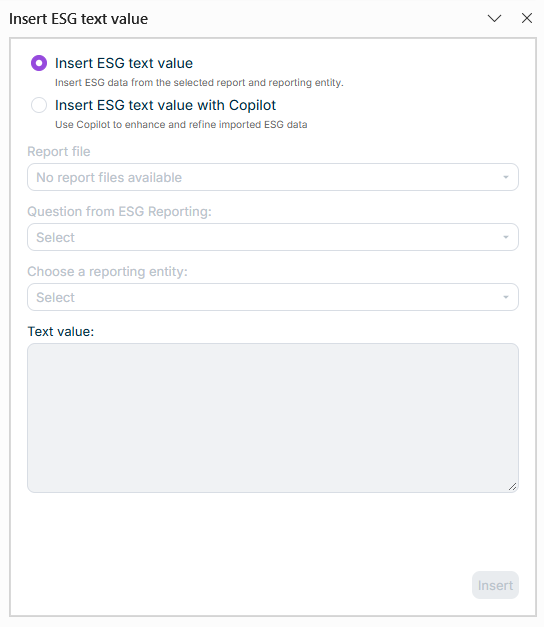
Without imported ESG reports, the Insert ESG text value task pane in Lucanet Disclosure Management is displayed as follows, for example:

Shows the 'Insert ESG text value' task pane in Lucanet Disclosure Management with the selected 'Insert ESG text value' option and the additional 'Insert ESG text value with Copilot' option. The 'Report file' drop-down list shows 'No report files available'. The 'Question from ESG Reporting', 'Choose a reporting entity', and 'Text value' fields are empty; 'Insert' is disabled.
'Insert ESG text value' task pane without available report files

To insert a text answer from an ESG report in MS Office for the Web or MS Office Native in Lucanet Disclosure Management:

1

On the DM-Content tab of the Word ribbon, in the Integration group, click Insert ESG text value.

The Insert ESG text value task pane is displayed. If corresponding data is available, the first report file, the first question, and the first reporting entity are preselected.

2

Leave the Insert ESG text value option selected. With the Insert ESG text value with Copilot option, you instead create a text from the answers of several reporting entities, see Inserting ESG Text Values With Copilot.

3

From the Report file drop-down list, select the ESG report from which you want to insert the answer.

4

From the Question from ESG Reporting drop-down list, select the question for which you want to insert the answer. You can search for a question in the drop-down list.

5

From the Choose a reporting entity drop-down list, select the reporting entity whose answer you want to insert.

The Text value field shows the answer. The field cannot be edited.

6

In the Word document, click the position where you want to insert the text.

7

Click Insert.

The text value is inserted at the selected position. The task pane remains open so that you can insert further answers. If you have not selected a position in the document beforehand, a note prompts you to do so.

  • If the Report file drop-down list shows the note No report files available, check whether the ESG report data has already been imported successfully into the current Disclosure Management document. A report that only exists in Lucanet ESG Reporting is not yet available here. Without an available report file, you cannot select or insert a text value.
  • If you select a different report file or question, the selection of the question and the reporting entity is reset.

To insert text answers from an aggregated ESG report into MS Word in MS Office for Desktop in Disclosure Management:

1

Navigate to the position in the Word document where you want to insert the text and click on Insert ESG text value in the Word ribbon.

Shows the 'Link' area of the Word ribbon for Disclosure Management in Office for Desktop. Highlighted in red is the 'Insert ESG text value' button.
The 'Insert ESG text value' command in the Word ribbon
2

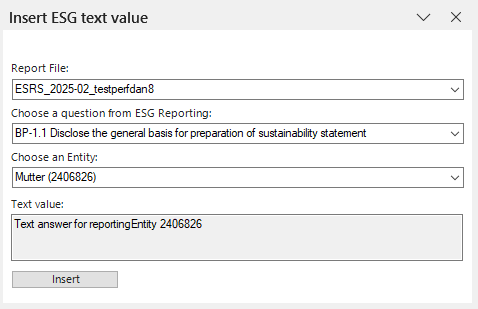
The Insert ESG text value dialog is displayed in MS Word:

Shows the 'Insert ESG text value' dialog of Disclosure Management in MS Word with the drop-down lists 'Report File', 'Choose a question from ESG Reporting' and 'Choose an Entity', the field 'Text value' with the text answer, and the 'Insert' button.
Dialog 'Insert ESG text value'
3

From the Report File drop-down list, select the aggregated ESG report from which you want to insert the response.

4

From the Choose a question from ESG Reporting drop-down list, select the question for which you want to insert the answer.

5

From the Choose an Entity drop-down list, select the reporting entity whose answer you want to insert.

6

Click Insert.

  • The questions of all ESG reports that have been aggregated in ESG Reporting are available for selection.
  • You can insert several answers into a Word document.

With the Insert ESG text value function, you insert text answers of an ESG report into MS Word in Lucanet Disclosure Management. To insert tables of an ESG report into a document in Disclosure Management, the Insert ESG table function is available in the Excel ribbon. For more information on inserting ESG tables, see Inserting Tables From ESG Reports.

This content was generated using AI and reviewed by Lucanet subject matter experts before publication.