In order to use data collected with Lucanet ESG Reporting in Disclosure Management reports, a separate option in the Excel ribbon is provided. This allows tables from previously imported ESG reports to be inserted in an Excel file easily and conveniently. The function is available in MS Office for the Web, MS Office Native, and MS Office for Desktop.

In order to use ESG data in Disclosure Management documents, the columns of the Excel file must be configured and the Outarea for display in MS Word must be defined accordingly. Depending on the MS Office variant and the selected options, Disclosure Management does this automatically during insertion.

Optionally and if necessary, the values can be adjusted in the data view.

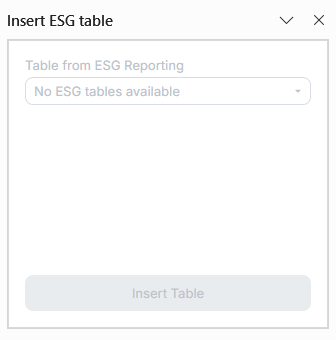
In MS Office for the Web and MS Office Native, you insert ESG tables in Lucanet Disclosure Management using the Insert ESG table task pane. You open it in the File group of the Excel ribbon. The ESG tables that were imported for the open document and for which you have permissions in Disclosure Management are available for selection.

Shows the 'Insert ESG table' task pane in Lucanet Disclosure Management with the 'Table from ESG Reporting' drop-down list. The list shows 'No ESG tables available'; the 'Insert Table' button is disabled.
'Insert ESG table' task pane without available ESG tables

To insert an ESG table in MS Office for the Web or MS Office Native in Lucanet Disclosure Management:

1

In the File group of the Excel ribbon, click Insert ESG table.

The Insert ESG table task pane is displayed.

2

From the Table from ESG Reporting drop-down list, select the table you want to insert. You can search for a table in the drop-down list.

Table type shows whether it is a static table (STATIC_TABLE) or a dynamic table (DYNAMIC_TABLE) from ESG Reporting. The columns of the table are listed below it.

3

Optionally, select the Assign periods check box and select a period from the period management of the document for each value column in the Period column.

With assigned periods, Disclosure Management programs the table completely during insertion, see the following table.

4

For a dynamic table, optionally select the Automatically extend dynamic tables check box and specify under Number of rows how many placeholder rows are to be appended. The default is 10 rows; 1 to 100 rows are possible.

For static tables, the check box is disabled.

5

In the Excel file, click the cell where the table is to start. Select only a single cell.

6

Click Insert Table.

The table is inserted starting from the selected cell. If the worksheet already contains an ESG table or a programmed Disclosure Management table, you must first confirm the replacement. If you have not selected a single cell, a note prompts you to do so. The task pane remains open with all settings so that you can adjust the settings and insert the table again.

The following table describes how Lucanet Disclosure Management inserts an ESG table in MS Office for the Web and MS Office Native depending on the Assign periods option:

OptionResult
Assign periods enabledThe first column is defined as the name column, the columns with an assigned period as value columns. The programming columns are inserted to the right of them. In addition, an Outarea is created across the name and value columns.
Assign periods disabledThe table is inserted without period assignment and without programming. Then define the columns and the Outarea manually, see Defining Columns for an ESG Table.
  • Data already in the target cells is overwritten without confirmation during insertion.
  • If the worksheet already contains an ESG table or a programmed Disclosure Management table, a confirmation prompt appears after you click Insert Table. Under Existing table, click the link to select and check the affected table in the worksheet. Then click Replace to replace this table with the selected ESG table. With Cancel, you close the prompt without changing the existing table or inserting the new one.
  • To use several ESG tables in one Excel file, insert each table into a separate worksheet.
To insert an ESG table from an imported ESG Report into MS Excel in MS Office for Desktop in Disclosure Management:

1

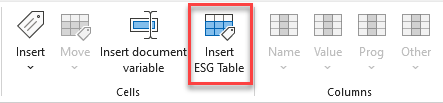
Click Insert ESG table in the Excel ribbon.

Shows the areas 'Cells' and 'Columns' of the Excel ribbon for Disclosure Management in Office for Desktop. Highlighted in red is the 'Insert ESG Table' button.
The 'Insert ESG table' command in the Excel ribbon
2

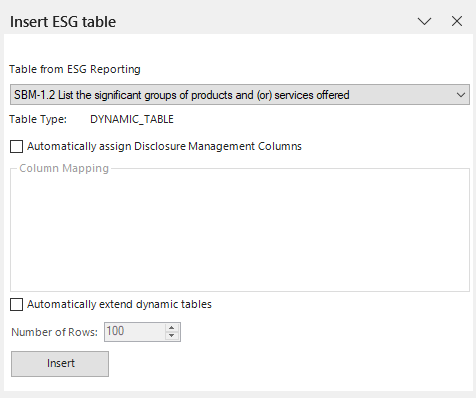
The Insert ESG table dialog is displayed in MS Excel:

Shows the 'Insert ESG table' dialog of Disclosure Management in MS Excel with the drop-down list 'Table from ESG Reporting', the 'Table Type' 'DYNAMIC_TABLE', the options 'Automatically assign Disclosure Management Columns' and 'Automatically extend dynamic tables', the area 'Column Mapping', the field 'Number of Rows' and the 'Insert' button.
The 'Insert ESG table' dialog
3

From the drop-down list that appears, select the Table from ESG Reporting that you want to insert into the Excel file.

4

If necessary, activate the Automatically assign Disclosure Management Columns check box.

You can use this option to define whether name columns and programming and value columns should be assigned automatically. As soon as you activate automatic row assignment, you can also assign periods to the columns in the table. The result of this option is as follows:

5

If necessary, activate the Automatically extend dynamic tables check box. With this option, the table is automatically extended by the specified number of rows. You can use this option, for example, to have placeholders for additional data in the Excel table so that you do not have to manually expand the table later.

6

Click Insert.

The table is inserted. Depending on the activated options, column types are automatically defined (see step 4) and/or additional rows are inserted (see step 5).

  • The questions of the ESG reports that were imported for the opened document are available for selection.
  • For each question in an ESG report, a separate Excel file must be created.
  • As soon as you click Insert, all data that may have been present in the Excel file will be overwritten.
  • The Table Type indicates whether it is a static or a dynamic table from ESG Reporting.
  • This function is used to insert values from ESG tables. To insert text-only responses from a questionnaire into a report in Disclosure Management, the Insert ESG text value function is available in the Word ribbon. For more information on inserting text values from ESG reports, see Inserting Texts From ESG Reports.

If you have not enabled the Assign periods option when inserting an ESG table in MS Office for the Web or MS Office Native, or the Automatically assign Disclosure Management Columns option in MS Office for Desktop, you must then define the columns of the Excel table, i.e. the name column, the value column(s), the programming column(s), and optionally the footnote columns. To do this, proceed as described in the section Creating and Editing Columns.

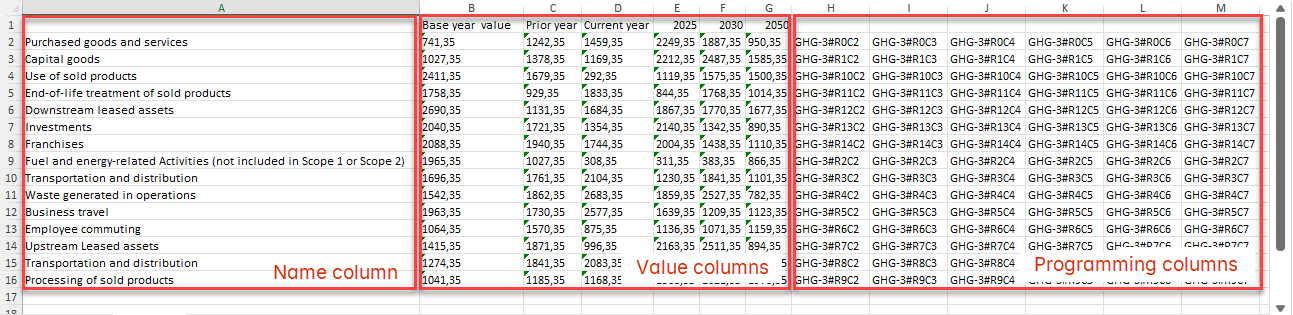
The columns of an Excel file into which data from an ESG table has been inserted are structured as follows:

Shows an Excel worksheet with the inserted data of an ESG table, for example 'Purchased goods and services' and 'Capital goods' in column A, values in the columns B to G and programming such as 'GHG-3#R0C2' in the columns H to M. Highlighted in red with annotations are the 'Name column', the 'Value columns' and the 'Programming columns'.
Columns of an Excel file after inserting an ESG table

In order to display the values that have been inserted from an ESG report in a Word file of Disclosure Management, you must define the cell ranges as an Outarea. Proceed as described in Defining Outareas.

This content was generated using AI and reviewed by Lucanet subject matter experts before publication.