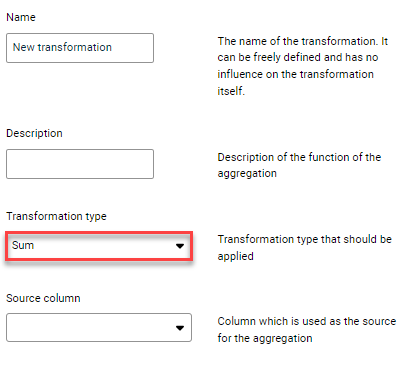
Which data from the data source should be taken into account for the import ( Parameterization Which columns contain which data ( Mapping Whether and how certain data should be converted or enriched during the import ( Transformation Whether and how certain data should be summarized during the import ( Aggregation
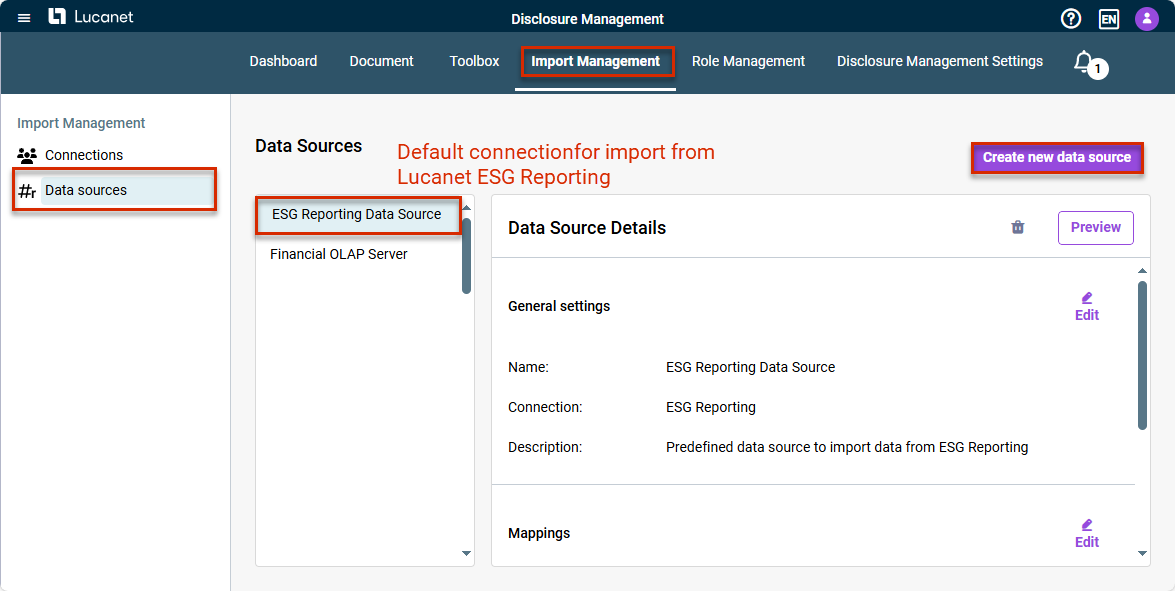
Create a new data source Select and edit existing data sources
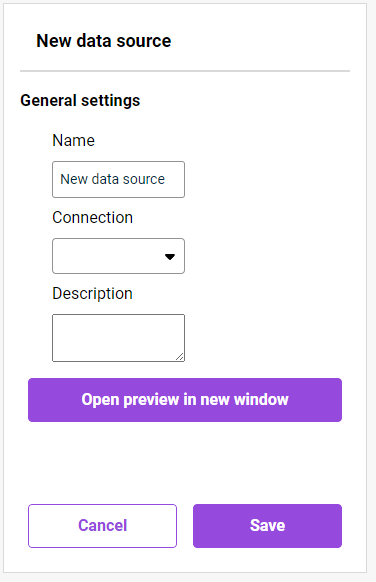
Several data sources can be created with the same connection. When importing an Excel file, a separate data source must be created for each worksheet. As soon as the connection has been selected, further configuration fields and commands are displayed.
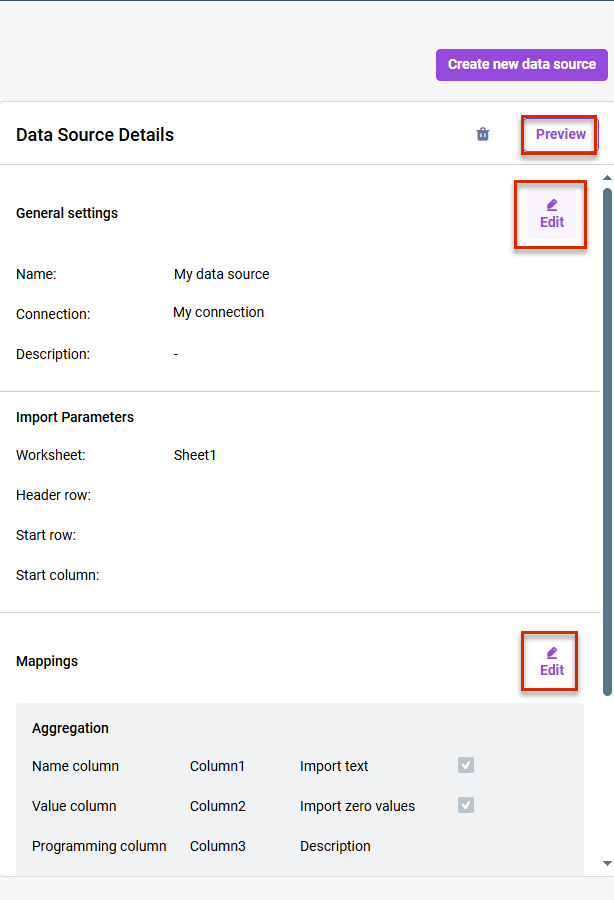
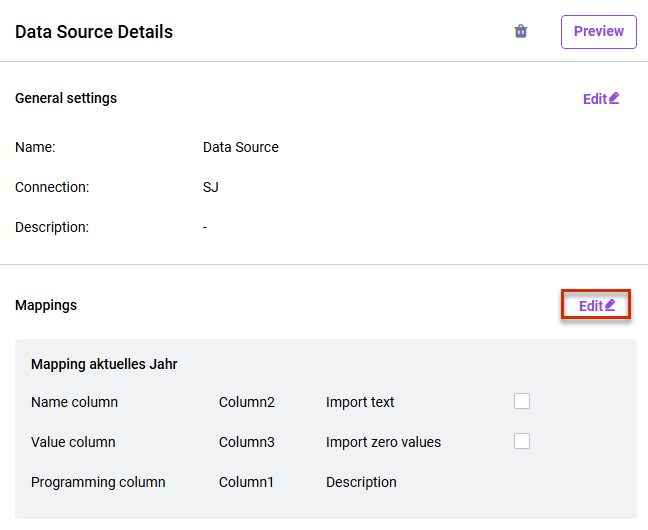
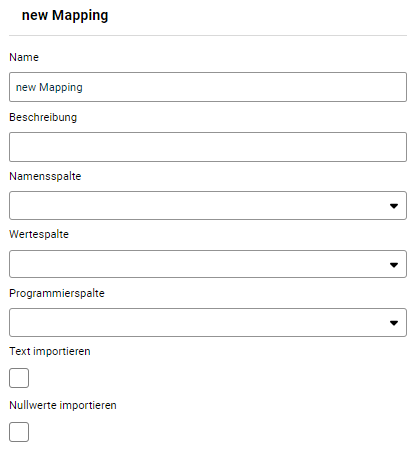
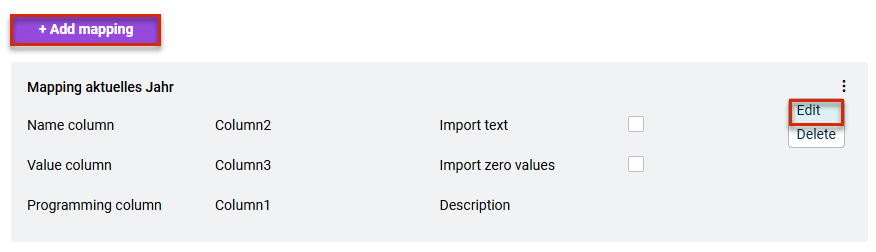
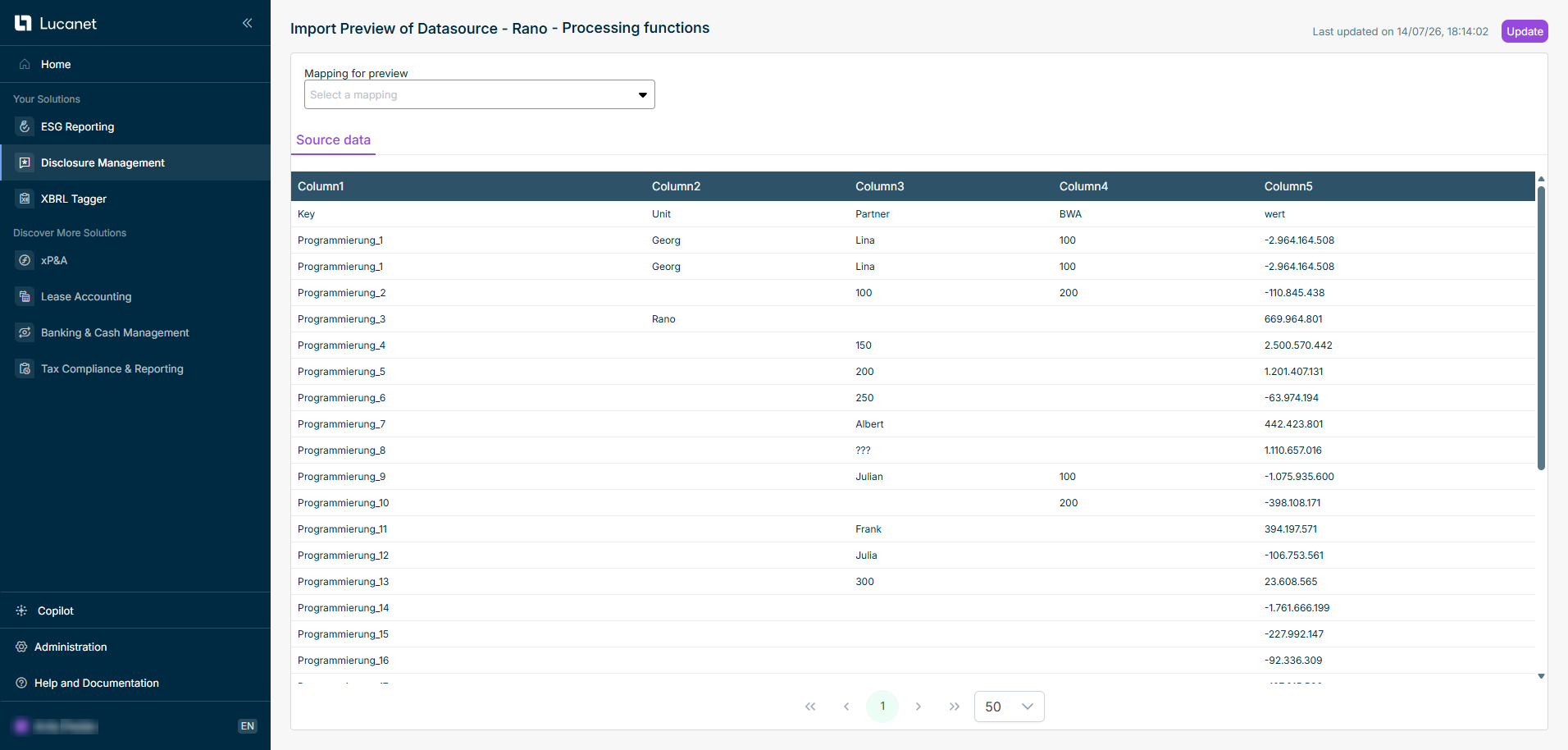
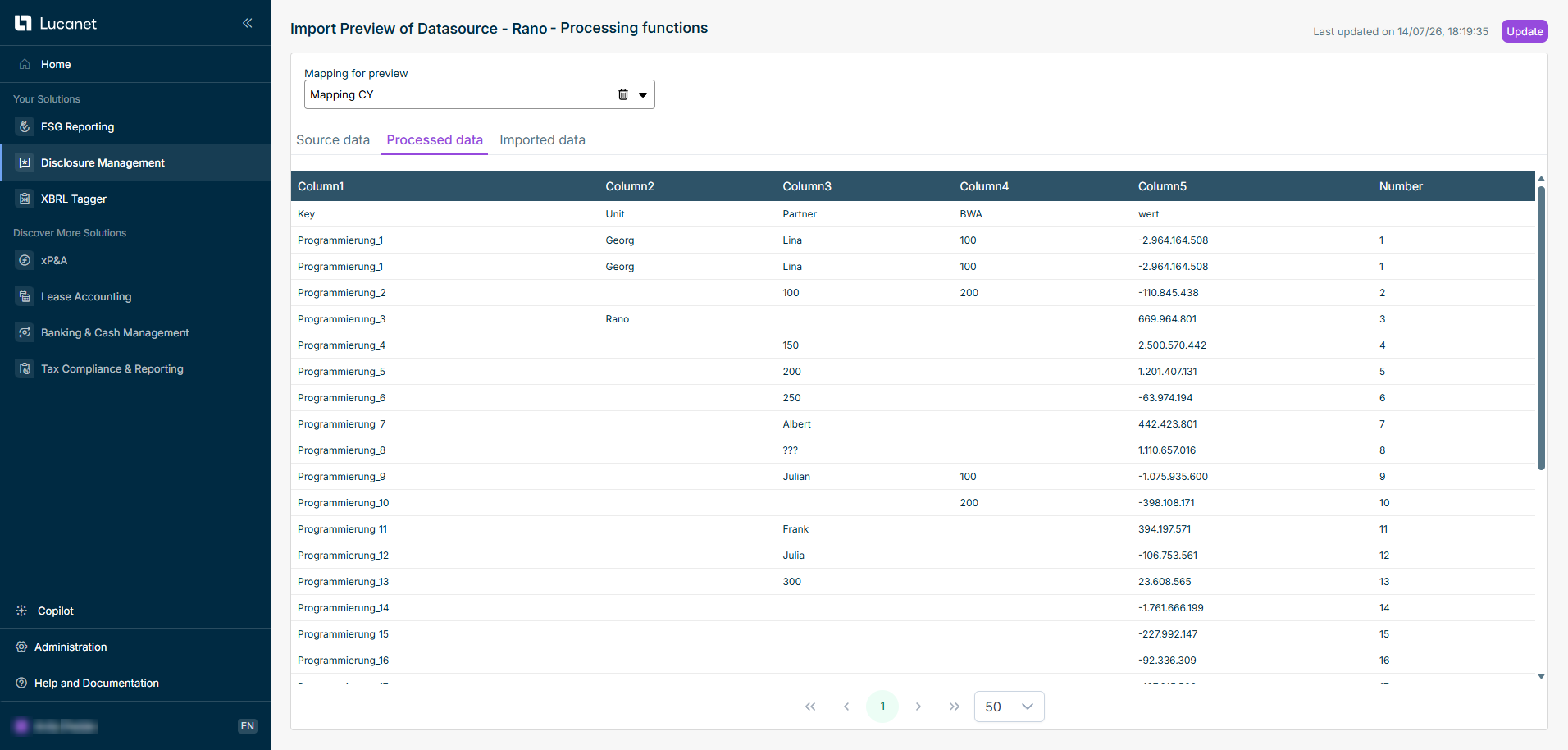
Click Preview Displaying a Preview of the Imported Data Click Edit General settings Import parameters Click Edit Mappings
The areaMappings Transformations aggregations Defining Mapping You can also delete the data source, save it, and cancel editing of the details.
The parameters Worksheet Header row All other parameters are optional When importing an XLSX file, a separate data source must be created for each worksheet
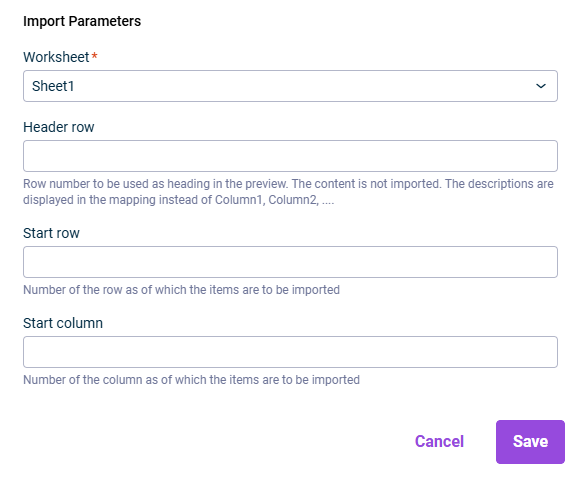
You can select all elements available in the Lucanet database from which you want to import. If multiple selection is possible, check boxes for selecting the individual elements are displayed in the drop-down lists. Select the Can be overwritten Configuring and Executing a Data Import
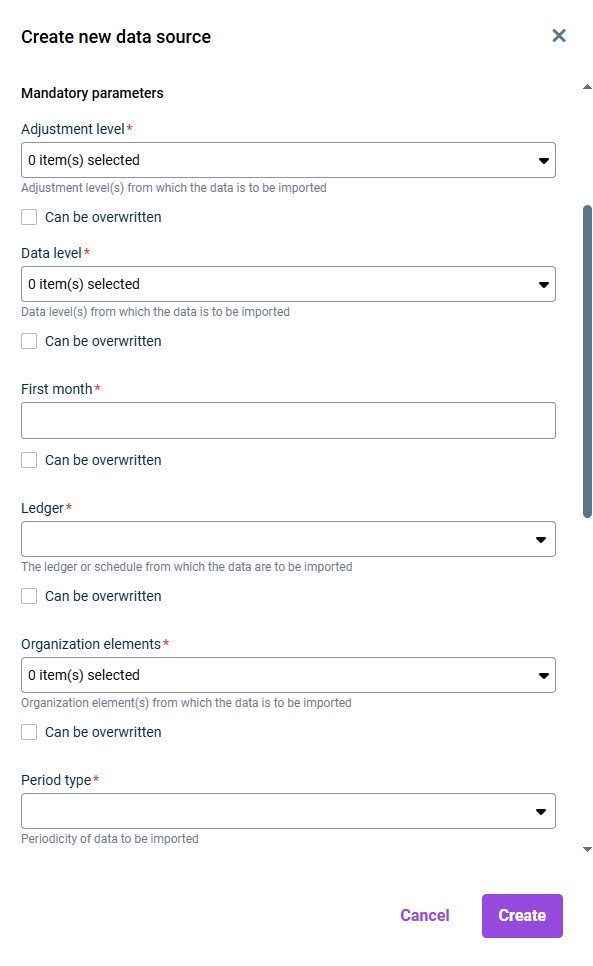
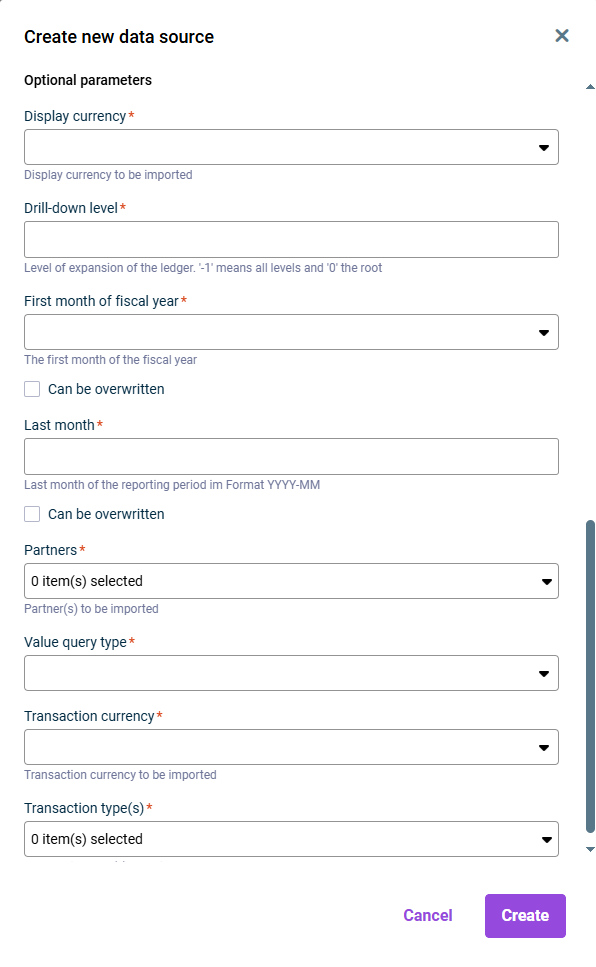
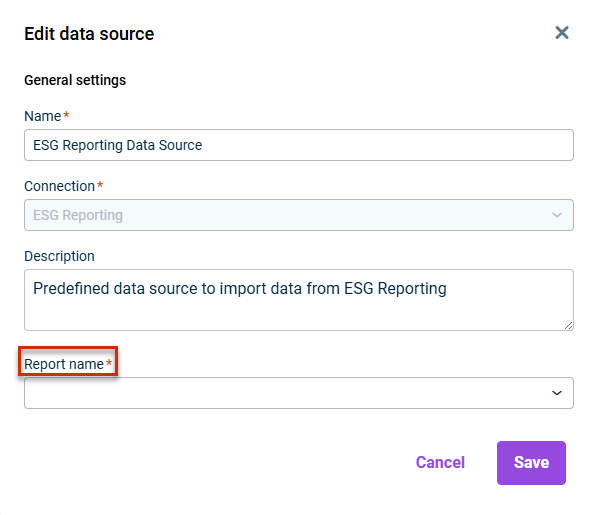
All reports that have been created in the Lucanet ESG Reporting
For further information on data aggregation of an ESG report can be found inAggregating Data The predefined default data source ESG Reporting Datasource Default Data Source for Importing from Lucanet ESG Reporting

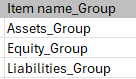
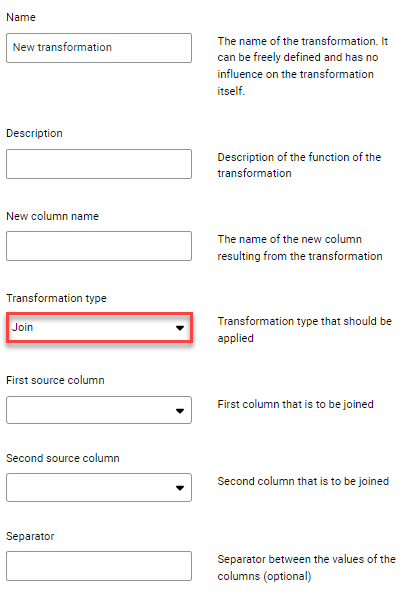
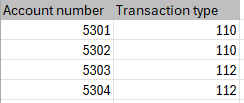
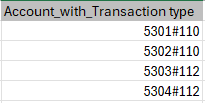
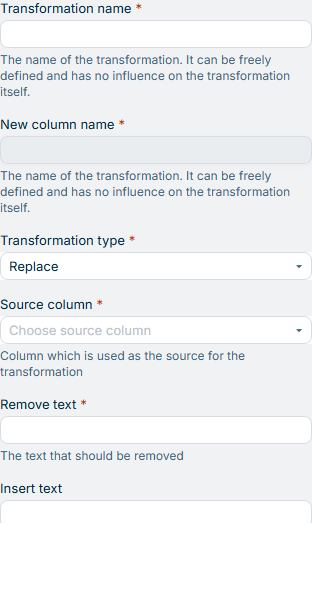
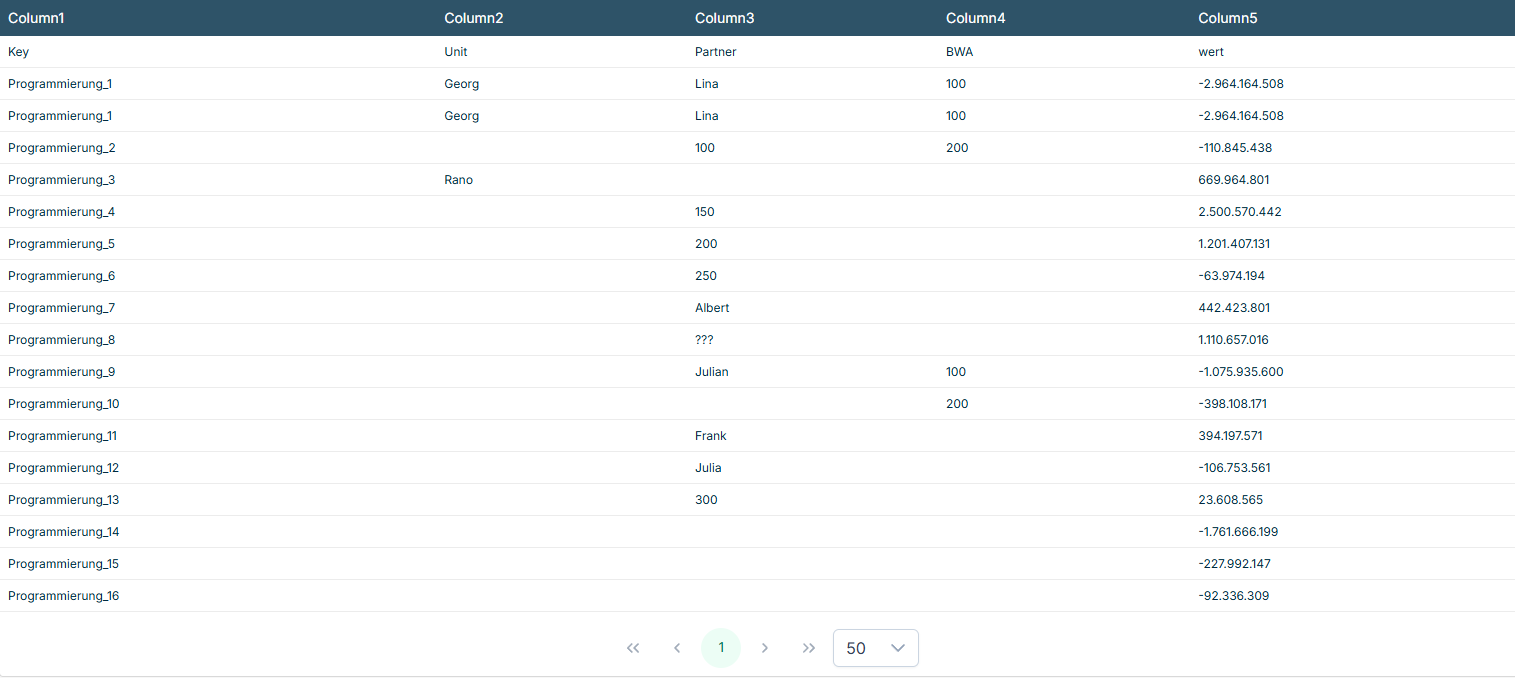
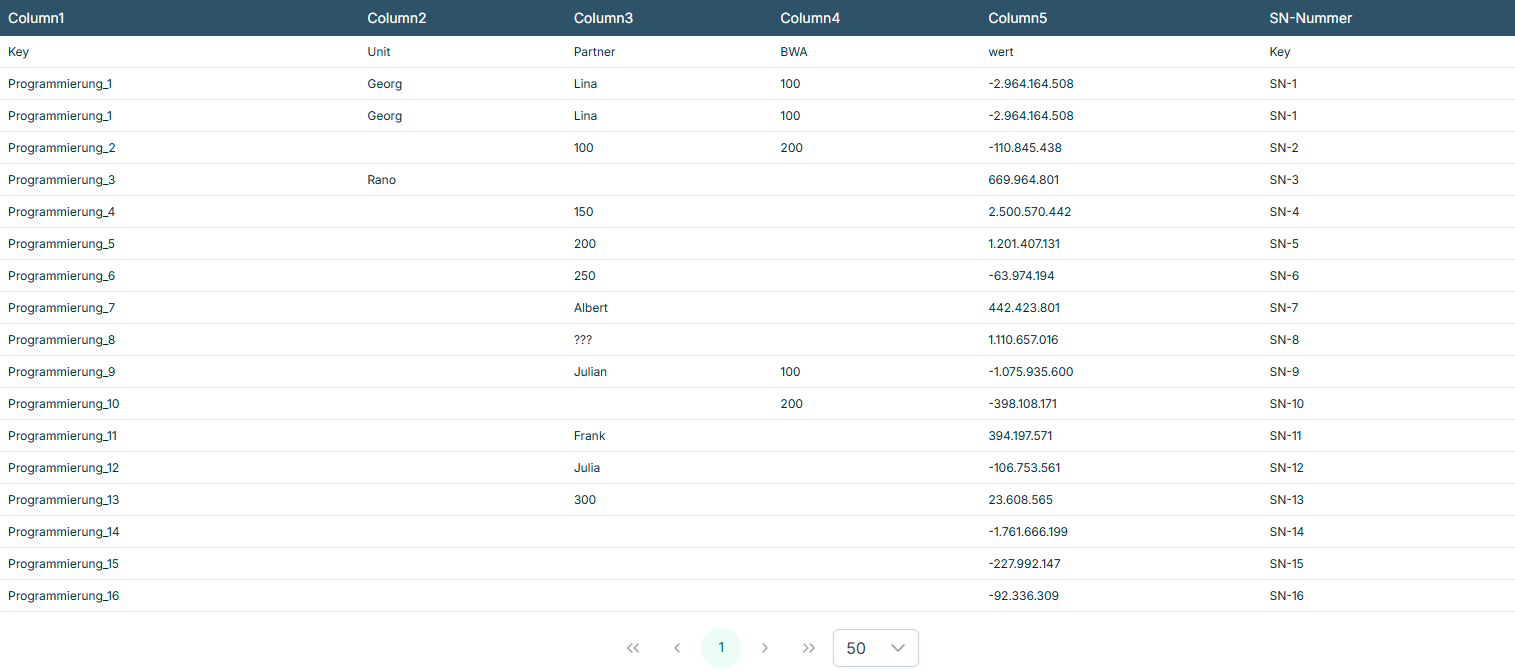
1000-1
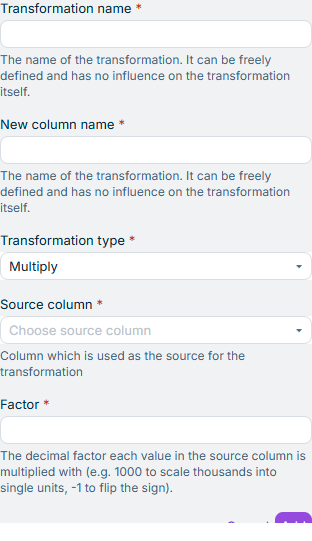
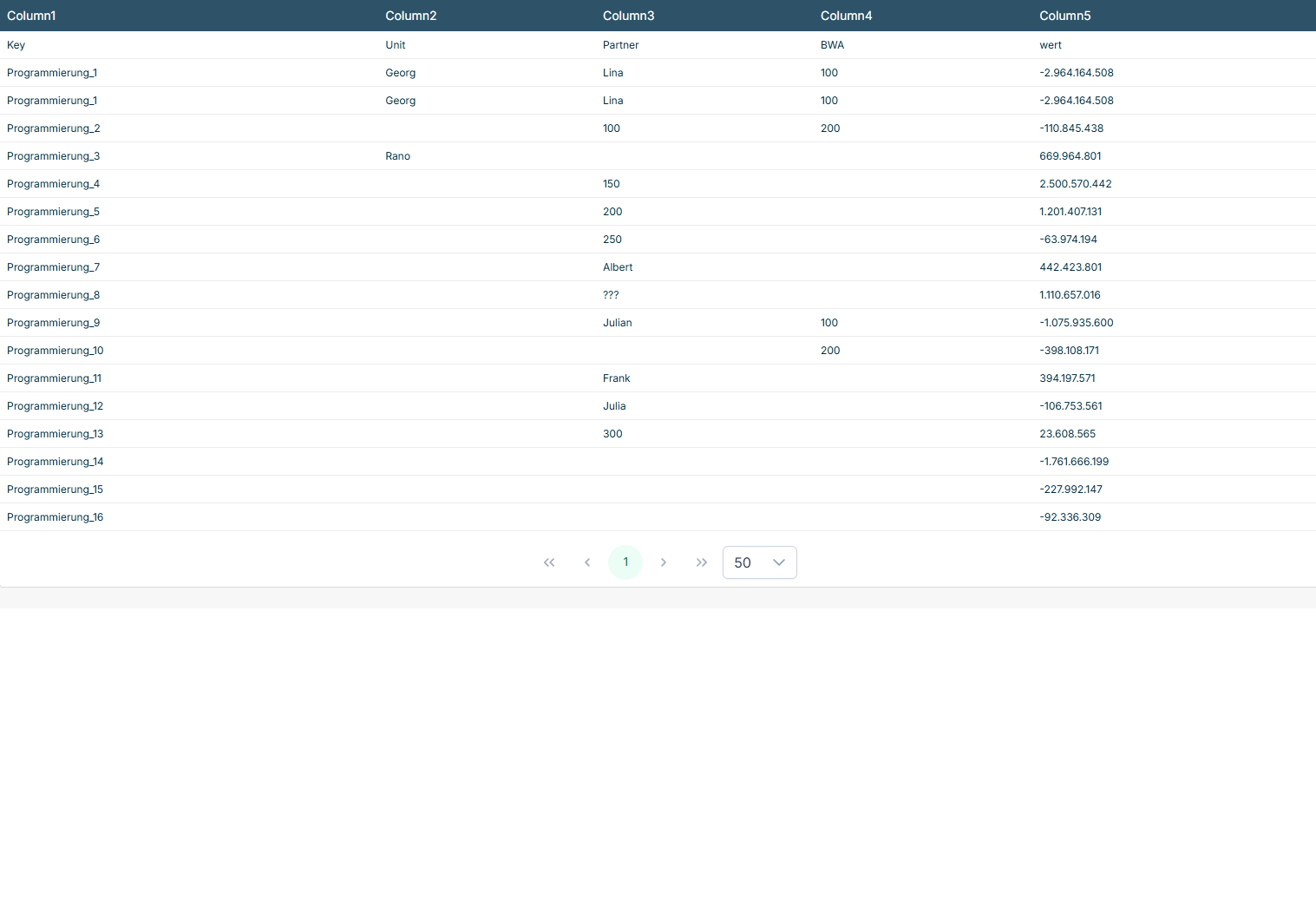
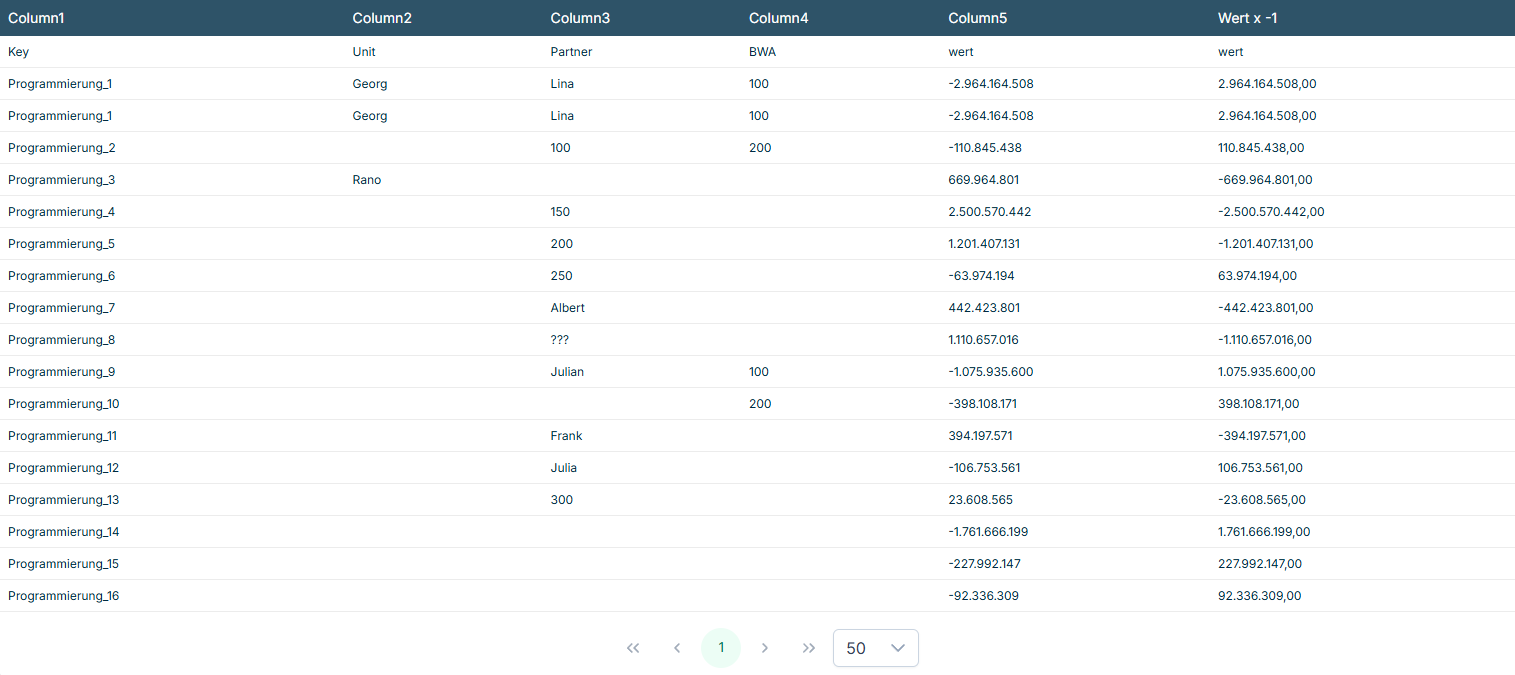
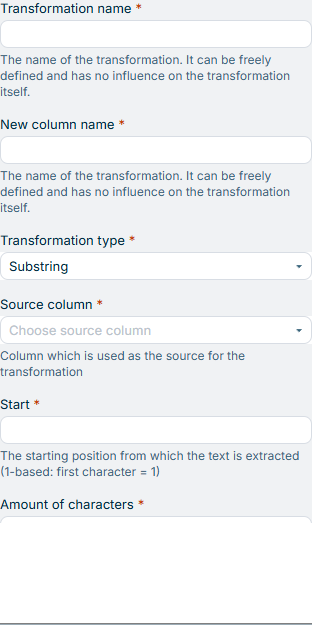
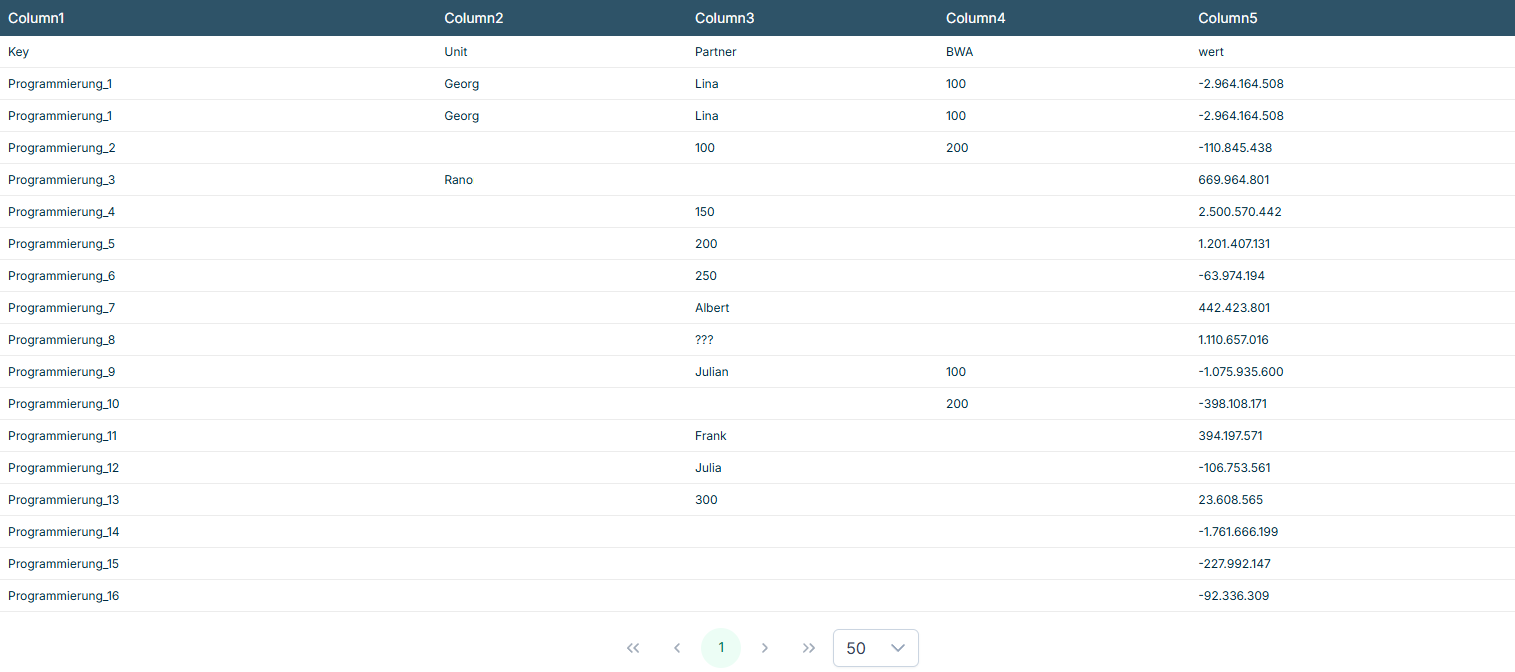
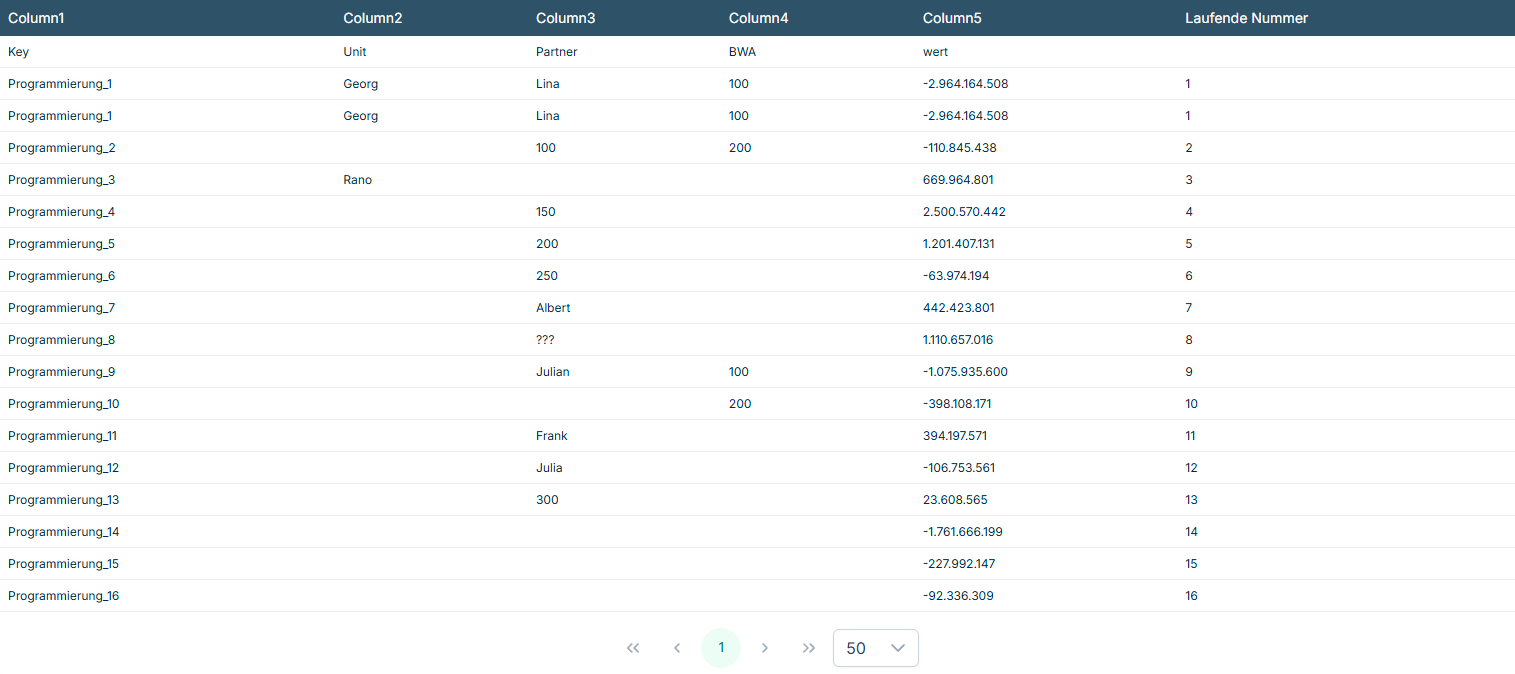
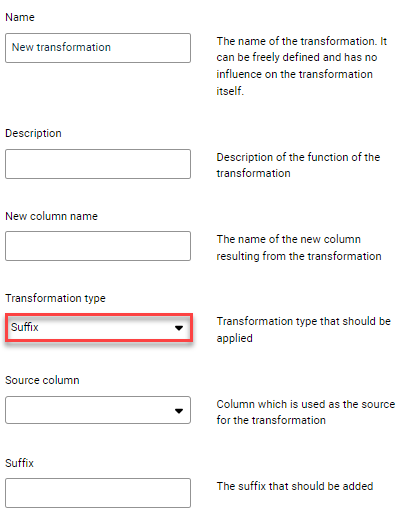
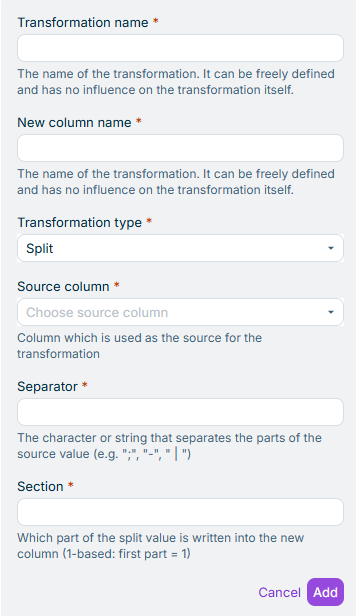
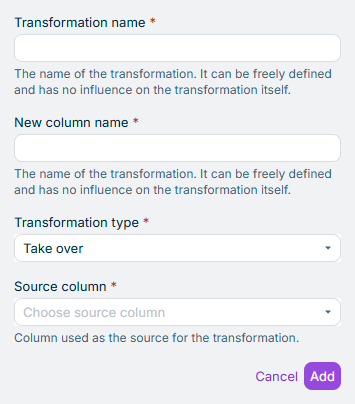
Each Split If the source value does not contain the separator, the entire value is treated as part 1; Section 2 or higher returns an empty string. If the Section index exceeds the number of parts, the new column receives an empty string – no error is raised. Leading and trailing whitespace within split parts is preserved as-is.
If the source cell in the current row is non-empty If the source cell in the current row is empty
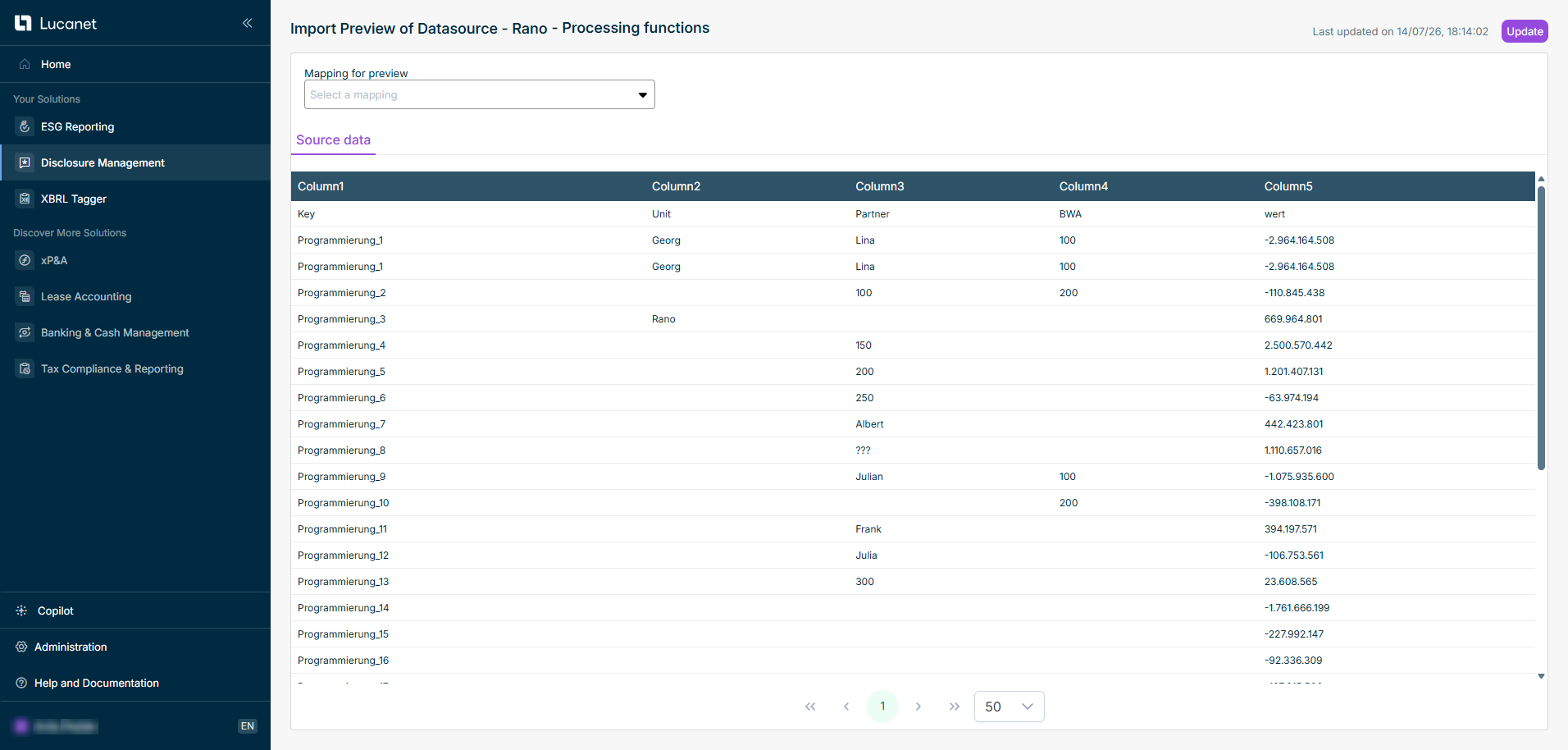
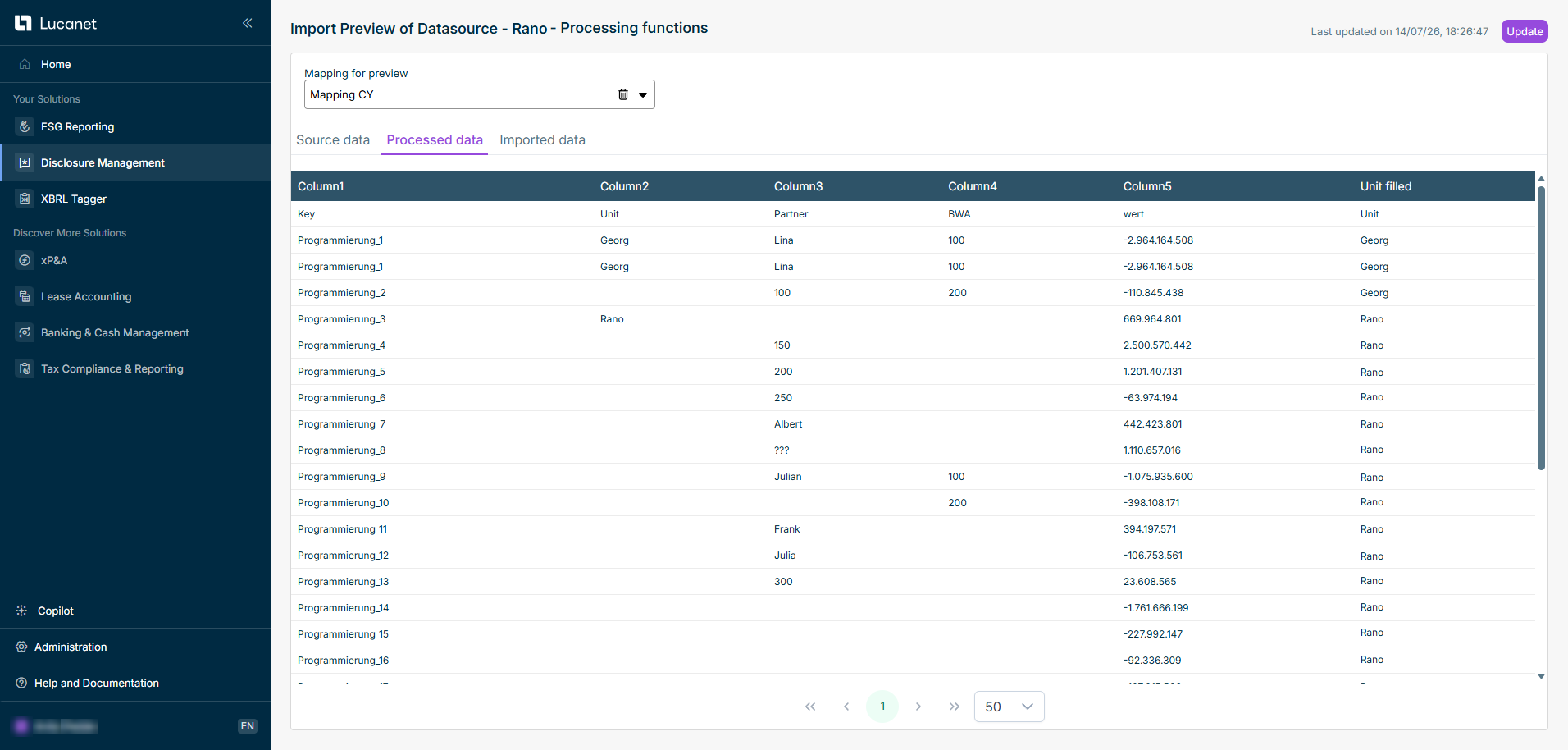
If the first rows have no non-empty source value above them, the new column remains empty for those rows. A value counts as empty when it is null, an empty string, or contains only whitespace. The source column itself is not modified; the filled values are written exclusively into the new column. The fill value updates every time a non-empty source cell is encountered. The row order at the time of execution depends on any preceding sort or filter processings.
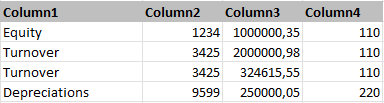
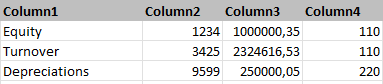
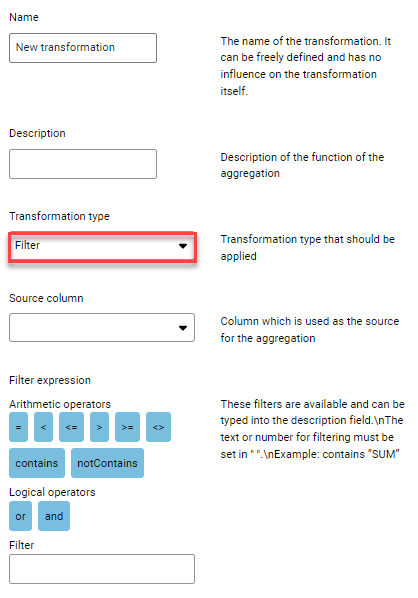
' = < <= > >= <> contains notContains
< <= > >= <> contains notContains
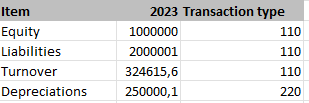
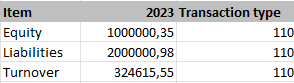
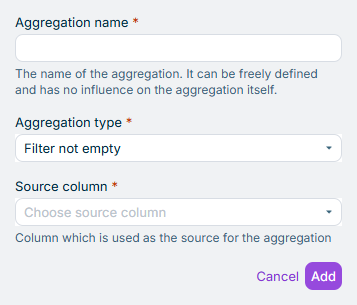
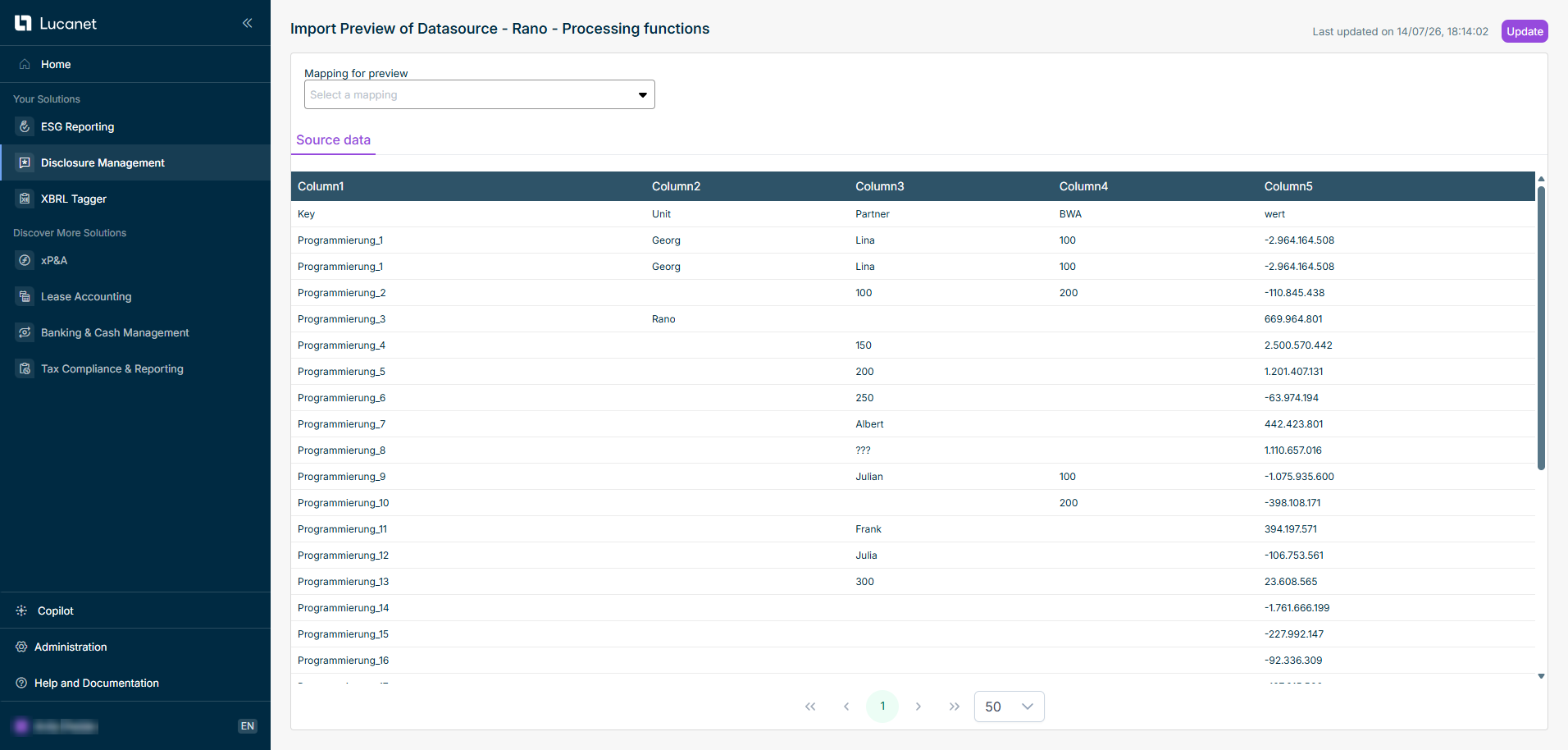
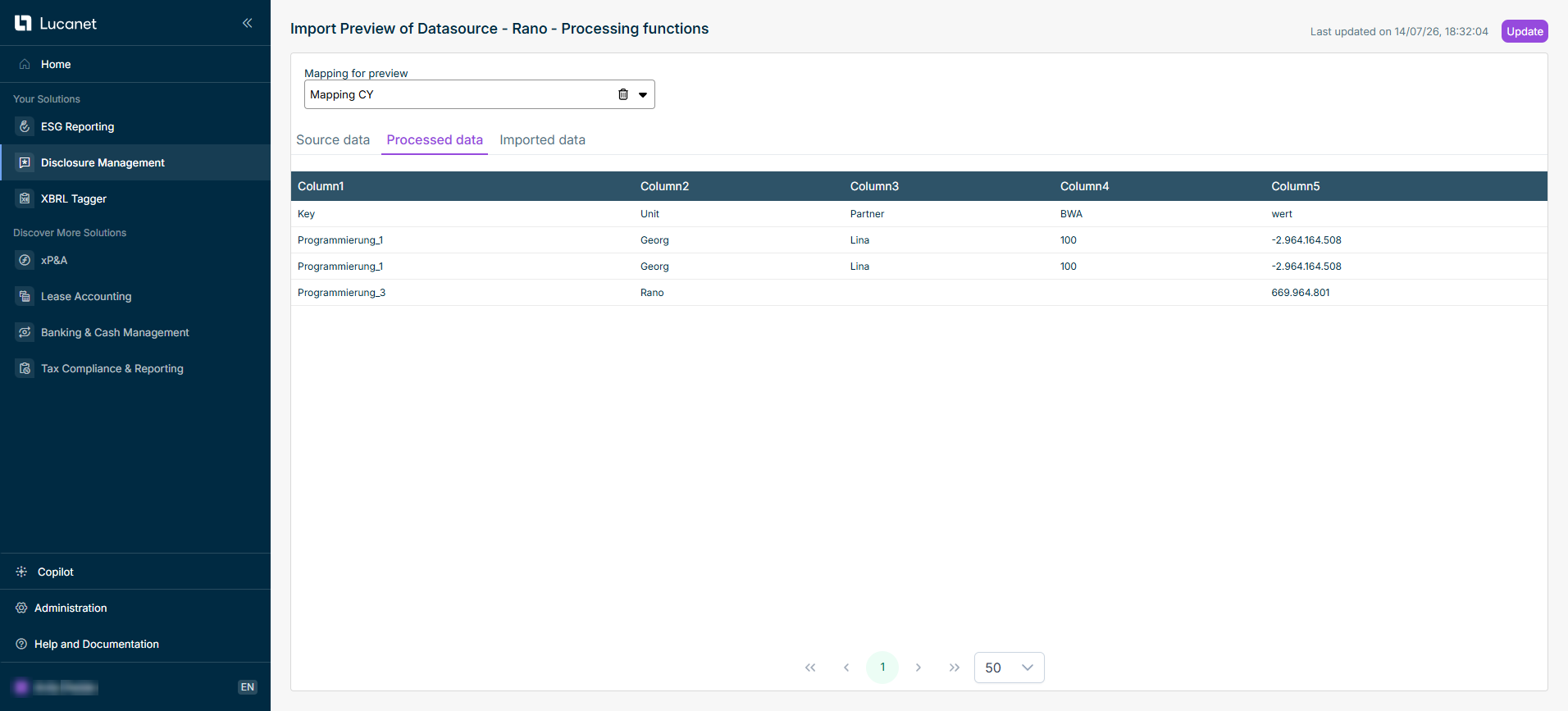
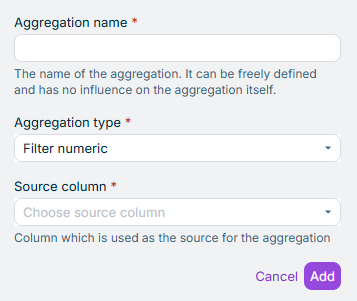
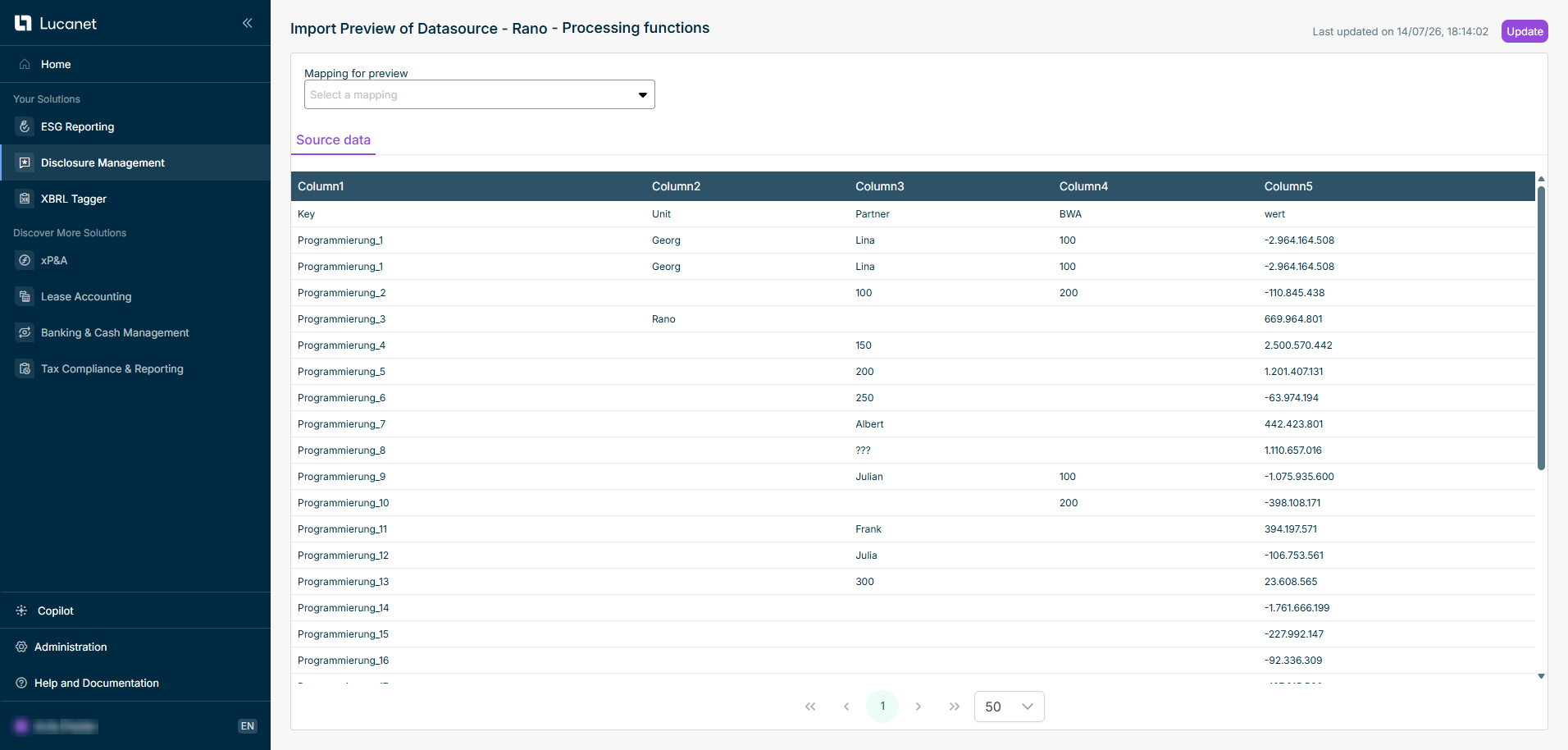
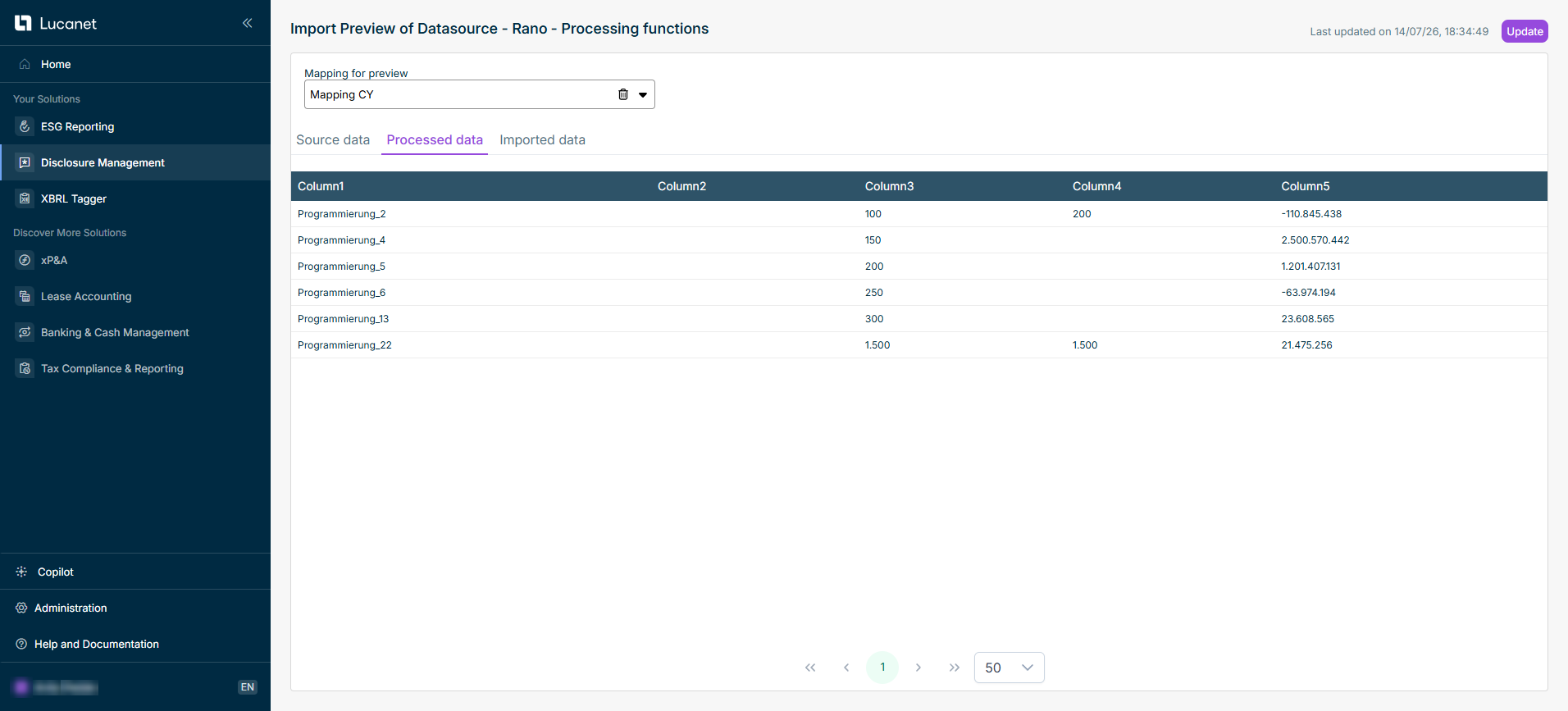
%quarter%%%
year2025contains "FY%year%"FY2025
="%quarter
quarterQ3Q4Q4
Research and DevelopmentResearch and Development
The document variable must exist in the document that the import runs in. If it cannot be resolved, the import fails and names the variable concerned. A document variable with an empty value resolves to an empty text, so the parameter is applied to empty values. In the Import management %quarter%
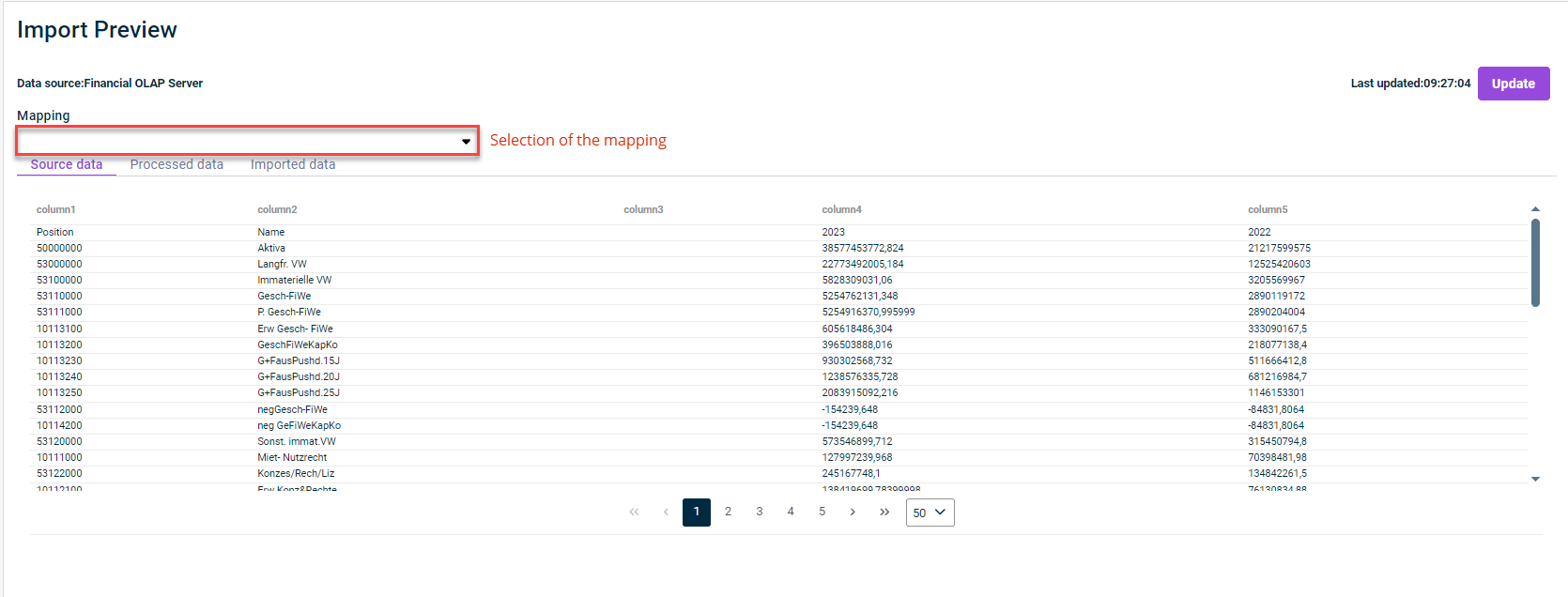
The question Name The unique ID The value
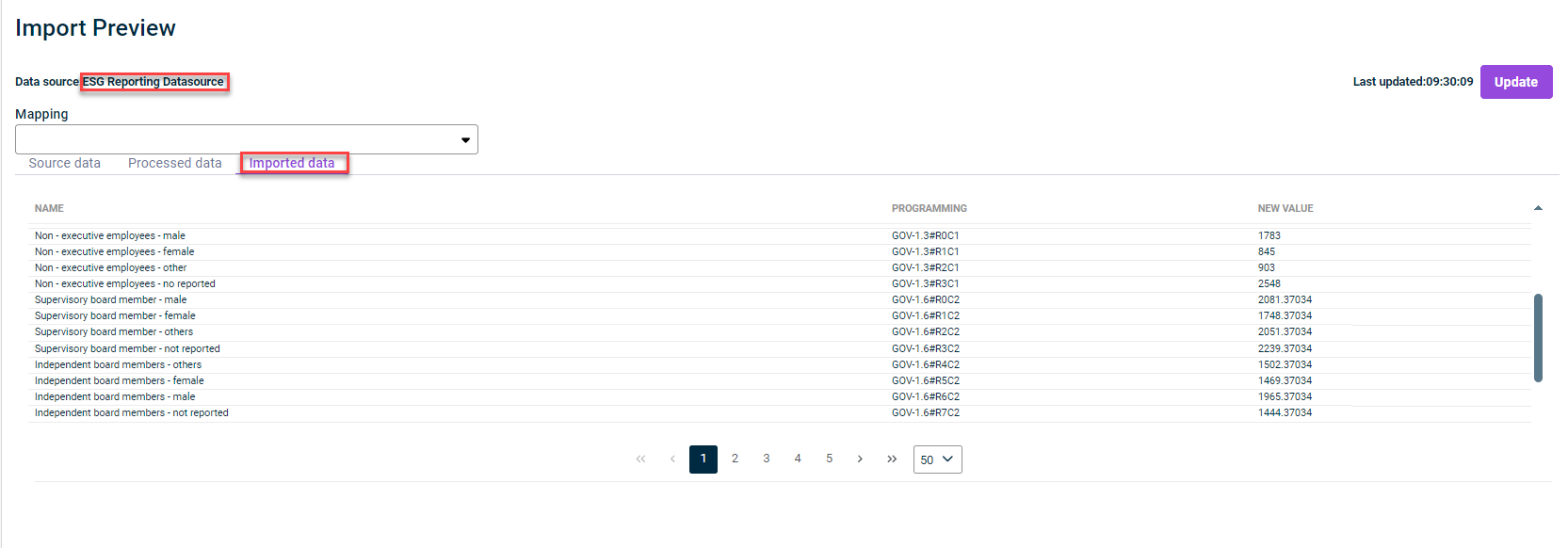
This default data source can be used by all users who have licensed Lucanet ESG Reporting. For all users without a license for Lucanet ESG Reporting, the data source is displayed but cannot be loaded. All reports that have been created in the Lucanet ESG Reporting aggregated Aggregating Data This default data source cannot be edited any further If you want to import data other than the above from an ESG report, you can create a custom data source and define mapping(s) and, if necessary, transformations and/or aggregations as described in the previous sections.
This content was generated using AI and reviewed by Lucanet subject matter experts before publication.
Last updated on Sep 8, 2026