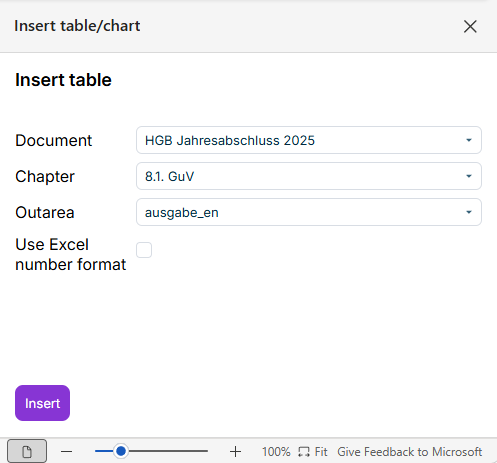
Excel tables and the Outareas defined in them provide the data for the tables in the result documents. The Outareas created in MS Excel can be transferred to a Word document using the Word ribbon.

To transfer tables from Excel spreadsheets to Word documents, they must be part of an Outarea defined in the Excel file (see Defining Outareas).

To insert the Outarea of an Excel table into a Word document:

1

Open the cockpit.

2

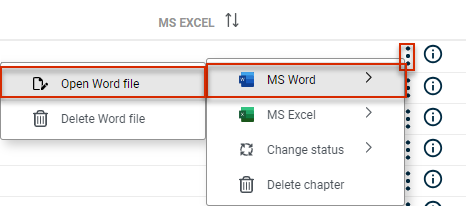
Click the desired Word document in the cockpit or choose MS Word | Open Word file in the menu of the three dots icon:

Opening a Word file from the Cockpit
3

Place the cursor at the desired position in the Word document.

4

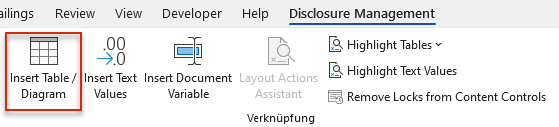
In the Word ribbon, click Insert Table:

Displays the Word ribbon. The 'Insert table/Diagram' button is outlined in red.
Inserting tables and/or diagrams using the Word ribbon

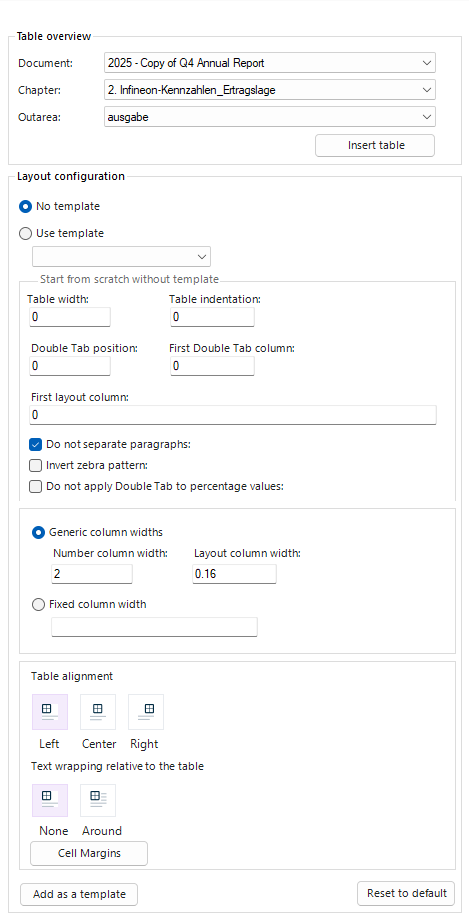
The Table configuration dialog is displayed:

Displays the 'Table configuration' dialog. The dialog contains sample values for document, chapter, and Outarea.
'Table configuration’ dialog
5

Configure the dialog (see following sections) and click Save.

The following options are available in the Table configuration dialog in the Table overview area:

NameDescription
DocumentThe document that contains the desired table. The corresponding reference year is displayed in front of the name of the individual documents.
ChapterThe Chapter, from which an Outarea is to be inserted into a Word document. All chapters of the selected document to which an Excel file is assigned are displayed.
OutareaOutarea to be inserted into the Word document. As soon as a chapter is selected, the Outareas available in the Excel file are listed in the Outarea drop-down list.
Insert tableInserts the selected Outarea into the Word document.

The following options are available in the Table configuration dialog in the Layout configuration area:

Default setting. No template is used for the table to be inserted.

Loads the values of the selected template and uses them for the current table.

Table width: The absolute width of the table in cm, e.g. 15.5. Equivalent to the Preferred width table property in MS Word.

Table indent: The indent the table in cm, e.g. 2. Equivalent to the Indent from left table property in MS Word.

Double tab position: Moves the number in the table by the specified factor in order to ensure the numbers wrap around existing footnotes or brackets, for example. This value is specified in cm, e.g. - 0.2 would move the numbers 2 mm to the left.

In the example below, negative numbers are written in brackets in MS Excel. This has resulted in the numbers no long being positioned below one another (left-hand column). Entering a double tab in MS Excel will realign the numbers so they are below one another again (right-hand column):

Generic column widths: Combination of fixed and calculated column widths.

For example, you can enter the widths for number columns and layout columns (in cm). The width of the name column is then calculated automatically.

  • Number column width: Width of number column in cm
  • Layout column width: Width of layout column in cm

Fixed column width: Fixed column width in cm

Sets the alignment of the table.

Determines whether the surrounding text is wrapped around or placed as a new paragraph.

Saves the current settings as a template.

Resets all settings to their default values.

  • The report values in the table are updated each time the Word document is used (e.g. when checking out or creating a result document).
  • You can also update the values using the Update button in the Word ribbon.
  • Report values cannot be changed in the Word file itself, but must be adjusted in the data view or in the corresponding Excel file.