In Disclosure Management, validations are used to check and ensure consistency within a document and the associated calculations. Validations record deviations from values within a document at a glance. For this purpose, two values are compared (e.g. assets and liabilities).

For example, the value of an item number from the Disclosure Management database can be validated against the total of the reporting values that make up this item number.

Validations can be created across tables from all the reporting data within a document.

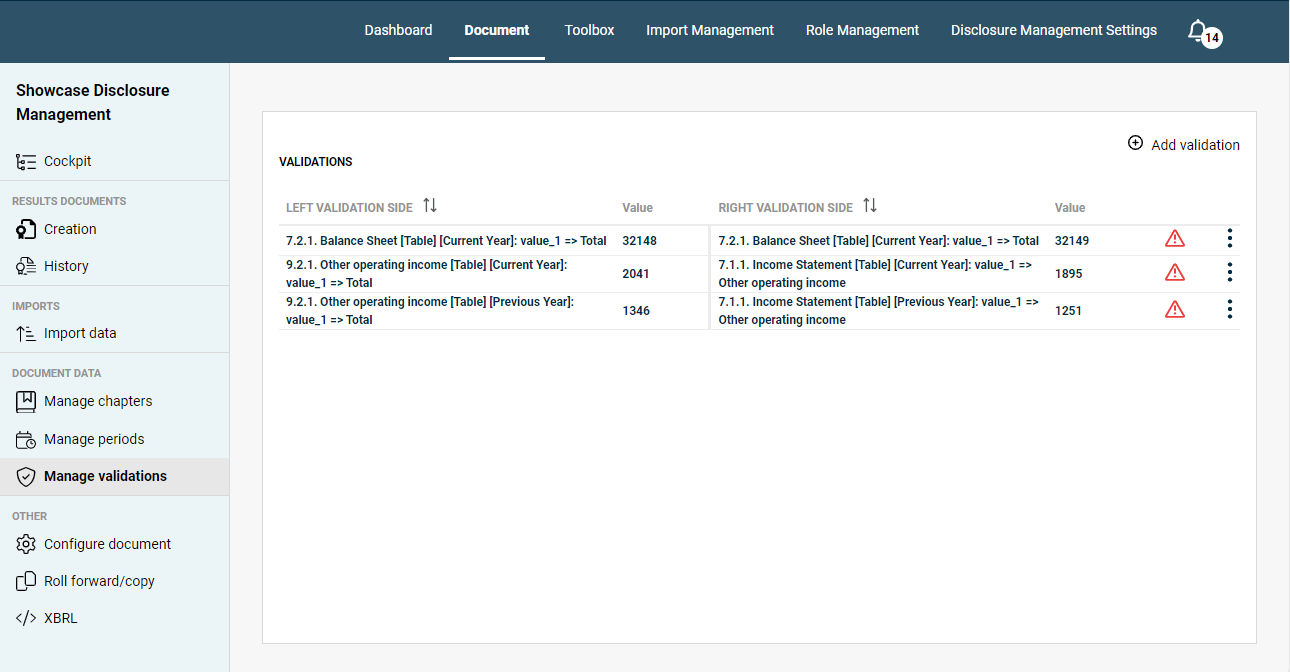
In the overview of a document in Disclosure Management, click Manage validations to open the workspace.

Shows the 'Manage validations' workspace in Disclosure Management with three validations, each with the 'Left validation side', the 'Right validation side', the compared values, and a warning icon.
Managing validations in Disclosure Management

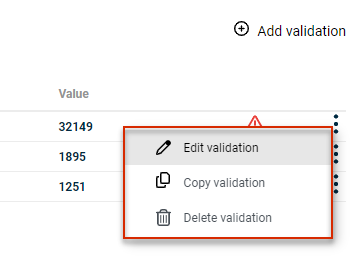
In Disclosure Management, you can use the three-dot icon menu to edit, copy or delete existing validations:

Shows the three-dot menu of a validation in Disclosure Management. Highlighted in red are the commands 'Edit validation', 'Copy validation', and 'Delete validation'.
Functions for created validations

To create a new validation in Disclosure Management:

1

If necessary, open the Manage validations workspace.

2

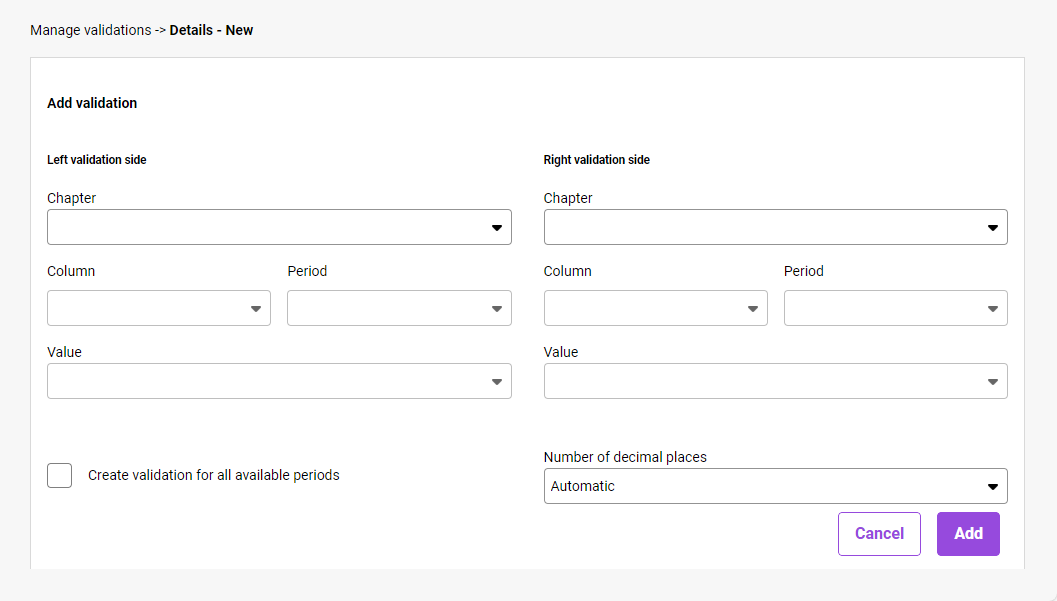
Click Add icon to create a new validation. The Add validation area is displayed:

Shows the 'Add validation' area in Disclosure Management with the fields 'Chapter', 'Column', 'Period', and 'Value' for both the 'Left validation side' and the 'Right validation side', the 'Create validation for all available periods' check box, the 'Number of decimal places' drop-down list set to 'Automatic', and the 'Cancel' and 'Add' buttons.
Configure a new validation
3

Specify the details of the validation (see section Configuring a Validation in Disclosure Management).

4

Click Add to create the new validation.

When configuring a validation in Disclosure Management, the following options are available:

OptionDescription
Left validation sideThe left validation side has the following options:
- Chapter: Chapter to be validated. The drop-down list includes all chapters of the current document.
- Column: Value column containing the value to be validated.
- Period: Period from which the value is to be validated. The drop-down list includes all periods from the specified column.
- Value: Value to be validated. The drop-down list includes all values contained in the specified column and for the specified period.
Right validation sideThe right validation side has the following options:
- Chapter: Chapter to be validated. The drop-down list includes all chapters of the current document.
- Column: Value column containing the value to be validated.
- Period: Period from which the value is to be validated. The drop-down list includes all periods belonging to the specified column.
- Value: Value to be validated. The drop-down list includes all values contained in the specified column and for the specified period.
Create validation for all available periodsAutomatically creates validations for all related periods in the table based on the specified validation details (e.g. the validations current year against current year and previous year against previous year).

As soon as this check box is activated, the Period drop-down list is deactivated.
Number of decimal placesNumber of decimal places to be taken into account during validation.

When the value Automatic is selected, the setting from the associated Excel spreadsheet is used for validation.

Validations can also be tracked in the Cockpit and in the Data View as soon as the Validations column is displayed there. Validations are always displayed in the chapter that was selected as the left validation side during configuration of the validation:

Shows the chapter list of the 'Cockpit' in Disclosure Management with the columns 'Chapter name', 'Status', and 'Validations'. Highlighted in red are the validation results '1/1' for chapter '7.2.1. Balance Sheet [Table]' and '0/2' with an exclamation mark for chapter '9.2.1. Other operating income [Table]'.
Display of a validation in the Cockpit

In Disclosure Management, the list of validations shows the validations created with the left validation side and right validation side and the respective value. If the values differ, an error is indicated by the Warning icon icon.

If incorrect validations are displayed, this means there is a deviation between the two compared values. Incorrect validations can be corrected as follows, for example:

  • Check the validation for plausibility. Were the correct values compared?
  • Edit the corresponding values in the data view. Values may need to be adjusted or rounded because values have been compared with different number formats.
  • Check the Programming of the Excel table. Were the correct values and arithmetical operations used for calculated values?

This content was generated using AI and reviewed by Lucanet subject matter experts before publication.