Excel files form the main basis for using report data from the source system. For report generation purposes, data from the Excel files can be embedded in Word files in such a way that the values in the report are updated automatically if the Excel data are updated, e.g. as a result of an additional data import. To that end, an Excel file can be assigned to every chapter of a Disclosure Management document in the Cockpit.

Excel files can be created in the Cockpit of Disclosure Management or in the detail view of a chapter. Alternatively, existing files located in the local file directory can be assigned to a chapter to create a new Excel file.

To create an Excel file for a chapter in Disclosure Management:

1

Click Cockpit in the overview or click Document in the function bar.

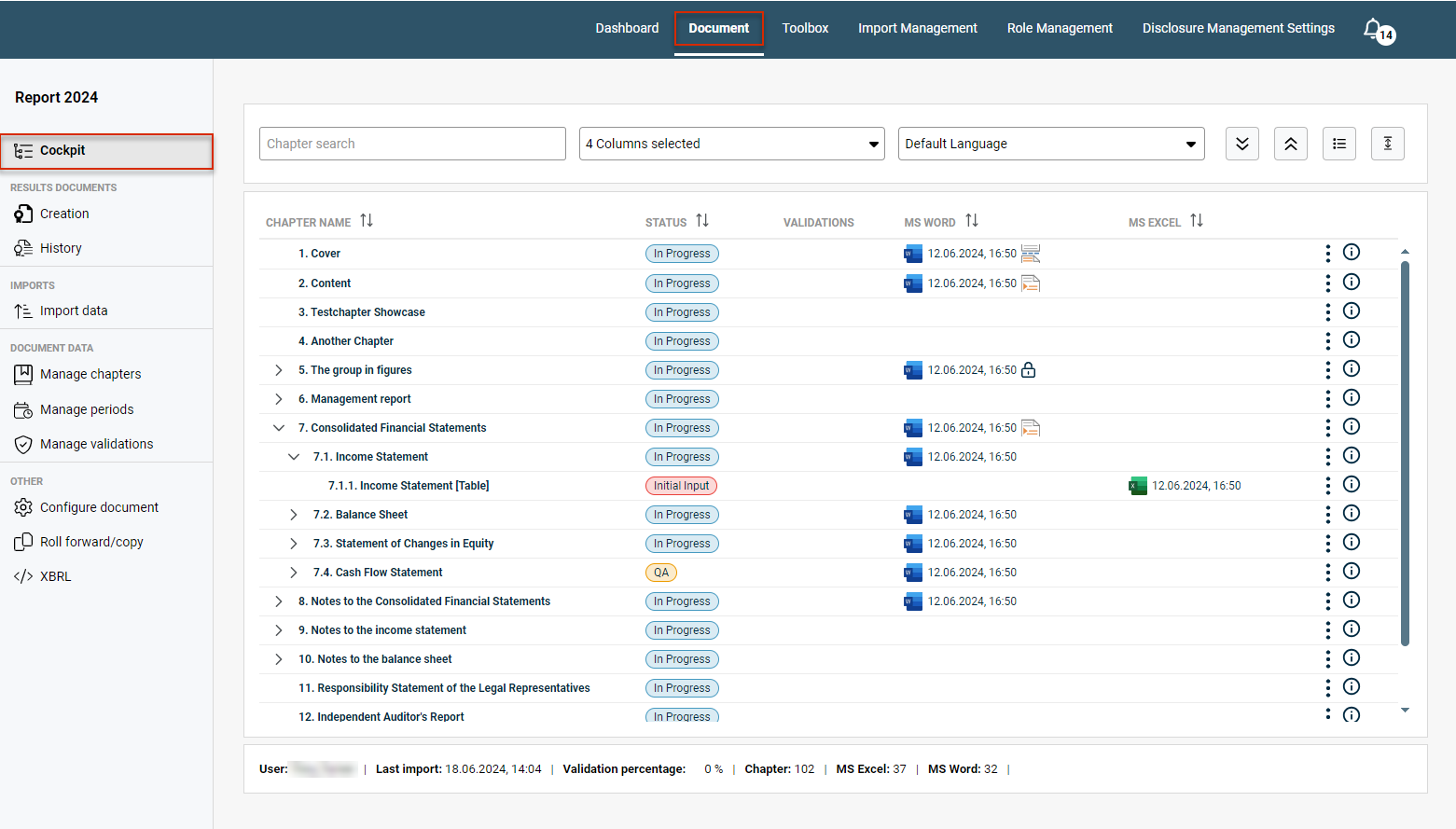
Shows the Cockpit of the document 'Report 2024' in Disclosure Management with the chapter list and the columns 'CHAPTER NAME', 'STATUS', 'VALIDATIONS', 'MS WORD' and 'MS EXCEL'. Highlighted in red are 'Document' in the function bar and 'Cockpit' in the overview.
Opening a document in Disclosure Management
2

Click the three dots icon

Three dots icon
at the end of the desired chapter row.

3

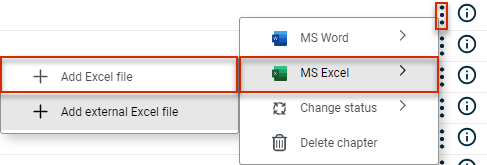
Choose MS Excel | Add Excel file or MS Excel | Add external Excel file from the context menu.

Shows the context menu of a chapter in the Cockpit of Disclosure Management with the entries 'MS Word', 'MS Excel', 'Change status' and 'Delete chapter' and the submenu of 'MS Excel' with 'Add Excel file' and 'Add external Excel file'. Highlighted in red are the three dots icon, 'MS Excel' and 'Add Excel file'.
Creating a new Excel file
4

MS Excel will open with a new workbook. As soon as you Check In the file, it will be displayed in the MS Excel column of the Cockpit.

Excel files assigned to a chapter can be opened from the Cockpit of Disclosure Management for editing purposes.

To open an Excel file for a chapter in Disclosure Management:

1

Click Cockpit in the overview or click Document in the function bar.

Shows the Cockpit of the document 'Report 2024' in Disclosure Management with the chapter list and the columns 'CHAPTER NAME', 'STATUS', 'VALIDATIONS', 'MS WORD' and 'MS EXCEL'. Highlighted in red are 'Document' in the function bar and 'Cockpit' in the overview.
Opening a document in Disclosure Management
2

You have two options for opening the file:

  • Click the desired file.
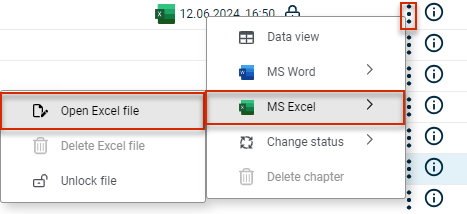
  • Click the three dots icon Three dots iconat the end of the desired chapter row and choose MS Excel | Open Excel file from the context menu:
Shows the context menu of a chapter in the Cockpit of Disclosure Management with the entries 'Data view', 'MS Word', 'MS Excel', 'Change status' and 'Delete chapter' and the submenu of 'MS Excel' with 'Open Excel file', 'Delete Excel file' and 'Unlock file'. Highlighted in red are the three dots icon, 'MS Excel' and 'Open Excel file'.
Opening an Excel file from the Cockpit
3

The file will open in MS Excel and can be edited using the Excel ribbon.

Excel files in Disclosure Management can be edited using the Excel ribbon. The Excel ribbon provides specific functions tailored to Disclosure Management:

Shows the 'Disclosure Management' tab of the Excel ribbon in Office for Desktop with the areas 'Server', 'File', 'Name management', 'Cells', 'Columns', 'Settings' and 'Layout'.
Excel ribbon for Disclosure Management

The Ribbons for Disclosure Management chapter provides an overview of all the functions available in the Excel ribbon.

Have you not installed the ribbons yet? Then go to the Toolbox of Disclosure Management and first install the Excel ribbon, the Word ribbon, and the Dispatcher. The Dispatcher is responsible for communication between Disclosure Management and the MS Office files.

This content was generated using AI and reviewed by Lucanet subject matter experts before publication.