Document-specific roles can be used to assign permissions at the document level, e.g. read and write permissions for documents, chapters, periods and validations, or the permission to import data or change the status of individual process steps.

In the Document roles workspace of Role Management, you can use predefined roles to assign the following permissions:

  • Document-level permissions, e.g. read and write permissions for individual documents, chapters, periods and validations
  • Workflow-based permissions for changing the status of individual process steps within a workflow

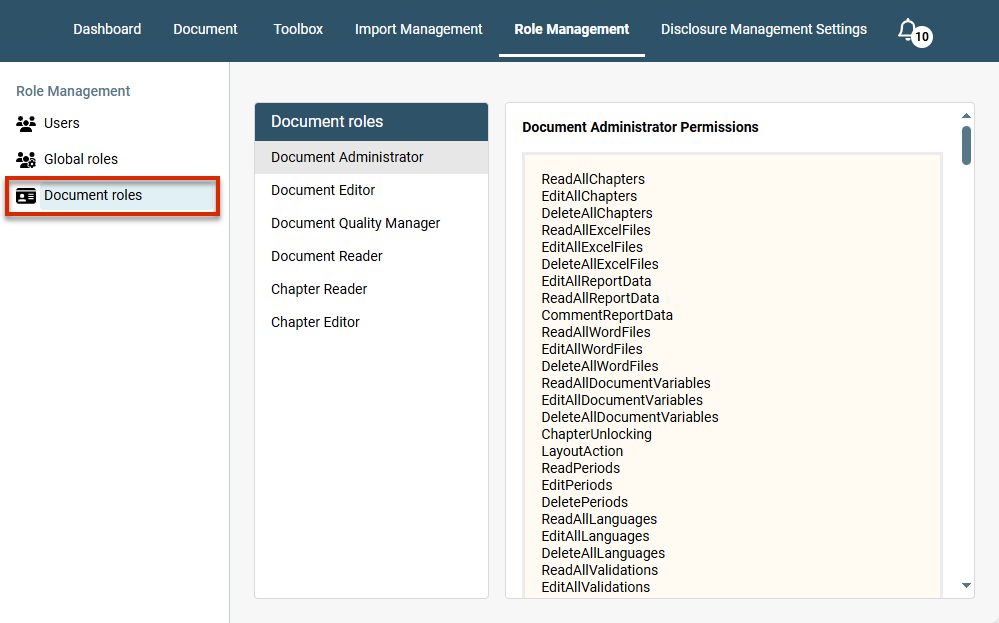
The Document roles workspace is displayed as follows:

Displays the workspace ‘Document roles'
The workspace 'Document roles'

The permissions that can be assigned using predefined roles at the document level are listed in the Document roles area, in the right-hand column, under Role Permissions.

You can also view an overview of the permissions a user with the corresponding role has for changing a status within a predefined workflow. To do this, click the Info icon in the Workflow-based permissions area.

Note: User-defined workflows will only become available with a later version of Lucanet.

The following permissions can be assigned with the available document roles:

  • ReadAllChapters: Read all chapters
  • EditAllChapters: Edit all chapters
  • DeleteAllChapters: Delete all chapters
  • ReadAllExcelFiles: Read all Excel files
  • EditAllExcelFiles: Edit all Excel files
  • DeleteAllExcelFiles: Delete all Excel files
  • EditAllReportData: Edit all report data
  • ReadAllReportData: Read all report data
  • CommentReportData: Delete all report data
  • ReadAllWordFiles: Read all Word files
  • EditAllWordFiles: Edit all Word files
  • DeleteAllWordFiles: Delete all Word files
  • ReadAllDocumentVariables: Read all document variables
  • EditAllDocumentVariables: Edit all document variables
  • DeleteAllDocumentVariables: Delete all document variables
  • ChapterUnlocking: Unlock chapter
  • LayoutAction: Perform layout action
  • ReadPeriods: Read periods
  • EditPeriods: Edit periods
  • DeletePeriods: Delete periods
  • ReadAllLanguages: Read all languages
  • EditAllLanguages: Edit all languages
  • DeleteAllLanguages: Delete all languages
  • ReadAllValidations: Read all validations
  • EditAllValidations: Edit all validations
  • DeleteAllValidations: Delete all validations
  • StatusChangesFrom: Make status changes
  • StatusChangesTo: Make status changes
  • CopyDocuments: Copy documents
  • EditDocumentSettings: Edit document settings
  • ReadAllResultDocuments: Read all result documents
  • EditAllResultDocuments: Edit all result documents
  • DeleteAllResultDocuments: Delete all result documents
  • ResultDocumentsFromOtherUser: Open other users’ result documents
  • ResultDocumentsHistory: Open result document history
  • ImportData: Import data
  • EditXBRLMapping: Create XBRL mapping
  • ReadDocument: Read a document activated for the user
  • EditDocument: Edit a document activated for the user
  • DeleteDocument: Delete a document activated for the user
  • ReadAttachments: Read Attachments
  • EditAttachments: Edit Attachments
  • DeleteAttachments: Delete Attachments

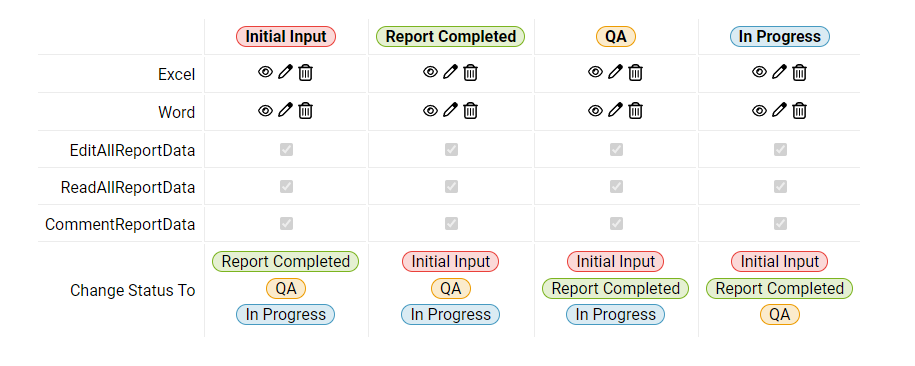
The graphic below shows the permissions that are assigned to users with the Document Administrator role, depending on the current status of the document in the workflow:

Workflow-based permissions for the Document Administrator role
  • EditAllLanguages: Edit all languages

  • ReadAllValidations: Read all validations

  • EditAllValidations: Edit all validations

  • DeleteAllValidations: Delete all validations

  • ReadAllResultDocuments: Read all result documents

  • EditAllResultDocuments: Edit all result documents

  • DeleteAllResultDocuments: Delete all result documents

  • ResultDocumentsFromOtherUser: Open other users’ result documents

  • ResultDocumentsHistory: Open result document history

  • EditDocument: Edit a document activated for the user

  • ReadPeriods: Read periods

  • EditXBRLMapping: Create XBRL mapping

  • ReadAttachments: Read Attachments

  • EditAttachments: Edit Attachments

  • DeleteAttachments: Delete Attachments

  • ReadAllChapters: Read all chapters

  • ReadAllDocumentVariables: Read all document variables

  • EditAllDocumentVariables: Edit all document variables

  • EditPeriods: Edit periods

  • DeletePeriods: Delete periods

  • ReadAllLanguages: Read all languages

  • CopyDocuments: Copy documents

  • ImportData: Import data

  • ReadDocument: Read a document activated for the user

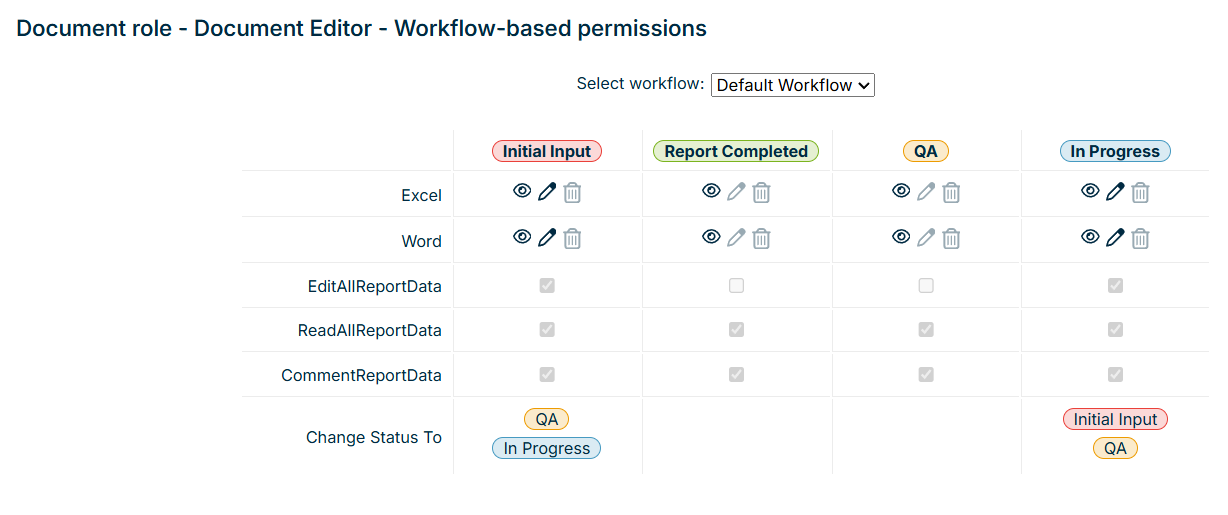
The graphic below shows the permissions that are assigned to users with the Document Editor role, depending on the current status of the document in the workflow:

Workflow-based permissions for the Document Data Importer role
  • ReadAllChapters: Read all chapters
  • ReadAllDocumentVariables: Read all document variables
  • ReadAllLanguages: Read all languages
  • ReadAllResultDocuments: Read all result documents
  • EditAllResultDocuments: Edit all result documents
  • DeleteAllResultDocuments: Delete all result documents
  • ResultDocumentsFromOtherUser: Open other users’ result documents
  • ResultDocumentsHistory: Open result document history
  • ReadDocument: Read a document activated for the user
  • ReadPeriods: Read periods
  • EditXBRLMapping: Create XBRL mapping

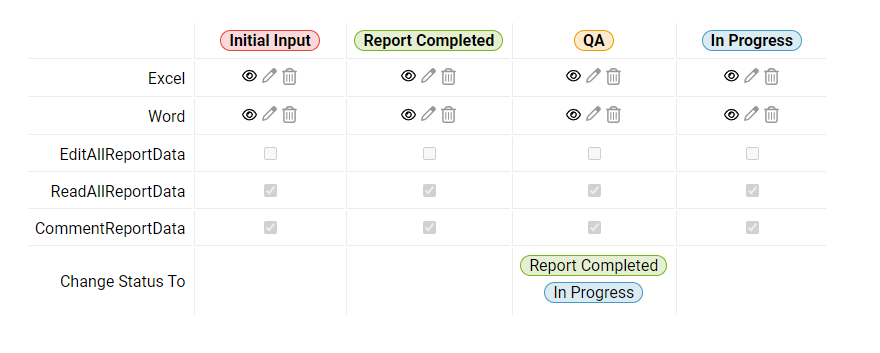
The graphic below shows the permissions that are assigned to users with the Document Quality Manager role, depending on the current status of the document in the workflow:

Workflow-based permissions for the Document Quality Manager role
  • ReadAllChapters: Read all chapters
  • ReadAllDocumentVariables: Read all document variables
  • ReadAllLanguages: Read all languages
  • ReadAllResultDocuments: Read all result documents
  • EditAllResultDocuments: Edit all result documents
  • DeleteAllResultDocuments: Delete all result documents
  • ResultDocumentsFromOtherUser: Open other users’ result documents
  • ResultDocumentsHistory: Open result document history
  • ReadDocument: Read a document activated for the user
  • ReadPeriods: Read periods
  • ReadAttachments: Read Attachments
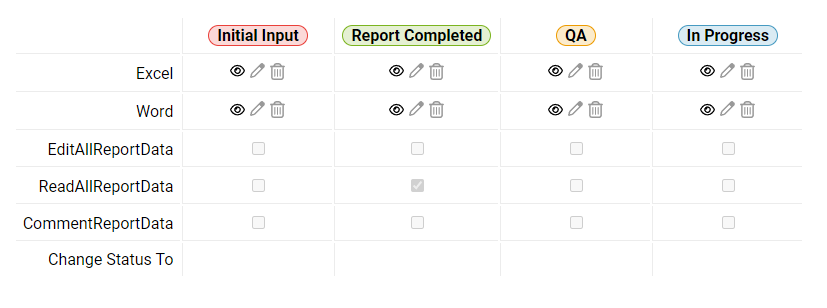
  • ReadAllReportData: Read all report data

The graphic below shows the permissions that are assigned to users with the Document Reader role, depending on the current status of the document in the workflow:

Workflow-based permissions for the Document Reader role
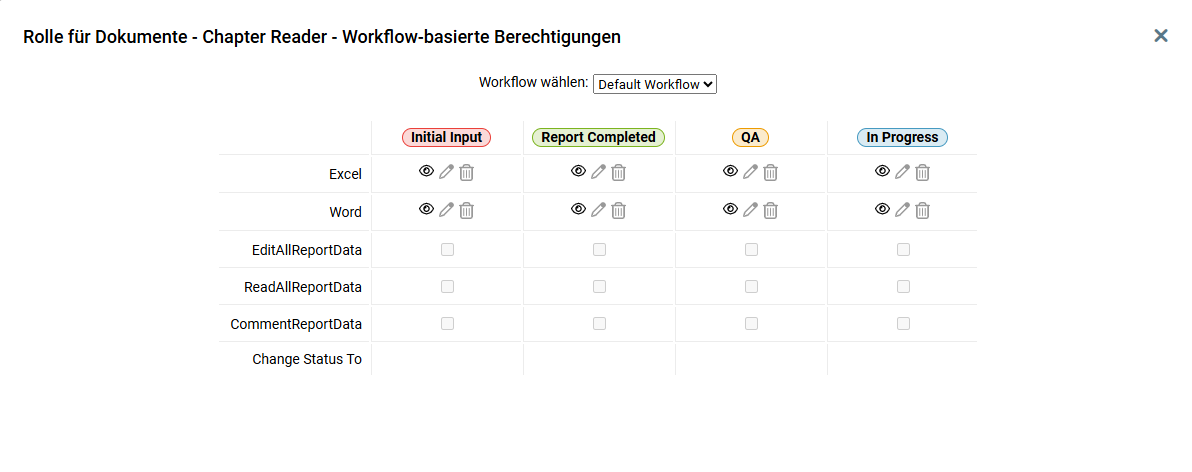
  • ReadAllChapters: Read all chapters
  • ReadAllDocumentVariables: Read all document variables
  • ReadAllLanguages: Read all languages
  • ReadDocument: Read a document activated for the user
  • ReadPeriods: Read periods
  • ReadAttachments: Read Attachments

The graphic below shows the permissions that are assigned to users with the Chapter Reader role, depending on the current status of the document in the workflow:

Workflow-based permissions for the Chapter Reader role
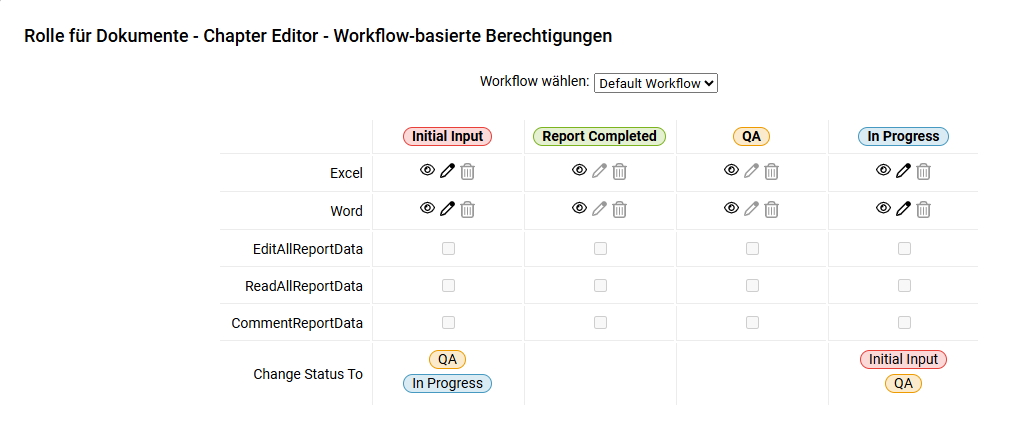
  • ReadAllChapters: Read all chapters
  • ReadAllDocumentVariables: Read all document variables
  • ReadAllLanguages: Read all languages
  • ReadDocument: Read a document activated for the user
  • ReadPeriods: Read periods
  • ReadAttachments: Read Attachments
  • EditAttachments: Edit Attachments
  • DeleteAttachments: Delete Attachments

The graphic below shows the permissions that are assigned to users with the Chapter Editor role, depending on the current status of the document in the workflow:

Workflow-based permissions for the Chapter Editor role

To assign a document role to a user:

1

If necessary, open the Role Management.

2

In the Document roles column, select the user role you want to assign to a new user.

3

In the Assigned users area, click +.

4

In the displayed dialog, select the following items:

  • The User
  • The Document year for which you want to assign the role, where applicable.
  • If necessary, the Document name.
5

In the document list, select the documents or in the chapter list the chapters to which the role for the selected user is to be assigned.

6

Save the settings.