In the Value Added Tax functional area in Lucanet VAT (Value Added Tax), you create, review, and send the preliminary VAT returns of your companies. The workspaces are arranged in the order in which you typically work through the steps of the reporting process.
Not every workspace is available for every company. The visibility of the workspaces in VAT depends on the following factors:
Company type: For VAT group members, for example, the Send declaration workspace is not available, because the representative VAT group member transmits the declaration.
Kind of period: In special prepayment periods, the Import workspace is not available. In annual return periods, the import is only used for the annual import and for comparison.
Configuration: The Import workspace is not available for companies for which manual creation of the declaration is configured.
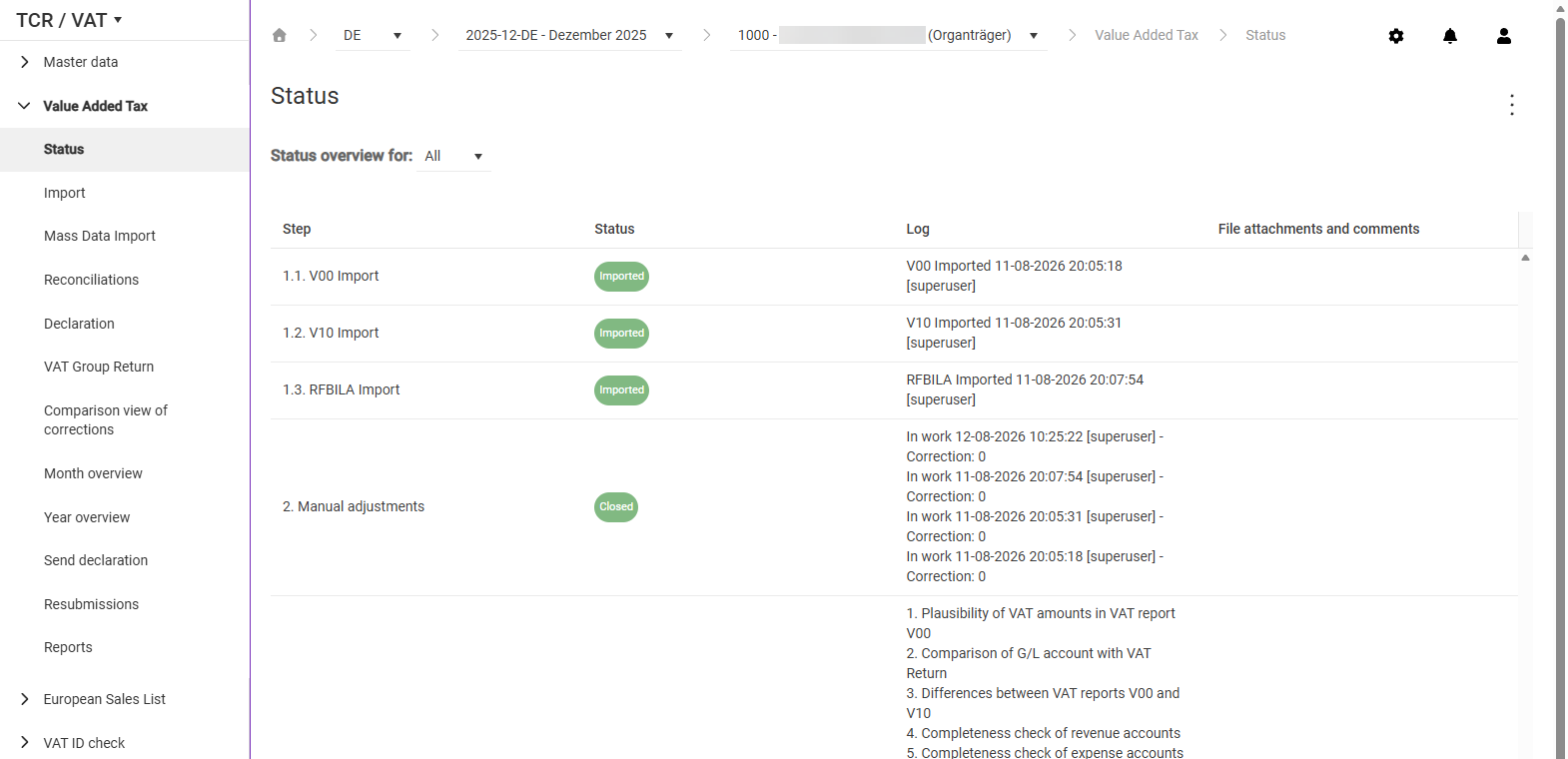
Is the starting point for the Value Added Tax functional area and provides information about the current status of the reporting process of the chosen company.
Here you import the ERP reports that VAT needs to create the preliminary VAT return and the related reconciliations. For each company, you import up to three reports: RFUMSV00, RFUMSV10, and RFBILA00.
Shows the preliminary VAT return of the chosen company. VAT automatically enters the field values based on the imported reports and the configured tax code mapping. You can adjust values manually, create offsetting entries, and create corrections.
Shows the consolidated preliminary VAT return of the entire VAT group – only for representative VAT group members and consolidated VAT group members. The field values are made up of the declaration data of the parent company and all VAT group members directly below it.
Shows two correction versions of a declaration side by side and displays the difference between the two versions. The view is available for both the Declaration and the VAT Group Return.
Provides a tabular overview of the reporting progress of all companies in a period – similar to the Status workspace, but for several companies at once.
Shows the reporting progress of all companies over an entire year. For each company, a status indicator is displayed per period – month, quarter, or year.
Transmits the preliminary VAT return electronically to the tax office – depending on the reporting country via an automated web service, as an XML download, or as a PDF export. Available for standalone companies and representative VAT group members.
Lets you create and download various Excel reports for analyzing the VAT data. The available reports depend on the company type and the kind of period.