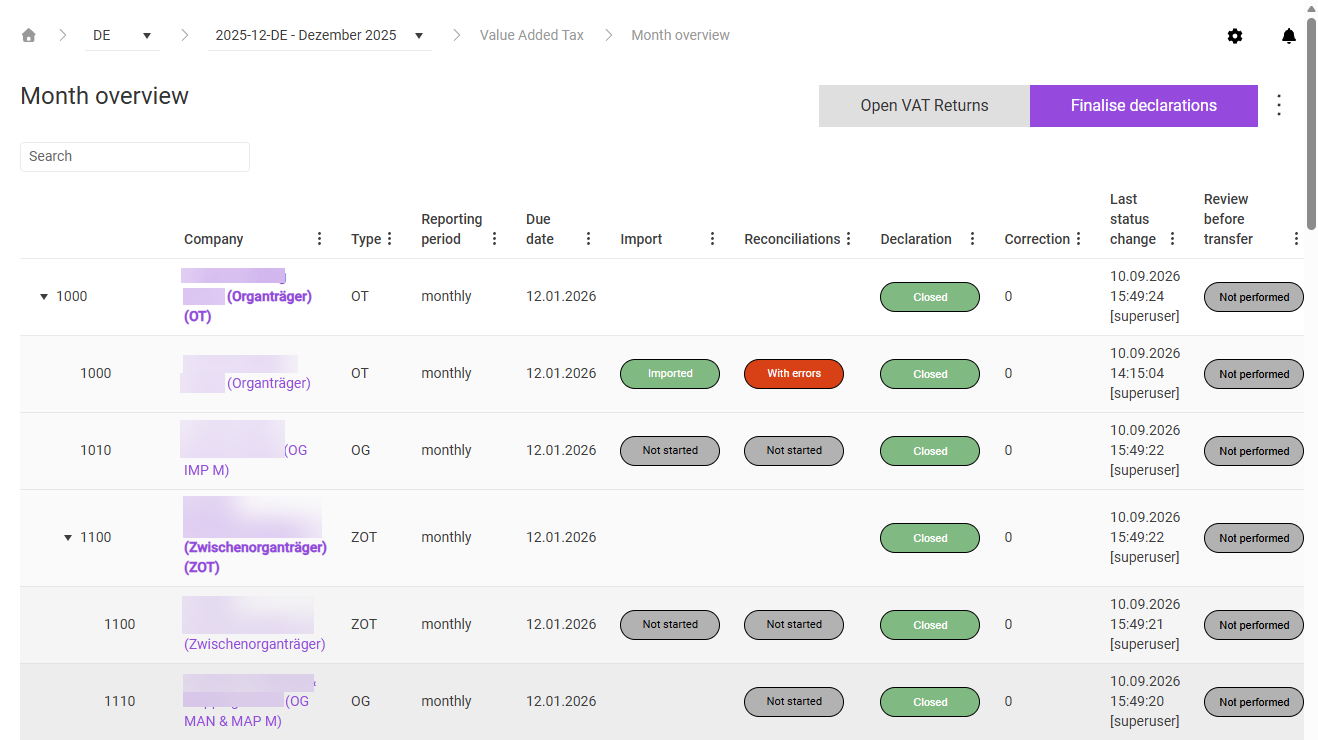
The Month overview in Lucanet VAT (Value Added Tax) provides a tabular overview of the reporting progress of all companies in a period – similar to the Status workspace, but for several companies at once. It displays either all companies of the current VAT group or all standalone companies. Only the companies assigned to the logged-in user are ever visible.
Use the Search field to filter the table by company name or number.
The table of the month overview in VAT shows the following columns:
Column
Description
Company
Company number and name. VAT group total rows appear in bold; each parent company is displayed twice – once as the overall status of the VAT group and once as an individual declaration. Clicking the name opens the Status workspace of the respective company.
Type
VAT group member type of the company (for example OT, ZOT, OG, STA)
Reporting period
Reporting frequency of the company: monthly, every 2 months, quarterly, every 4 months, every 6 months, or annual
Due date
Due date of the declaration, if stored in the Due dates VAT Return workspace in Master data
Import
Status of the data import. Possible values: • No entry: VAT group declarations do not get an import status, because no import takes place for them • Imported: Import successful • Not started: Import pending or company reports manually. Clicking opens the Import workspace of the company. No import status is displayed for VAT group total rows.
Reconciliations
Status of the reconciliations. Possible values: • No entry: VAT group declarations do not get a reconciliation status, because no reconciliations are performed for them • Not started: Not yet performed or no reconciliations configured • With errors: At least one reconciliation has errors • Plausible: All reconciliations passed. Clicking opens the Reconciliations workspace of the company.
Declaration
Status of the declaration. For a description of all possible statuses, see Declaration Status. Clicking opens the declaration or performs a status change.
Correction
Indicates the correction that the declaration is in. The value 0 stands for the original declaration, 1 for the first correction, and so on.
Last status change
User name and time of the last status change of the declaration
Depending on the country settings, additional Review columns can be displayed. For more information, see the section Review.
The status in the Declaration column of the month overview in VAT shows the current processing status of the declaration. In most cases, clicking the status opens the Change of the declaration dialog, in which you choose the possible action under Please select change: and confirm with Apply change:
Status
Meaning
Action by clicking
Not started
The declaration has not been edited yet.
Close VAT Return: results in a nil return – only use in exceptional cases
In work
The declaration is being edited.
Close VAT Return: some rules are ignored, for example the reconciliations do not have to be completed – only use in exceptional cases
Closed
The declaration has been finalized.
Open VAT Return: for example, if inconsistencies were noticed during the review
File created
The transmission file has been downloaded (for countries without direct transmission to the tax office).
Reset the status to Closed (for example, if corrections are still needed after the download)
Sending error
An error occurred during the technical transmission.
Reset the status to Closed: requires the VAT: Reset Send Error - Edit permission
Sent
The declaration was transmitted successfully to the tax office.
Create correction: Click the status to create a correction for the sent declaration.
Paid
The VAT liability has been paid and the payment voucher uploaded (must be activated in the country settings).
Create correction: Click the status to create a correction for the paid declaration.
Depending on the configuration in the country settings, additional review columns can appear in the table of the month overview in VAT. The review implements the four-eyes principle as part of VAT compliance:
Review variant
Description
Review before transfer
Can only be performed or undone if the declaration is closed. If this variant is active, the review must be completed before the declaration can be sent. If the declaration is reopened, the review is reset automatically.
Review after transmission
Is performed after the declaration has been sent.
Both variants can also be configured at the same time, so that different users take on different review roles. With the Review with four-eyes principle setting in the country settings, you can also ensure that the user who closed the declaration cannot perform a review, and vice versa.
Each review variant creates two columns in the month overview in VAT:
Review (before/after transmission): Here the review can be confirmed or withdrawn.
Last status change review: Shows the user and time of the last review status change.
In addition to the general functions, the following functions are available for all displayed companies via the buttons and the three-dot menu (⋮) in the top right corner of the month overview in VAT:
Function
Description
Open VAT Returns
Reopens all closed declarations of the displayed companies, provided they have not yet been sent to the tax office.
Finalise declarations
Closes all declarations of the displayed companies. Some rules are ignored in the process – for example, the reconciliations do not have to be completed. Only use this function in exceptional cases, for example if a due date is at risk.
Run reconciliations (three-dot menu ⋮)
Performs the reconciliations for all displayed companies. Not all companies can be reconciled, for example if no import has taken place yet, if the European Sales List is still open – relevant for reconciliation 9 – or if the declaration is already closed.
This content was generated using AI and reviewed by Lucanet subject matter experts before publication.