On this page, you will find information about the structure of the user interface in Lucanet VAT (Value Added Tax) and about the general functions that work the same way in all or most workspaces – for example, exporting, searching, and sorting tables. The pages of the individual workspaces only describe the functions that exist exclusively there.
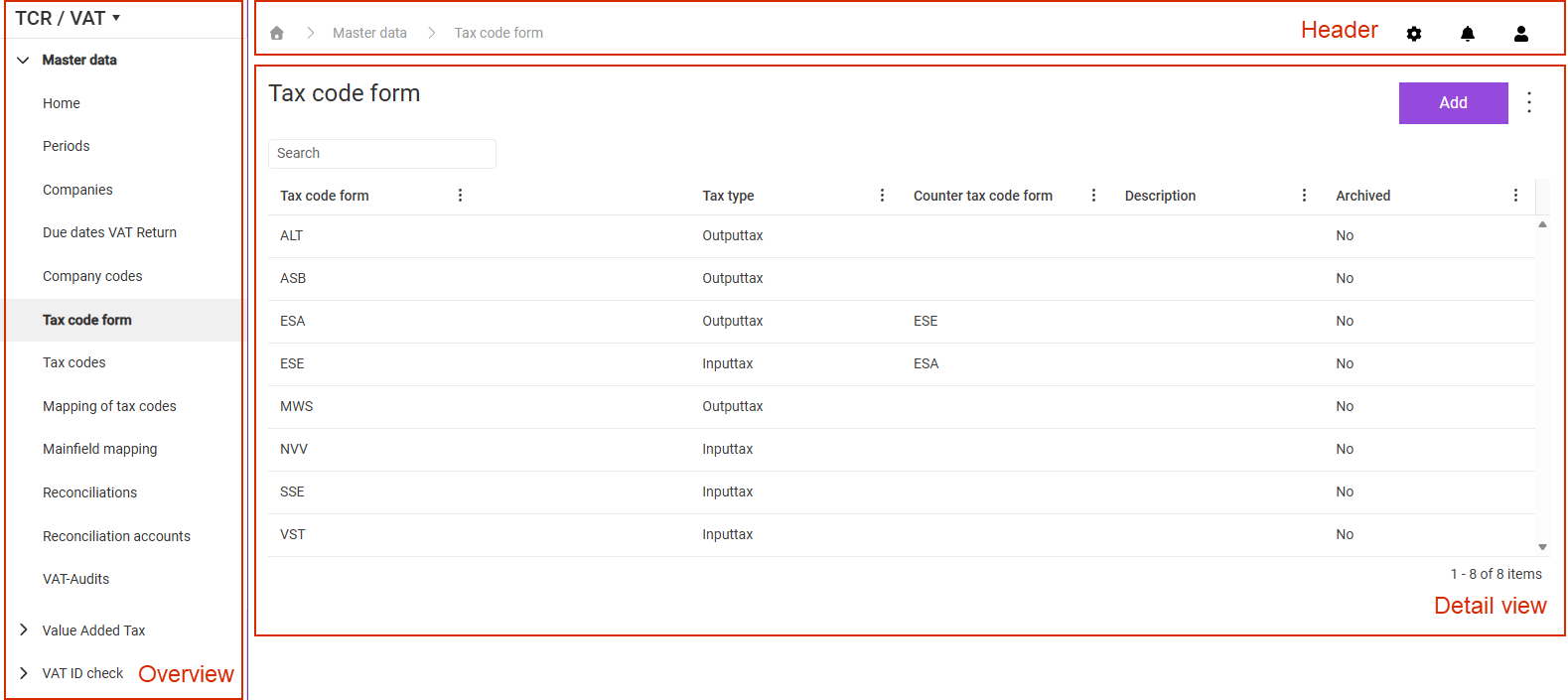
The user interface of VAT has the same structure in all workspaces and is displayed as follows, for example:
User interface of VAT using the example of the 'Tax code form' workspace
The following elements are available in the user interface of VAT:
Element
Description
Header
Contains the breadcrumb navigation on the left and three icons on the right: - Breadcrumb navigation: Shows your current location within VAT. Click the house icon to open the start page. Use the drop-down lists to change the reporting country, the period, and the company that all workspaces refer to. The kind of period – preliminary return, annual return, or special prepayment – together with the company type determines which workspaces and steps are available. - Gear icon: Opens the overview of the settings, for example the Interface configuration and the Connection parameter. Some pages of this documentation refer to these settings when a function requires a specific configuration. - Bell icon: Opens the notifications side panel on the right edge. There you track the creation of reports: you cancel running reports via the X icon, download finished reports via the file name, or delete them via the trash can icon (see Creating and Downloading Reports). - User icon: Opens a side panel with your user information. There you open the My profile workspace with your personal data, security settings, and system settings, open the User manual and the Release notes, see the version of the application and the database, and log out of VAT via Logout.
Overview
Lets you switch between the workspaces of the individual functional areas on the left edge, for example Value Added Tax or Master data. Which workspaces the overview displays depends on the chosen company, the kind of period, and your permissions.
Detail view
Displays the contents of the opened workspace, usually as a table. The buttons of the workspace and the three-dot menu (⋮) with additional functions are located in the top right corner (see section Functions in the Three-Dot Menu). General functions such as searching, sorting, and page navigation are available for tables (see section Functions in Tables).
The buttons of a workspace depend on the workspace and are described on the respective page. The three-dot menu (⋮) in the top right corner contains additional functions of the workspace. The following functions recur in several VAT workspaces:
Function
Description
Export table (Excel)
Exports the displayed table as an Excel file. Available in all workspaces with a table.
Export table (PDF)
Exports the displayed table as a PDF file. Available in all workspaces with a table.
Expand all/Collapse all
Expands or collapses all levels in hierarchical tables. Available in the month overview and the year overview of the Value Added Tax and European Sales List functional areas.
Download of file to be sent
Downloads the file that is used when sending to the tax authority. The status of the declaration remains unchanged – use this function to check the declaration file before sending it. Available in the Send declaration workspace of the Value Added Tax and European Sales List functional areas.
The following functions are available in the tables of the VAT workspaces:
Function
Description
Search
Filters the table via the Search field above the table, for example by company name or number.
Sort
Sorts the table in ascending or descending order when you click a column heading. An arrow icon in the column heading shows the current sort order.
Column menu
Opens the following options via the menu icon in the column heading: - Sort ascending: Sorts the table by this column in ascending order. - Sort descending: Sorts the table by this column in descending order. - Filter: Filters the table by a value in this column. - Columns: Expands the list of available columns. Activate or deactivate the check boxes to show or hide columns, and confirm with Save. Click Reset to restore the default columns.
Page navigation
Displays large tables page by page. Use the navigation elements below the table to switch between pages and to adjust the number of records per page.
This content was generated using AI and reviewed by Lucanet subject matter experts before publication.