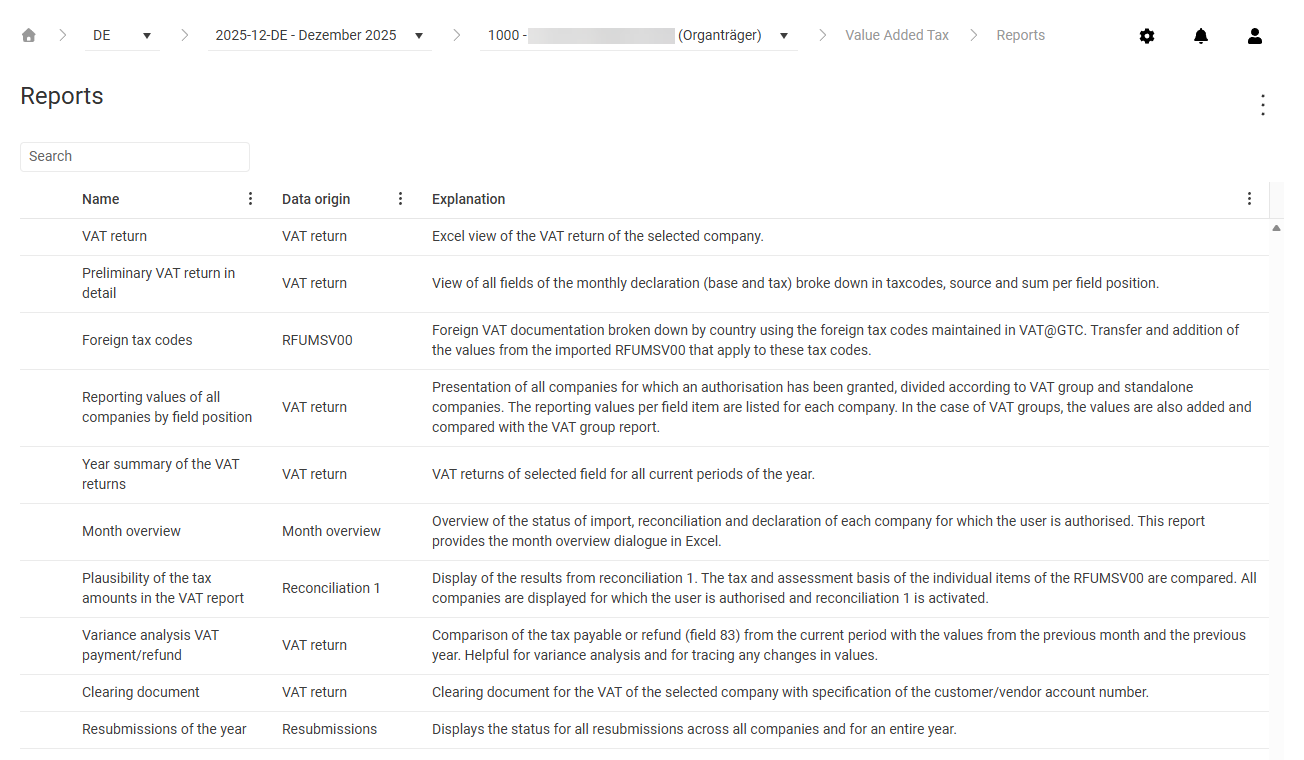
In the Reports workspace in Lucanet VAT (Value Added Tax), various Excel reports for analyzing the VAT data are available. Which reports VAT displays depends on the chosen company type and the kind of period – preliminary return, annual return, or special prepayment.
You can also import your own Excel reports as templates and then create them like the supplied reports.
The Reports workspace in VAT shows a table with all available reports. Use the Search field to filter the table. The table contains the following columns:
To create a report in VAT, click anywhere in the row of the required report. The notifications side panel is displayed and shows the progress of the report creation. While the report is being created, you can continue working in VAT and create further reports. You can also open the side panel at any time via the bell icon in the header.
As soon as the report is finished, the file name is displayed in the side panel. Click the file name to download the report. To cancel the creation of a report, click X. To delete a finished report that you no longer need, click the trash can icon.
You can import your own Excel template to make additional reports available in VAT. The imported report is then displayed in the table of the workspace and can be created there like the supplied reports.
The Import function is only visible if your role allows you to import report templates.
Proceed as follows to import a custom Excel report in VAT:
1
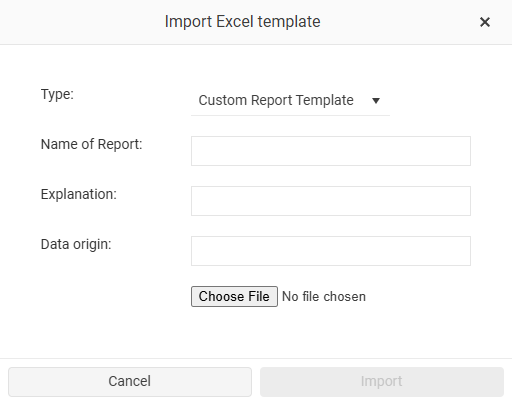
In the three-dot menu (⋮) in the top right corner, click Import. The Import Excel template dialog is displayed:
'Import Excel template' dialog
2
Check the Type drop-down list. For importing your own report, the type Custom Report Template is preselected; only system administrators can choose a different type.
3
In the Name of Report field, enter the name under which the report is to be displayed in the table.
4
In the Explanation field, enter a short description of the report content.
5
In the Data origin field, enter the data source that the report is based on. The entries from the Explanation and Data origin fields are displayed in the columns of the same name in the table.
6
Click Choose File and choose the Excel file in XLSX format.
7
Click Import. The button is only active once you have chosen a file. VAT adds the report to the table.
This content was generated using AI and reviewed by Lucanet subject matter experts before publication.