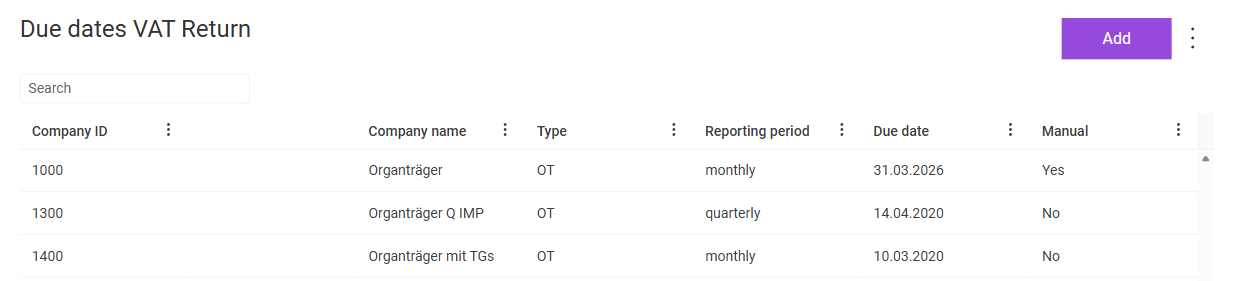
In the Due dates VAT Return workspace in Lucanet VAT (Value Added Tax), you manage the submission deadlines of the VAT declarations per company. This allows you, for example, to specify foreign deadlines that often differ from the standard German deadlines, for example due to country-specific requirements or after revenue thresholds are exceeded.
You maintain the due dates manually per company or let VAT determine the due dates via the Calculate due dates function. VAT displays the due date, for example, in the Month overview in the Value Added Tax functional area.
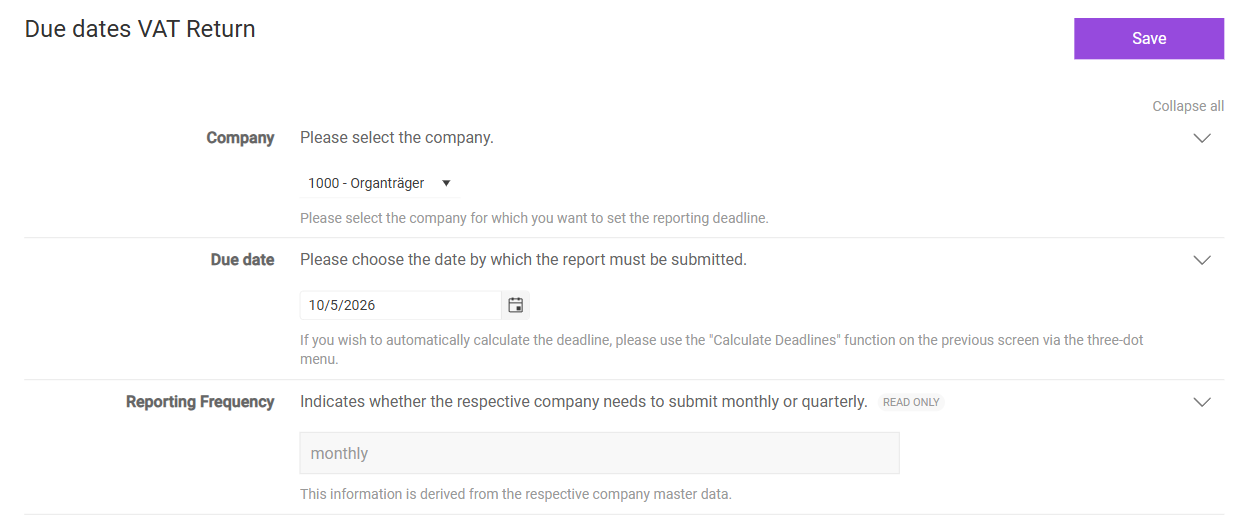
In the Due dates VAT Return workspace, click Add. The page for creating a due date is displayed:
Page for creating a due date
2
Fill in the fields. For a description of the fields, see the following table.
3
Click Save.
The following fields are available when you create and edit a due date:
Field
Description
Company
Specifies the company for which you create the due date.
Due date
Specifies the date by which you must send the VAT declaration on time. Alternatively, VAT calculates the due date via the Calculate due dates function, as described in the section Calculating Due Dates in VAT.
Reporting Frequency
Displays whether the company reports monthly or quarterly. VAT takes over the value from the master data of the company in the Companies workspace. The field is read-only.
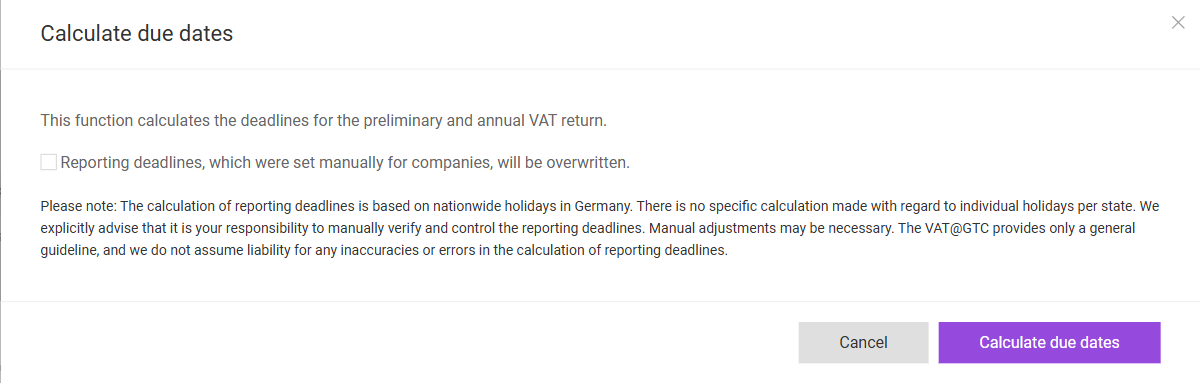
As an alternative to manually maintained due dates, you can have VAT calculate the submission deadlines of the preliminary return and the annual return for all companies automatically. The calculation is based on the nationwide public holidays in Germany; VAT does not take into account public holidays of individual federal states. Therefore, check the calculated due dates and adjust the due dates manually if necessary.
To calculate the due dates in VAT:
1
In the Due dates VAT Return workspace, click the three-dot icon (⋮) in the top right corner.
2
Choose Calculate due dates. The Calculate due dates dialog is displayed:
'Calculate due dates' dialog
3
Activate the check box if VAT should also overwrite the due dates that you have set manually for companies.
4
Click Calculate due dates.
In the Manual column, VAT displays whether you have set a due date manually.
In addition to the general functions, the Calculate due dates function is available in the Due dates VAT Return workspace in VAT via the three-dot menu (⋮) in the top right corner. Use this function to calculate the due dates, as described in the section Calculating Due Dates in VAT.
This content was generated using AI and reviewed by Lucanet subject matter experts before publication.